Managing projects in Jira can get repetitive. Creating similar tasks, bugs, or epics over and over again eats into time and increases the risk of inconsistencies. While native Jira doesn't offer true ticket templates, it does provide several built-in features and workarounds that let you standardize issue creation and streamline workflows. Let’s save hours per sprint by using Jira’s native capabilities creatively!
Step 1: Use Default Field Values in Next-Gen Projects
Jira Cloud’s team-managed (formerly next-gen) projects allow you to set default values for certain system fields like Description. This is useful for providing template-like structure directly within native Jira.
How to set it:
- Go to Project Settings > Issue Types.
- Select an issue type (e.g., Task or Bug).
- Add default content in the Description or custom fields.
💡For more complex default structures, consider using a text field with checklist items or user story formatting. Apps like Issue Templates for Jira can help enforce and automate this structure when needed.
Step 2: Leverage Jira’s Built-In Project Templates
Jira provides predefined project templates tailored for different use cases. These templates create a structure that mimics repeatable work, such as Scrum, Kanban, or bug tracking.
Useful project templates include:
- Scrum & Kanban Boards- Ideal for Agile workflows.
- Bug Tracking- Preconfigured for QA processes.
- Content Management- Organizes marketing work.
- HR Onboarding- Standardizes hiring and onboarding tasks.
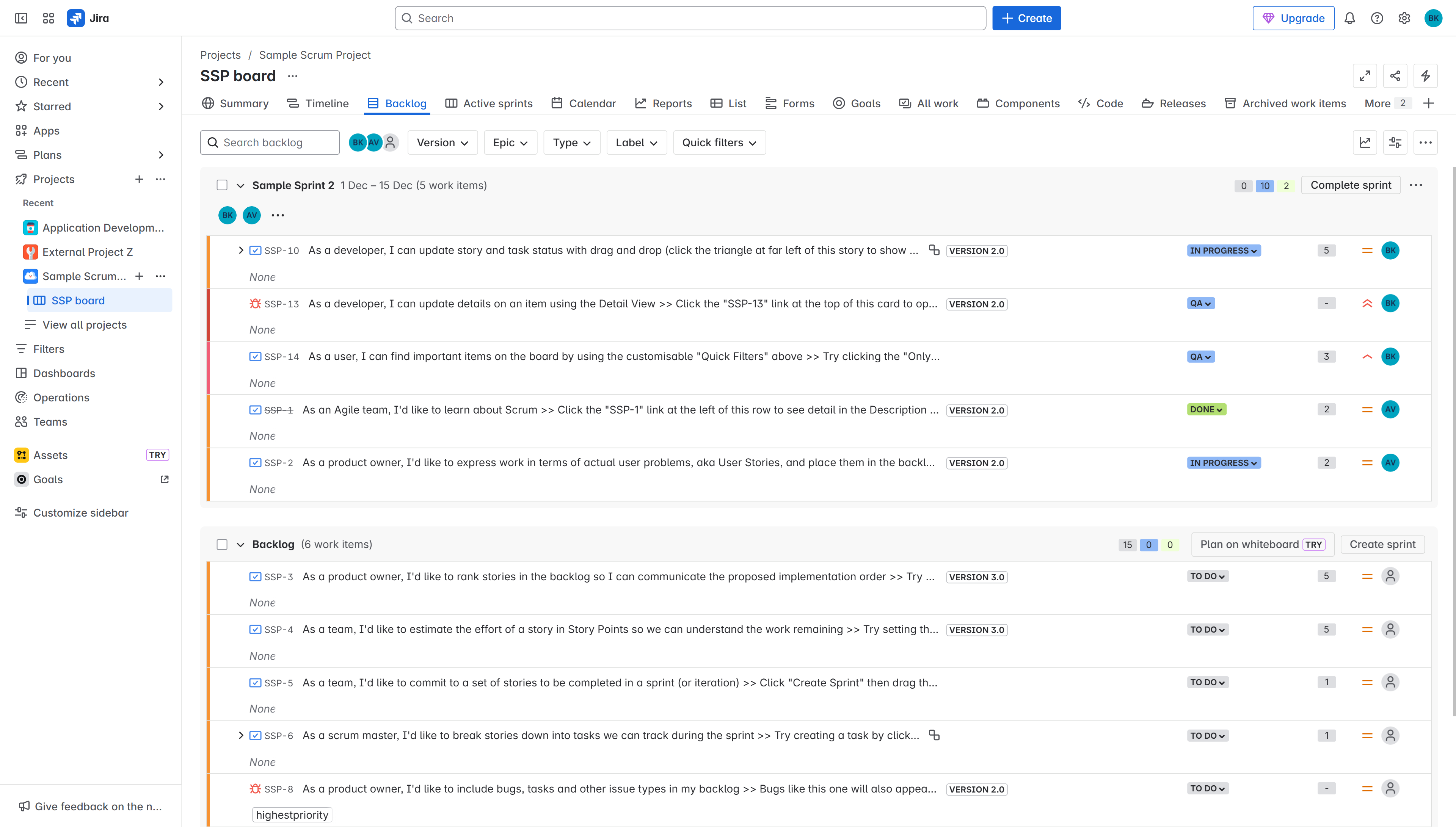
Jira scrum board template
These templates serve as an excellent starting point for consistent setups across teams.
Step 3: Create Reusable Issues with Manual Copying
Even without true templates, you can mimic the effect by manually copying well-structured issues.
To reuse a task manually:
- Open an existing, well-documented issue.
- Click the three-dot menu.
- Select Clone.
- Modify relevant fields for the new context.
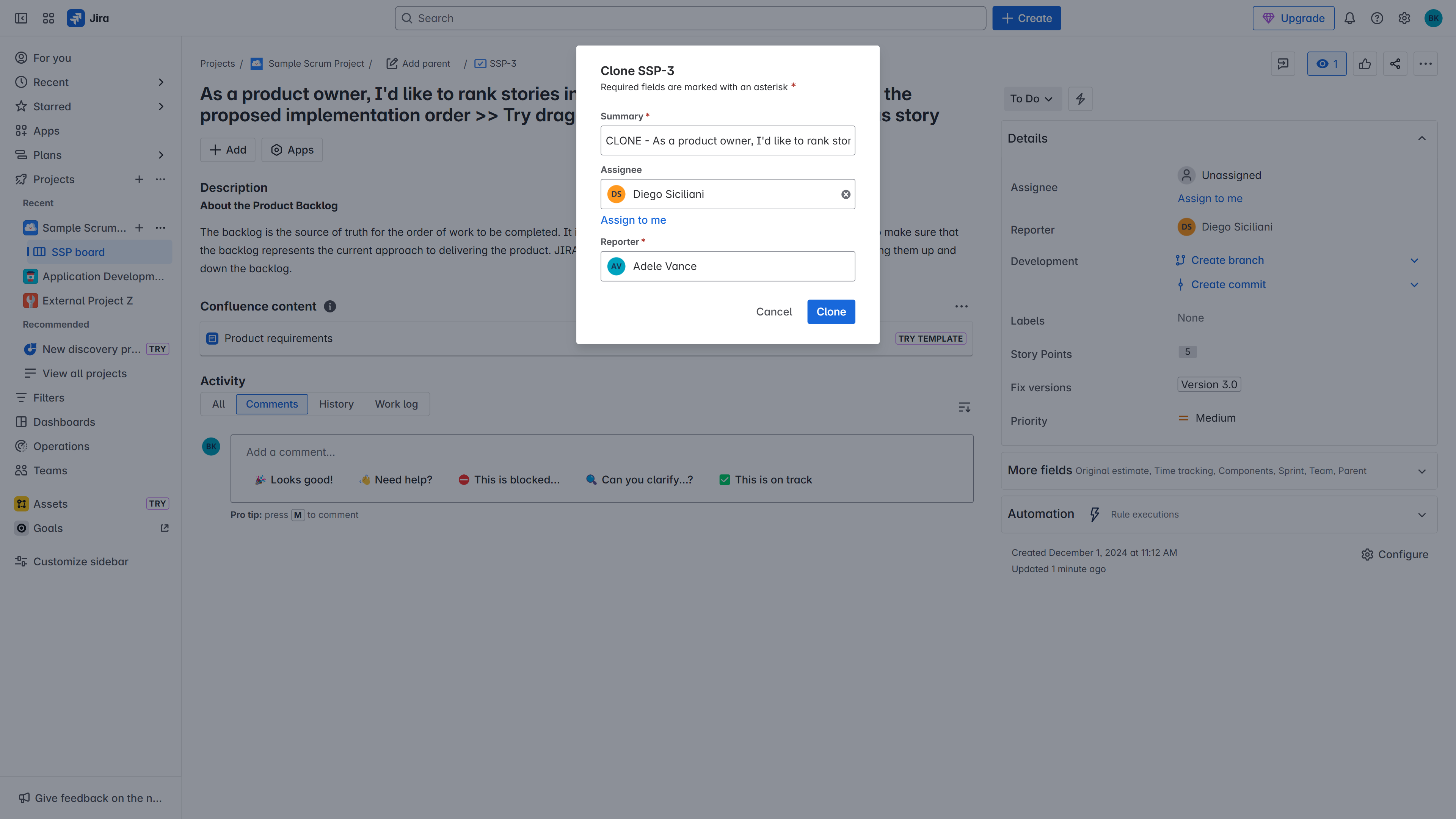
Cloning in Jira
💡For bulk duplication, linked structures, or automatic population of fields, apps like Issue Templates for Jira offer features such as cloning with subtasks and maintaining issue links.
Step 4: Configure Issue Layouts to Highlight Key Fields
Admins can customize the issue layout to make certain fields mandatory or more visible, ensuring important information is always captured.
Steps:
- Go to Project Settings > Work items> Layout.
- Click Edit issue layout.
- Drag and drop fields where needed.
- Save the changes.
This helps ensure consistency in how tickets are viewed and completed.
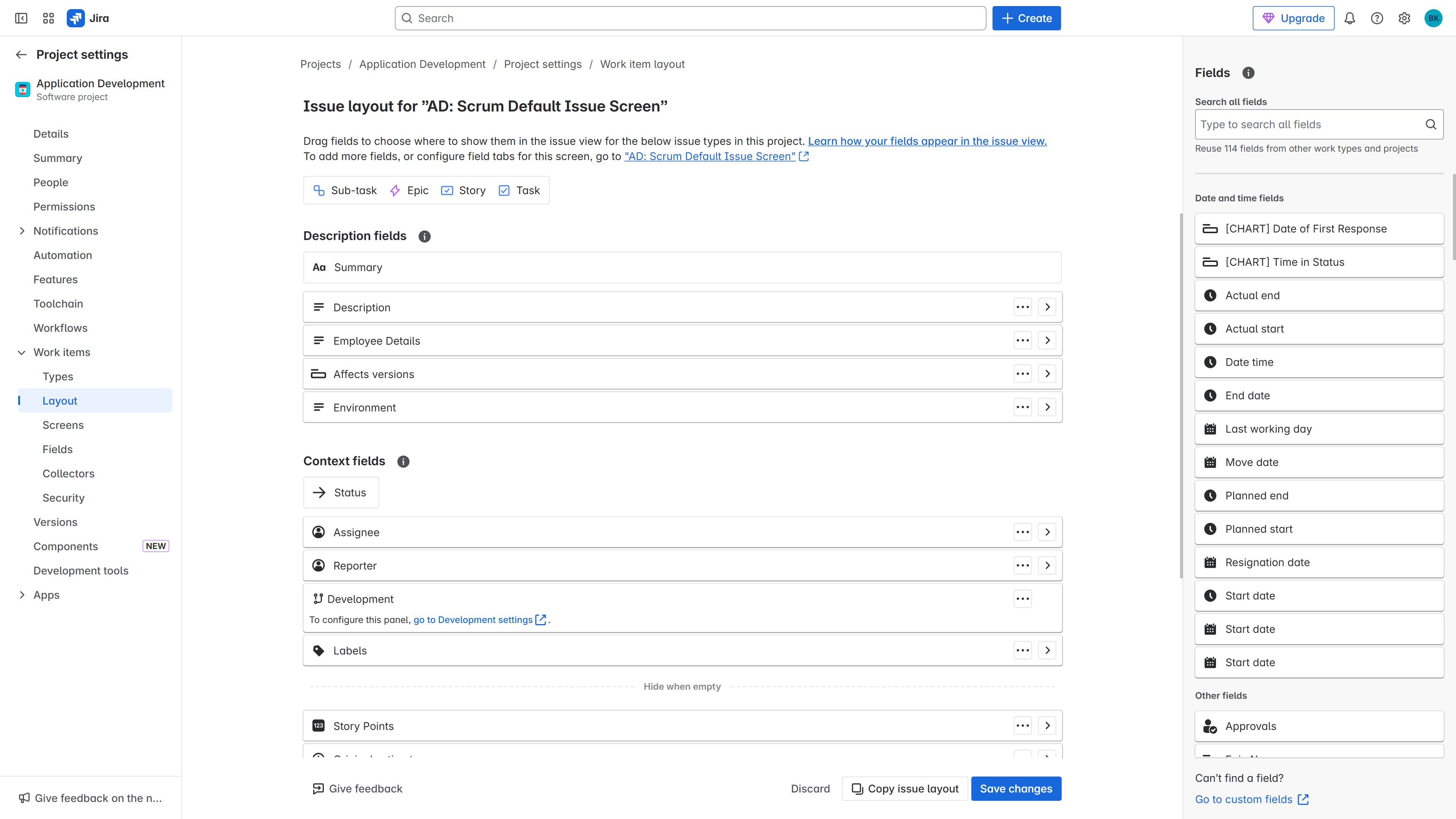
Configuring issue layout in Jira
Step 5: Use Custom Fields to Add Structure
You can use text or dropdown custom fields as a workaround for structured templates.
Example:
- Create a custom multi-line text field called “Checklist” or “Steps.”
- Provide a standard structure within the default value.
Although Jira doesn’t enforce formatting, providing placeholders encourages users to follow best practices. Apps can offer better enforcement if your process requires stricter compliance.
Step 6: Create Epic Structures Manually
Jira allows you to create epics with child issues manually. Once you’ve built a standard structure, you can clone and reuse the epic with its linked tasks.
Steps:
- Create a new Epic.
- Add child stories or tasks.
- Clone the Epic and update issue links as needed.
💡If your team frequently recreates the same epic structure, the Issue Templates for Jira app allows you to create a template and deploy an entire issue tree with a single click.
Step 7: Document and Train for Consistency
Even the best structure fails if your team isn’t aligned. Write short internal guidelines for creating issues using your “template” methods.
Tips:
- Document how to use default fields.
- Encourage cloning of reference tasks.
- Train new users on the issue layout and custom fields.
- Periodically review and improve your approach based on feedback.
Summary
Jira may not offer built-in issue templates per se, but with a few clever native features- like default values, project templates, cloning, and layout customization- you can create a repeatable and consistent workflow. Start simple. Optimize natively. Scale with apps when needed. How do you use templates? Share in the comments.
