Compass recently released an update to our Custom Webhooks for Compass app to support the Incident event type. Using this feature, you can now create a Custom Webhook to receive Incident events from ServiceNow.
This guide will walk through all of the set up steps needed in Compass and in ServiceNow to build this integration. Please note that some of these screenshots and instructions may be slightly different depending on your version of ServiceNow.
Set up in Compass
If you have not already, install the Custom Webhooks for Compass app and navigate to the Webhooks page.
Step 1: Create a Webhook
- Click Create to add a new Webhook and choose Incident as its event type.
- Set a name and description and click Next
Step 2: Create payload mapping from ServiceNow to Compass
On the next screen, add the following payload mappings for each field:
-
Incident state → .incident.state
-
Incident ID → .incident.id
-
Incident event URL → .incident.url
-
Incident severity level → .incident.severity.level
-
Incident severity label → .incident.severity.label
-
Incidents will appear on the timeline with their Priority from ServiceNow, i.e. "1 - Critical"
-
If you would prefer Incidents to appear only as an Icon on the component timeline, leave this mapping blank.
-
Incident event name → .incident.name
-
Incident event description → .incident.description
-
Start time → .incident.startTime
-
End time → .incident.endTime
-
Update sequence number and Last event update: leave these blank, as we will be using the provided defaults for these fields.
Step 3: Map ServiceNow state and priority level to Compass
On the next screen, we will be mapping ServiceNow Incident states and their Priority level to their Compass equivalents.
Feel free to make any changes to these mappings to fit your individual workflow. If you have created any custom states in ServiceNow, be sure to map those values as well.
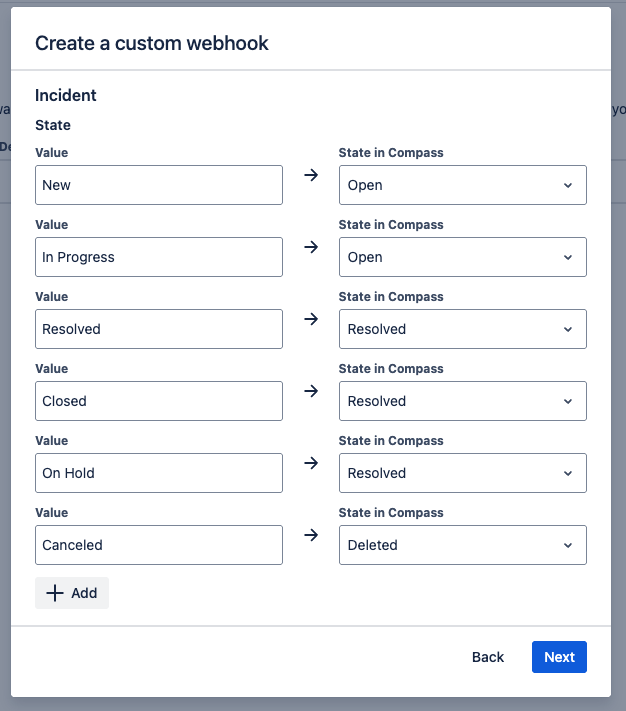
Suggested mappings for ServiceNow incident states:
-
New → Open
-
In Progress → Open
-
Resolved → Resolved
-
Closed → Resolved
-
On Hold → Resolved
-
Canceled → Deleted
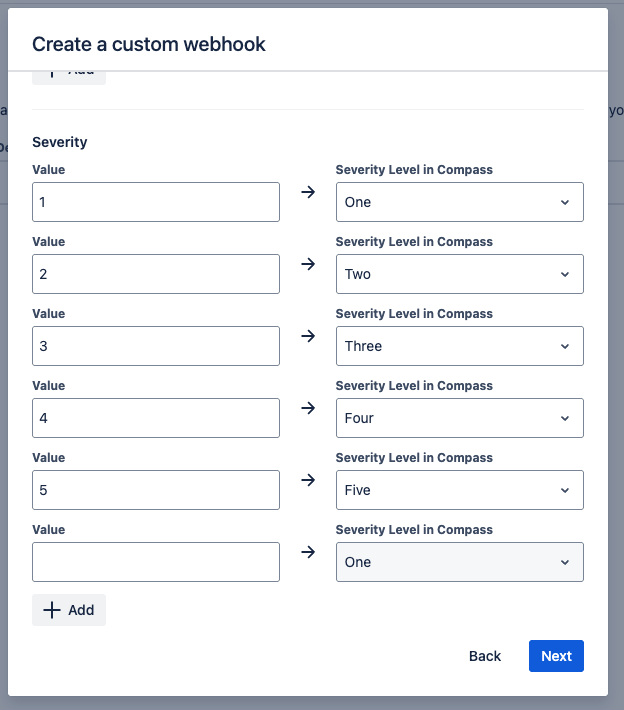
Suggested mappings for incident Priority:
-
1 → ONE
-
2 → TWO
-
3 → THREE
-
4 → FOUR
-
5 → FIVE
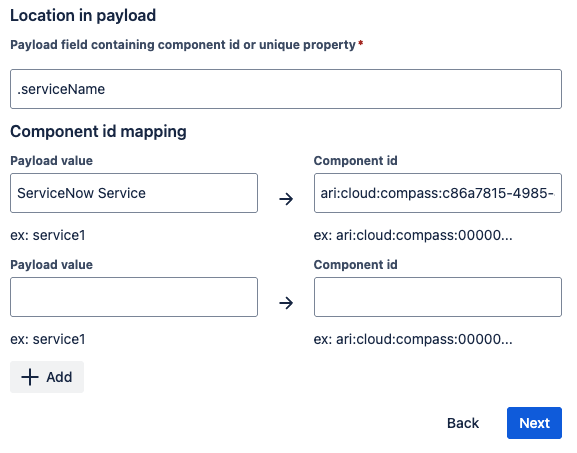
Step 4: Map ServiceNow services to their Compass Components
On the next screen, we will be creating forwarding rules that will match services in ServiceNow to their corresponding Compass components.
Step 5: Save your webhook
Submit the form to save your webhook. Then click the Copy button on the main screen to copy the URL of your new webhook.
Set up in ServiceNow
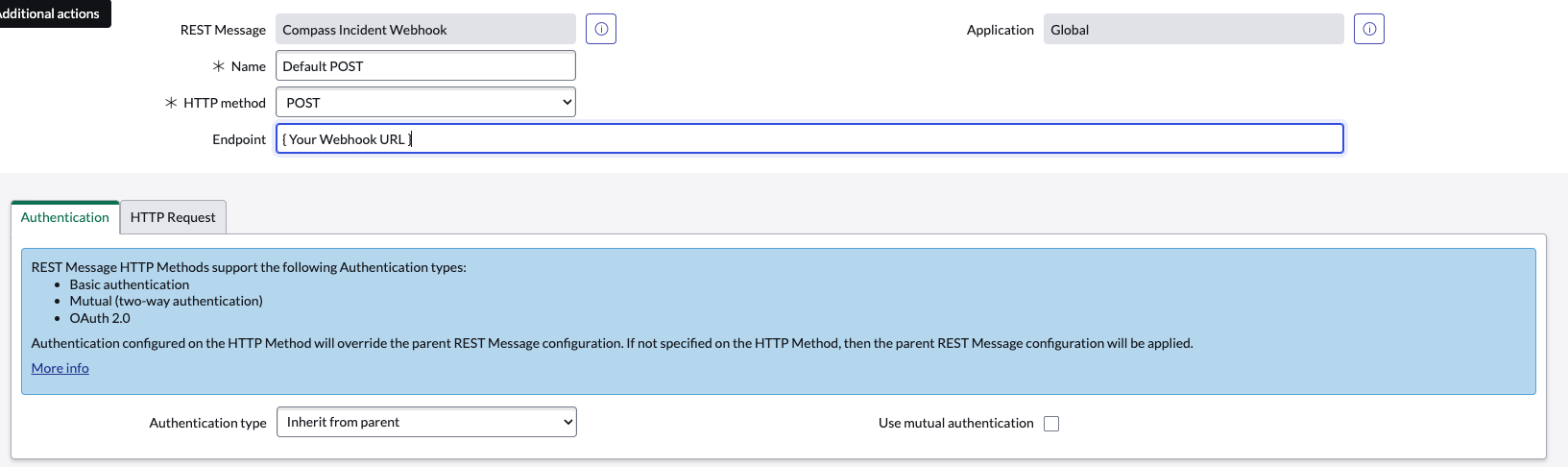
Step 1: Configure an outbound webhook message
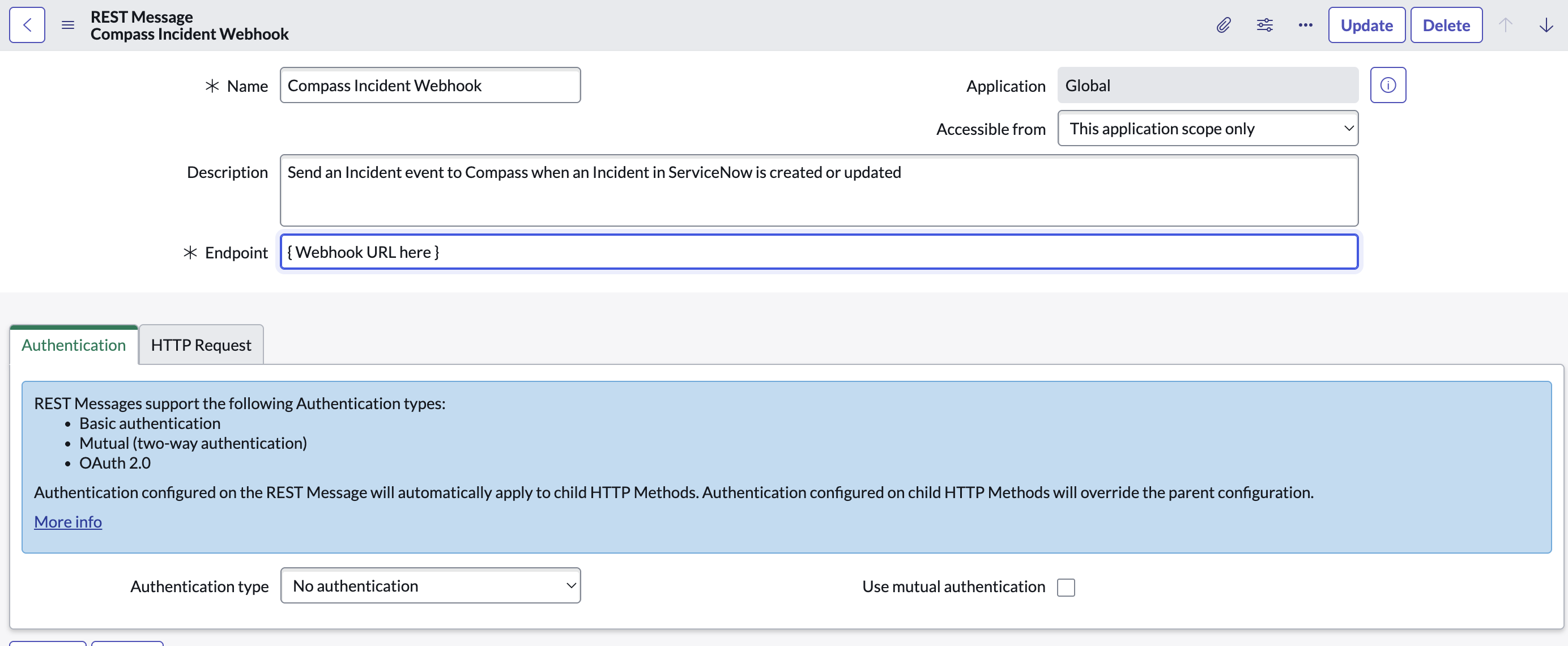
After saving your new REST Message, open it again to edit it. View its HTTP Methods at the bottom of the page and click New to add a new HTTP Method:
{
  "incident": {
    "state": "${state}",
    "name": "${incidentName}",
    "description": "${incidentDescription}",
    "id": "${incidentId}",
    "url": "${url}",
    "startTime": "${startTime}",
    "endTime": "${endTime}",
    "severity": {
        "level": "${severity}",
        "label": "${severityLabel}"
    }
  },
  "serviceName": "${serviceName}"
}
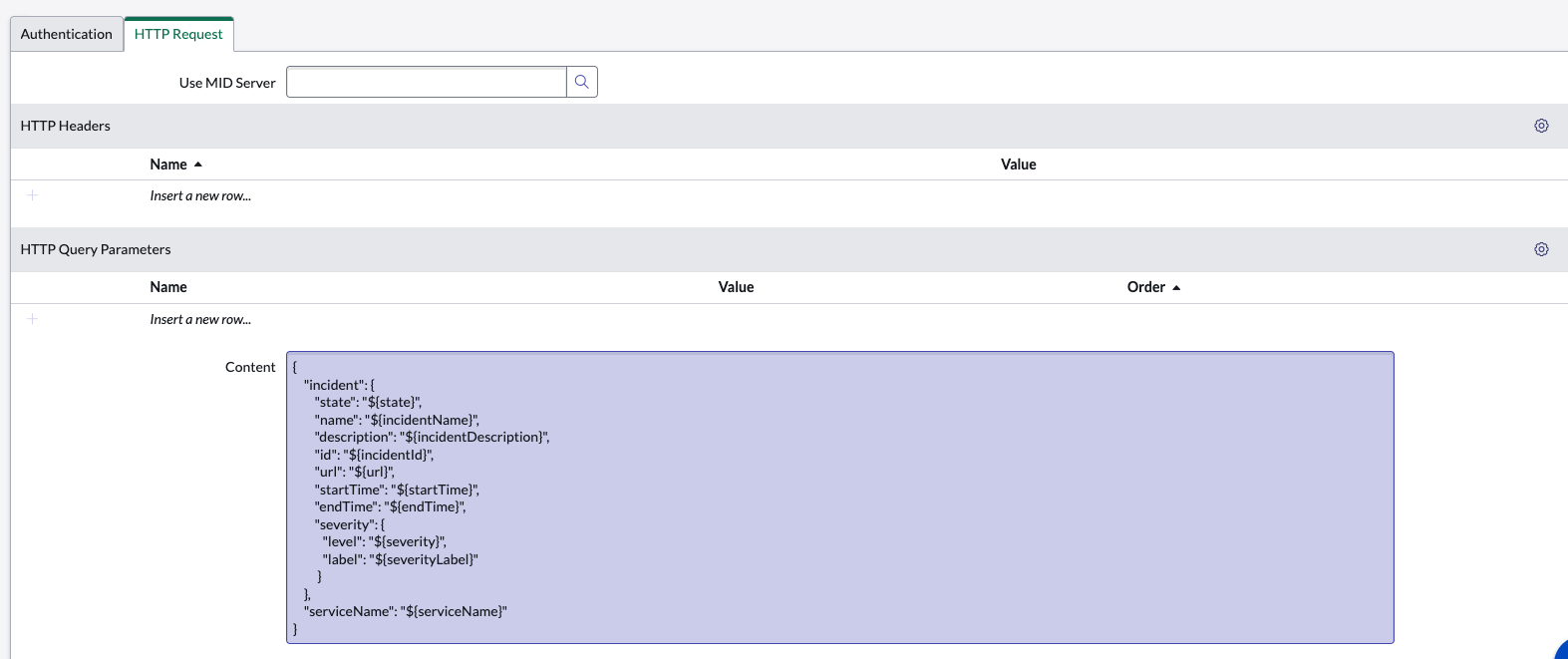
- Save your new Outbound REST Message
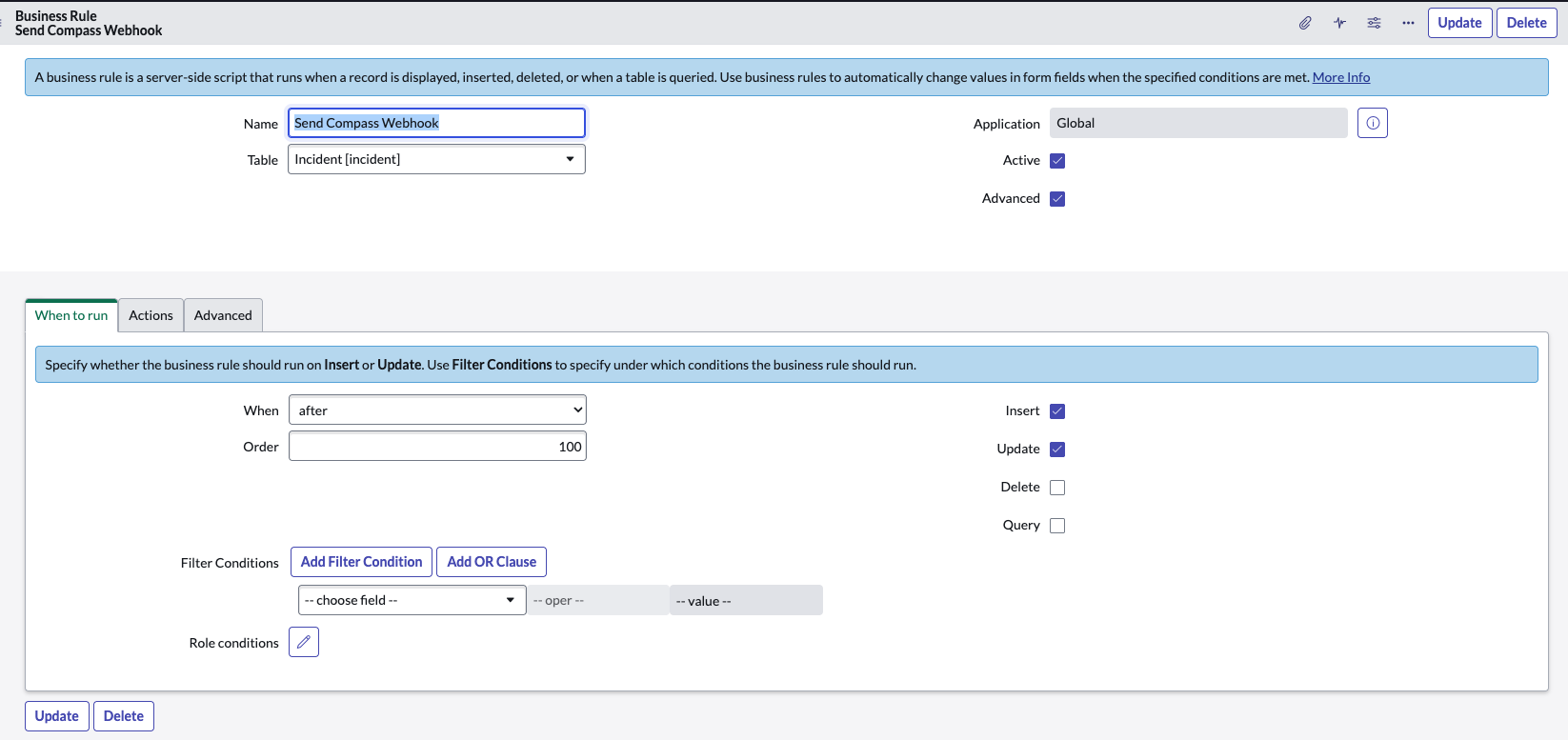
Step 2: Configure a Business Rule to send your webhook message
Now that an outbound webhook message is configured, we need to add a Business Rule that will trigger this message to be sent whenever an Incident is created or updated.
(function executeRule(current, previous) {
    var responseBody;
    var status;
    var sm;
    try {

      // The name of your Outbound REST Message and Method must match exactly
      sm = new sn_ws.RESTMessageV2('Compass Incident Webhook', 'Default POST');

      // Set timeout of 10 seconds
      sm.setHttpTimeout(10000);

      // Build request body
      sm.setStringParameter('severity', current.priority);
      sm.setStringParameter('severityLabel', current.priority.getDisplayValue());
      sm.setStringParameter('state', current.state.getDisplayValue());

      // You must create a mapping of this service name to a Compass Component in the Custom Webhooks App
      sm.setStringParameter('serviceName', current.business_service.name);

      sm.setStringParameter('incidentId', current.sys_id);
      sm.setStringParameter('incidentName', current.short_description);
      sm.setStringParameter('incidentDescription', current.description);

      var url = 'https://' + gs.getProperty('instance_name') + '.service-now.com/' + current.getTableName() + '?sys_id=' + current.sys_id;
      sm.setStringParameter('url', url);

      // Convert datetimes from ServiceNow
      // See: https://www.servicenow.com/community/service-management-forum/how-to-convert-servicenow-ticket-created-date-in-to-iso-8601/m-p/390683
      var original = current.opened_at.toString();
      var dt = original.split(' ');
      var f = dt[0].split('-');
      var t = dt[1].split(':');
      var event = new Date(f[0], f[1] - 1, f[2], t[0], t[1], t[2]);
      var startTime = event.toISOString();
      sm.setStringParameter('startTime', startTime);

      if (current.resolved_at || current.closed_at) {
         var endDate = current.resolved_at || current.closed_at;
         var originalEnd = endDate.toString();
         var endDt = originalEnd.split(' ');
         var endF = endDt[0].split('-');
         var endT = endDt[1].split(':');
         var closedEvent = new Date(endF[0], endF[1] - 1, endF[2], endT[0], endT[1], endT[2]);
         var endTime = closedEvent.toISOString();
         sm.setStringParameter('endTime', endTime);
      } else {
         sm.setStringParameter('endTime', '');
      }

      // Send request
      response = sm.execute();
      responseBody = response.haveError() ? response.getErrorMessage() : response.getBody();
      status = response.getStatusCode();
  } catch (ex) {
     responseBody = ex.getMessage();
     status = '500';
  }
}(current, previous));
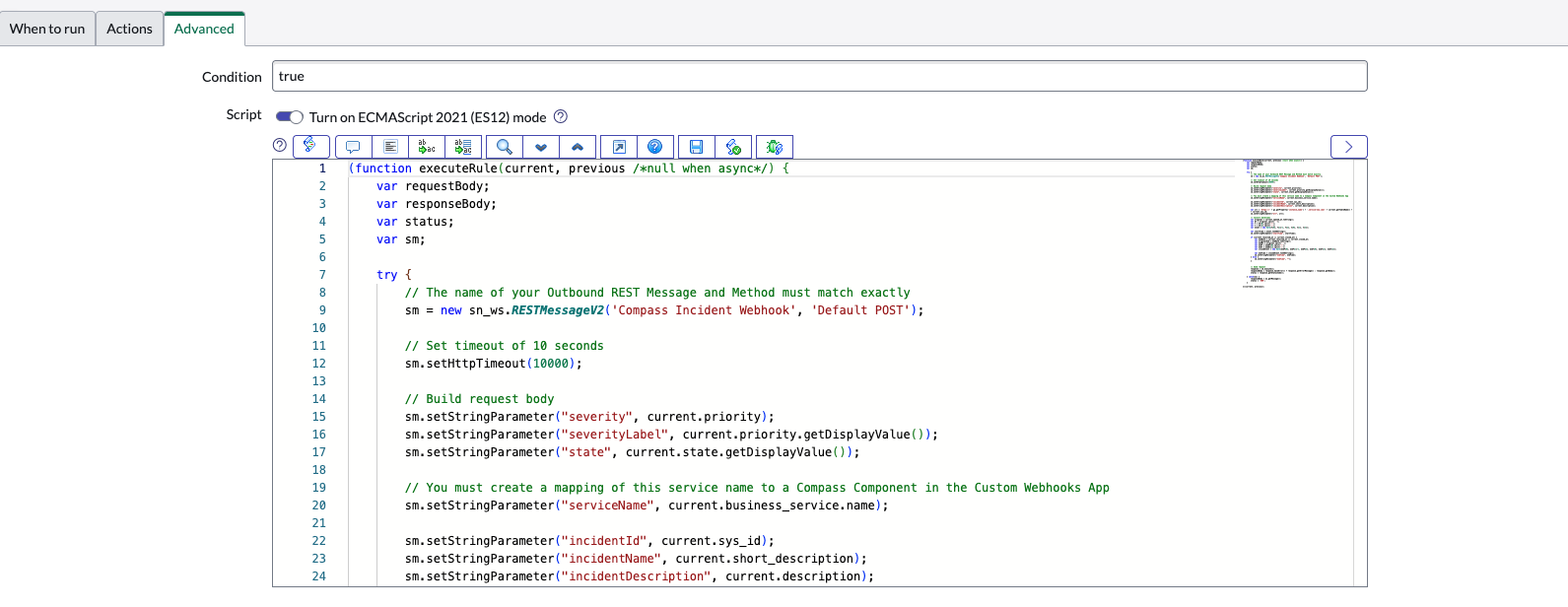
Now whenever an Incident is created or updated in ServiceNow, it will send a webhook message to Compass. As long as a Compass component is correctly mapped to a service name in ServiceNow, it will receive Incident events on its timeline.
Please reach out to Compass Support if you have any difficulties following this guide or setting up your Incident webhook!


