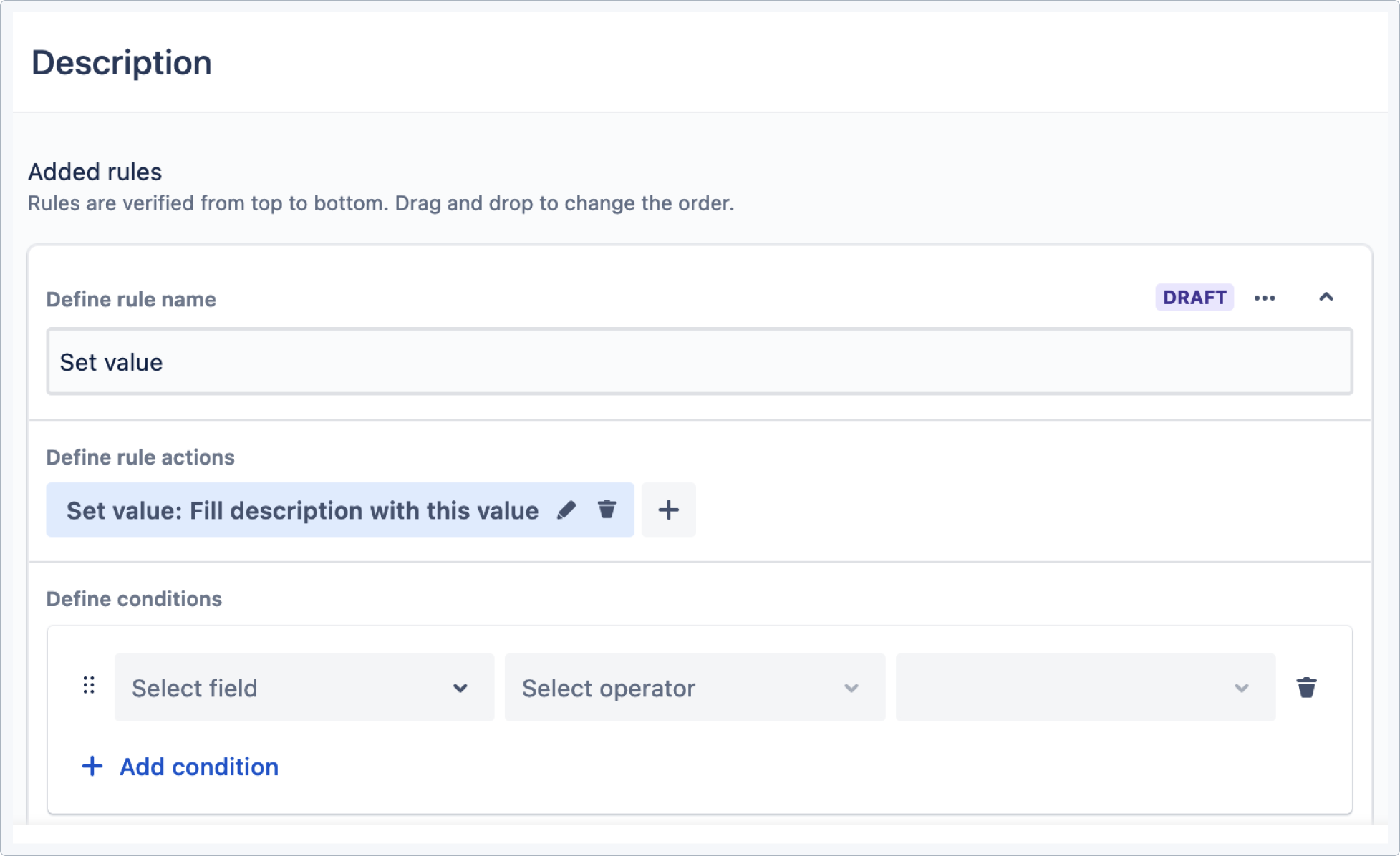
Managing forms in Jira often means keeping field options up to date. As teams evolve, new versions are released, sprints change, and assignees shift. Manually updating form options to match these changes takes time and can lead to outdated selections, errors, and extra work. Smart Forms for Jira now supports additional field types for dynamic pre-fill. Instead of manually entering options, forms can pull data directly from Jira fields and stay updated in real time to reflect the most current Jira data. 
Keeping Forms Updated
Jira projects constantly evolve—new versions are released, teams change, and sprints are updated. Manually managing form options means:
- Users must regularly check and update forms to reflect new field values.
- There’s a risk of outdated selections, leading to incorrect assignments or missing options.
- Form managers must constantly review selections and manually adjust them.
What You Can Pre-Fill in Forms
Now, Smart Forms can dynamically fetch values for:
✅ User Picker – Automatically load options for Reporter, Assignee, and other user-based fields (except Watcher).
✅ Component Fields – Pull values from Components or any custom component-type fields.
✅ Version Picker – Keep Fix Versions and Affects Versions synced with Jira.
✅ Sprint Picker – Always offer the latest active sprints.
✅ Parent Fields – Auto-populate Epics and other hierarchical fields.
How to Set Up Dynamic Pre-Fill
-
Create or Edit a Form
Open Smart Forms for Jira, select an existing form or create a new one.
-
Add a Single or Multi-choice Field Type
Name the field and set it up.
-
Enable Pre-Fill from Jira
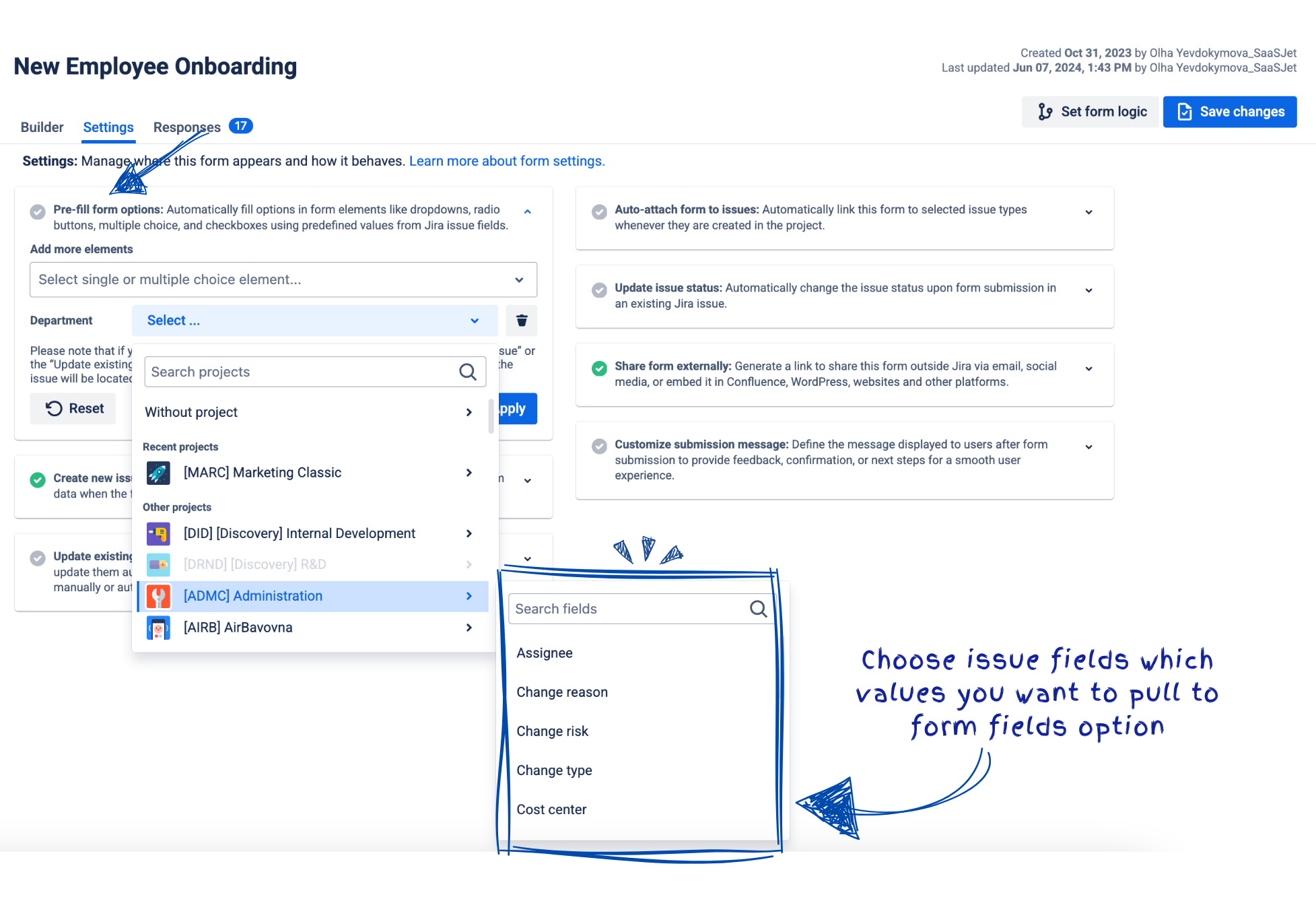
- Click the field’s settings icon or go to setting tab and choose your fields for pre-population
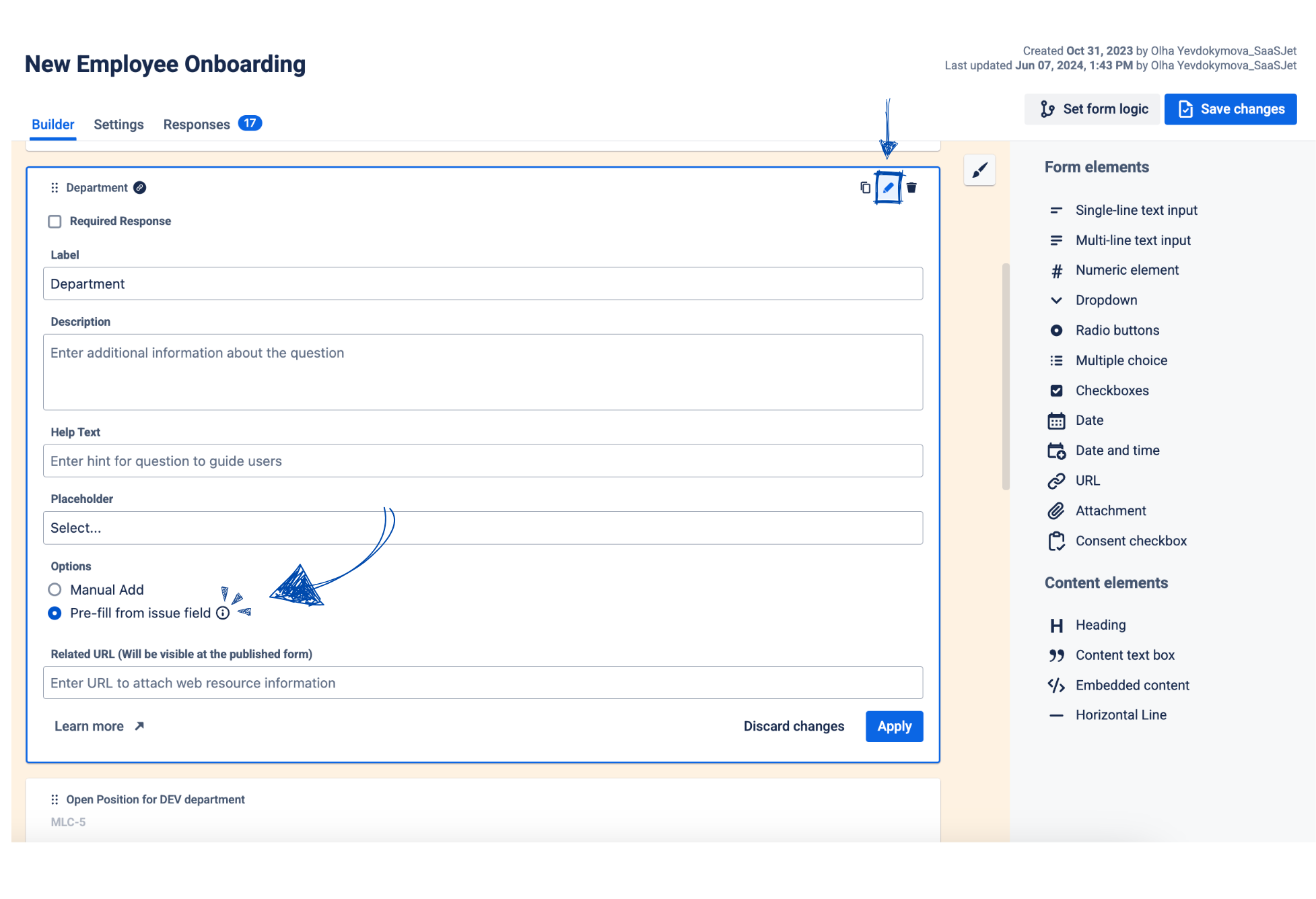
- Select Populate Options from Issue Field.
- Choose the Jira field to pull data from.
-
Check and save the Form
Once saved, the form will automatically fetch Jira data whenever it's used, ensuring options are always up to date.
Security Considerations
🔒 User Picker fields can only be pre-filled within the same Jira instance for security reasons. This ensures that only users with appropriate access can be selected.
Benefits of Dynamic Forms
✅ Forms Are Always Up to Date – No need to check and update options manually.
✅ Eliminates Outdated Selections – Users won’t select old versions, closed sprints, or inactive assignees.
✅ Reduces Admin Effort – Form managers don’t need to revise forms frequently.
✅ Ensures Accurate Data Collection – Keeps issue creation and updates consistent with current Jira data.
Use Cases for Dynamic Forms
-
Task Assignment Forms
Instead of manually entering a list of assignees, the User Picker field dynamically loads all available users from Jira.
-
Bug Report Forms
Pre-fill Version Picker fields to ensure reporters select only active versions of the product.
-
Sprint Planning Forms
Automatically update Sprint options based on current Jira sprint cycles.
-
Epic-Level Issue Tracking
Use the Parent Field to link issues to the correct Epic, ensuring accurate project tracking.
How Pre-Filled Form Options Work with “Create New Issue” and “Update Existing Issue Fields”
Dynamic pre-fill not only keeps form selections up to date, but also ensures new Jira issues and existing issue fields reflect the latest data.
Pre-Fill form options with Create New Issue
When a form is submitted, its pre-filled fields can automatically populate Jira issue fields in a newly created issue.
- If a form includes a User Picker for Assignee, the newly created issue will be assigned to the selected user.
- A Version Picker field ensures that the Fix Version in the issue is always accurate.
- A Sprint field pre-filled from Jira will set the issue’s sprint correctly, preventing manual entry errors.
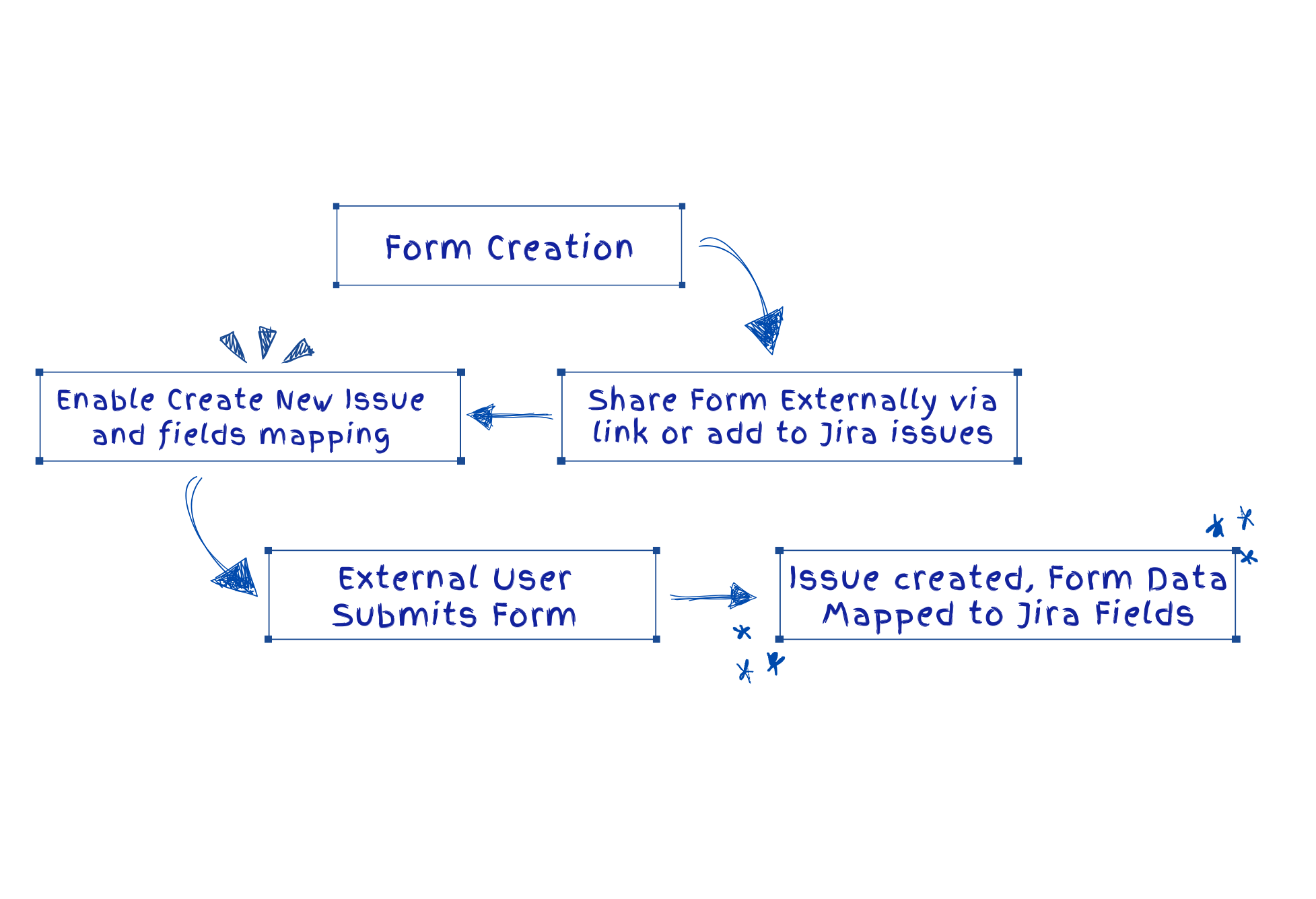
How to Set Up:
- Go to Form Settings and enable Create Issue.
- Select the Jira project and issue type where the issue should be created.
- Choose form element to Map to Jira issue fields.
- Save and share the form the form. When users submit the form, a new Jira issue will be created with pre-filled fields with form data.
Pre-Fill with Update Existing Issue Fields
Dynamic pre-fill also ensures that when a form is attached to an existing Jira issue, submitted values update the relevant Jira fields.
- If a form includes a Component field, submitting the form updates the Component field in the Jira issue.
- A Sprint selection made in the form updates the Sprint field of the issue.
- Selecting a new Assignee from the User Picker changes the assignee in the Jira issue.
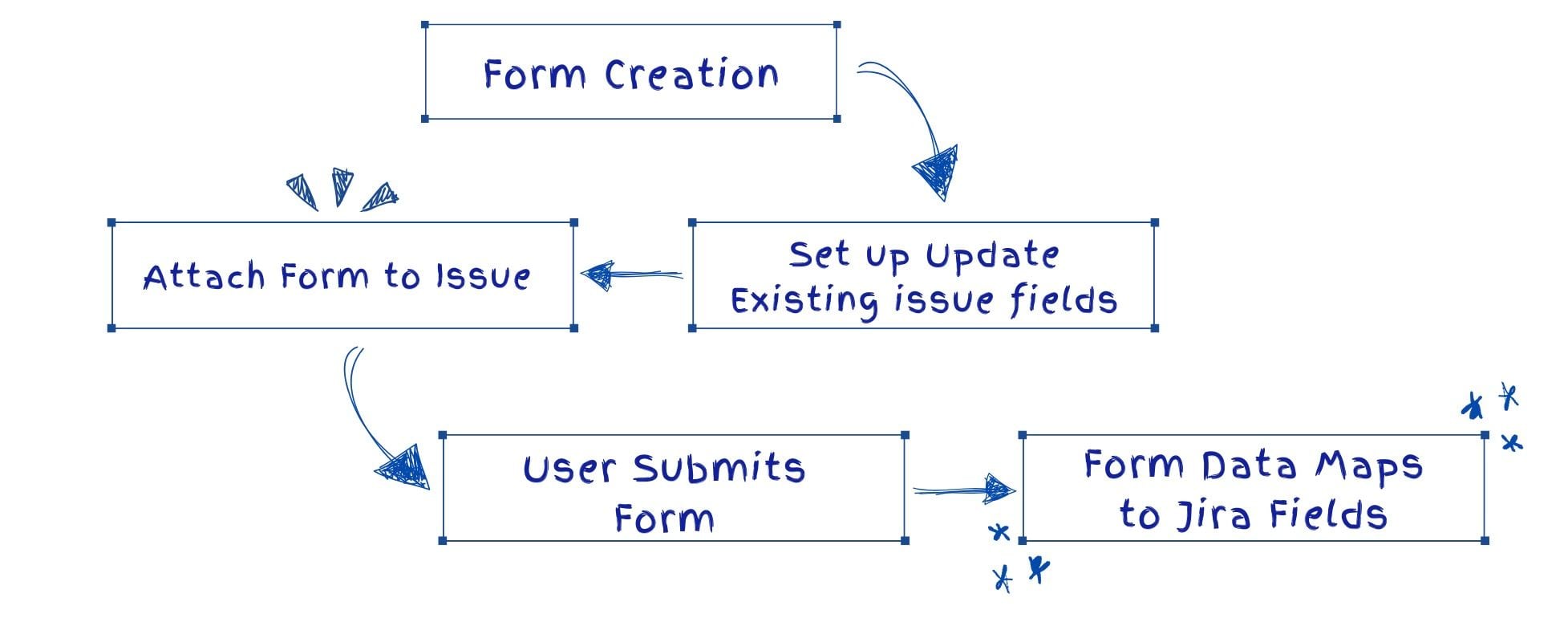
How to Set Up:
- In Form Settings, enable Update Existing Issue Fields.
- Map form fields to the corresponding Jira issue fields.
- Save the form. After submission, the selected values will be reflected in the Jira issue.
- Attach the form to an issue manually or automatically.
Dynamic pre-fill ensures that forms remain accurate and efficient, reducing admin work and improving workflows across teams. Whether creating new issues, updating existing ones, or ensuring that form options reflect the latest Jira data, this update simplifies form management in Jira.
➡ Try Smart Forms for Jira today and keep your forms dynamic and always in sync with Jira!