Effective documentation is the backbone of any organization, ensuring knowledge is shared, processes are followed, and teams stay aligned. But as your company scales, so does your documentation - often spiralling into an overwhelming mess of pages. Sound familiar?
Confluence is packed with great tools for managing content, but let’s be real: even with labels, templates, and page hierarchies, navigating thousands of pages can feel like a treasure hunt without a map. That’s where Capable for Confluence - and its game-changing search feature - steps in to revolutionize how teams organize, retrieve, and manage pages.
In this article, we’ll cover some best practices for keeping Confluence documentation under control, plus how Capable Search takes content discovery to the next level.
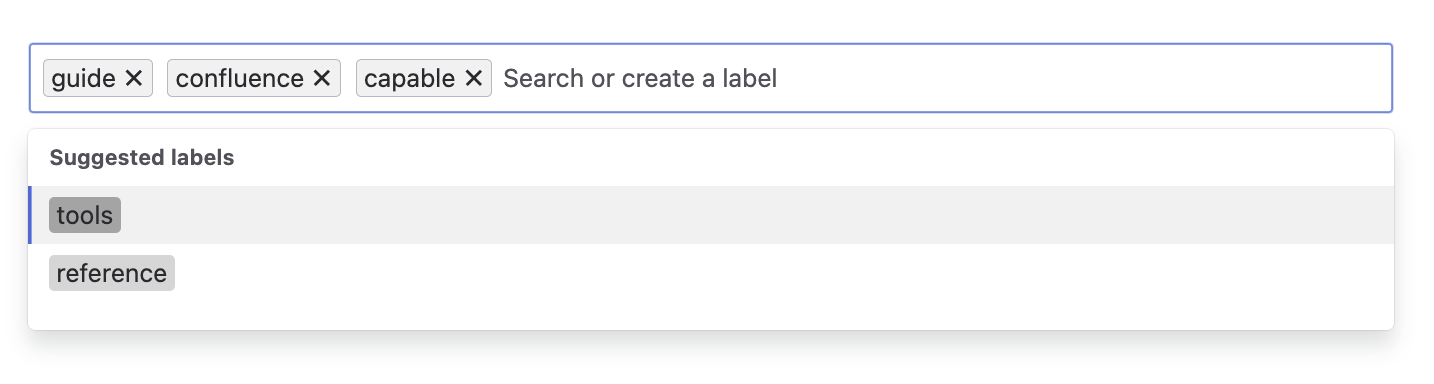
1. Labels: The Unsung Heroes of Organization
Labels are one of Confluence’s simplest yet most powerful tools for organization. By tagging pages with keywords like needs-review, archived, or product-docs, create a structured way to filter and retrieve content quickly.
The key is consistency - align your team on a set of standardized labels and enforce their use across documentation.
📌 Pro Tip: Use label-based search queries in Confluence to instantly surface relevant content. Need help? Check out Atlassian’s label documentation.
2. Templates: Keep it Consistent
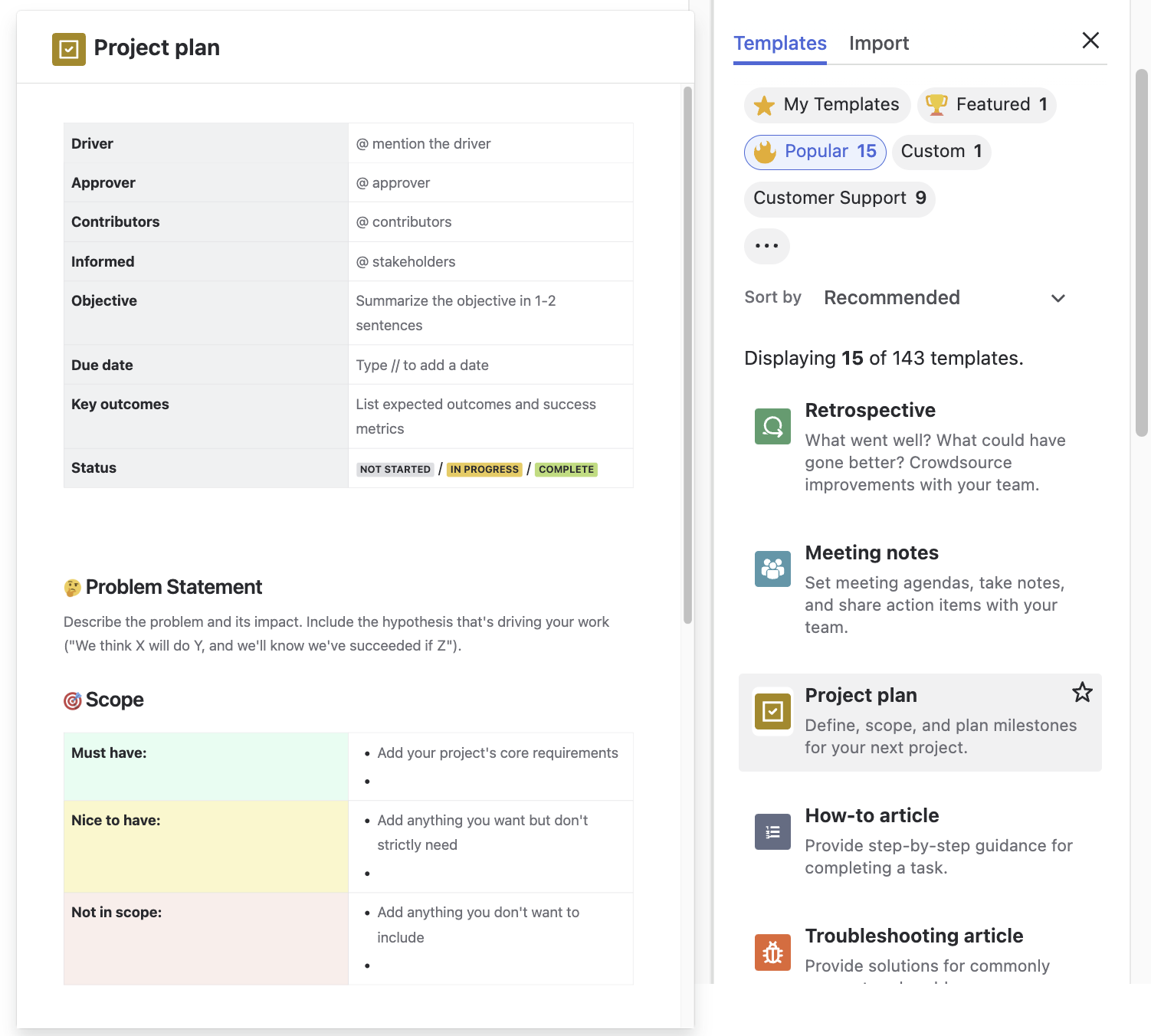
Templates are a lifesaver when it comes to maintaining uniformity across documentation.
Whether you’re writing meeting notes, product specs, or how-to guides, templates ensure structure and save time by eliminating repetitive formatting.
Confluence Cloud comes with over 70 templates to help you with everything from taking meeting notes to defining your business strategy.
📌 Pro Tip: If the built-in templates are not enough, you’ll find more templates on the Atlassian Marketplace, and you can even create your own.
3. Page Hierarchies and Folder: Structure is Key
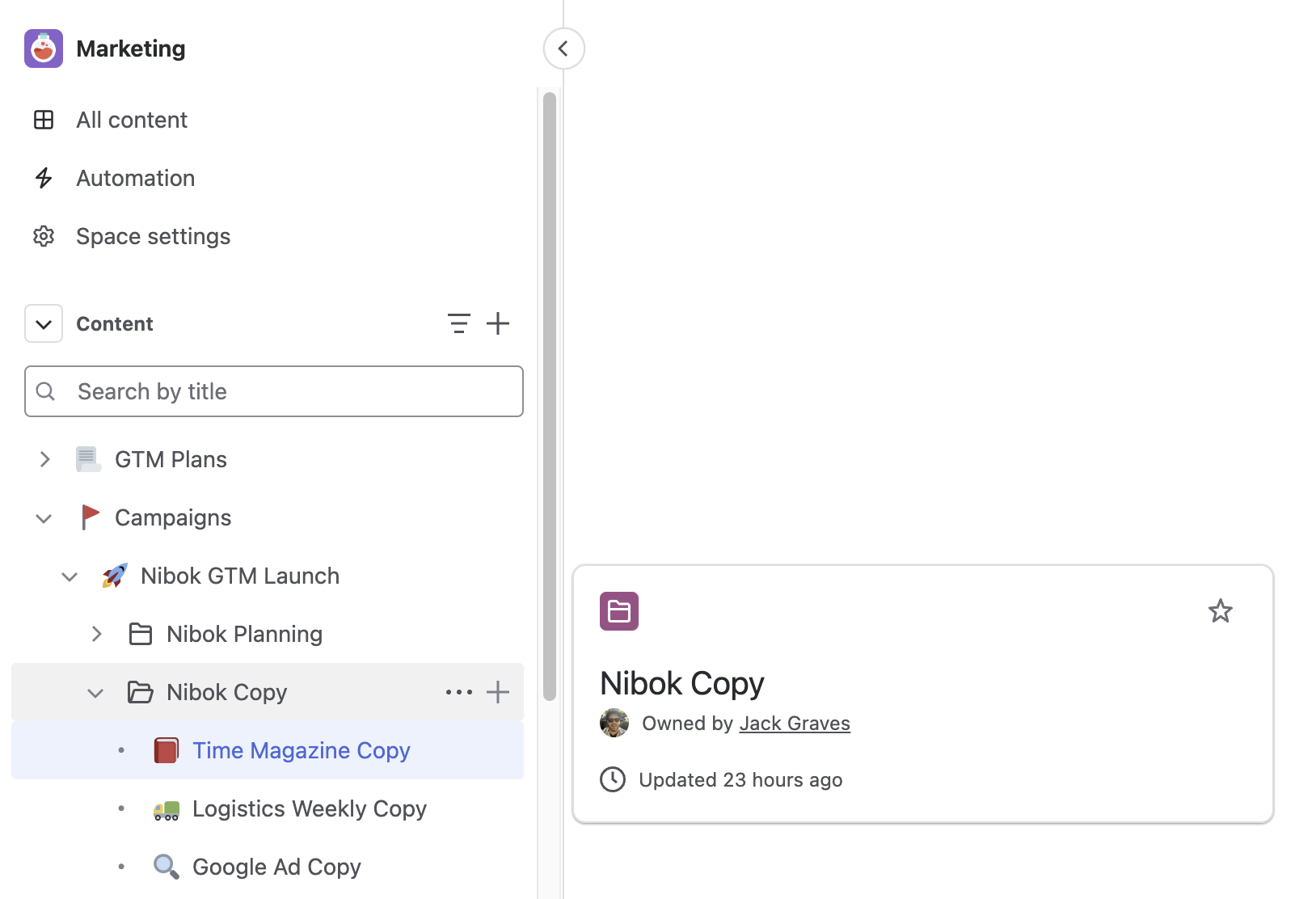
Organizing pages in a logical hierarchy makes navigating Confluence easier. Group related pages under parent topics to create a structured knowledge base that scales as your content grows.
And now, Folders have arrived in Confluence! These virtual filing cabinets take organization to the next level, making it easier than ever to keep related pages grouped together.
📌 Pro Tip: Implement a consistent page-naming convention to further improve discoverability. More details on organizing your Confluence spaces here.
4. Confluence Search: Find relevant content
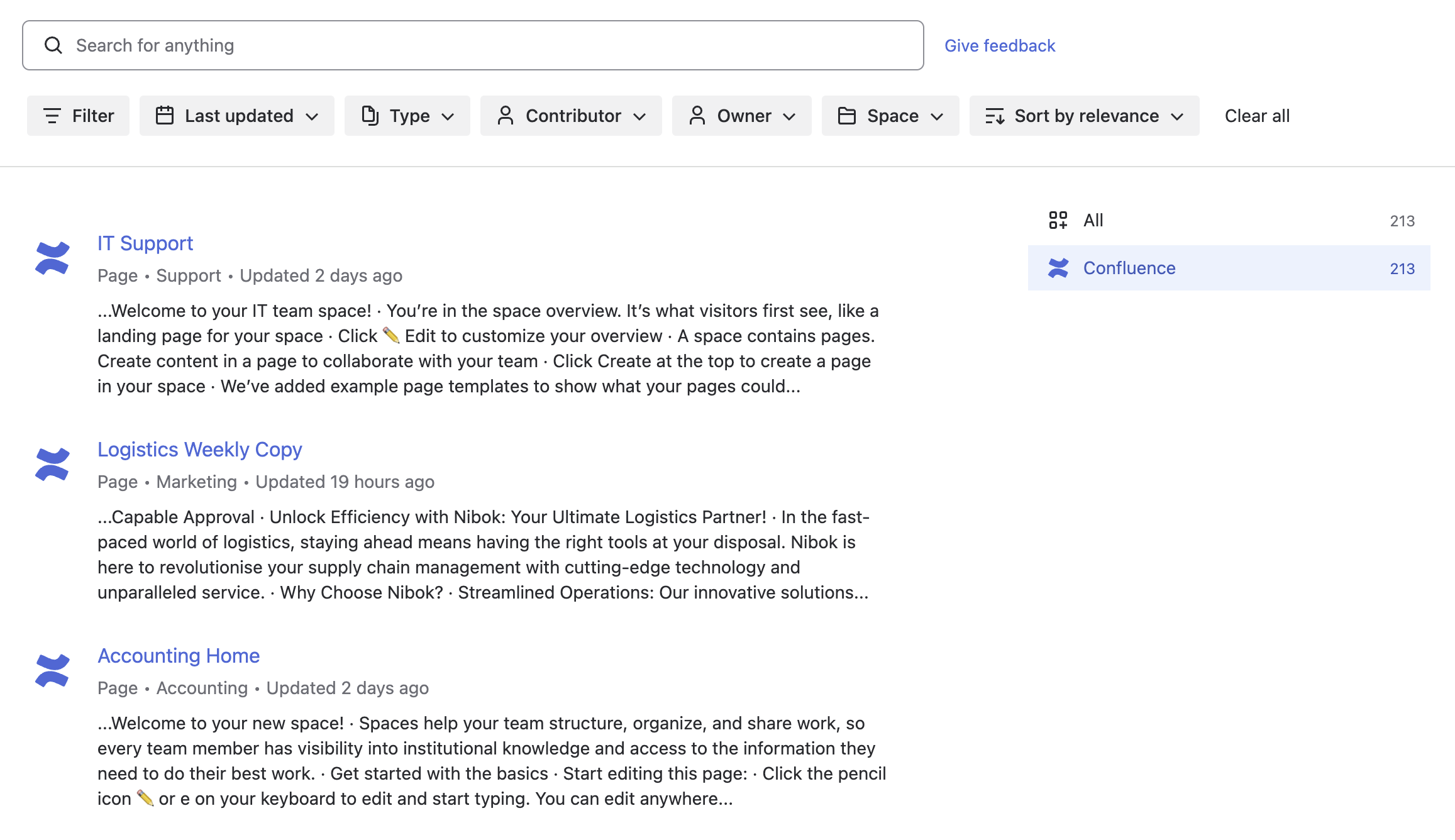
Search in Confluence helps you find the page you’re looking for, but it can sometimes feel like a bit of a maze. While it does the job, the interface can be overwhelming when dealing with a large volume of content. The built-in search includes some useful tools to refine results:
-
Quick Search – Start typing in the search bar, and Confluence will suggest relevant results as you go.
-
Advanced Search – Use filters like last modified date, contributor, space, and labels to narrow your search.
📌 Pro Tip: If you want a more intuitive way to search, try Atlassian Rovo - it allows you to ask questions directly and get better search results. Learn more about Rovo here.
When Built-in Search Isn’t Enough…
Confluence’s default search is solid - but when you’re dealing with thousands of pages, it can feel like finding a needle in a haystack. That’s where Capable changes the game.
Capable for Confluence takes content discovery beyond basic search, empowering teams with:
-
Saved Searches: Bookmark frequently used queries
-
Advanced Filtering: Use Confluence Query Language (CQL) for precise results
-
Customizable Columns: Display relevant metadata at a glance
-
Inline Editing: Update page statuses without leaving the search view
-
Space-Level & Global Search: Organize content at any scale
Scaling Documentation Management with Capable Search
Managing Confluence pages effectively at scale requires more than just built-in search capabilities.
Capable revolutionizes how teams organize and retrieve pages by allowing users to create saved searches with advanced filters, customizable columns, and dynamic results - essentially managing Confluence pages like Jira issues.
1. Saved Searches for Specific Needs
With Capable Search, you can create and save searches for different scenarios:
-
Pages that need improvement (e.g., those tagged with <span>needs-improvement</span>)
-
Pages created by specific team members
-
Pages in specific spaces
- Pages that are pending approval
- Pages containing diagrams
- and even more...
📌 Pro Tip: See a reference of all of the available filters over on the Capable documentation site.
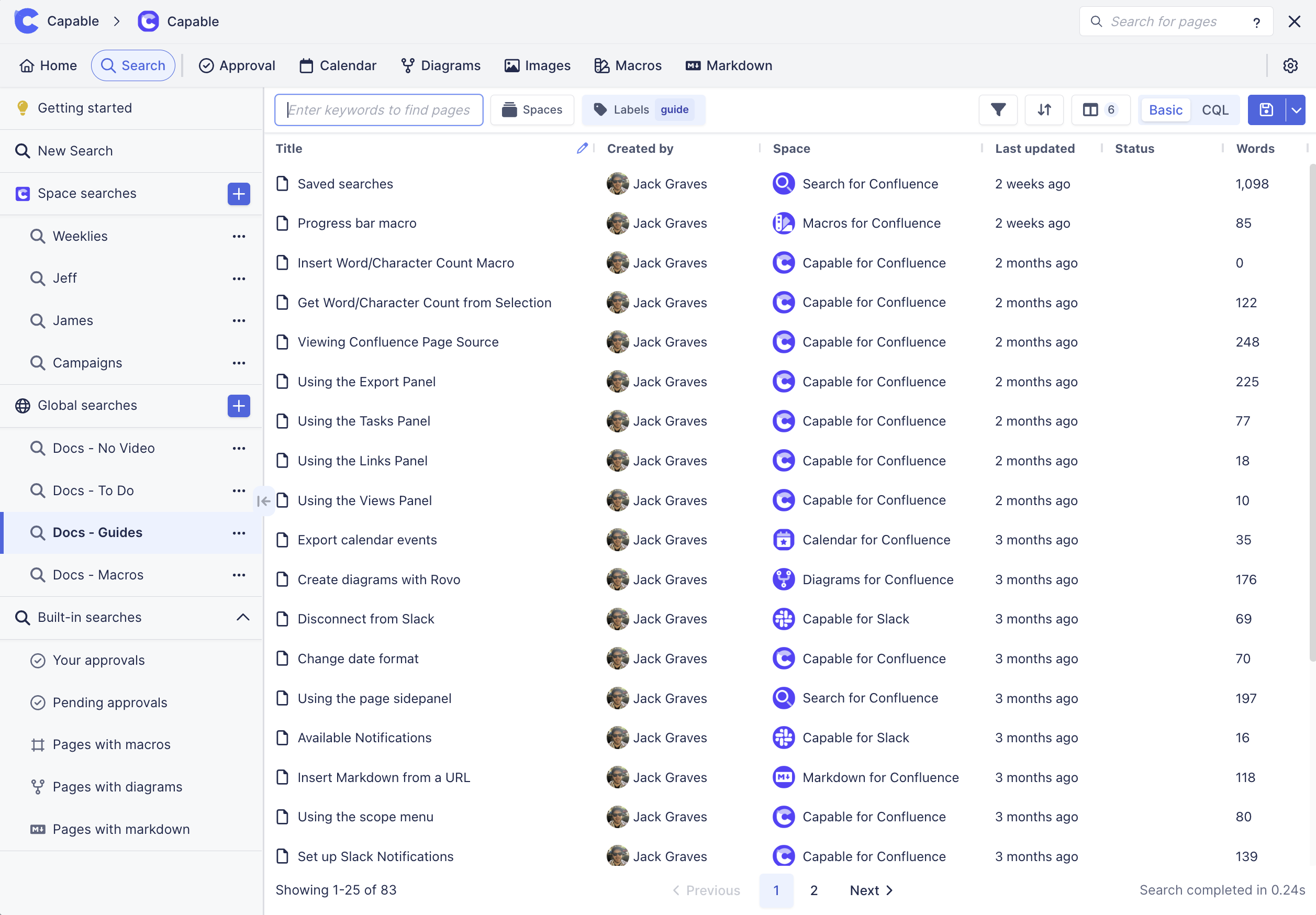
2. Customizable Columns & Filters
Think of Capable Search like Jira’s issue navigator—but for Confluence.
Need to see who last updated a page? Add a column for <span>Last Modified By</span>. Want to filter by space? Use a dropdown selector. Need something more advanced? CQL has you covered.
📌 Pro Tip: Create different search views for different use cases—like one for support documentation and another for product specs. Learn more in Capable’s documentation.
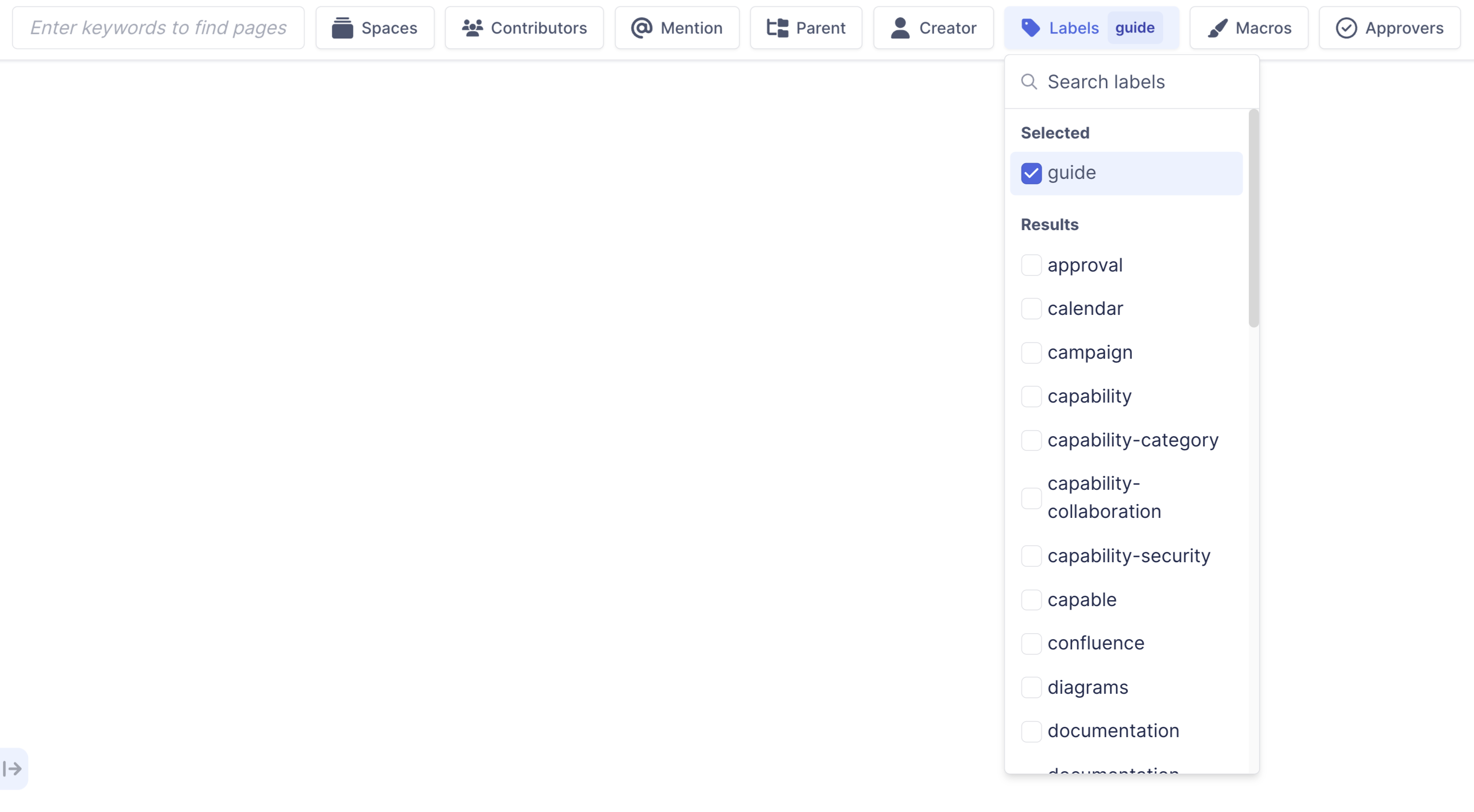
3. Global & Space-Level Saved Searches
Some searches are team-specific, while others need to be available across the entire company.
Capable Search lets you store searches at the space level (for team-focused queries) or globally (for broader access).
Now, no matter where you’re working, the right content is always within reach.
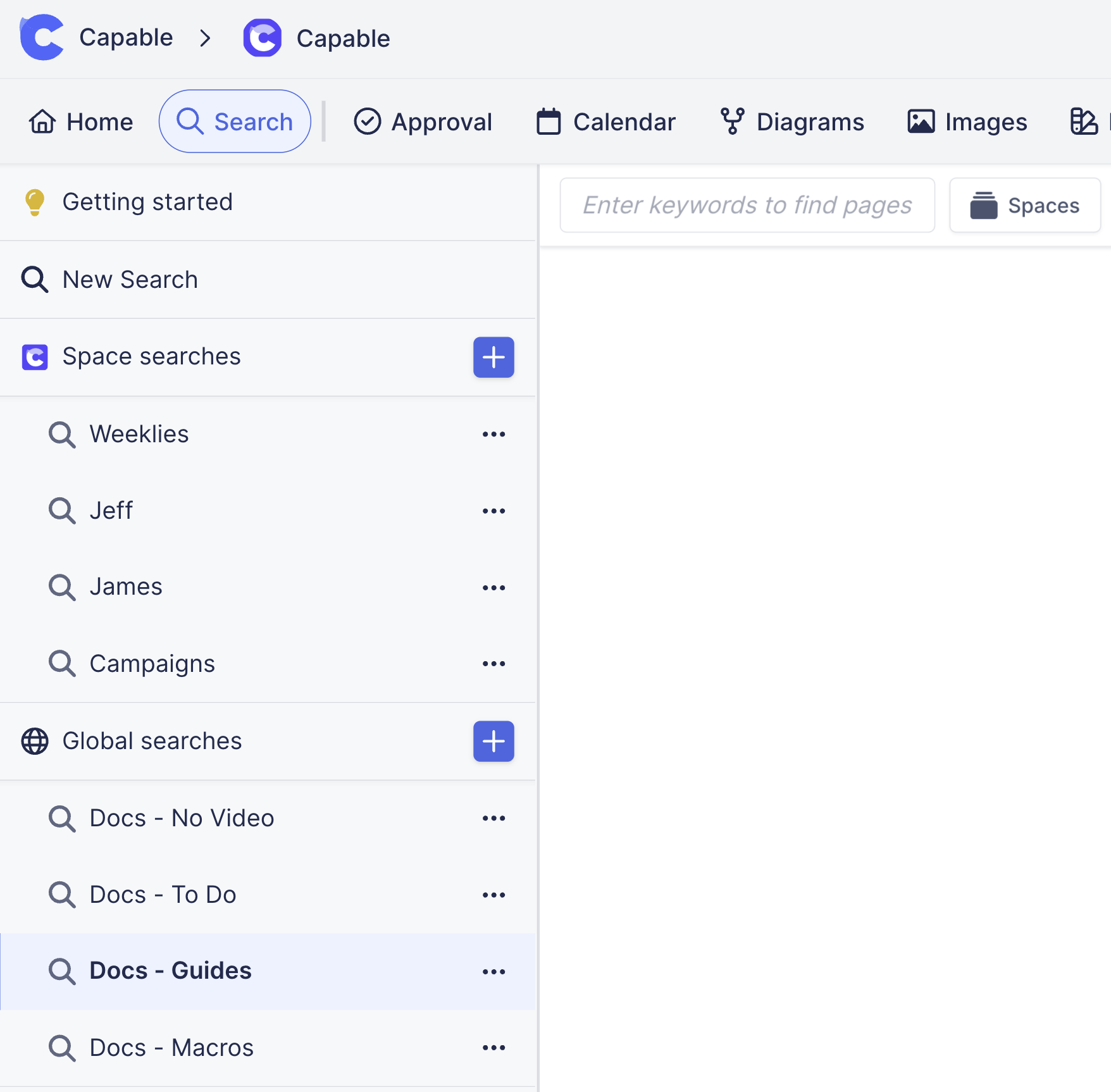
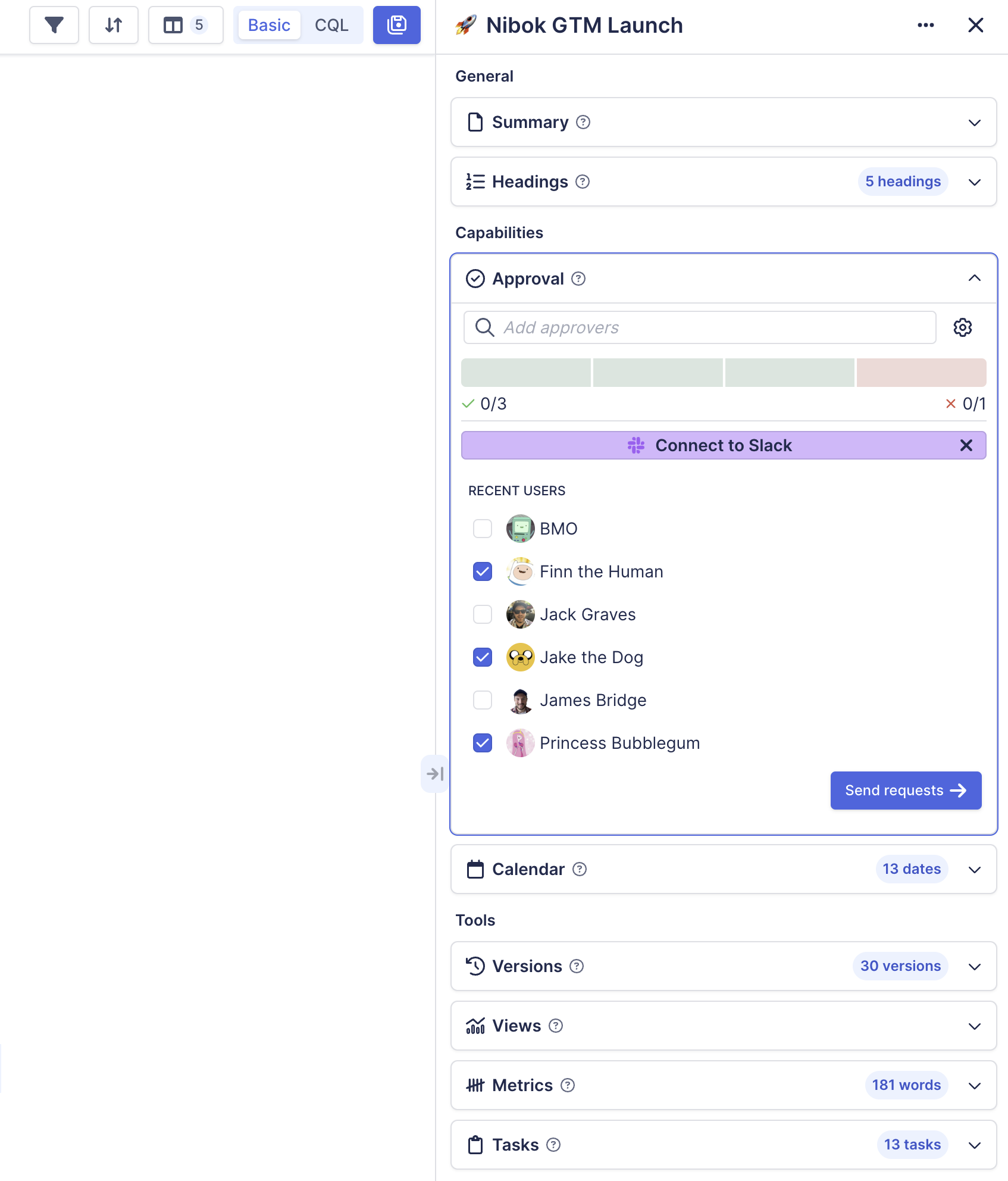
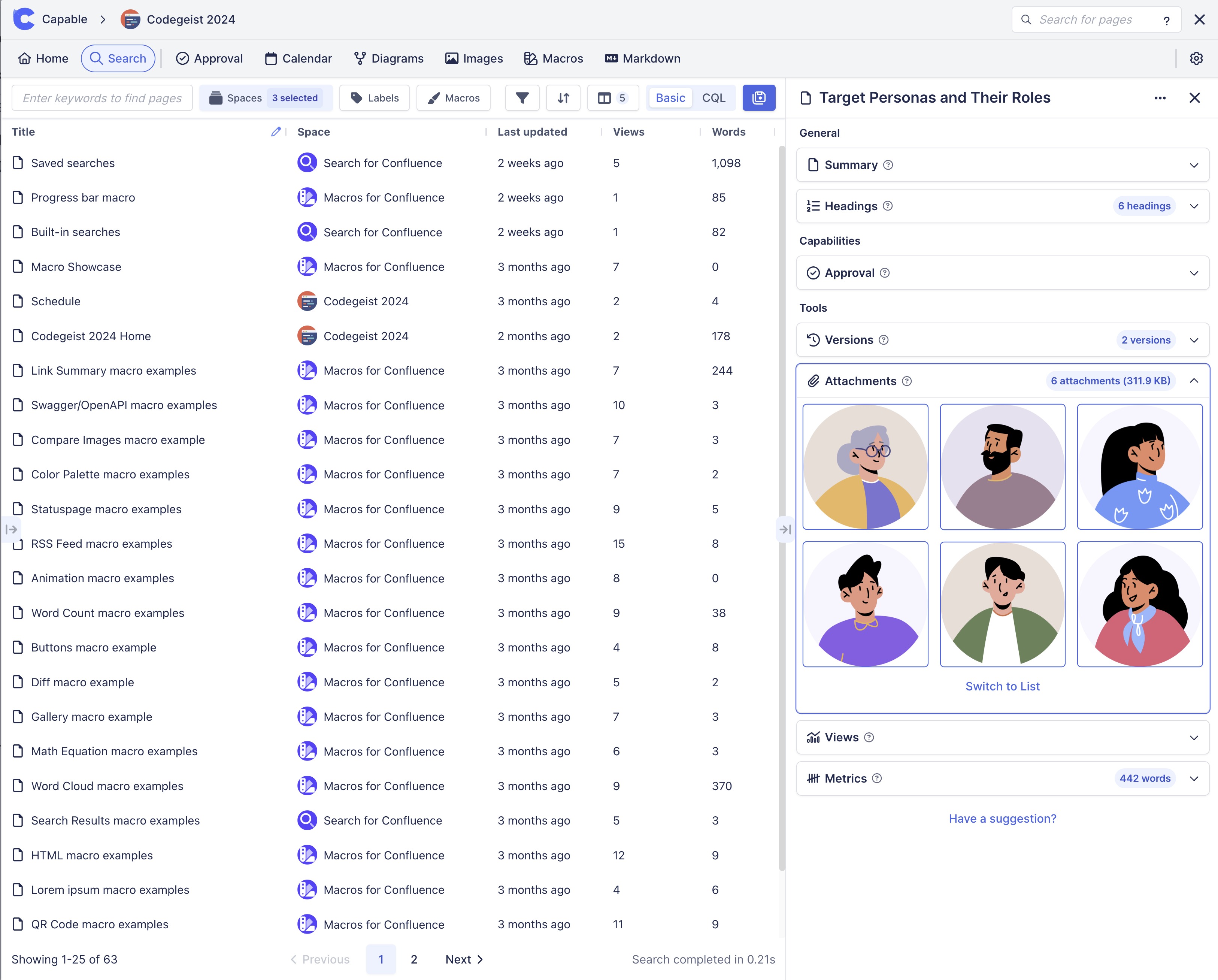
4. Powerful Page Sidebar
Capable Search doesn’t just help you find pages—it integrates directly with other essential Confluence features:
-
Approval Workflows – Track documents needing review or sign-off
-
Events & Dates – Find pages organized by deadlines and milestones
-
Attachments, Diagrams & Markdown – Instantly preview and search within embedded content
-
Tasks – Mark inline tasks as complete directly from search results
-
Headings – View all headings on a page and jump to them instantly
-
Page Metrics – See word and character counts for any page
-
Content Overview – Quickly access summaries, child pages, and related content
📌 Pro Tip: Check out all of the available sidebar panels in the documentation.
5. Inline Editing of Page Data
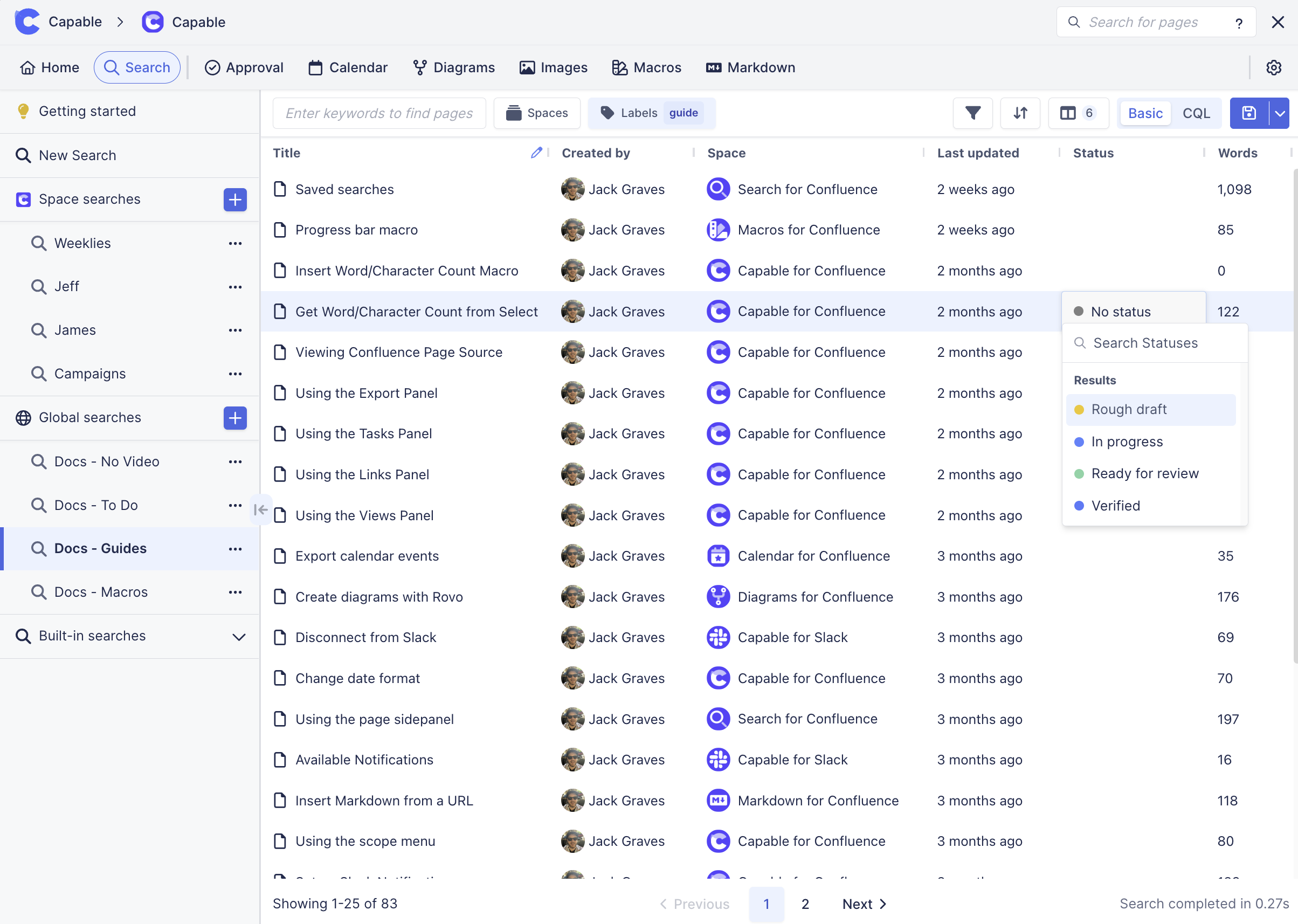
Why waste time clicking into each page when you can edit page data directly from the search results? With Capable Search, you can:
✅ Rename pages instantly
✅ Update status tags
✅ Keep content fresh without the extra hassle
6. Embed Saved Searches into Confluence Pages
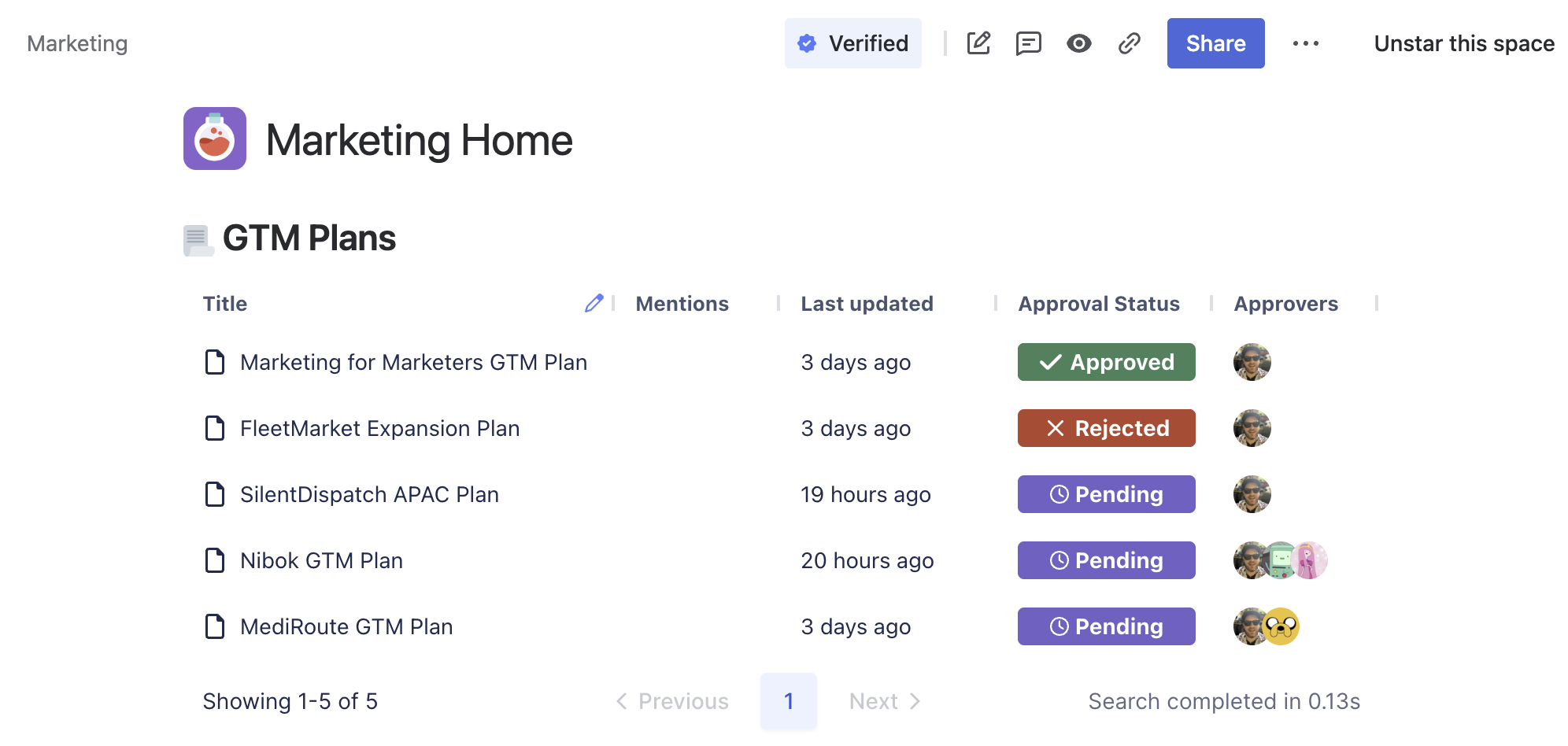
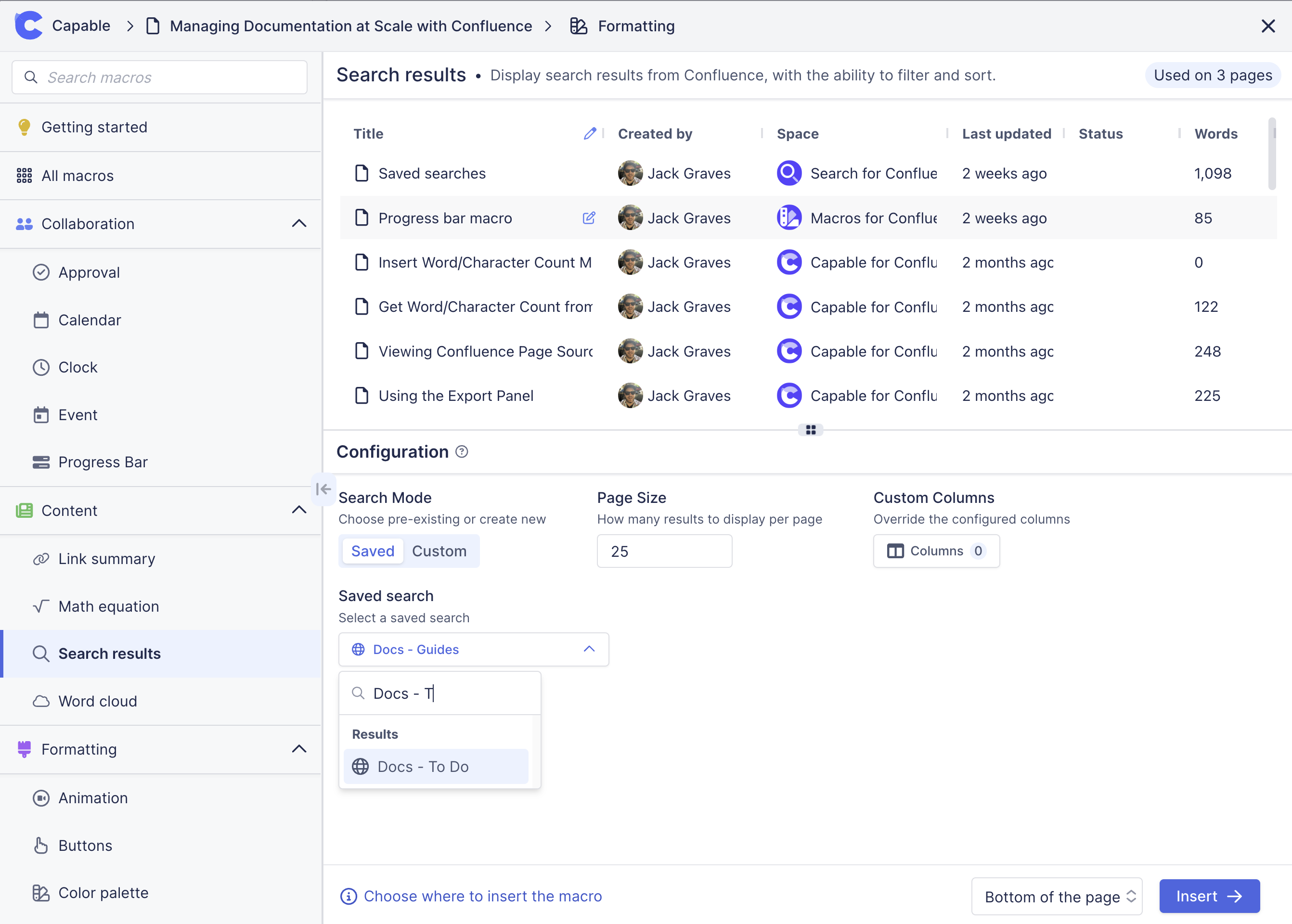
With the Capable Search Macro, you can embed live search results right inside Confluence pages.
Imagine a project status page that automatically updates with relevant documentation—no manual refreshing needed. Just set up a saved search, embed it, and let Capable Search do the rest.
📌 Pro Tip: Use CQL-based queries to fine-tune embedded searches. See how in Capable’s Search Macro Guide.
Why It’s a Game-Changer
There’s nothing else like this in the Atlassian Marketplace. Capable is the must-have app for Confluence, providing teams with a structured, scalable, and efficient way to manage documentation. Instead of relying on manual searches or struggling with content sprawl, teams can now:
-
Surface relevant pages instantly
-
Maintain better documentation hygiene
-
Collaborate more effectively across teams
- Share saved searches amongst the team
Conclusion
Scaling documentation management in Confluence doesn’t have to be chaotic. While labels, templates, and built-in search tools provide a foundation, Capable Search takes documentation management to the next level—giving teams the ability to manage Confluence pages like Jira issues with a powerful, flexible search tool.
Ready to transform the way your team works with Confluence? Try Capable Search today and experience documentation management at scale like never before.
Scaling documentation doesn’t have to be chaotic. While Confluence’s built-in features lay a solid foundation, Capable Search takes it to the next level, giving teams the ability to manage pages with the precision and efficiency of Jira.
So, if you’re ready to transform your Confluence experience, try Capable Search today and experience documentation management like never before.
📌 Learn more and get started with Capable Search

