What Confluence's Native Exporter Does Well
Confluence's built-in PDF exporter is a great starting point for those who want a simple and free export solution. 🤑 It retains the page structure and layout and is easy to use without any additional setup. With just a few clicks, you can generate a functional PDF reflecting your page’s layout, including tables, headings, and images.
For many users, this functionality covers immediate needs. But what if you require more advanced design capabilities?
When to Consider Scroll PDF Exporter
If your exported PDFs need to match brand guidelines, include tailored headers and footers, or handle versions, variants and translated content, use Scroll PDF Exporter. The app’s Template Editor lets you design templates that maintain consistency across teams so that every export needs your requirements. Here’s a quick run-through of what you can customize:
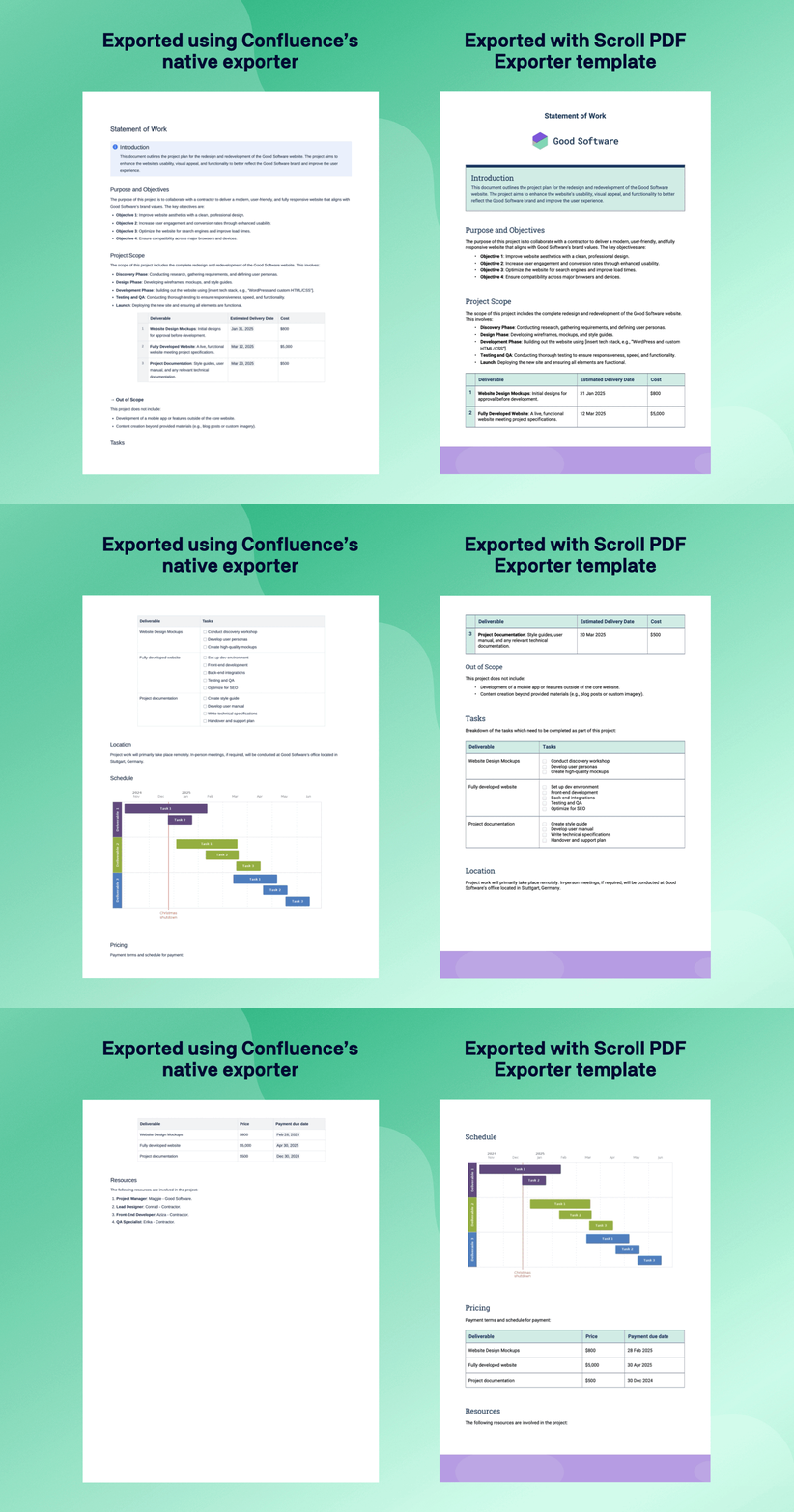
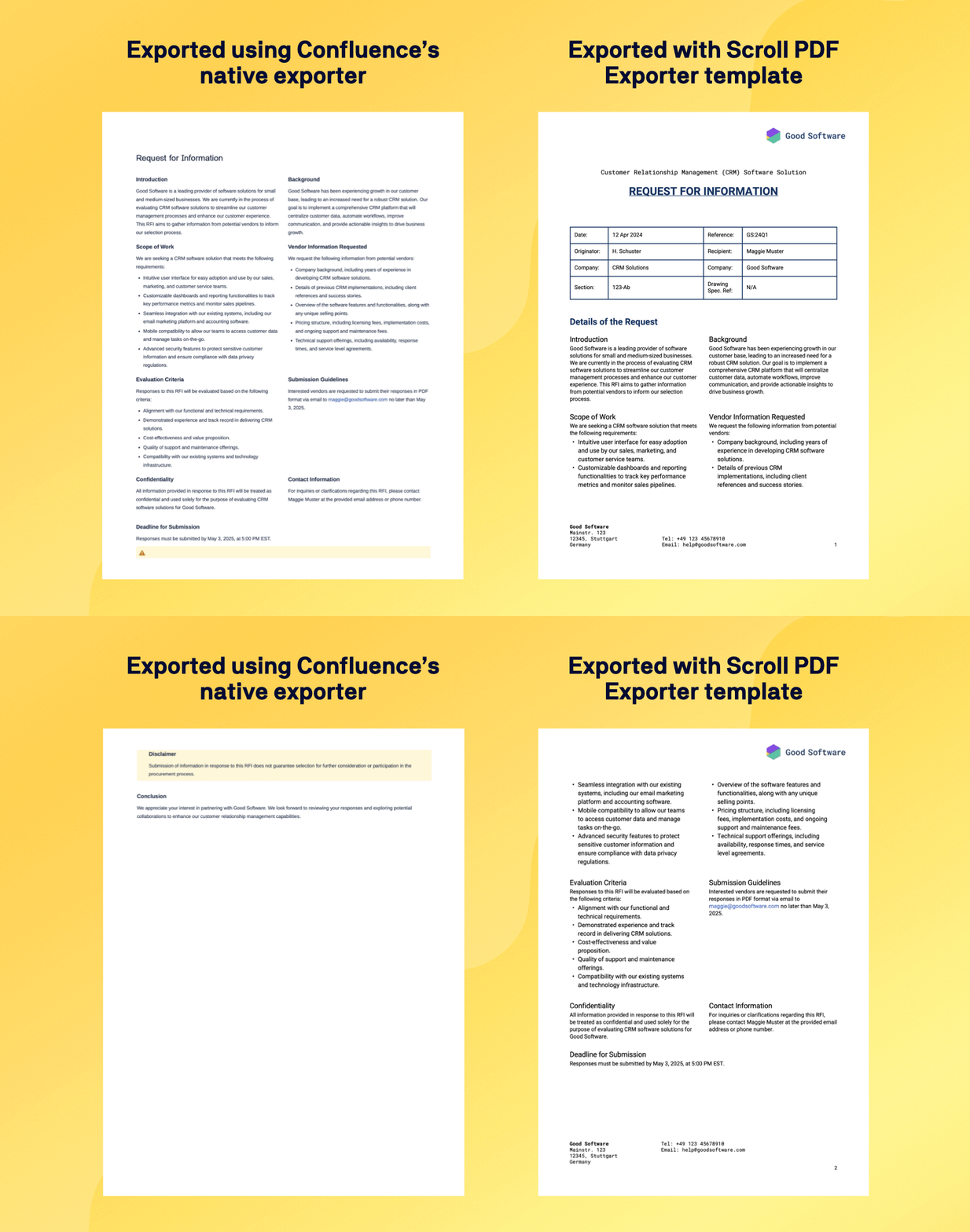
See the Difference
To demonstrate the difference between Confluence’s native exporter vs Scroll PDF Exporter exports, here are some examples made using the exact same Confluence content. With the native exporter, you get clean, functional PDFs that reflect the page’s structure but offers limited visual customization. By contrast, Scroll PDF Exporter produces documents with branded elements, advanced layouts, and a professional finish. The examples highlight how much more control you can achieve with a dedicated tool.
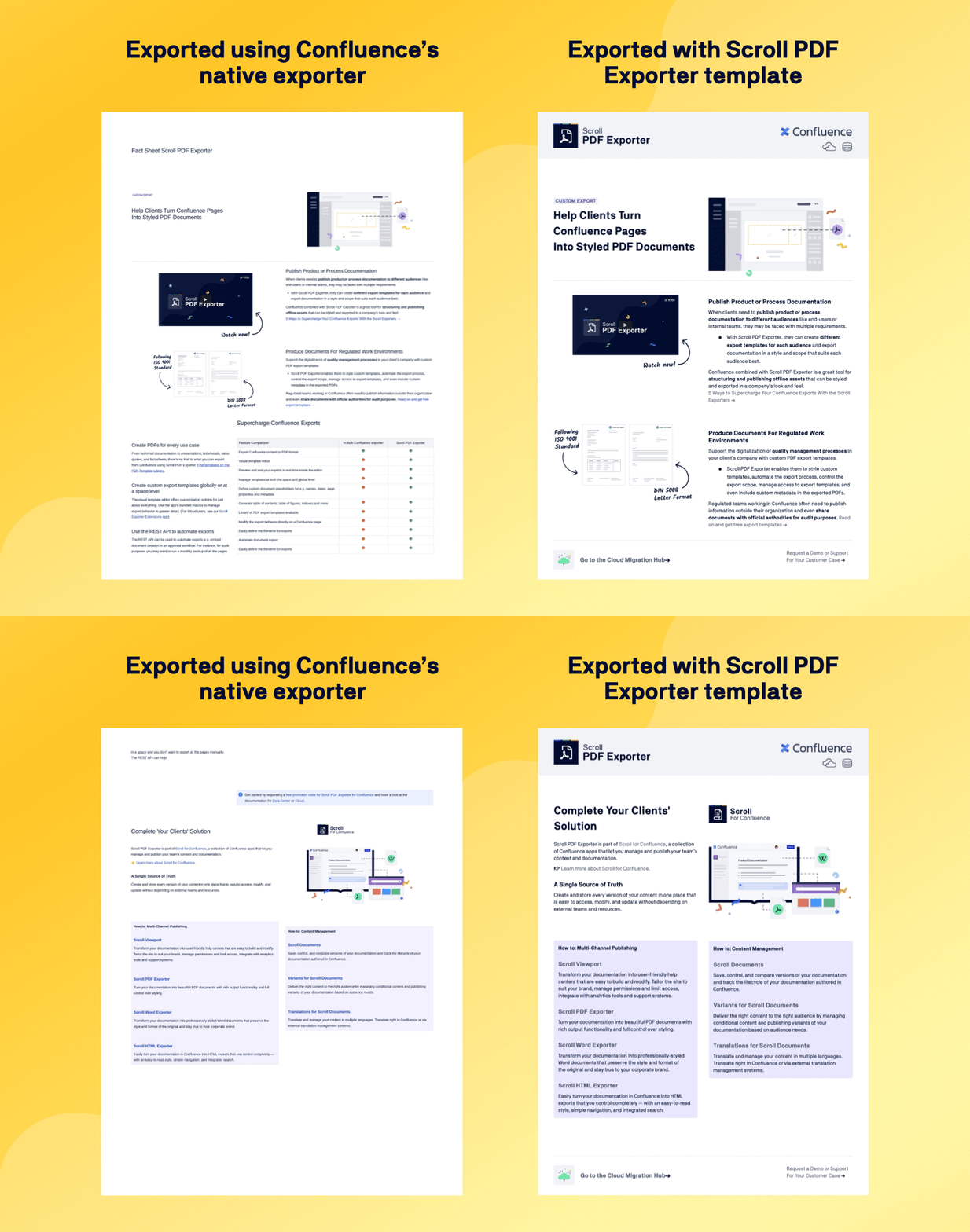
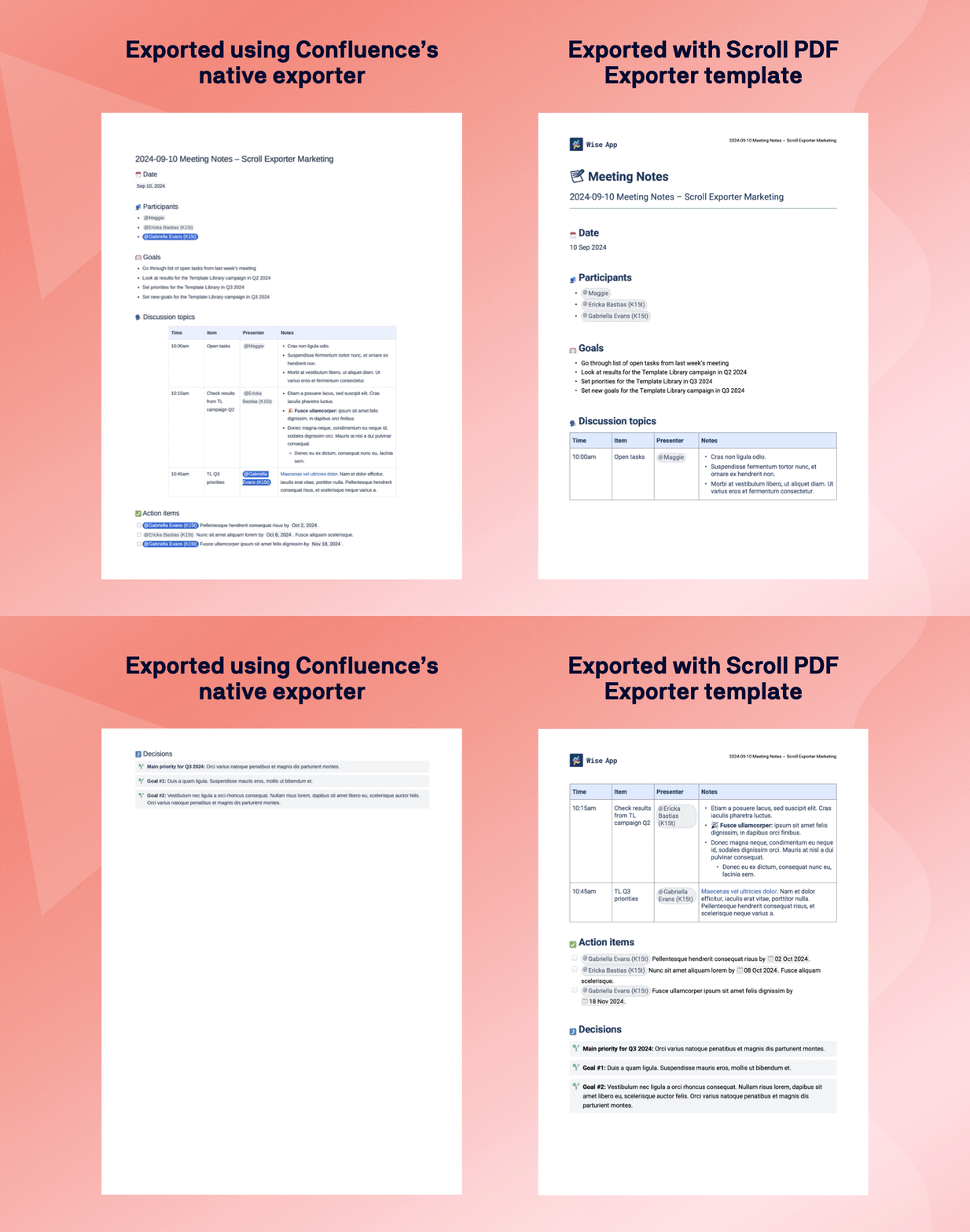
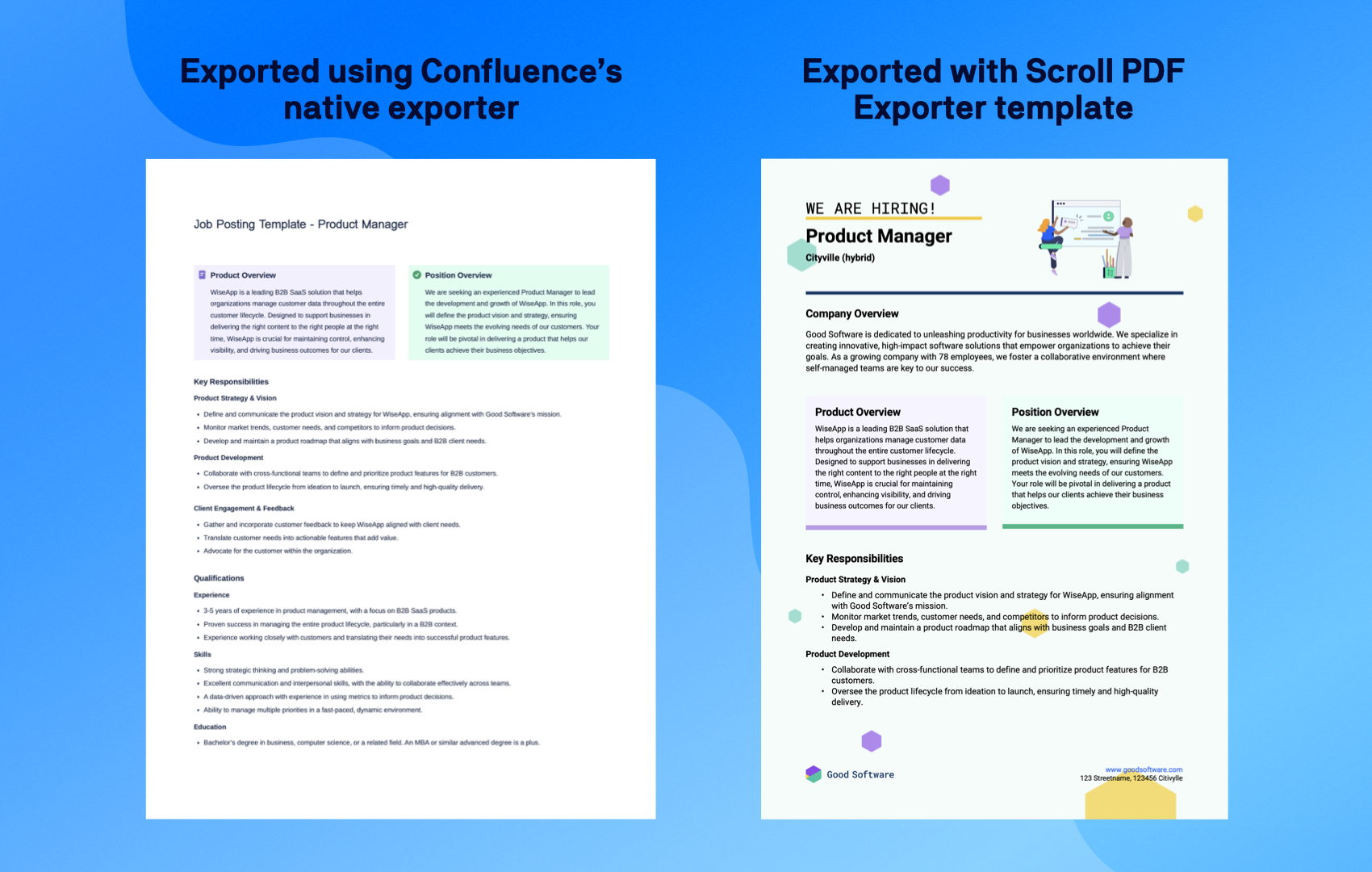
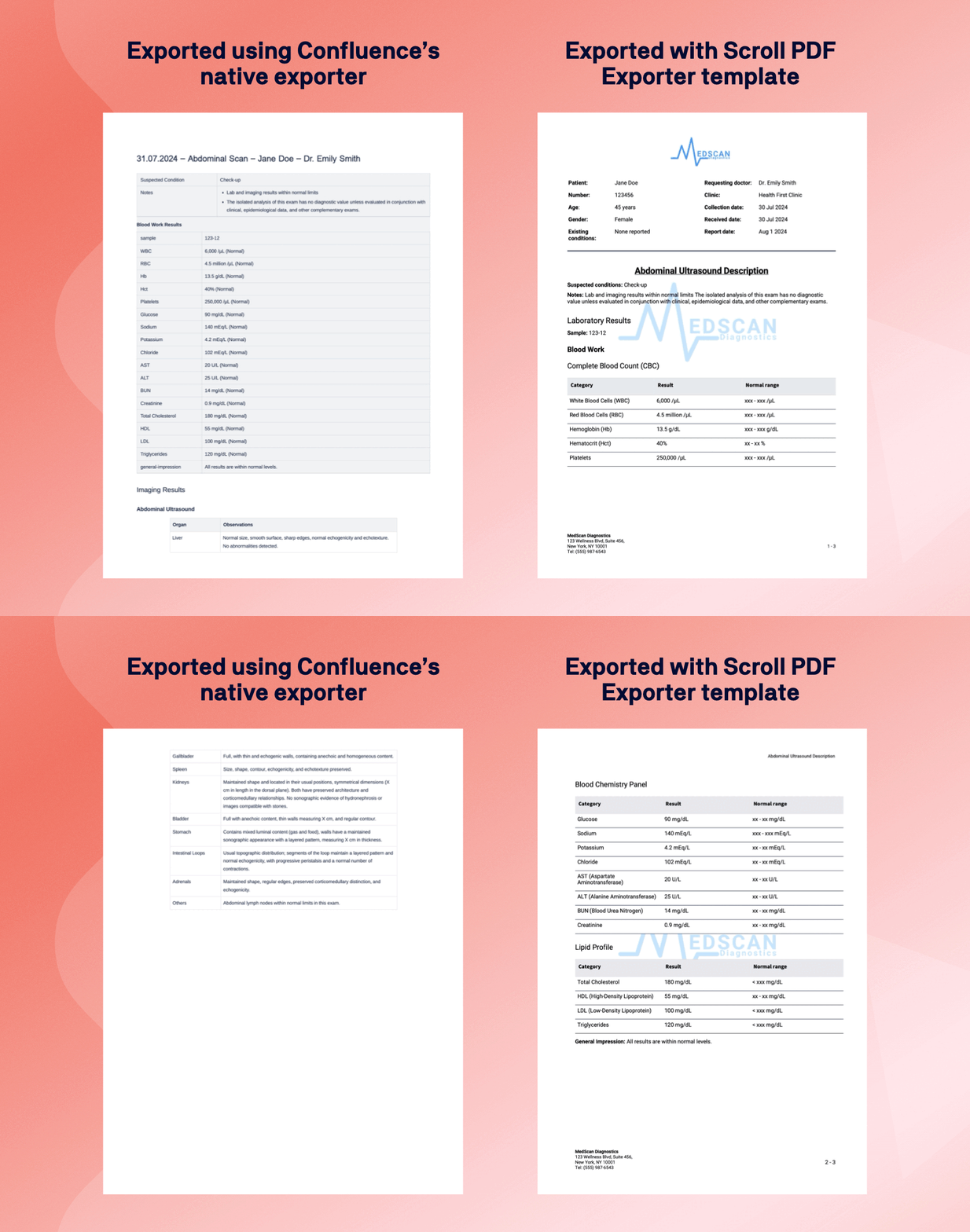
What Do You Export from Confluence?
At K15t, we’ve built a PDF Template Library to showcase different Confluence export use cases using Scroll PDF Exporter.
We’d love to hear more about the types of content you export – whether it's technical documentation, meeting notes, or something more unique.
Let us know in the comments! 👇


