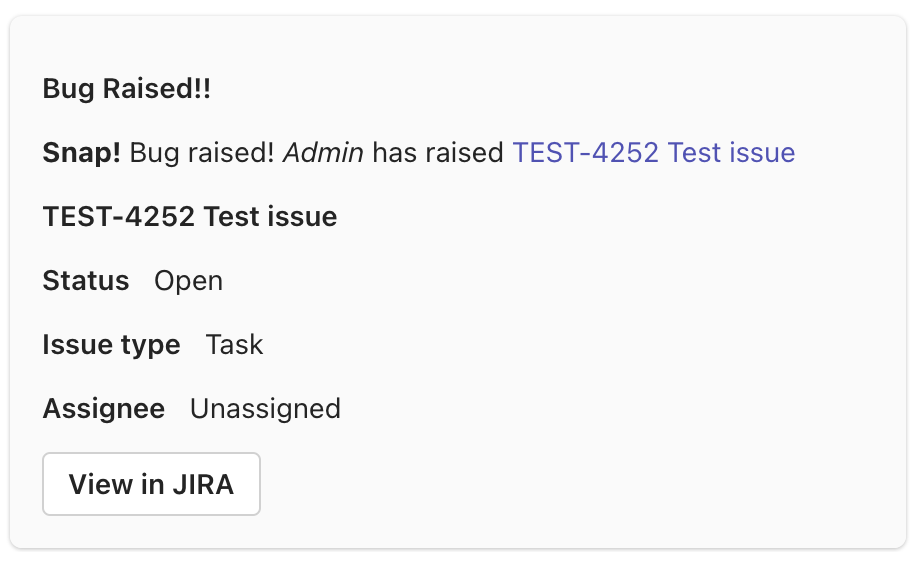
Teams Workflows provide a seamless way to automate tasks, integrate with various services, and improve team collaboration. This guide will help you navigate the process, ensuring a smooth transition from Connectors to Workflows, and use the full potential of the latest features and functionalities that Teams Workflows offer.
Create workflow in MS Teams
To set up a Microsoft Teams integration, you need to create a flow chain that will listen to Jira webhooks:
-
Go to Microsoft Teams and find the channel where you want to send Jira notifications. Next to the channel name, select More options (...), then select Workflows.
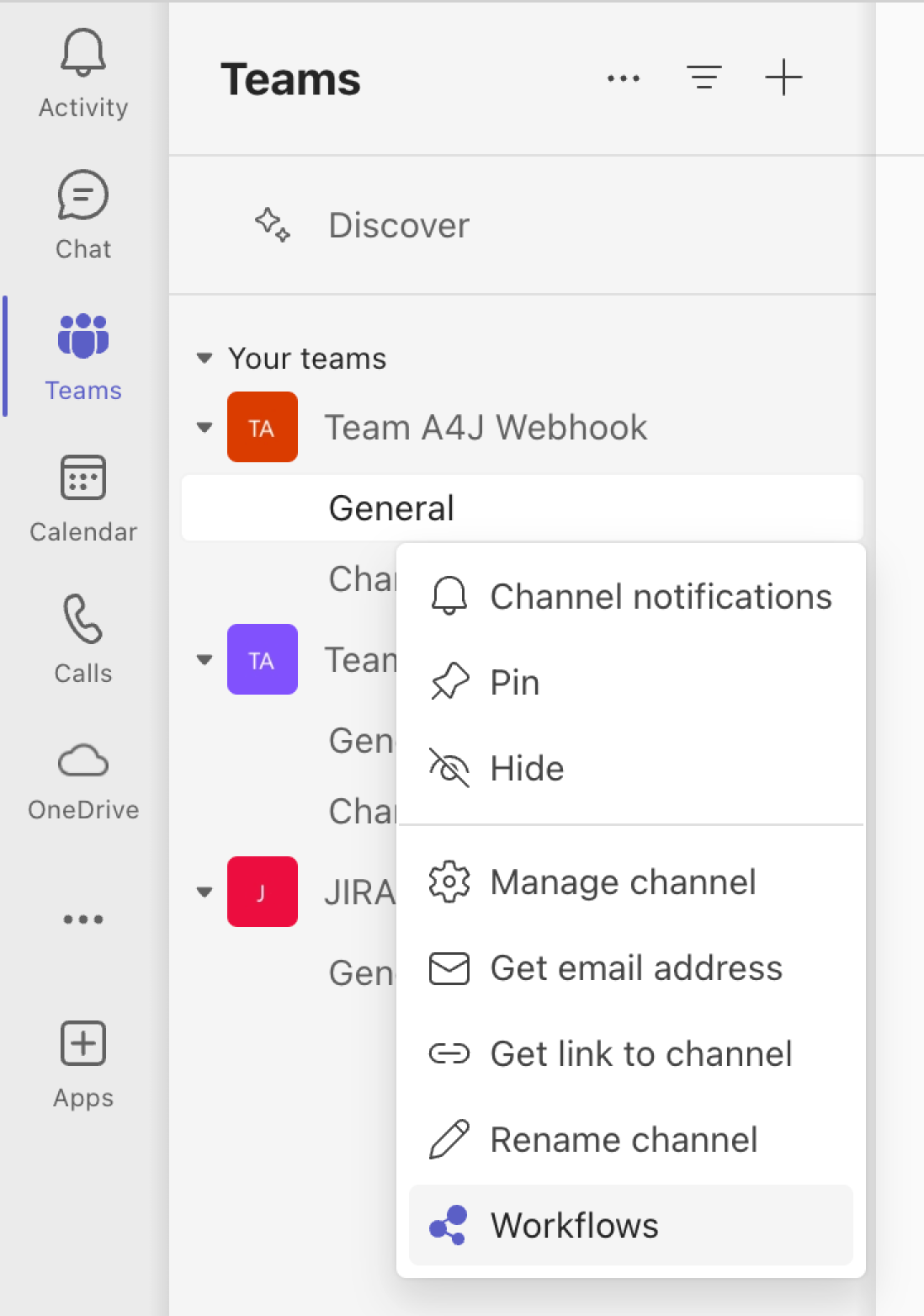
2. Select More workflows,
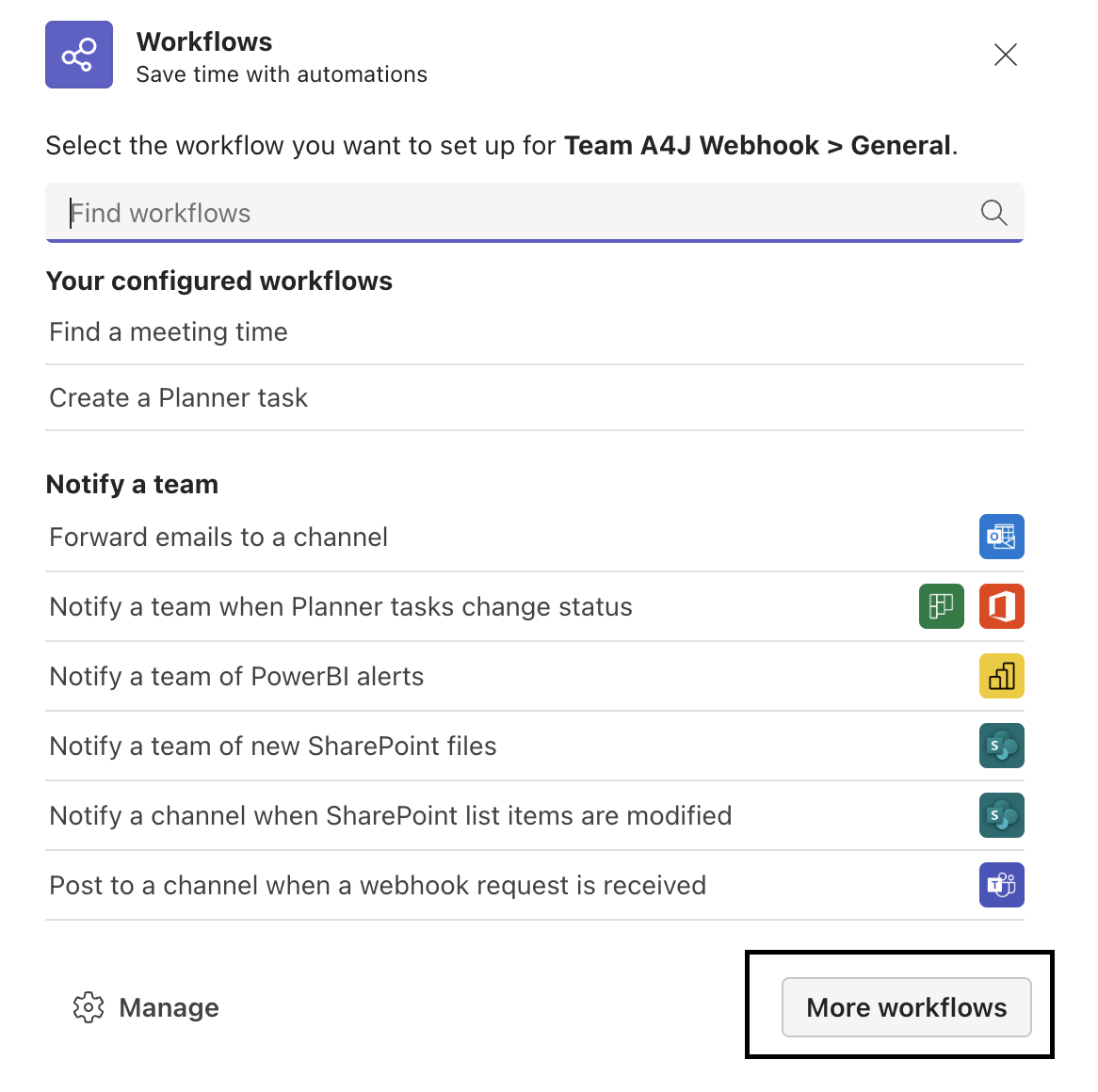
then Create from blank. 
3. In the Search connectors and triggers field, enter Webhook. Now we need to create a flow chain that will listen to webhooks and react to the JSON sent in the request. In this example, we will send an adaptive card with information about the changed issue to the channel.
4. Under Triggers, select the When a Teams webhook request is received trigger.

a. In the Who can trigger the flow dropdown, select Anyone.
5. Select New Step, search for Parse JSON, and then select this option under Actions.
a. In the Content field, enter @{triggerBody()}.
b. In the Schema field, add the following JSON Schema
"type":<span> </span>"object",
"properties": {
"summary": {
"type":<span> </span>"string"
},
"sections": {
"type":<span> </span>"array",
"items": {
"type":<span> </span>"object",
"properties": {
"activityTitle": {
"type":<span> </span>"string"
},
"activitySubtitle": {
"type":<span> </span>"string"
},
"activityImage": {
"type":<span> </span>"string"
},
"activityText": {
"type":<span> </span>"string"
},
"facts": {
"type":<span> </span>"array",
"items": {
"type":<span> </span>"object",
"properties": {
"name": {
"type":<span> </span>"string"
},
"value": {
"type":<span> </span>"string"
}
},
"required": [
"name",
"value"
]
}
}
},
"required": [
"activityTitle"
]
}
},
"potentialAction": {
"type":<span> </span>"array",
"items": {
"type":<span> </span>"object",
"properties": {
"name": {
"type":<span> </span>"string"
},
"targets": {
"type":<span> </span>"array",
"items": {
"type":<span> </span>"object",
"properties": {
"uri": {
"type":<span> </span>"string"
},
"os": {
"type":<span> </span>"string"
}
},
"required": [
"uri",
"os"
]
}
},
"@@type": {
"type":<span> </span>"string"
}
},
"required": [
"name",
"targets",
"@@type"
]
}
},
"themeColor": {
"type":<span> </span>"string"
},
"@@context": {
"type":<span> </span>"string"
},
"@@type": {
"type":<span> </span>"string"
}
}
}<br>{
6. Add new Step → Post card in a chat or channel
Select New Step, search for Card, and then select Post card in a chat or channel under Actions.
-
In the Post in dropdown, select Channel.
-
In the Team and Channel dropdowns, select the team and channel where the notification should be posted.
<span class="lia-inline-image-display-wrapper lia-image-align-inline" image-alt="post.png" style="width: 802px;"><img src="https://us.v-cdn.net/6038660/uploads/images/356746i586EC858AFA76A5F/post.png" role="button" title="post.png" alt="post.png"></span>
7. In the Adaptive Card field, add the following JSON:
@{
    "type": "AdaptiveCard",
    "body": [
        {
            "type": "ColumnSet",
            "columns": [
                {
                    "type": "Column",
                    "items": [
                        {
                            "type": "TextBlock",
                            "weight": "Bolder",
                            "text": "@{body('Parse_JSON')['sections'][0]['activityTitle']}",
                            "wrap": true
                        }
                    ],
                    "width": "stretch"
                }
            ]
        },
        {
            "type": "TextBlock",
            "text": "@{body('Parse_JSON')['sections'][0]['activityText']}",
            "wrap": true
        },
        {
            "type": "TextBlock",
            "weight": "Bolder",
            "text": "@{body('Parse_JSON')['sections'][1]['activityTitle']}",
            "wrap": true
        },
        {
            "type": "ColumnSet",
            "columns": [
                {
                    "type": "Column",
                    "items": [
                        {
                            "type": "TextBlock",
                            "weight": "Bolder",
                            "text": "@{body('Parse_JSON')['sections'][1]['facts'][0]['name']}",
                            "wrap": true
                        }
                    ],
                    "width": "auto"
                },
                {
                    "type": "Column",
                    "width": "auto",
                    "items": [
                        {
                            "type": "RichTextBlock",
                            "horizontalAlignment": "Right",
                            "inlines": [
                                {
                                    "type": "TextRun",
                                    "text": "@{body('Parse_JSON')['sections'][1]['facts'][0]['value']}"
                                }
                            ]
                        }
                    ],
                    "verticalContentAlignment": "Center"
                }
            ]
        },
        {
            "type": "ColumnSet",
            "columns": [
                {
                    "type": "Column",
                    "items": [
                        {
                            "type": "TextBlock",
                            "weight": "Bolder",
                            "text": "@{body('Parse_JSON')['sections'][1]['facts'][1]['name']}",
                            "wrap": true
                        }
                    ],
                    "width": "auto"
                },
                {
                    "type": "Column",
                    "width": "auto",
                    "items": [
                        {
                            "type": "RichTextBlock",
                            "horizontalAlignment": "Right",
                            "inlines": [
                                {
                                    "type": "TextRun",
                                    "text": "@{body('Parse_JSON')['sections'][1]['facts'][1]['value']}"
                                }
                            ]
                        }
                    ],
                    "verticalContentAlignment": "Center"
                }
            ]
        },
        {
            "type": "ColumnSet",
            "columns": [
                {
                    "type": "Column",
                    "items": [
                        {
                            "type": "TextBlock",
                            "weight": "Bolder",
                            "text": "@{body('Parse_JSON')['sections'][1]['facts'][2]['name']}",
                            "wrap": true
                        }
                    ],
                    "width": "auto"
                },
                {
                    "type": "Column",
                    "width": "auto",
                    "items": [
                        {
                            "type": "RichTextBlock",
                            "horizontalAlignment": "Right",
                            "inlines": [
                                {
                                    "type": "TextRun",
                                    "text": "@{body('Parse_JSON')['sections'][1]['facts'][2]['value']}"
                                }
                            ]
                        }
                    ],
                    "verticalContentAlignment": "Center"
                }
            ]
        }
    ],
    "actions": [
        {
            "type": "Action.OpenUrl",
            "title": "@{body('Parse_JSON')['potentialAction'][0]['name']}",
            "url": "@{body('Parse_JSON')['potentialAction'][0]['targets'][0]['uri']}"
        }
    ],
    "$schema": "http://adaptivecards.io/schemas/adaptive-card.json",
    "version": "1.6"
}
8. Verify that the step chain looks like on the screenshot, and then select Save.
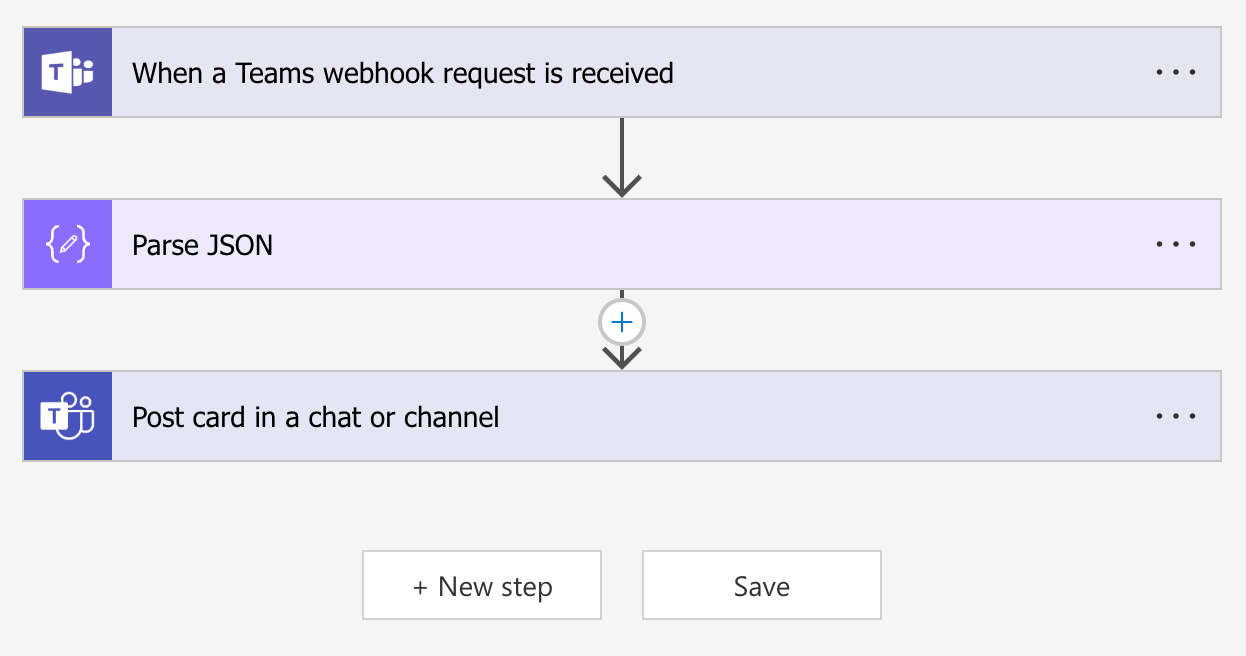
9. The webhook will be automatically generated after you save the workflow. Copy the webhook URL to the clipboard.
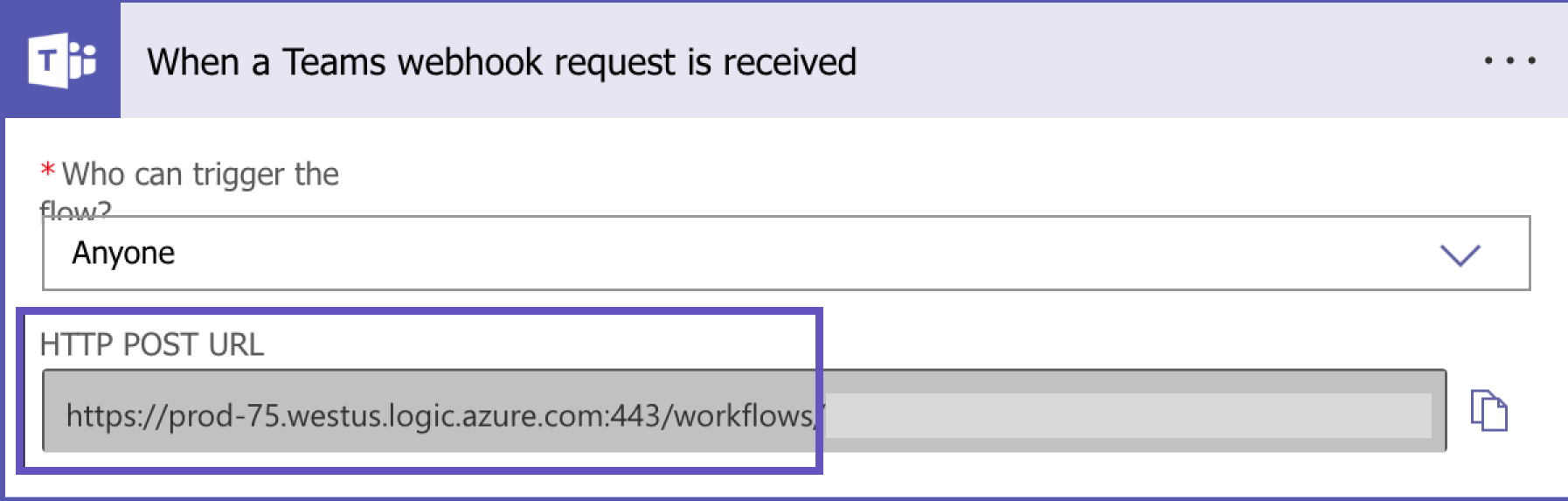
Add the webhook domain to the allowlist so that you can send data to it.
Otherwise, the webhook could be blocked.
Paste webhook URL in Jira
The next steps will depend on the Jira automation version you’re using:
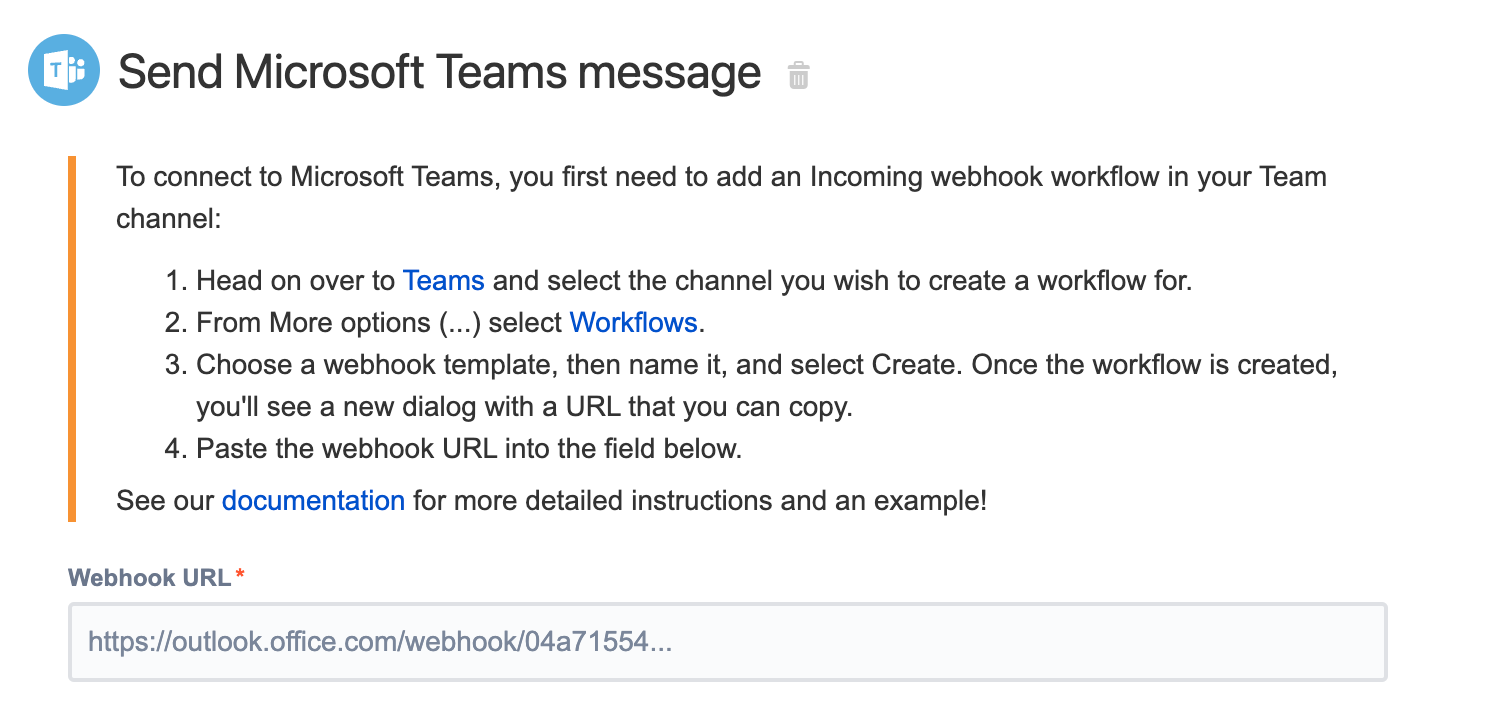
All done! You’re now integrated with your Microsoft Teams channel.
Markdown support
Microsoft Team messages support basic markdown for rich formatting. The only limitations are:
-
Images
-
Inline HTML
-
HTML blocks
-
Custom nodes
If you're using characters such as * or # and you want them to appear as characters in your message content, you need to escape them; otherwise, they'll be performing a markdown function. You can escape the characters by surrounding them with backslashes, for example \#\.
Example
Send a message to a Microsoft Teams channel when a bug is raised. The message body is using smart values formatted with markdown language using:
-
Bold
-
Italics
-
Link
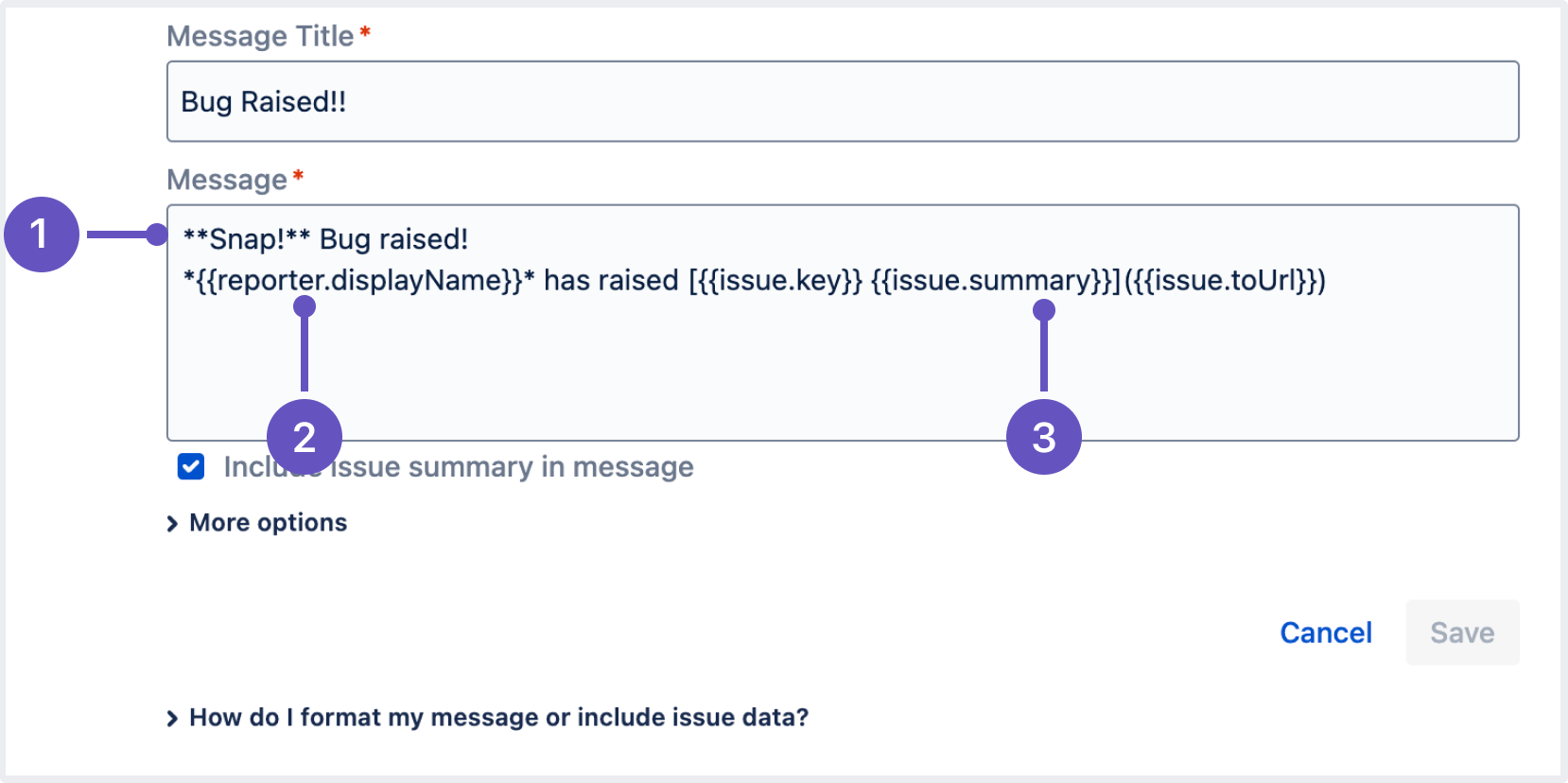
When this rule is triggered, a message in Microsoft Teams looks like this: