I recently helped a client migrate Opsgenie functionality to the built-in JSM Operations module. While rebuilding some automations, particularly for paging the Incident Management team, I discovered that Atlassian's instructions are outdated and the Team IDs don’t match. In other words, the IDs in the URL are different to what’s in the JSON representation. To assist others facing similar challenges, I created a video tutorial.
Key Pointers:
1. Build you Teams and enable the Operations feature first
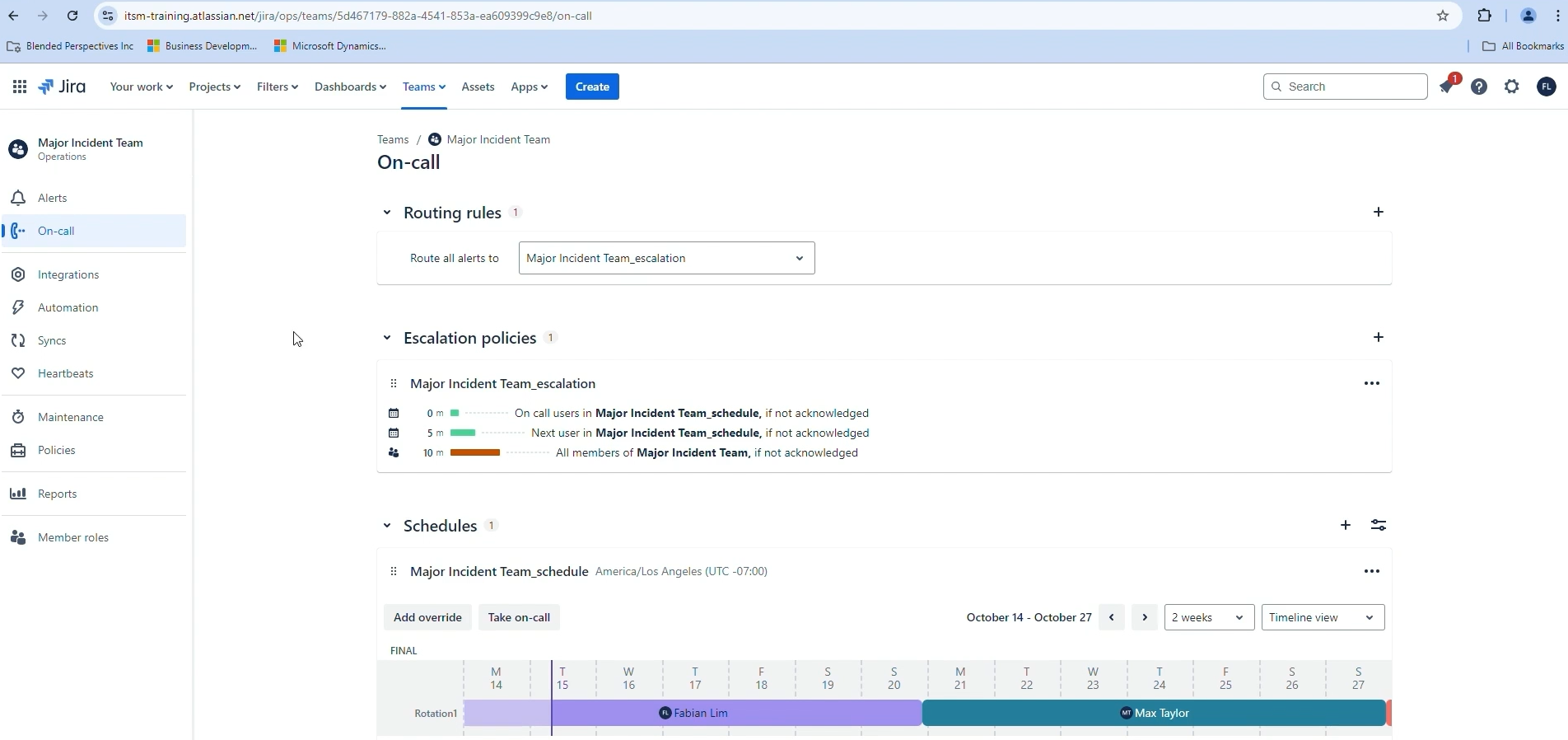
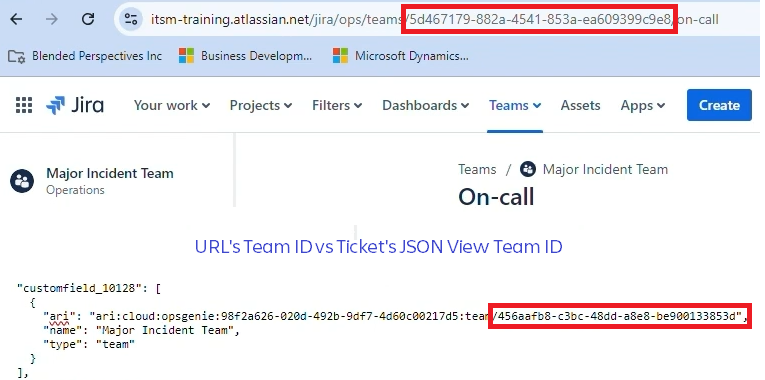
2. Look at the JSON info (Note that the Team ID does not match the Team ID on the Responder custom field)
- Use the following URL to view the JSON representation of your issue: https:///rest/api/2/issue/?expand=names (Consider downloading an extension or tool to format your JSON data so that it’s easier to read.)
- Navigate to the Responder’s custom field and copy the information which includes the Cloud ID, Team ID and other relevant fields for your automation
{ "ari": "ari:cloud:opsgenie::team/",
  "name": "<Team's name>",
  "type": "team"
}
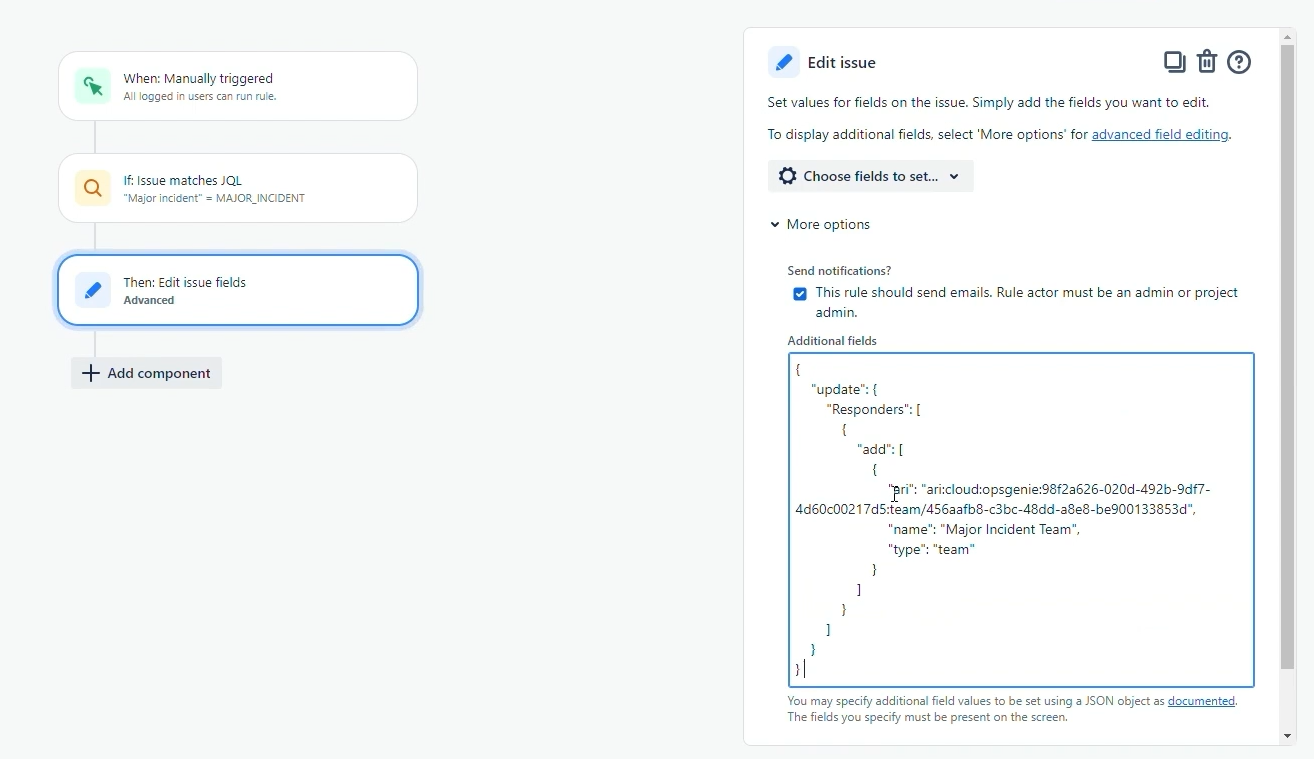
3. Build the Automation
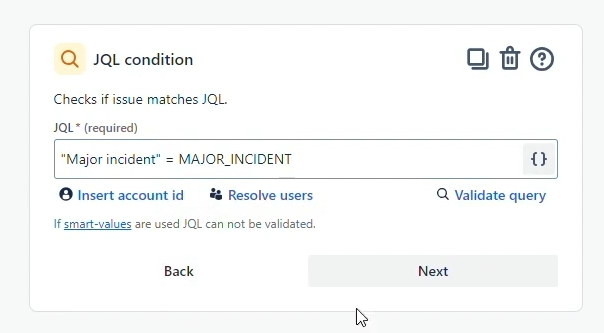
- Condition for Major Incident Flag i. “Major Incident” = MAJOR_INCIDENT
- Editing the Responders field through the JSON syntax:
JSON UPDATE SYNTAX:
{
  "update":
    { "Responders":
        [
          { "add":[
                    { "ari": "ari:cloud:opsgenie:<cloudID>:team/<teamID>",
                    "name": "<Team's name>",
                    "type": "team"
                    }
                  ]
          }

        ]

    }
}
Full Video Tutorial
Related Articles:
Thanks,
Fabian


