The University sector is one of society's most collaborative and international sectors. For many universities, Confluence is an essential tool for enabling research projects that often involve participants from international academic institutions and industry partners. These projects are limited in duration, and results must be shared in a restricted manner across participating organizations.
The challenge
Here's an example: Several collaborating universities were looking for a way to securely enable temporary project members from domains external to the host university to access sensitive information on the host university's Confluence instance.
Of course, Atlassian allows sharing access to a Confluence instance with non-licensed users: Setting Up Public Access | Confluence Data Center 9.0 | Atlassian Documentation
That’s a great feature, but the challenge is that it does not enable you to select who to share content with; it's an "all or nothing" scenario.
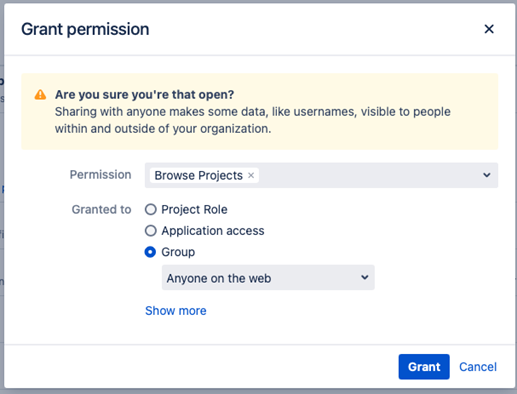
For universities working on cutting-edge scientific projects, it's essential to authenticate external users before giving them access to scientific data and results. Universities do not want to share their research with the public until it has been properly reviewed and authenticated.
Kantega’s solution
In response to the needs of the IT administrators and other stakeholders in these universities, Kantega SSO conceived an "SSO-verified anonymous access" solution.
SSO creates a more secure environment, reducing the risk of sensitive information "leaking" prematurely. SSO verification also means that the external user's identity is known at all times via a session cookie, which is created in the same way as a regular login, except that the session is not related to a local user in the Confluence instance.
How to configure SSO-verified anonymous access
Any organization using Kantega's Single Sign-On apps for Atlassian's Data Center platform has access to this "SSO-verified anonymous access" feature.
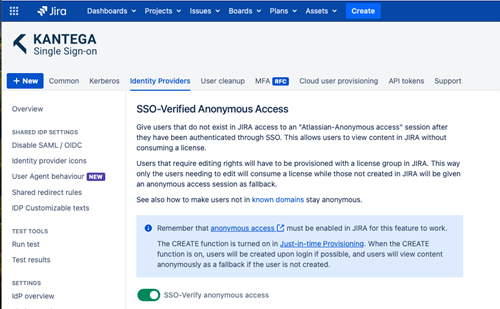
When Anonymous Access is enabled in the host product, it only takes three clicks to activate SSO verification.
-
Select the identity provider that you want to configure under “Identity Providers” in the Kantega SSO app
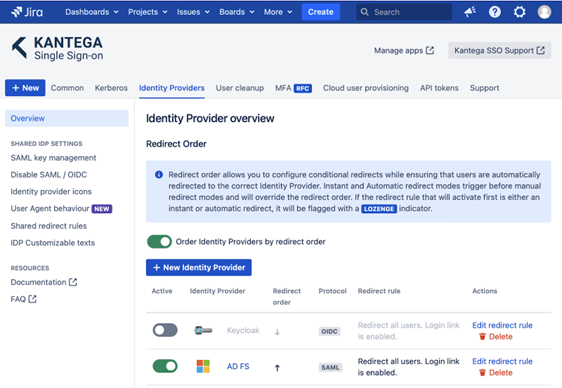
- Choose the Identity provider you want to configure, then select SETTINGS → SSO-Verified Anonymous Access. Enable the switch “SSO-verify anonymous access.”
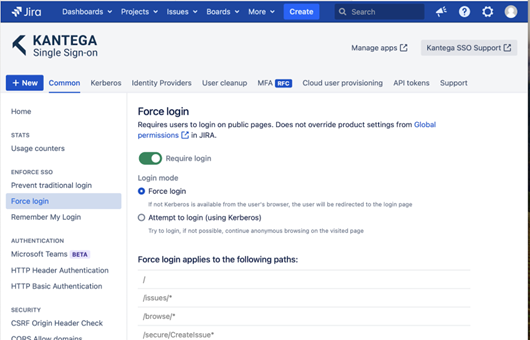
- Enable “force login” in Kantega SSO to apply SSO to all URLs
This feature allows any organization to meet the necessary levels of security for sensitive data and content.
If you face similar challenges with Anonymous Access, reach out to us. We'll be happy to help you secure external access to Confluence or other Atlassian products.
Setting Up Public Access | Confluence Data Center 9.0 | Atlassian Documentation

