We all love knowledge sharing. There’s nothing quite like the satisfaction of discovering valuable information, passing it on, and getting recognized for it. Confluence is our trusted tool for this, but keeping it well-organized is essential. One of the top ways to achieve this is by using collapsible sections.
In this article, we’ll dive into how to effectively use collapsible sections in Confluence, discuss the pros and cons of the native Expand Macro, and introduce Aura’s powerful features that can elevate your Confluence pages to a whole new level.
📂 What Exactly Are Collapsible Sections in Confluence?
Collapsible sections are your go-to solution for handling content overload in Confluence. These nifty, interactive elements allow you to hide or reveal content with a simple click, helping to keep your pages streamlined and easy to navigate. Think of them as your ultimate tool for decluttering.
🛠️ Getting Started with Confluence’s Native Expand Macro
Confluence’s built-in Expand Macro is pretty simple to use:
- Insert the Expand Macro: Head to the page you want to edit, type /expand, and choose it from the list.
- Personalize Your Section: Give it a title and fill it with the content you’d like to keep hidden until necessary.

- Publish: Save your changes and publish the page to see your new collapsible section in action!

🔄 Nesting Capabilities: What Works and What Doesn’t
The native Expand Macro in Confluence offers basic nesting capabilities, allowing you to embed simple formatting macros like bold text, italics, lists, and tables within your collapsible sections. This can be useful for organizing straightforward content.
What You Can Nest:
- Basic text formatting (bold, italics, lists)
- Simple tables
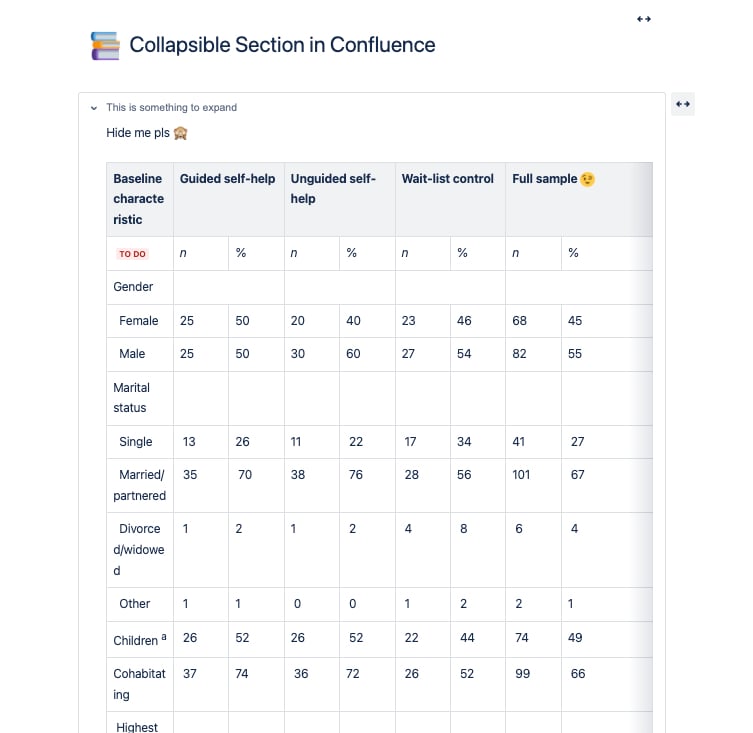
What You Can’t Nest:
- More complex elements like charts, infographics, or custom add-ons aren’t supported within the Expand Macro. Attempting to nest these within a collapsible section will simply not work, limiting the complexity and interactivity of your content.
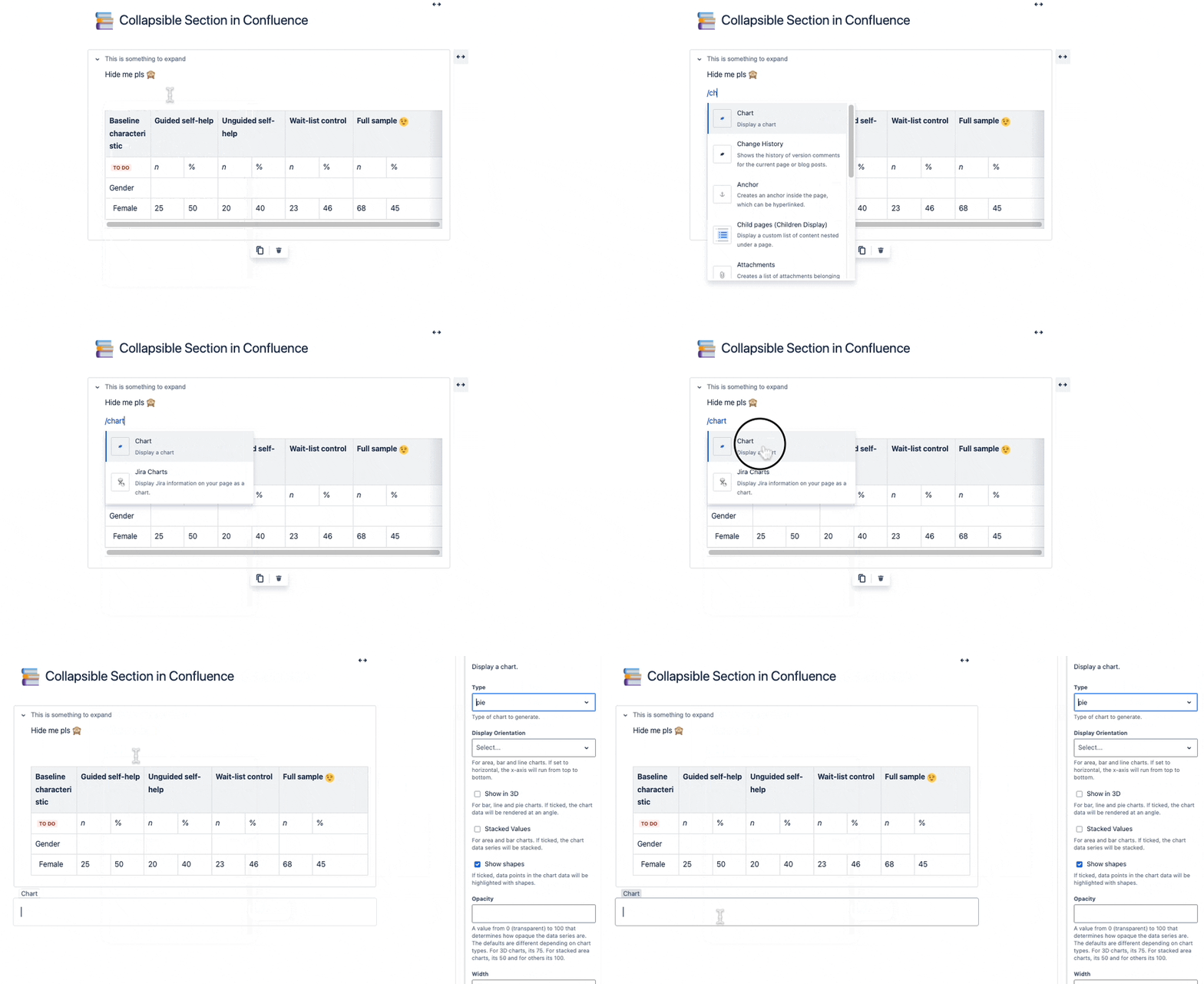
🌟 Advantages of the Native Expand Macro in Confluence
- Streamlined Navigation: Makes it easier for users to locate relevant sections on pages packed with content.
- Improved User Experience: Minimizes visual clutter, making your page more inviting and easier to read.
- Effortless Setup: Simple to implement without requiring additional tools or plugins.
🚧 Drawbacks of the Native Expand Macro in Confluence
While the native Expand Macro has its perks, there are some notable limitations:
- Limited Customization: Offers only basic options for tweaking the appearance of expandable sections.
- Restricted Nesting: Lacks the ability to embed other macros within the expandable sections, limiting content complexity.
- Visibility Issues: The expandable sections can sometimes be overlooked, which may reduce their overall effectiveness.
🚀 Beyond the Basics: Collapsible Sections with Aura
Aura Content Formatting Macros by Appanvil is like Confluence on a whole new level. This suite of tools transforms your pages into visually appealing, interactive experiences. And yes, that includes collapsible sections that are far more customizable and dynamic than the standard Expand Macro.
🎨 Why Aura’s Expand Macro Stands Out:
- Enhanced Customization: Tailor every detail, from colors and fonts to sizes and icons, to perfectly align with your brand.
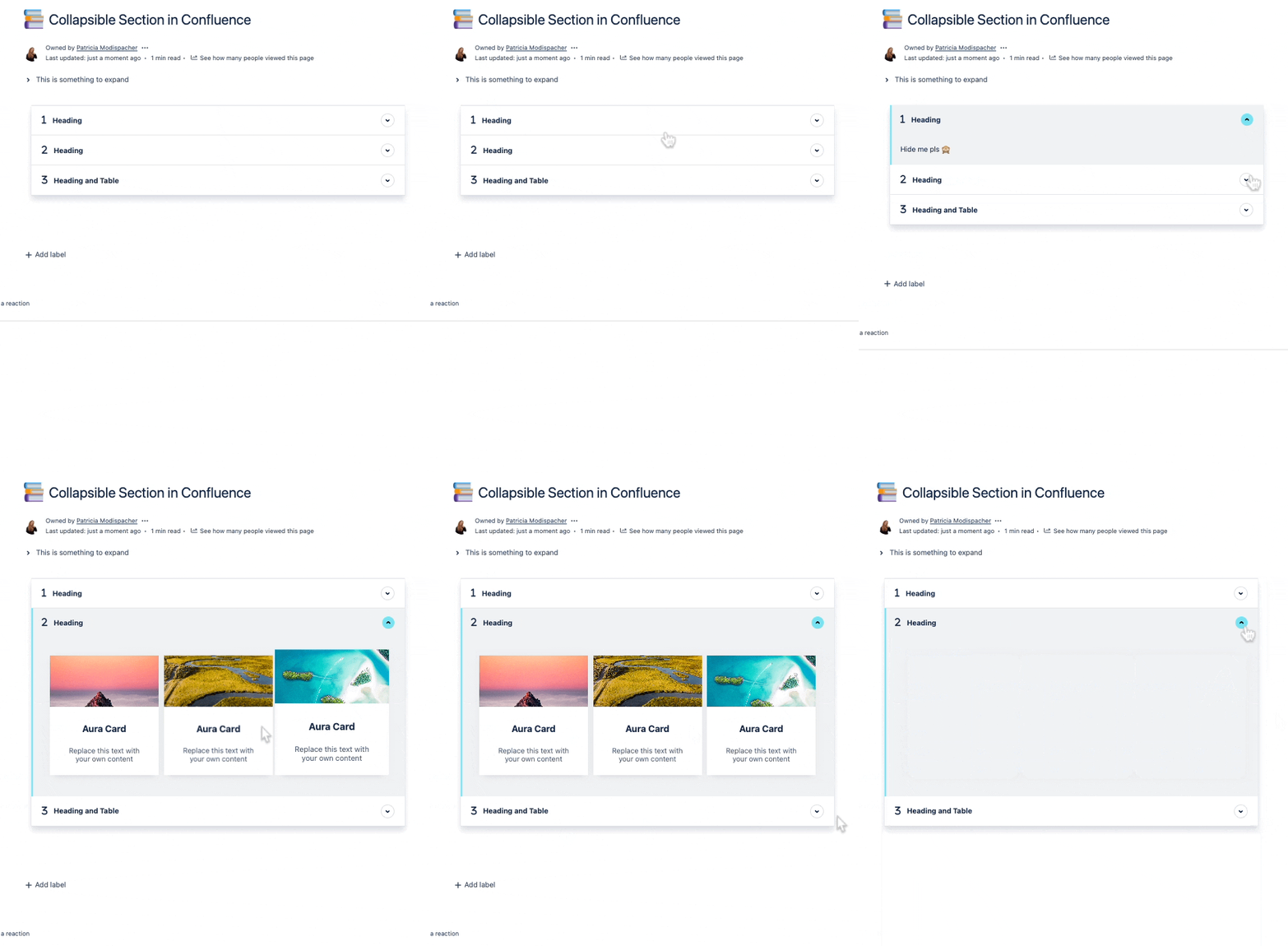
- Advanced Nesting: Get creative by nesting other macros, like charts, tables, and infographics, within your collapsible sections.
- Improved Visibility: With Aura’s design enhancements, your sections stand out more, ensuring that no important information gets overlooked.
💪 How to Use Aura's Expand Macro
Your Step-by-Step Guide
Insert the Aura Expand Group Macro:
Begin by adding the Aura Expand Group macro to your Confluence page. This serves as the foundation, providing design settings for all your expandable sections.
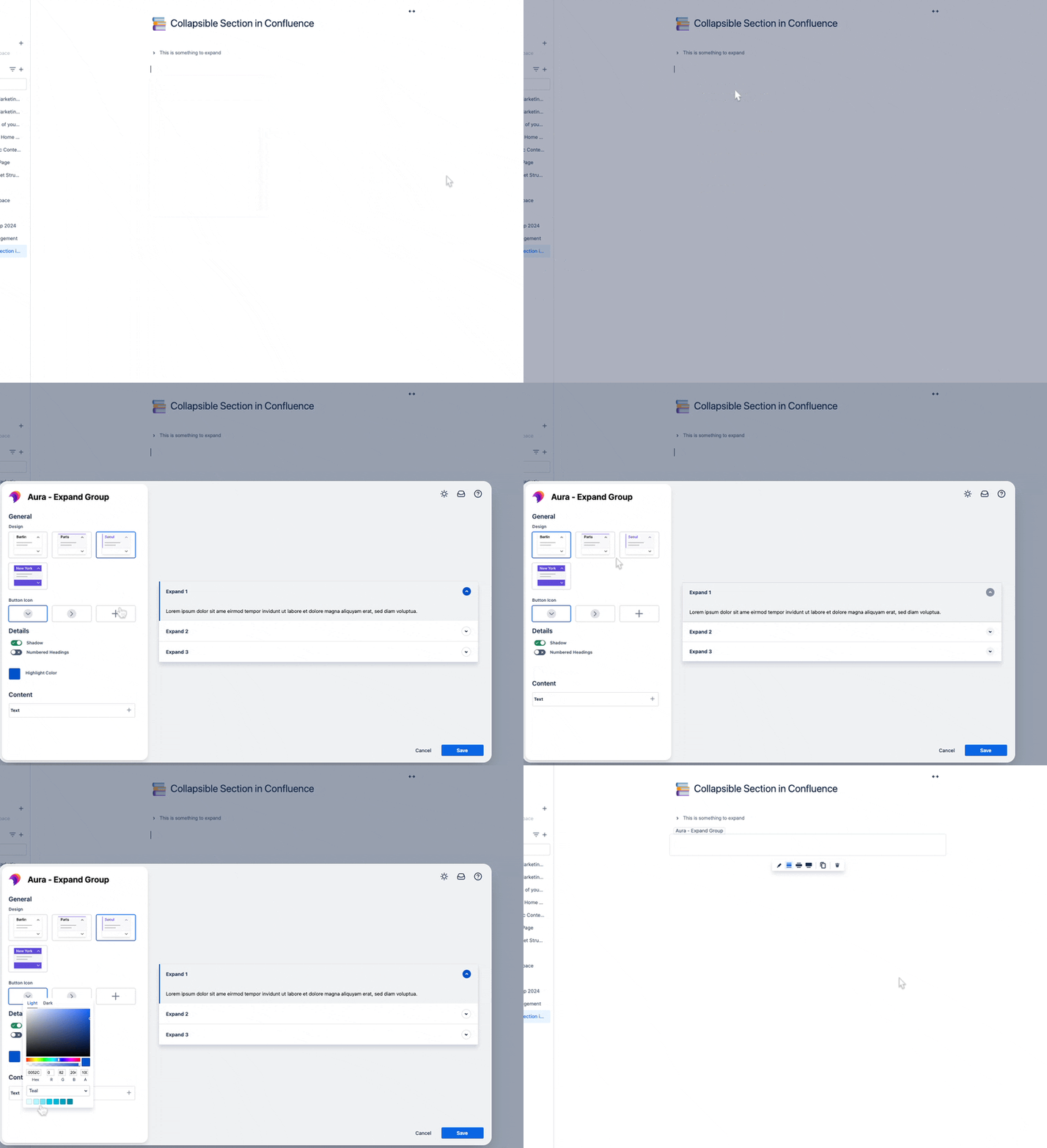
Add Individual Aura Expand Macros:
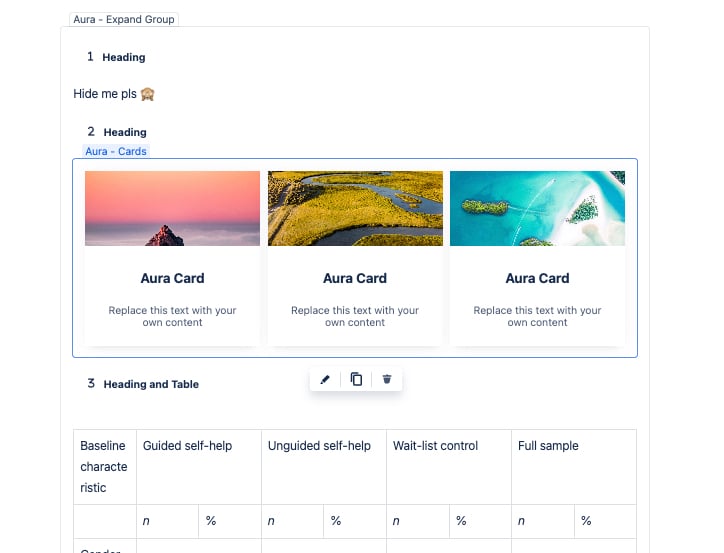
Within the Aura Expand Group, you can insert separate Aura Expand macros for each section you wish to make collapsible. Assign a title and, if desired, select an icon for each section to enhance clarity and visual appeal.
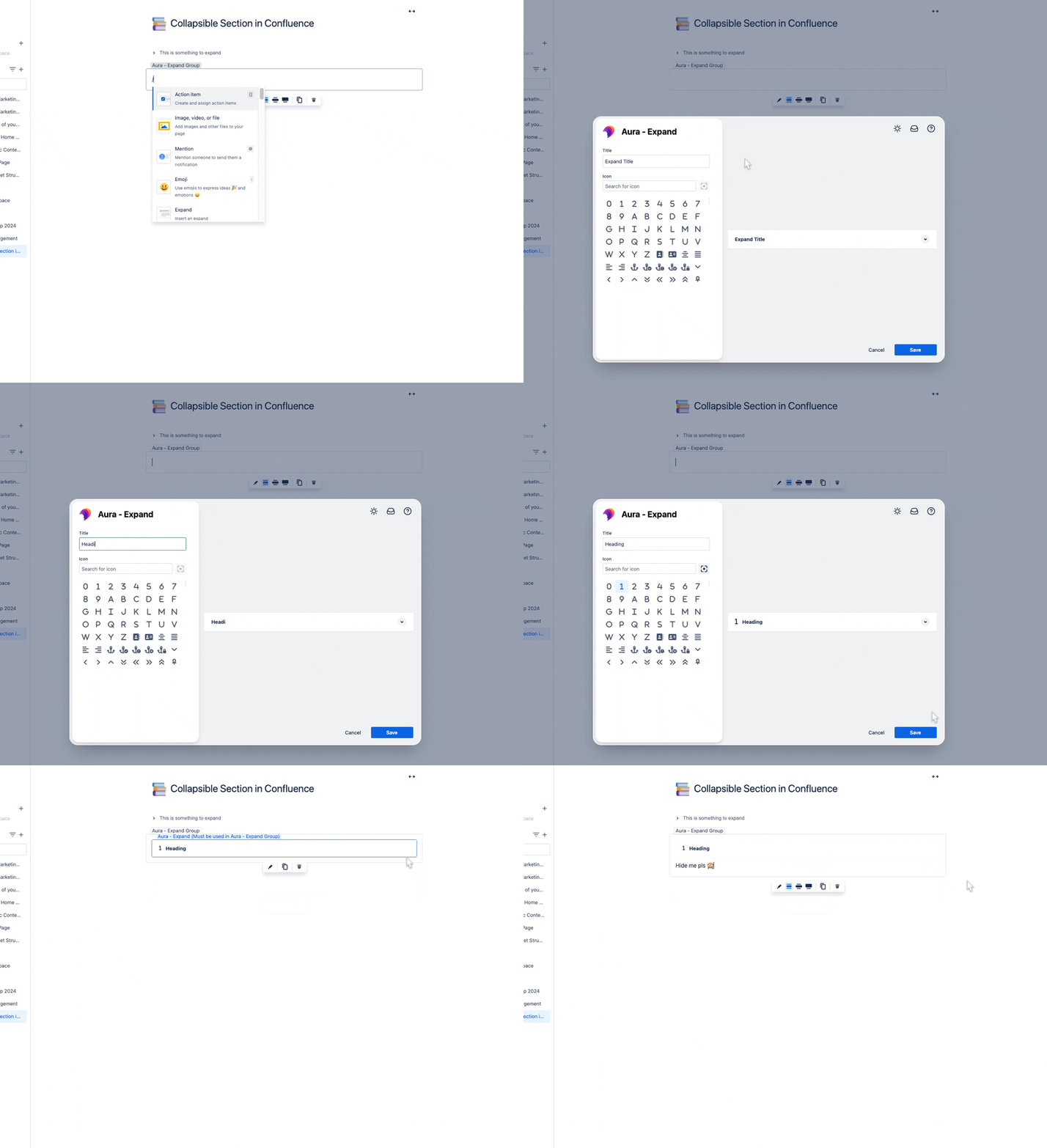
Customize Your Sections:
Populate each Aura Expand macro with your content. You can include other Confluence macros, along with rich content like tables, images, and interactive elements, to boost functionality.
Publish Your Page:
Once you’re satisfied with your setup, save and publish your page to bring your enhanced collapsible sections to life.
🎨 Ready to Take Control of Collapsible Sections?
Collapsible sections in Confluence are incredibly useful, but if you’re aiming for maximum impact, Aura’s Expand Macro is your best bet. It’s all about making your content not just organized, but also visually captivating and interactive.
Interested? Schedule a free demo or try it for free and see the difference for yourself!


