Would you like to get email notifications about updates that are most important to you in Jira? It can be anything from new comments added to status transitions. Documenting the evolution of tasks and processes enables project managers and teams to understand task progression, identify trends, and make informed decisions. Whether you want to send and receive emails about specific issue changes or comprehensive reports of all updates, you’ll discover both below.
◽ Send emails with specific issue updates: Jira automation
Automation in Jira is a powerful, flexible option that you can modify to fit your needs. All you have to do is provide the triggers, conditions, and the action that will be taken in response to them. Among many actions available, one essential for our case is called “Send email”.
Let's try with an example:
I want to receive emails every time an issue in my project goes to the status “Done”.
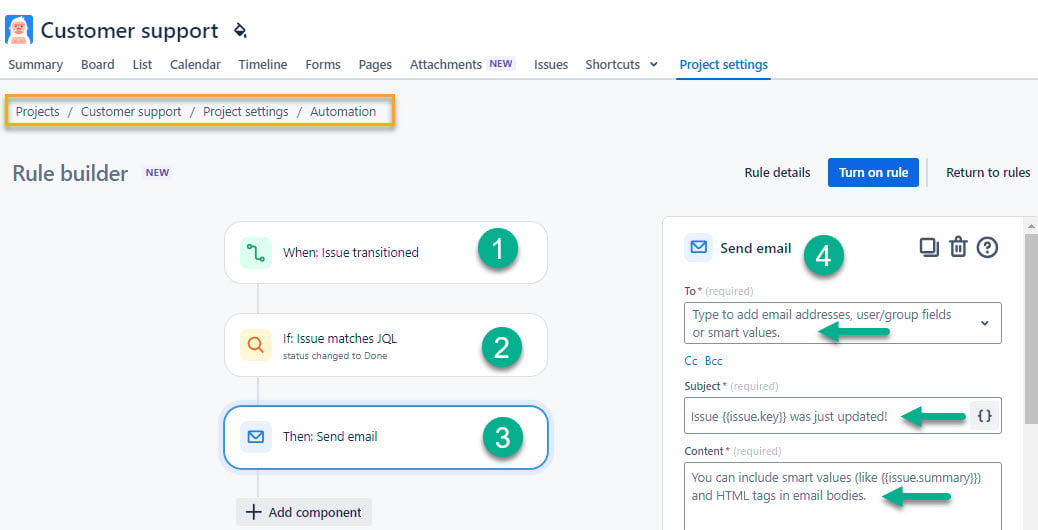
Here is how the automation rule will look:
Trigger → WHEN: Issue transitioned
Condition → IF: Issue matches JQL
status CHANGED to Done
Action → THEN: Send email
*Choose the assignee and subject
You can create similar rules for other updates available with JQL. You can also use trigger WHEN: Value changes for. Find some examples of Jira Automation rules for due dates.
◽ Emails custom reports with issue changes
What if you want a report of all changes for a specific time, updaters, and other custom criteria? You can create such a report and send it to the required recipient with the new option of Issue History for Jira app by SaaSJet team. The feature is called Report Scheduler and works in union with the saving option.
It’s time for an example:
I want to receive weekly emails about status and comments updates in one report.
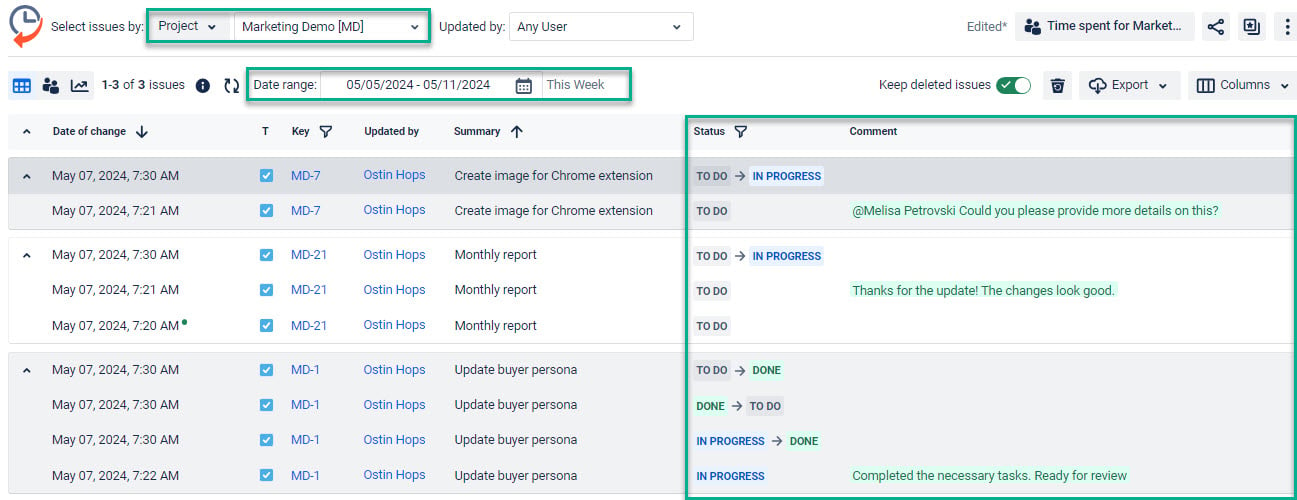
Step 1. Configure the report
- Choose the required project
- Set the date range (this week in our case)
- Include the “status” and “comment” fields in the table. We also added a summary as it is easier to recognize tasks with it.
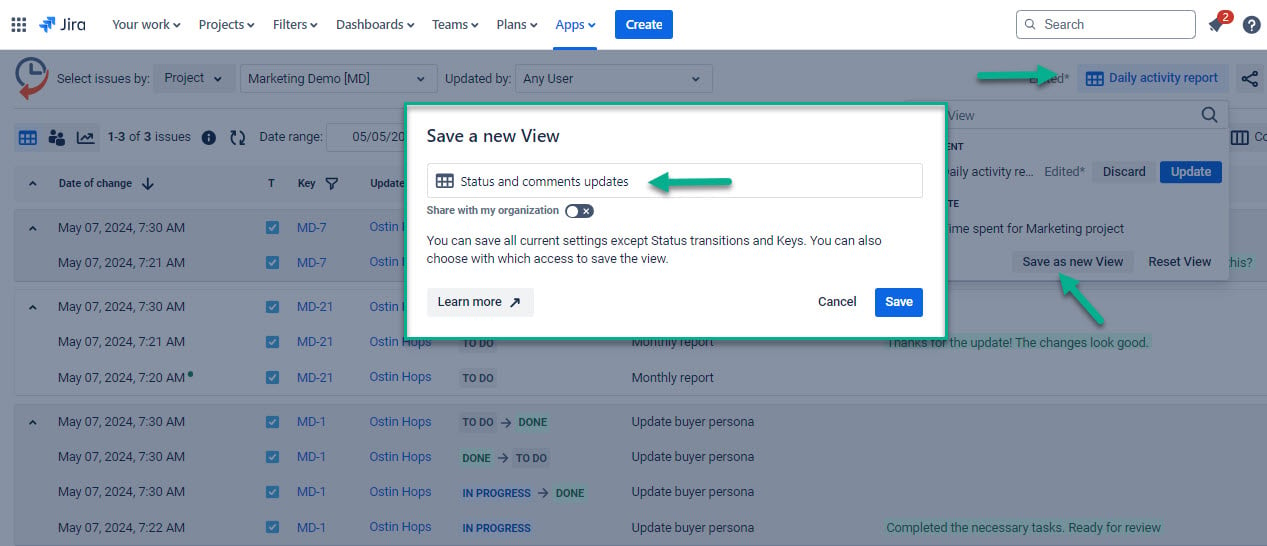
Step 2. Save the report
Step 3. Schedule the report to send in an email
- Activate the green toggle
- Select the recipients of the report
- Set frequency and start date
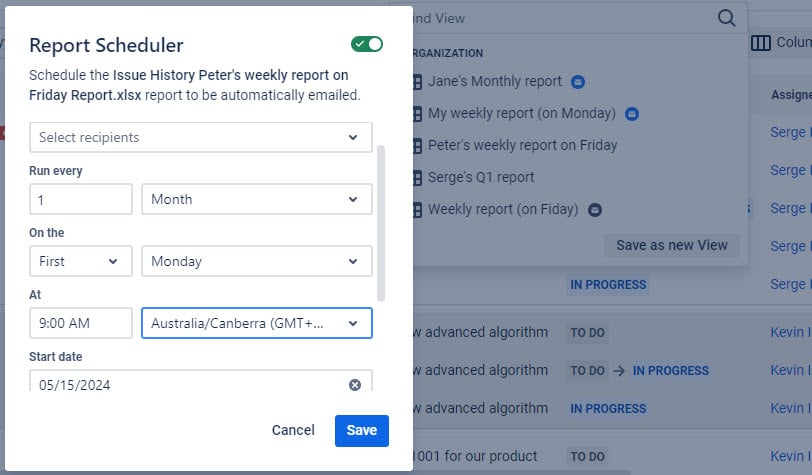
You can create and email the report with any issue changes by selecting any dates, projects, and issue fields (standard or custom ones).
Try to schedule your reports
Documentation
Takeaway
Email notifications with specific issue updates or comprehensive reports of all changes can significantly enhance project transparency and decision-making processes. Whether it's tracking individual issue transitions or analyzing trends over time, utilizing the tools described in the article enables efficient collaboration and fosters continuous improvement within project workflows.
