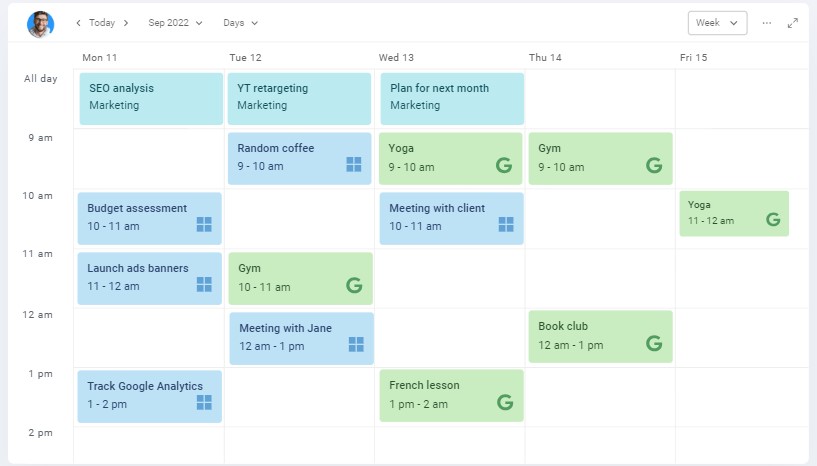
Today, I will walk you through how to make a colorful timeline or calendar in Trello, enhancing both the visual appeal and the functional clarity of your project schedule.
📢 Why Use a Colorful Calendar/Timeline?
Before diving into the how-to, it’s worth mentioning why a colorful timeline/calendar can be a game changer for your project management efforts:
- Enhanced Visibility: Different colors can represent different types of tasks, milestones, or team members, making it easier to get a quick overview of the project status.
- Improved Organization: Colors can help to categorize tasks, helping everyone understand priorities and dependencies at a glance.
- Increased Engagement: A visually appealing timeline/calendar is more likely to be used and updated regularly by the team.
📢 How to Make Trello Timeline Colorful
To transform your standard board into a more dynamic timeline, you can use Planyway. This tool turns your Trello board into a full timeline/calendar view, where you can drag cards to arrange them according to your project schedule.
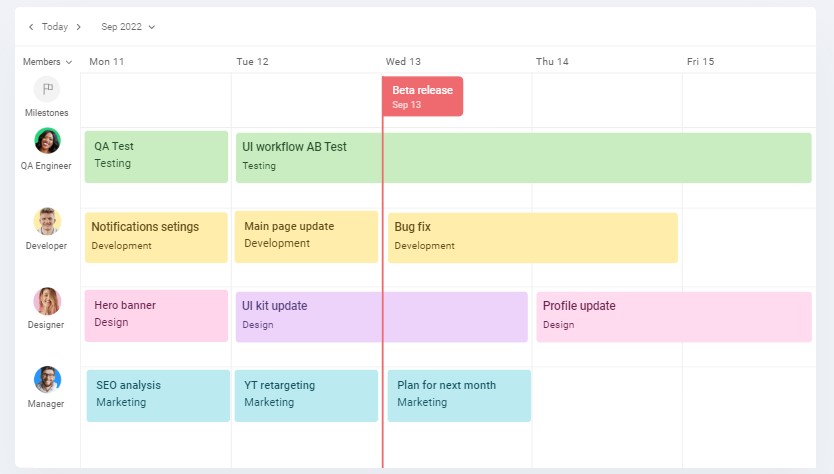
Planyway takes the card’s label color and reflects it as the card background on the timeline/calendar view. This is the default setup.
Alternatively, you can change the setting and choose the card color as board/external calendar color.