This article goes over how to setup SSO with Microsoft Azure for Private Pages
Instructions
Add StatusPage from the gallery
To configure the integration of StatusPage into Azure AD, you need to add StatusPage from the gallery to your list of managed SaaS apps.
-
Sign in to the Azure portal using either a work or school account or a personal Microsoft account.
-
On the left navigation pane, select the Microsoft Entra ID service.
-
Navigate to enterprise Applications and then select All Applications.
-
To add a new application, select New application.
-
In the Add from the Gallery section, type StatusPage in the search box.
-
Select StatusPage from the results panel and then add the app. Wait a few seconds while the app is added to your tenant.
Configure Azure AD SSO
Follow these steps to enable Azure AD SSO in the Azure portal.
- In the Azure portal, on the Statuspage application integration page, find the Manage section and select single sign-on.
- On the Select a single sign-on method page, select SAML.
- On the Set up single sign-on with SAML page, click the pencil icon for Basic SAML Configuration to edit the settings.
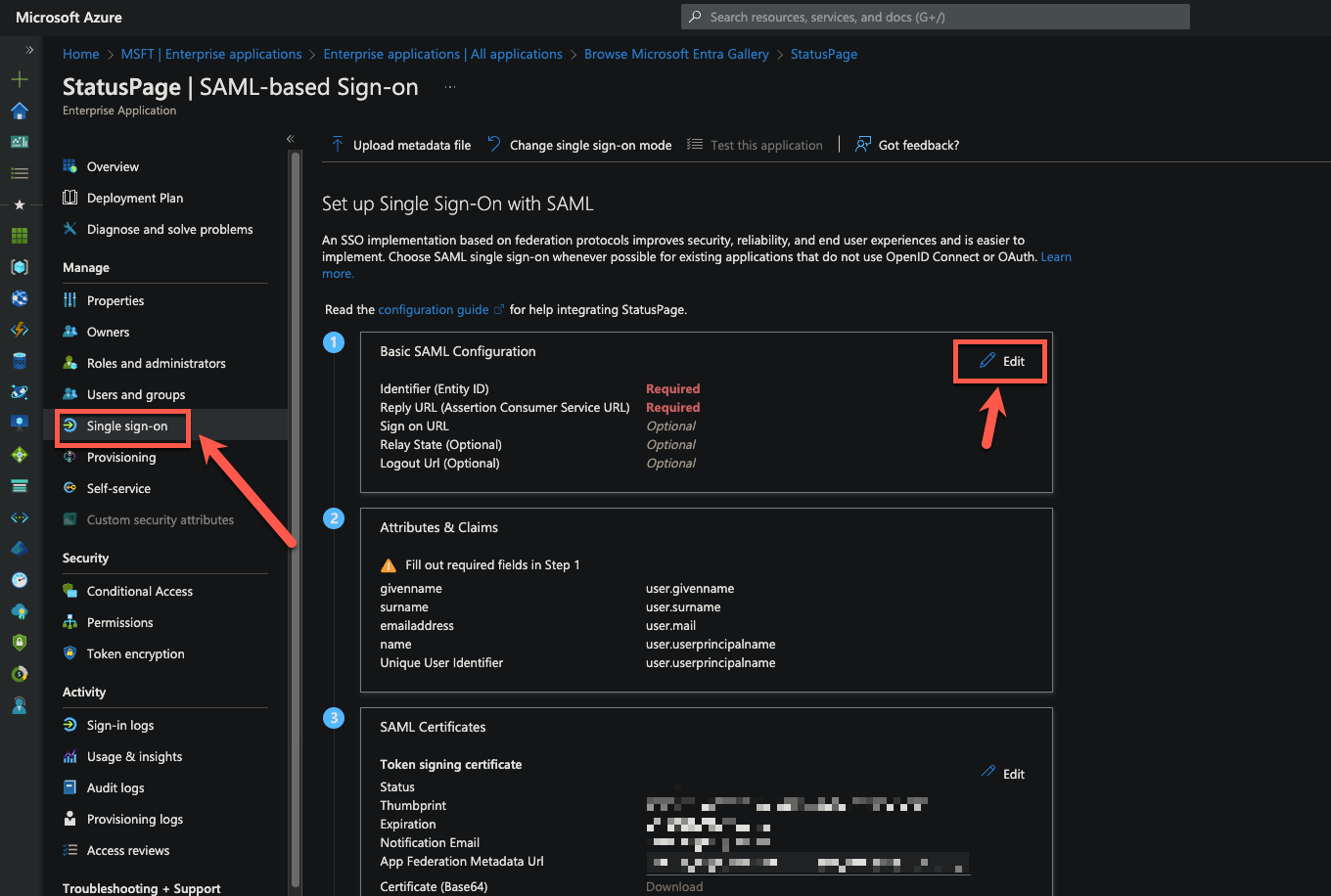
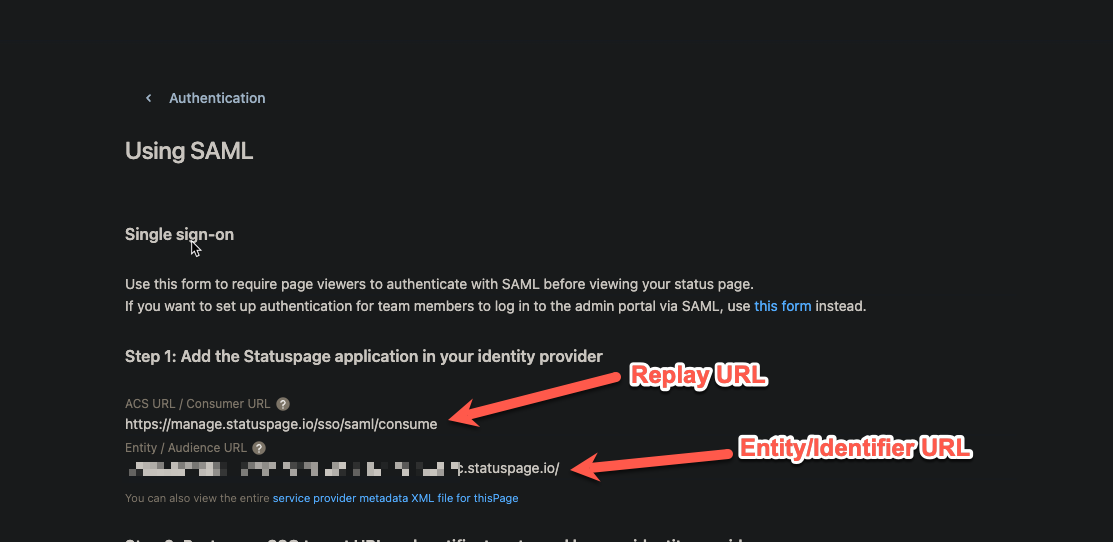
- On the Setup Single Sign-On with SAML page, perform the following steps: a. In the Identifier text box, type an Entity URL from the statuspage b. In the Reply URL text box, Add the below URL from the statuspage.
https://manage.statuspage.io/sso/saml/consume
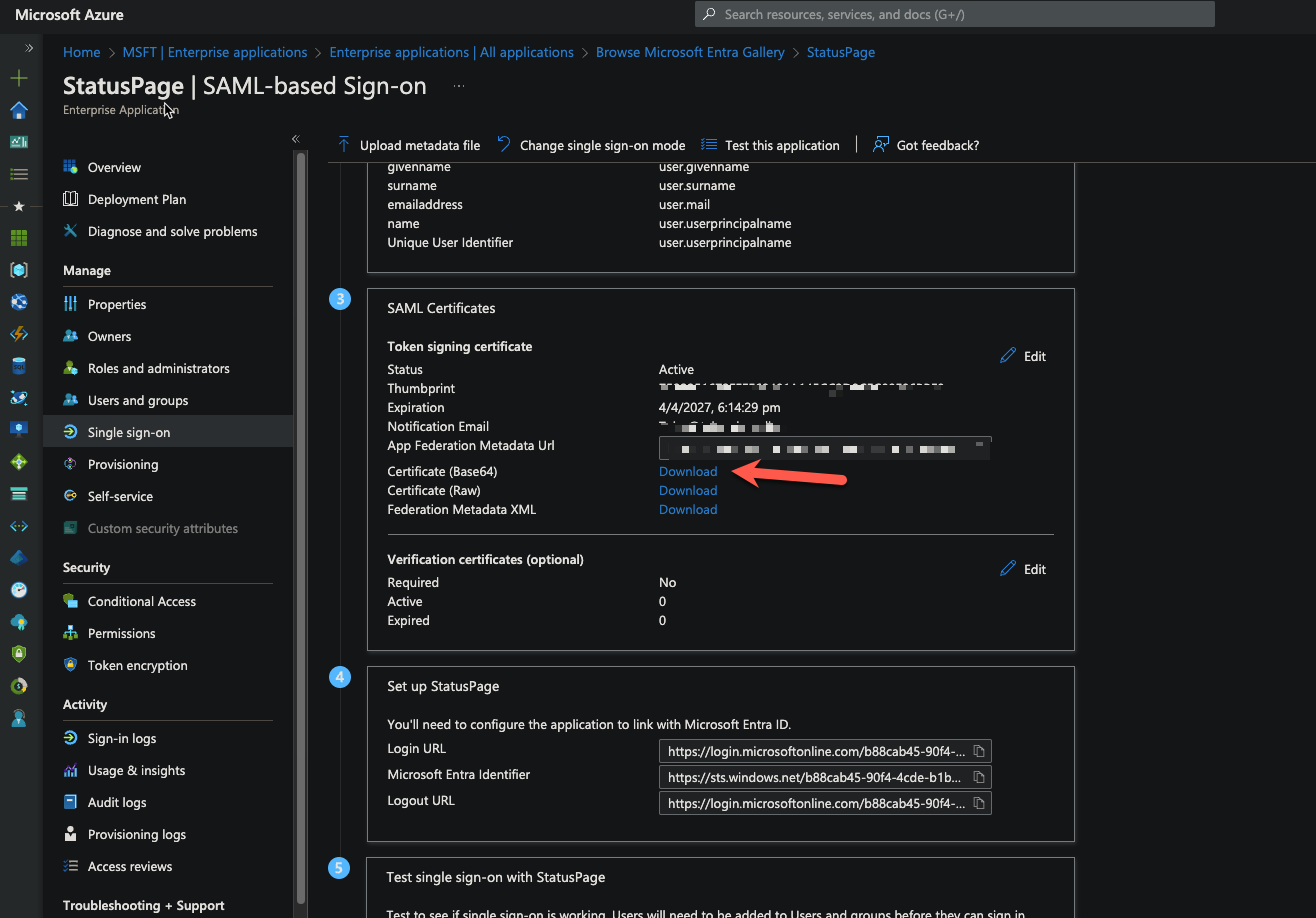
- On the Setup Single Sign-On with SAML page, in the SAML Signing Certificate section, click Download to download the Certificate (Base64) from the given options as per your requirement and save it on your computer. Paste the contents of the certificate in the certificate field in the Statuspage.
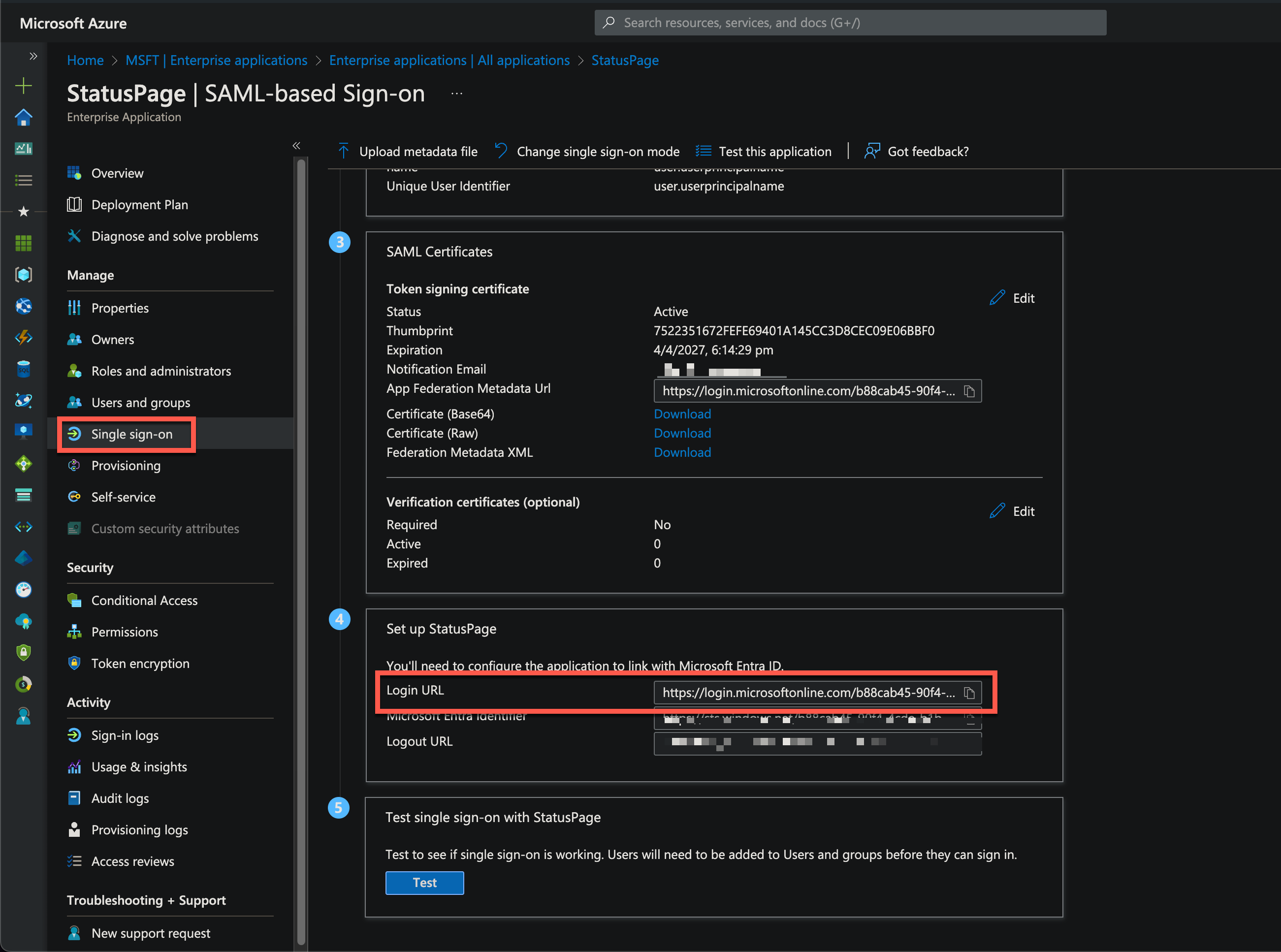
- On the Set up StatusPage section, copy the appropriate URL(s) as per your requirement.
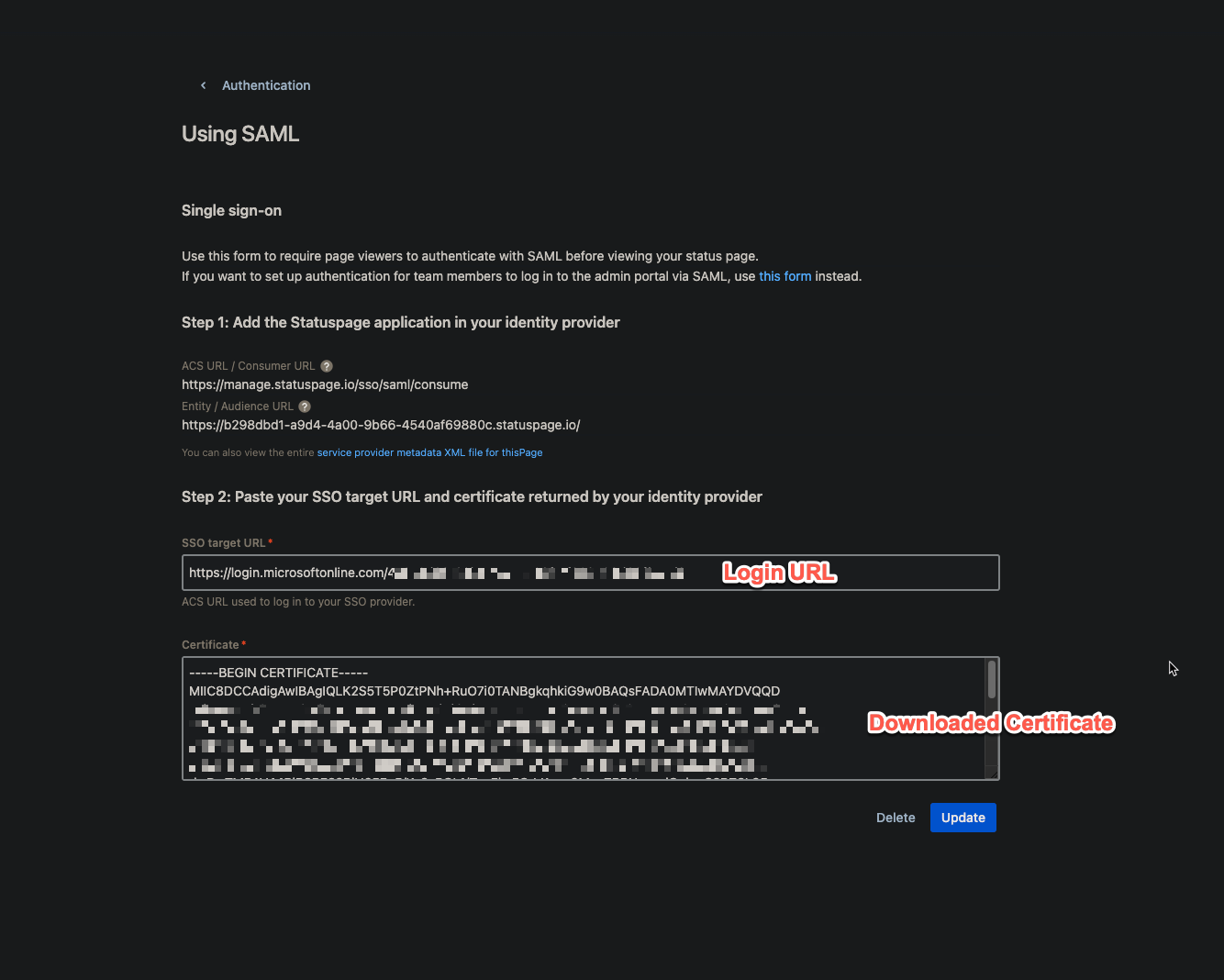
Assign users to the SSO application within Microsoft Azure
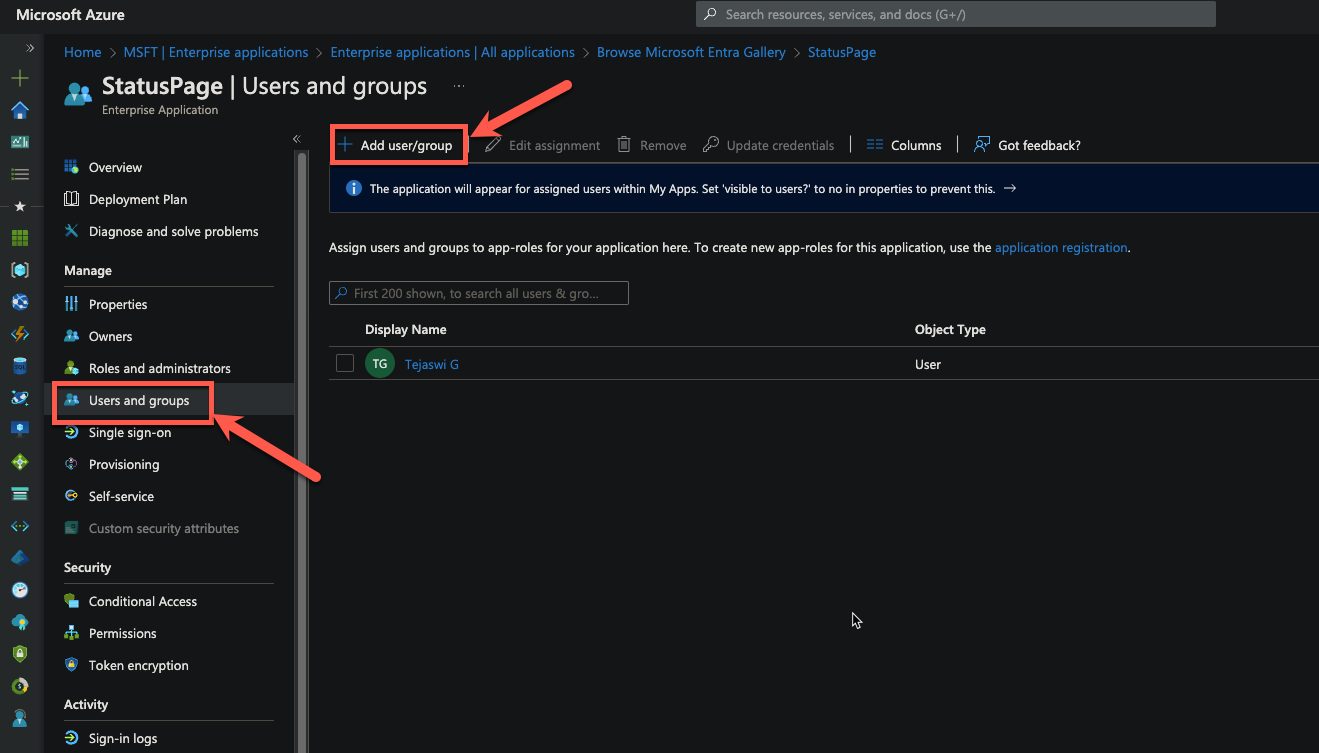
- Click on Users & Groups within the Statuspage Application configured in Microsoft Azure.
- Click Add user/group to assign your users to the application.
To make sure we keep offering content that truly benefits you, it would mean a lot to us if you could share whether this article was helpful by giving a thumbs up👍 or down 👎
Additionally, your insights are incredibly valuable in our journey to improve, so please don't hesitate to provide more detailed feedback directly in this community article.
