Select “Link Statuspage” and fill in the relevant information fields. Once completed,
click “Send comms” to send to the right stakeholders.
Once completed, your update will have been sent to the relevant stakeholders!
NEW: Statuspage - Microsoft Teams integration
To enable Microsoft Teams, go to your Manage portal, select Subscribers in the left menu, then Options in the top right, Settings, select “Microsoft Teams,” and Save Changes.
How to subscribe:
Subscribers and admins will now be able to receive Statuspage notifications for public pages directly in Microsoft Teams! Important to note this is not for private/audience specific pages - if you would like this functionality, only the admin can configure it from the App section in Statuspage.
1. Go to your choice of public Statuspage, click on “Subscribe to Updates” in the top right corner, click on the Microsoft Teams logo, and input your webhook URL.
 2. If you have access to the Manage portal in Statuspage, click on “Apps,” locate “Microsoft Teams,” click on “Add,” and fill out the relevant information like channel webhook URL to enable the integration for your channel of choice.
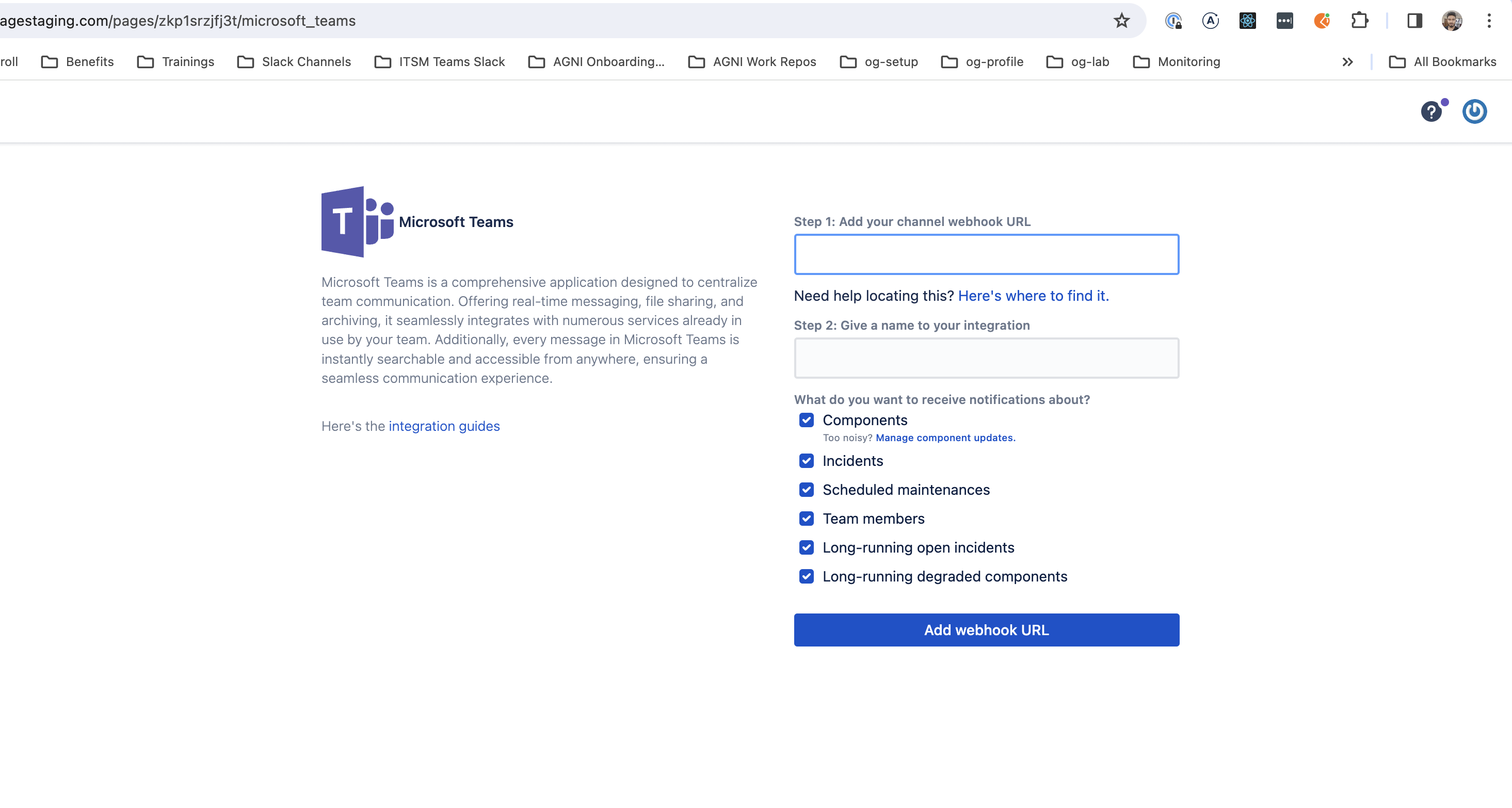
How to get your webhook URL (New Teams interface):
If you are on the new Teams interface, refer to this link to retrieve your URL.
If you are not able to see the Incoming Webhook, please contact your administrator, and follow the instructions in the Microsoft Teams help page to update Member permissions for Allow members to create, update, and remove connectors.
How to get your webhook URL (Classic Teams interface):
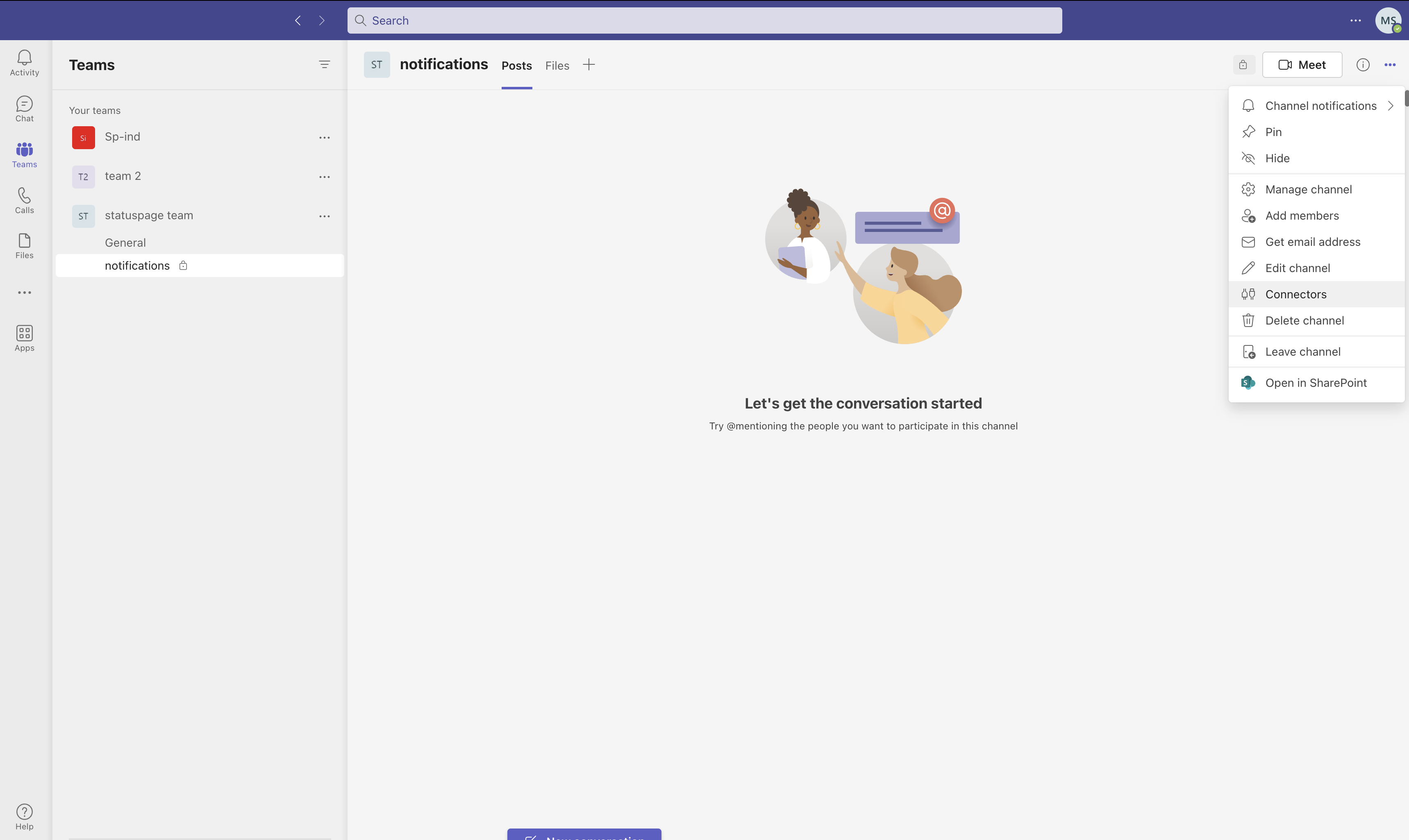
Step #1: Click the three dots and then “Connectors” in the top-right corner in your channel in Microsoft Teams.
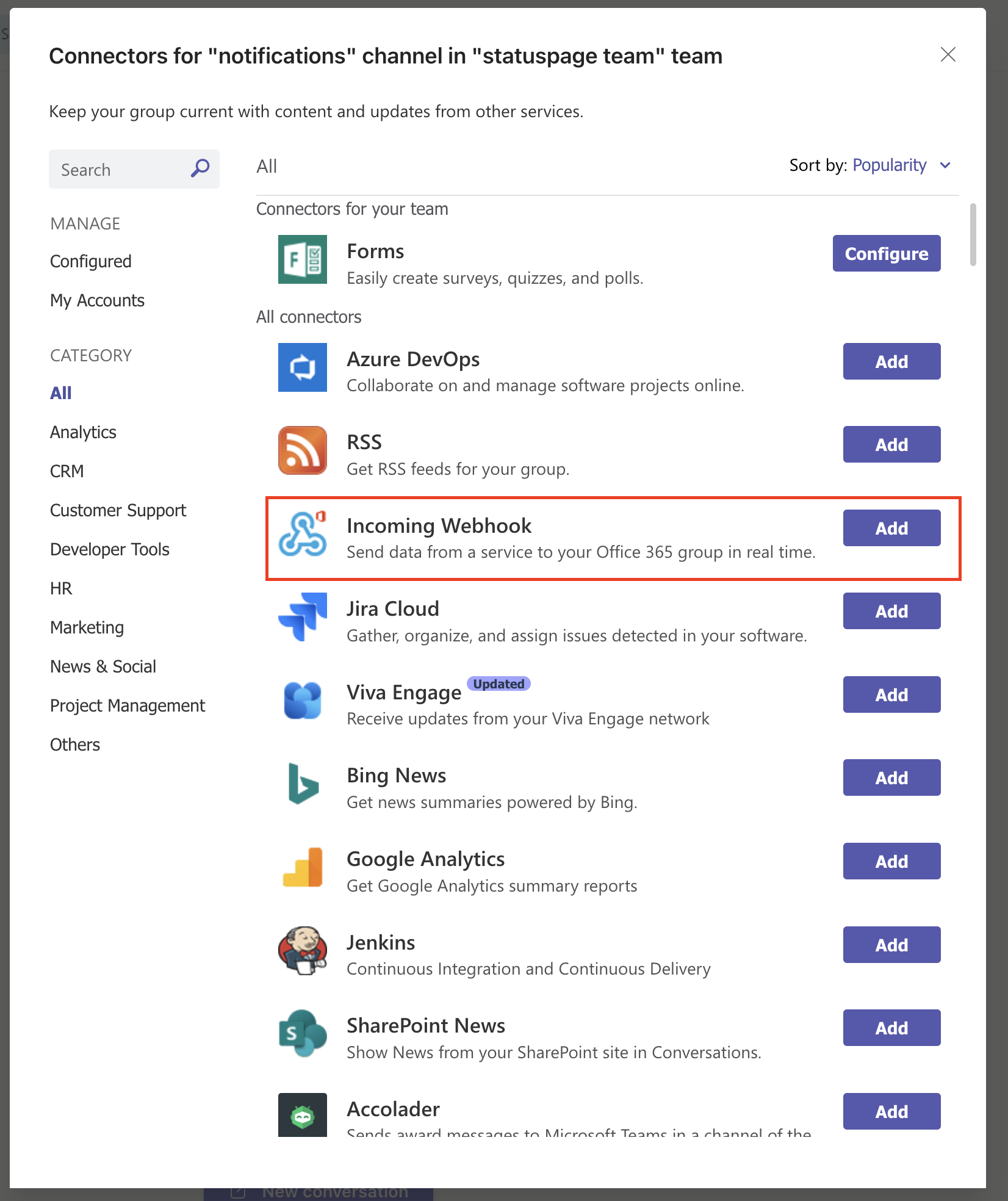
Step #2: Click “Add” for the “Incoming Webhook” connector.
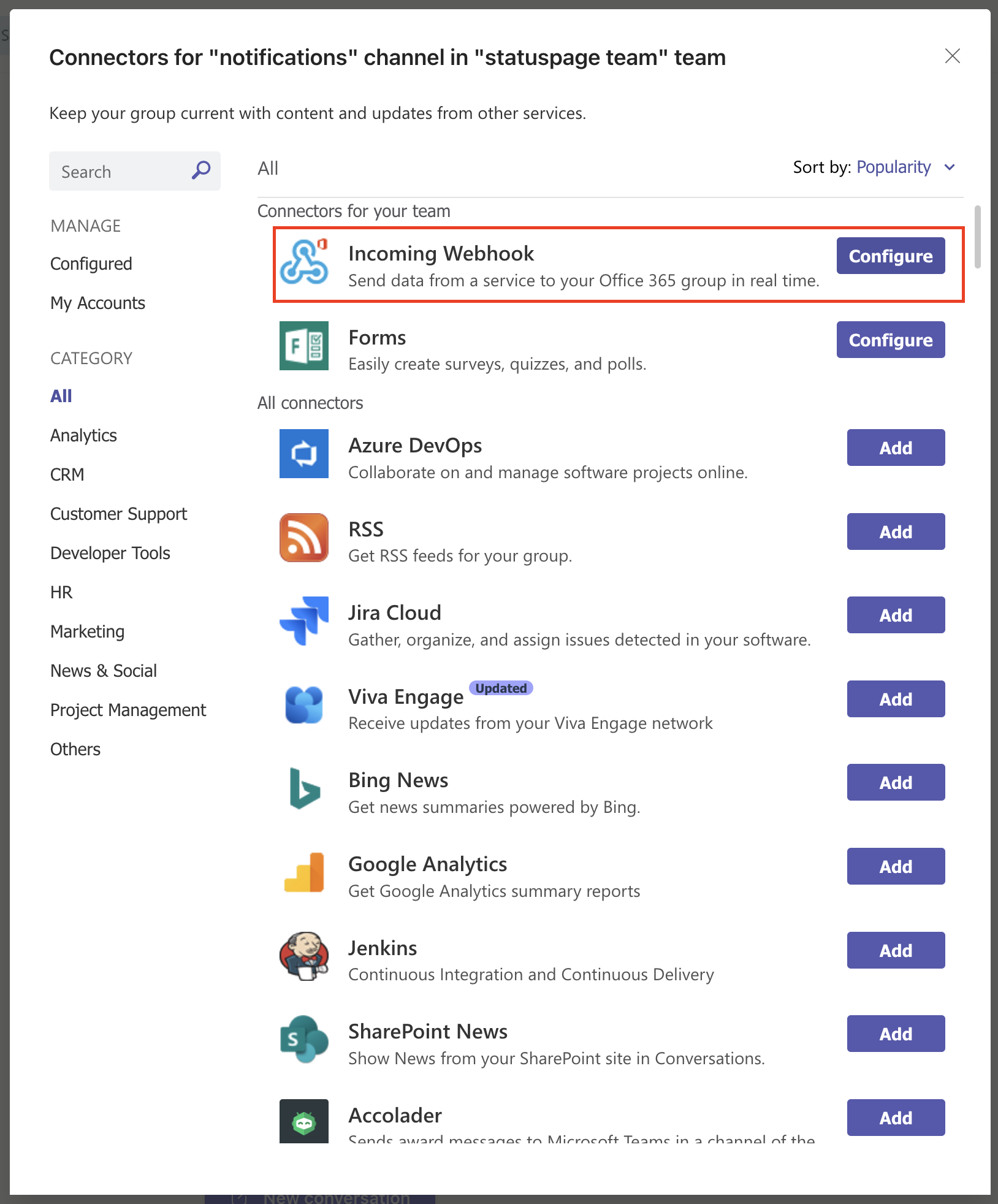
Step #3: Select “Configure” after you have added the connector.
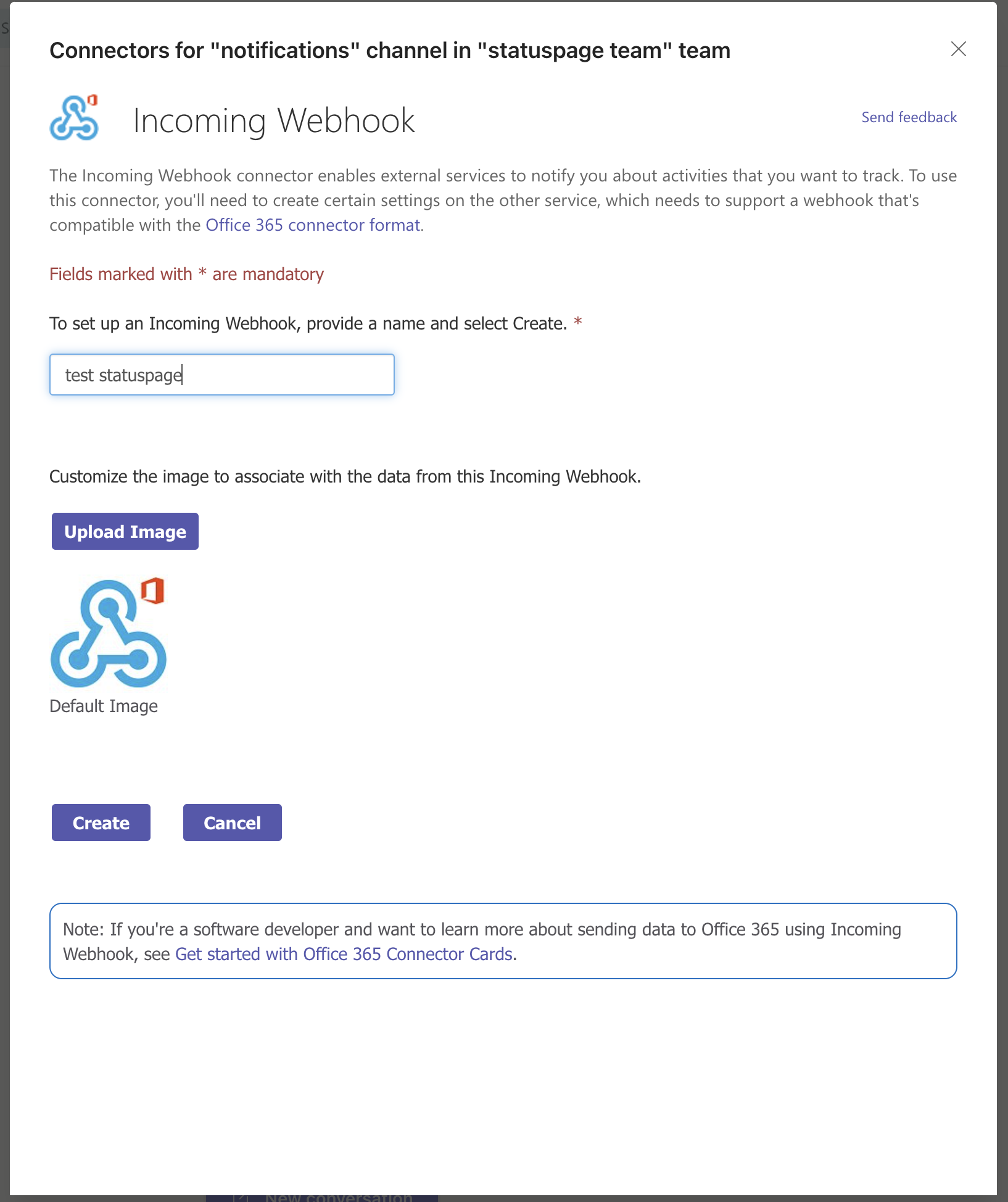
Step #4: Provide a name for the webhook connection and select "Create."
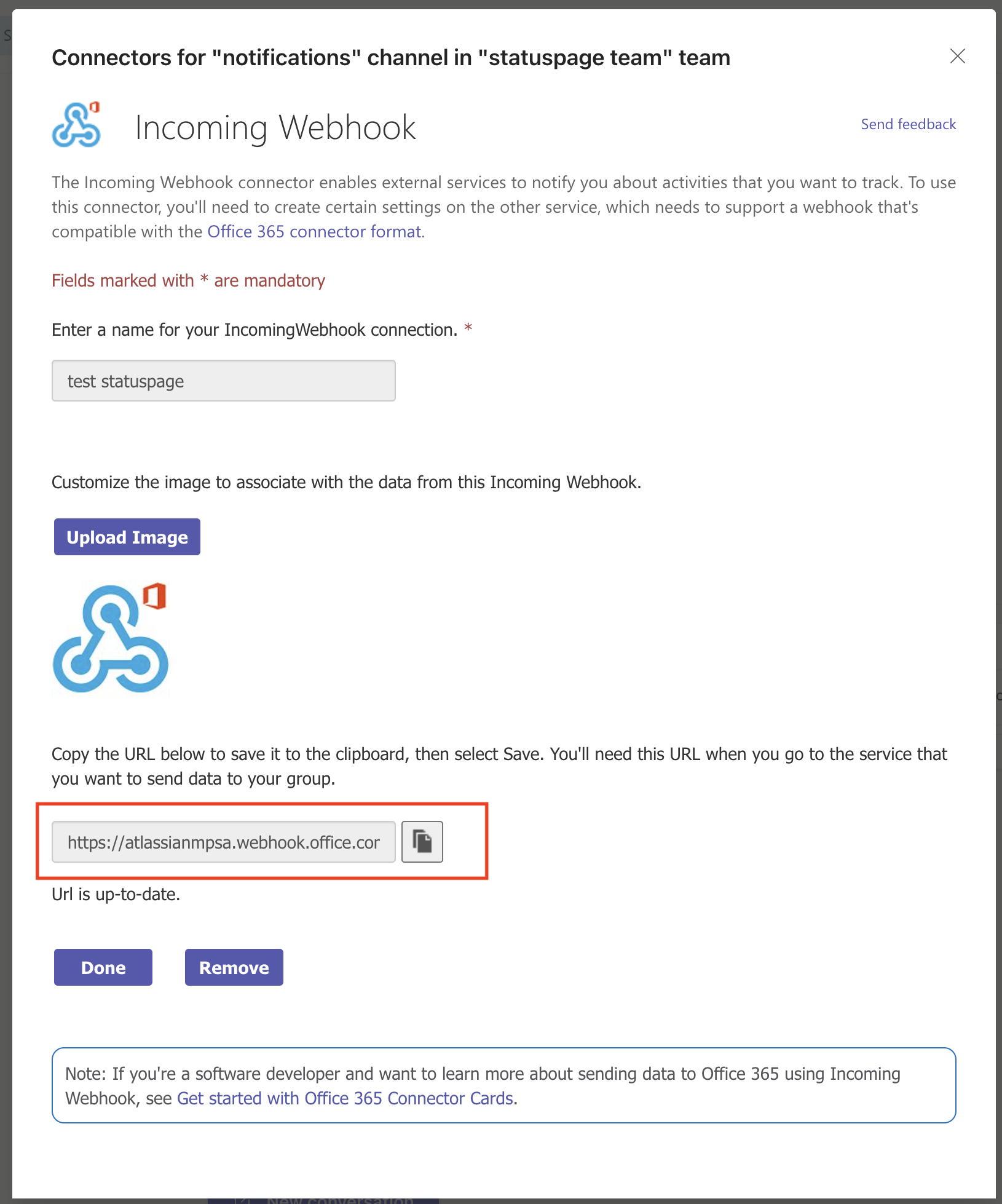
Step #5: Copy the webhook URL and select "Done."
Have other questions? Please leave any questions and comments below regarding these announcements and we will jump in to answer them!


