Before attempting to leverage Strategic Snapshots it is important to understand how the data inside the snapshot is defined. Understanding how the base data is defined combined with how to leverage the Filtering Options and the widgets will give provide the basis to begin using the Strategy level in Jira Align.
In order to effectively create a snapshot there are some required fields as well as optional fields that should be understood.
Once at least one Strategic Snapshot has been created it is time to use it to view all the connected Work, Goals, Objectives and the measures associated.
Because a snapshot brings in a lot of work, goals and objectives most of the time organizations will want/need to be able to narrow the view for various purposes without having to create tons of snapshots.
In order to support this need, Align leverages the filter methods from the Extra Configs to narrow the view to smaller sets of data based upon the more detailed use cases.
Understanding the sections (widgets) that exist in the Strategy Room
There are six widgets that display various information, below will seek to explain them at a high level, for detailed documentation please see the associated links at the bottom of the page.
Mission / Vision / Values
This section displays the defined goals (of these types) and offers a clickable link to each individual item which will open in the slideout on the right side of the screen.
Execution Against Outcomes
Displays a list Goals with the % of Accepted work items (work items associated to the actual goals).
-
Strategic Goals can only have the Theme work items associated to them.
-
Portfolio Objectives can have Epic, Capability (if used), or Feature (Jira Epic) work items associated to them (based upon the Portfolio Objective Mapping - see OKRs - Tying work to Objectives for more information).
-
Solution Objectives can have Epic, Capability, or Feature (Jira Epic) work items associated to them (based upon the Portfolio Objective Mapping - see OKRs - Tying work to Objectives for more information).
-
Program Objectives can have Epic, Capability, or Feature (Jira Epic) work items associated to them (based upon the Portfolio Objective Mapping - see OKRs - Tying work to Objectives for more information).
Strategy Pyramid
This is a hierarchical visualization of strategy management. Up to the top nine levels in the strategic hierarchy are listed from the top-down, as well as the count of each item type. Click a strategy, goal, or objective type in the pyramid to create and edit those items.
Themes, epics, capabilities (if enabled), and features (jira epics) are included in the counts in the pyramid when the work item is parented to a higher level item or goal and planned for a program increment associated with the selected strategic snapshot.
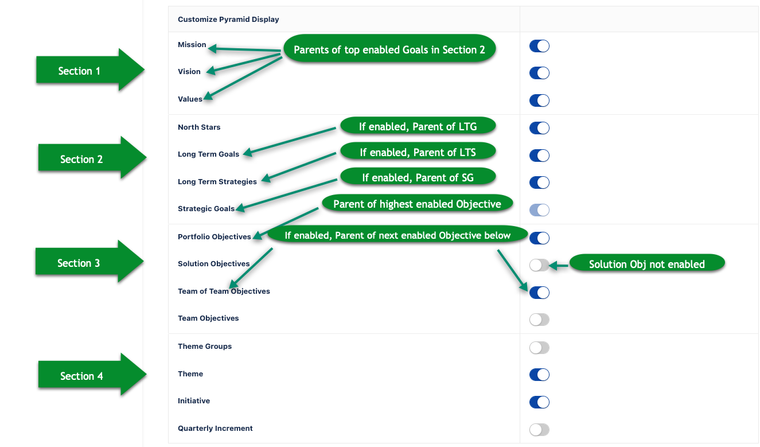
The pyramid is configurable by Administrators in Administration → Settings → Platform Settings
-
Mission / Vision / Values: These can be turned on/off at will and apply to the entire instance.
-
North Stars / Long Term Goals / Long Term Strategies / Yearly Goals: These can be turned on/off at will and apply to the entire instance. With this section levels cannot be “Skipped” in the middle.
Example: If North Stars turned on, the Long Term Goals could not be turned off.
-
The application supports this with UI messaging if an attempt is made to skip a level in the hierarchy of Goals.
-
This also controls the Parenting lineage (which is why levels cannot be skipped). The top item in the Goals section (that is toggled on) can have a parent of any of the 3 items in Mission / Vision / Values.
-
The actual goals inside this section are hierarchical and will require that users only parent to the goal above it.
-
Notice that the Yearly Goals cannot be turned off. Themes can only have a parent of Yearly Goals.
- Objectives (Portfolio / Solution / Program / Team): These can be turned on/off at will and apply to the entire instance.
- Theme Group, Theme, Epic, Program Increment: These can be turned on-off at will and apply to the entire instance.
-
This determines what will/won’t appear in the pyramid, but will not remove it from the Left Navigation or the ability to create them.
-
To understand how work is tied to objectives (Portfolio, Program) please refer to OKRs - Tying work to Objectives .
Snapshot Progress
Displays the status, of work items (Theme down to Story as well as the Dependencies).
-
The percentage value shows the % of the work item(s) which are complete.
-
The dials have color coding to represent the different states (Grey = Not Started, Yellow = In Progress, Green = Completed)
-
Select any work item line item and the corresponding Grid opens in a new tab.
-
Select the dependency line item and an overlay will appear with the corresponding dependencies along with their state in a list view.
OKR Heatmap
The OKR Heatmap provides a visual overview of progress toward achieving the different levels of strategic goals and objectives. The different levels of strategic goals and objectives are organized in rows in a table format. The columns on the left of the table represent the PIs in the snapshot.
Each Row displays a level of Goals/Objectives along with their progress toward the Key Results defined for that goal/objective type.
-
Goals are not associated to PIs so the Score (progress) toward the Key Results is displayed in one large block crossing all PIs.
-
Objectives are PI driven and therefore represented with a block inside each PI.
-
Objectives have a Score that is an average of the the score from each Key Result for that Objective.
-
When multiple Objectives are present in the snapshot (within any filtered view as well) the score presented is an average of all of the scores for those Objectives.
-
Selecting any hyperlinked goal or objective will open a new tab with the Strategic Backlog of the Snapshot.
Example of the Score calculation:
OKR Tree
The Objectives and Key Results Tree (OKR Tree) widget displays the objectives and goals tied directly to the snapshot or to a program increment included in the snapshot in a top-down view, organized by level of goal/objective.
-
Search for a specific Goal/Objective using the “Search by title”.
-
Leverage the arrows on the left at any level to expand or collapse the child goals/objectives.
-
Use the gear icon on the right to hide/display “Key Results Progress”, “Score”, and/or “Owner”.
-
Select the expand icon to expand the OKR Tree to a full page.
Reference Links


