If you want to focus specifically on critical task priorities within the SLA Dashboard, eliminating unnecessary information about other SLAs and priorities, follow our step-by-step instructions below. This guide utilizes JQL and a filter in the SLA Time and Report add-on to help you achieve a more tailored view.
Configuring SLAs with Specific Goals for Each Priority
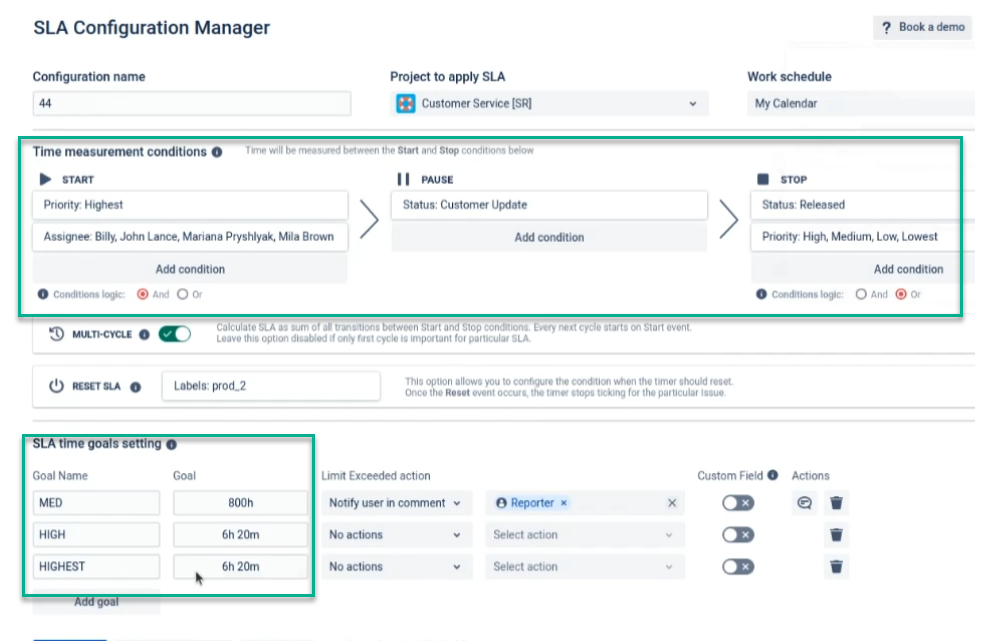
Suppose you already have multiple SLAs with different Start-Pause-Stop conditions, but some share the same SLA goals across various priorities, such as Medium, High, and Highest.
If you still need to set up SLAs with distinct goals for each priority, follow the example. While having appropriate SLA goals is crucial, you can customize SLA Start-Pause-Stop conditions according to your specific requirements.
Navigating to the SLA Grid-Table Report
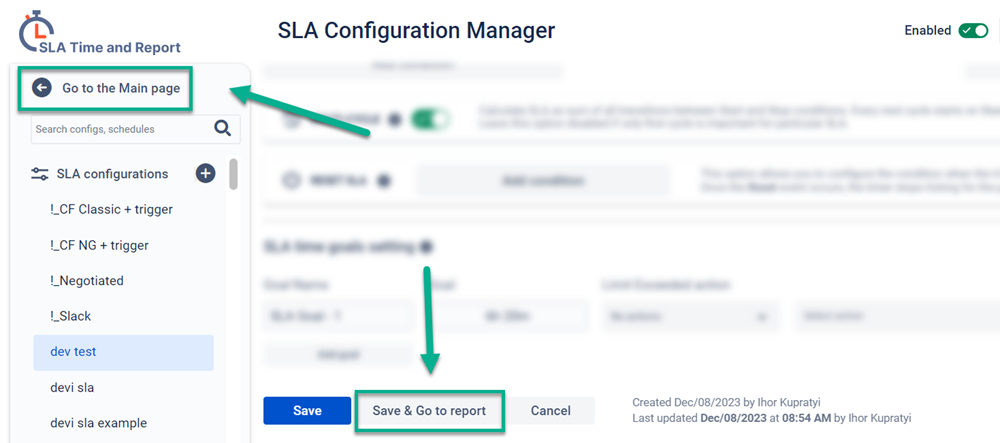
- Go to the SLA Grid-table report.
- Click the "Go to the Main page" or "Save & Go to report" button to transition from SLA configuration to the report.
Using JQL to Filter Critical Priorities
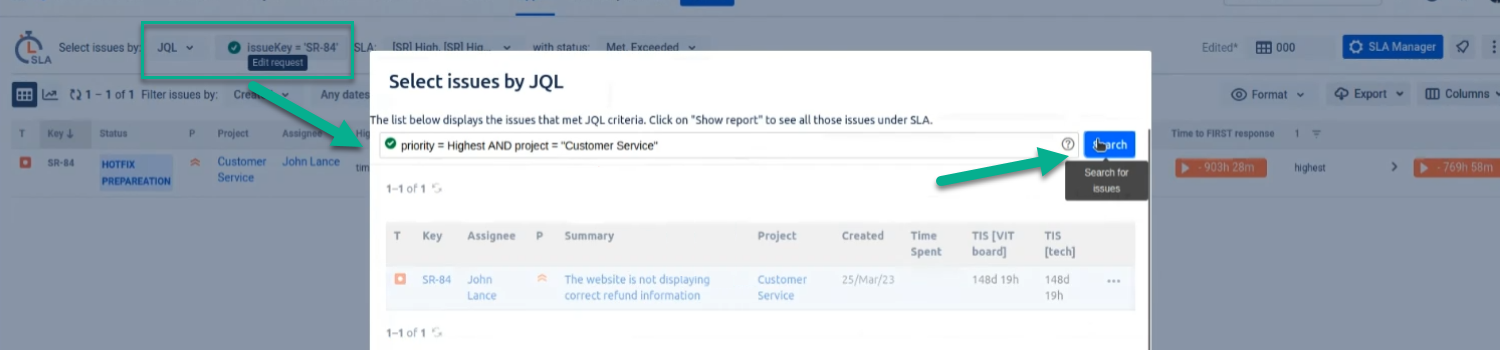
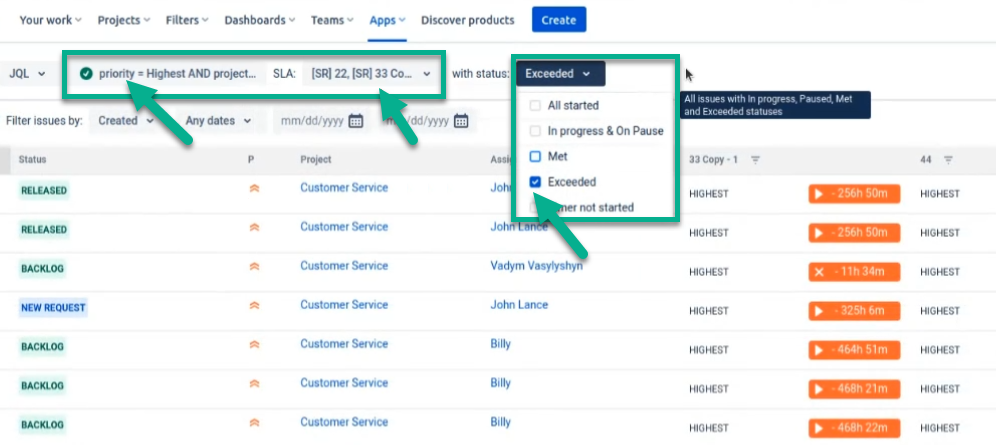
- In the task filter, select JQL.
- Enter the following: priority = Highest (or your preferred priority) AND project = "Customer Service" (replace with your project).
Refining Your View for Specific SLA Configs and Goals
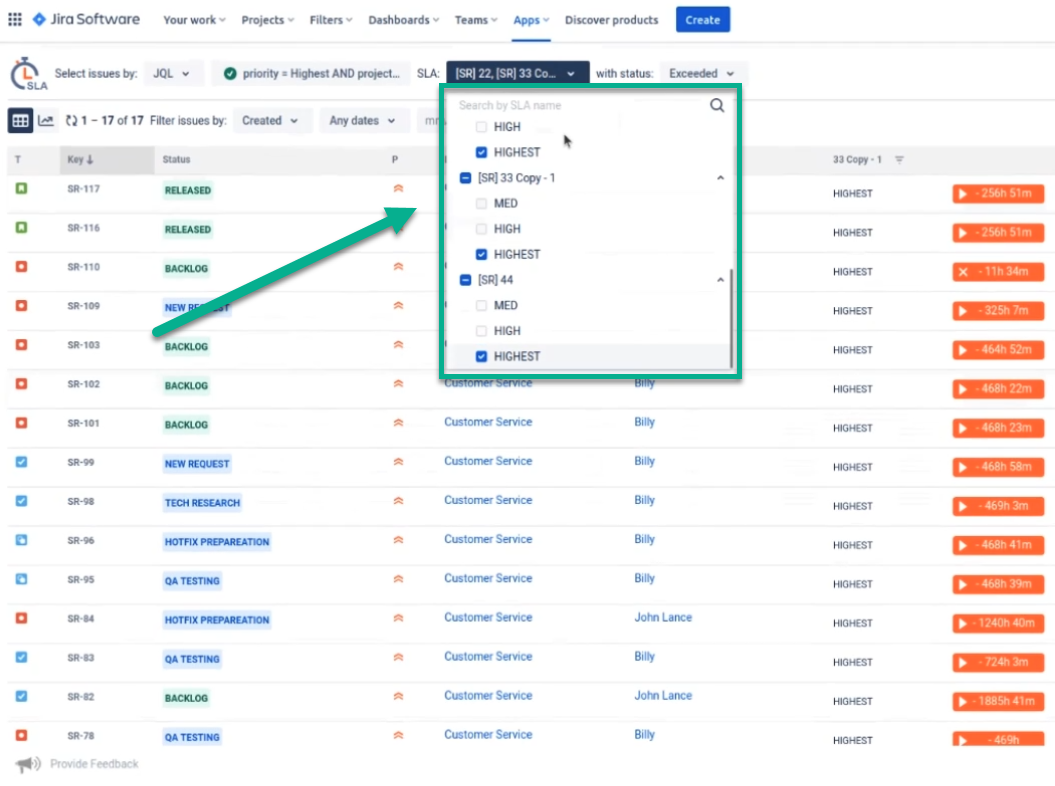
- Choose to display only the SLA configs and goals you need.
- Add other conditions if necessary, such as SLA execution status.
- Run the filter.
Exporting a Customized Report
- Export the report to an Excel file.
- Select only the columns you require.
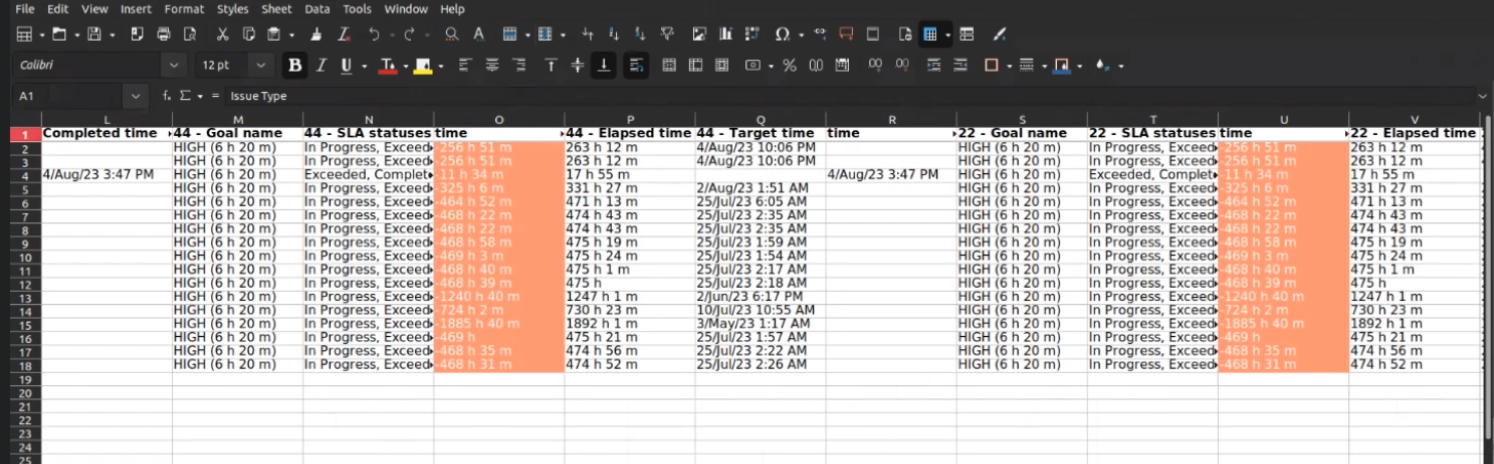
By following these steps, you can generate a "clean" report that focuses solely on critical priorities, eliminating any extraneous information about other priorities. Take control of your SLA Dashboard and streamline your critical task management efficiently.
Ready to optimize your SLA tracking? Try the 30-day trial of the SLA Time and Report for Jira add-on.
