Mikes Trello Tips
Every other Friday, I am going to put up a Trello tip that I hope you will find helpful and will inspire your Trello creativity.
Anything is possible in Trello, if you use your imagination 😀
I will alternate between automation and general Trello tips and happy to take requests...
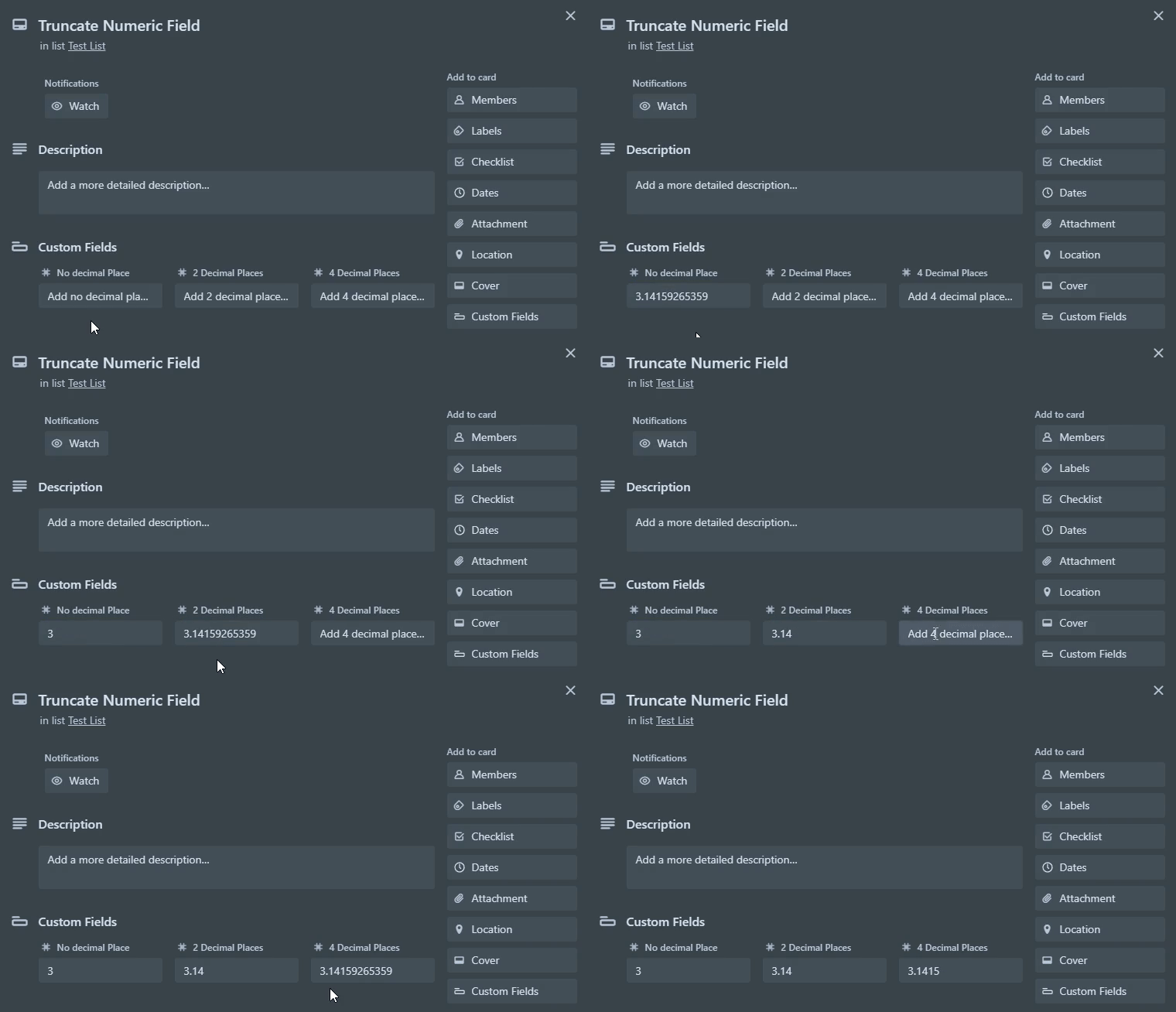
This week, I will take you through how to use RegEx and Automation to truncate a numeric field...
A little mention for RegEx
You can take Trello automation to new heights with RegEx...
It is supported but very little is written about this mysterious feature...
If you're new to RegEx or haven't scripted/coded before, it can be a little daunting...

If you want to learn more about RegEx, there are some great YouTube videos and I recommend these two sites:
This is a great site for learning about it:
https://www.rexegg.com/
And this is the go-to place to test out your regex search before putting it into a Trello automation command:
https://regex101.com/
Top Tip 1: Always get the regex expression right in the editor before putting into a Trello command.
Top Tip 2: Google what you are looking for, easier than learning to construct yourself, almost every common example you can think of has a thread on stackoverflow.
How to truncate a numeric value
I have 3 automations to set number custom fields to truncate to:
- No decimal place
- 2 decimal places
- 4 decimal places
Note: This will not round the numeric value up or down, merely trim away the unwanted digits...
Lets start...
When using regex in Trello, you always have to start with regex:/ followed by the RegEx query, and a / to close it out.
1) No decimal place:
when custom field "No decimal Place" is set to "regex:/(\d*)\.\d*/", set custom field "No decimal Place" to "{wildcard1}"

2) Two decimal places:
when custom field "2 Decimal Places" is set to "regex:/(\d\.\d{2})\d*/", set custom field "2 Decimal Places" to "{wildcard1}"

3) Four decimal places:
when custom field "4 Decimal Places" is set to "regex:/(\d\.\d{4})\d*/", set custom field "4 Decimal Places" to "{wildcard1}"

As you can see from example 2 and 3, you only have to change the number inside the {} to set the number of decimal places to your choosing...


