iFinder Confluence Search now comes with a search macro for Confluence.
This macro is similar to the Livesearch macro, but with a much wider scope of functions. For example, in addition to a search bar, search results can now also be shown in a list directly on a Confluence page.
The search macro helps users quickly and easily compile a list of documents and content (such as a collection of standard operating procedures or product data sheets), which may even be located in completely different areas of Confluence. It saves users a great deal of time at work and helps reduce costs. The search macro also significantly improves usability both for administrators and users, since information and important company knowledge can be found and deployed quickly, and are always up to date thanks to dynamic retrieval. A dynamic list generated by a search is displayed on a Confluence page (search-based application).
Alternatively, a search bar is provided on a Confluence page/space, which is preconfigured for the specific user. There’s no need to switch to a separate search platform; users can search directly within the Confluence space without losing the thematic context.
Best Search Experience – Directly on a Confluence Page
The search macro delivers the following to Confluence users directly on a Confluence page:
- Predefined, dynamic lists of search results
- A search bar with preconfigured settings and filters
- A combination of search hits, search field, search settings, and filters and facets
- Additional content from other applications, such as Jira, file shares, M365, SharePoint, portals, websites, the cloud, and much more (optional – product add-on)
Dynamic & User Rights Based
The search results and lists displayed by the macro are created dynamically; the search results in the macro are constantly refreshed. If the source or content changes, this is always reflected in the macro in real time. The search results also always take into account the user’s access rights, and changes to a user’s privileges are also always incorporated in the search macro in real time.
Plus, iFinder Confluence Search provides the option of integrating additional sources and applications (license required for this product add-on). This search macro can then be used to search for any documents from Jira, file shares, and many other data sources and/or have them displayed dynamically on a Confluence page.
Macro Variants
The iFinder Confluence Search macro allows for multiple ways of presenting the search or search results. Different display options can be selected in the macro settings:
Displays a dynamic list with preconfigured search results. For example: Show only XLS documents from source/space x, and incorporate different search filters (space, labels, author, language, etc.), the search terms like ‘Expense AND report NOT directors,’ and other search settings (in this example, with preview snippet).
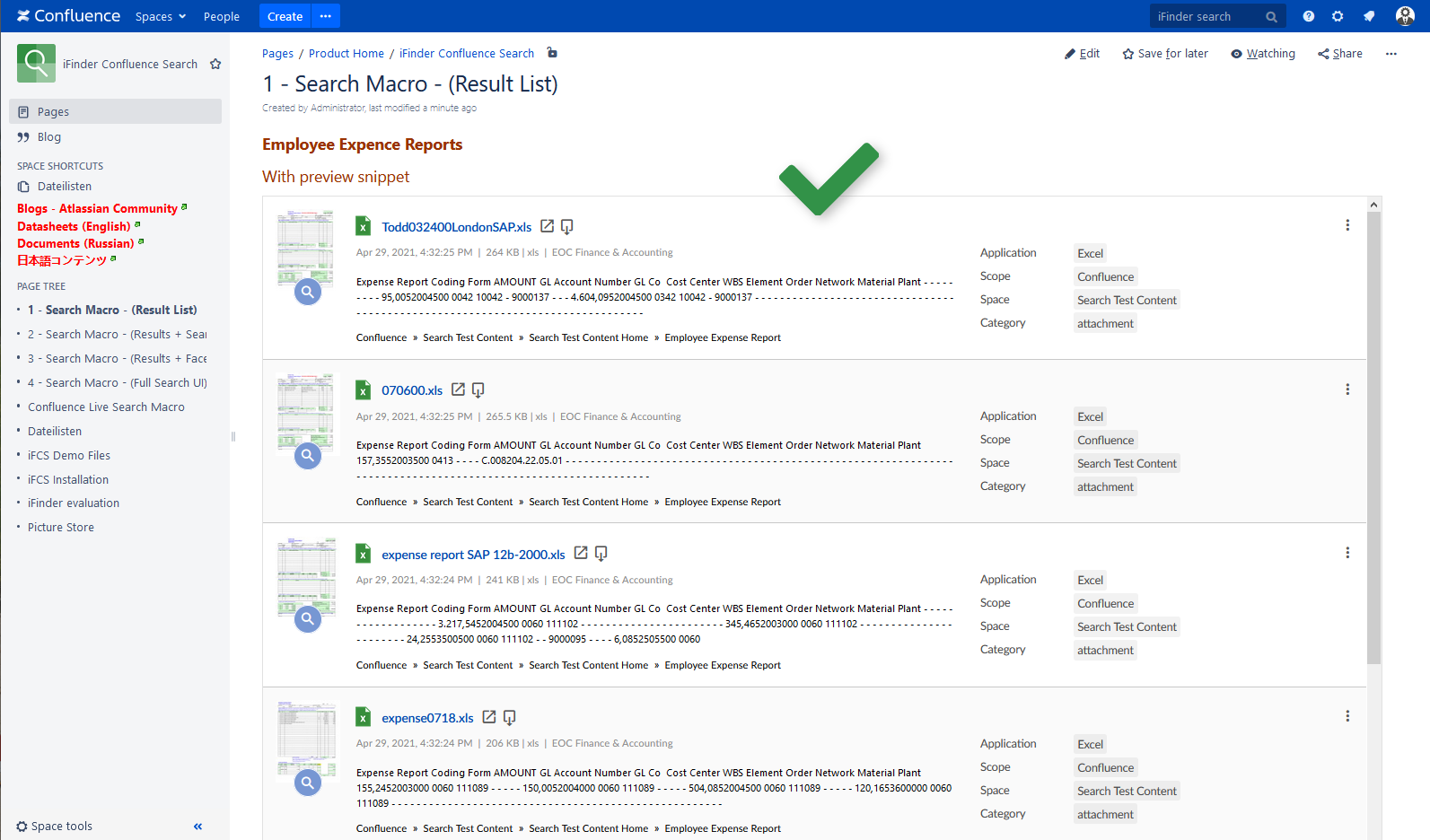
-
Search results with search bar
A search bar is displayed alongside the preconfigured search results. Search users can then perform the preconfigured search within a limited area.
For example: “Search for PDF documents only within this space.”
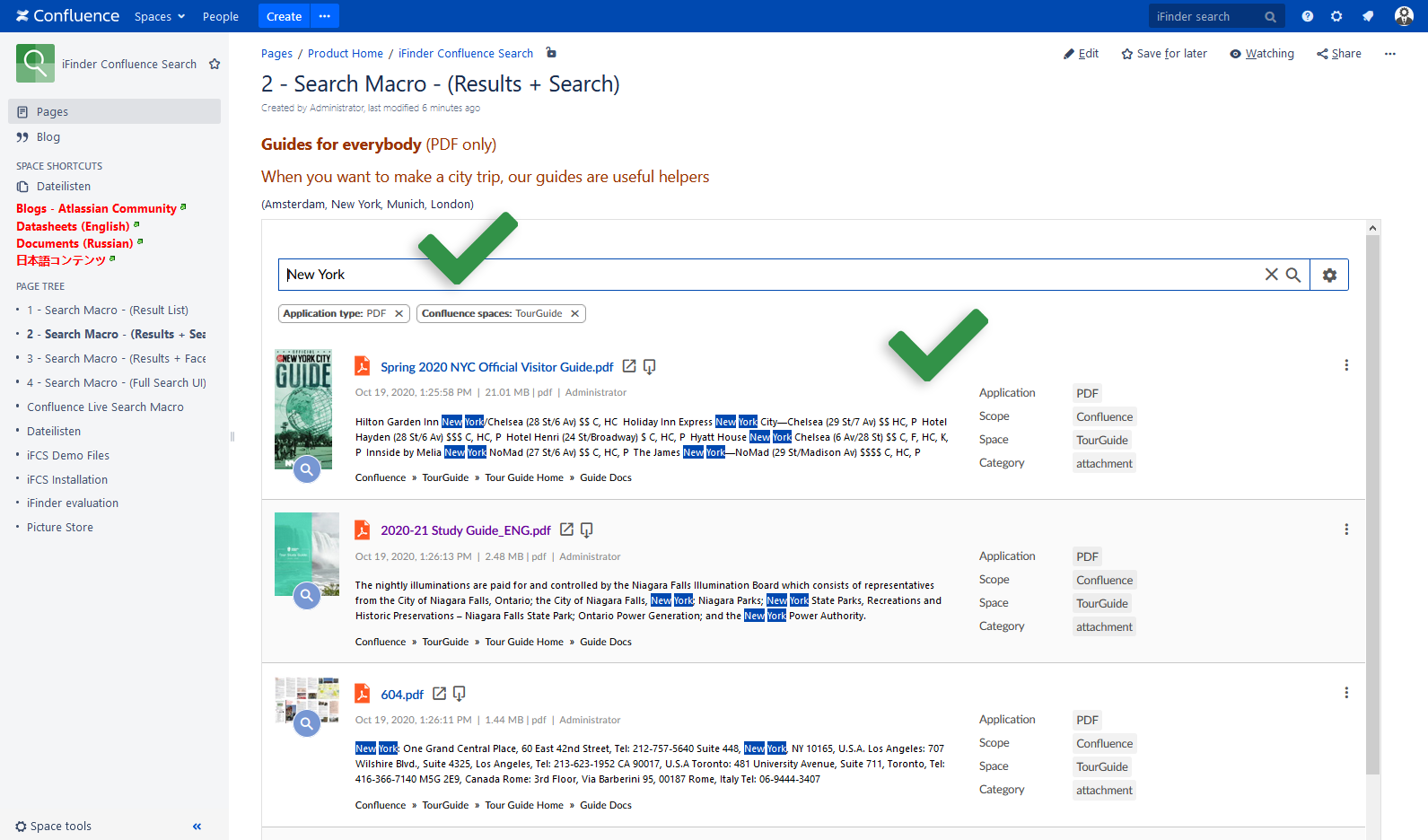
-
Search results with facets and filters
Filters and facets are shown alongside the preconfigured search results.
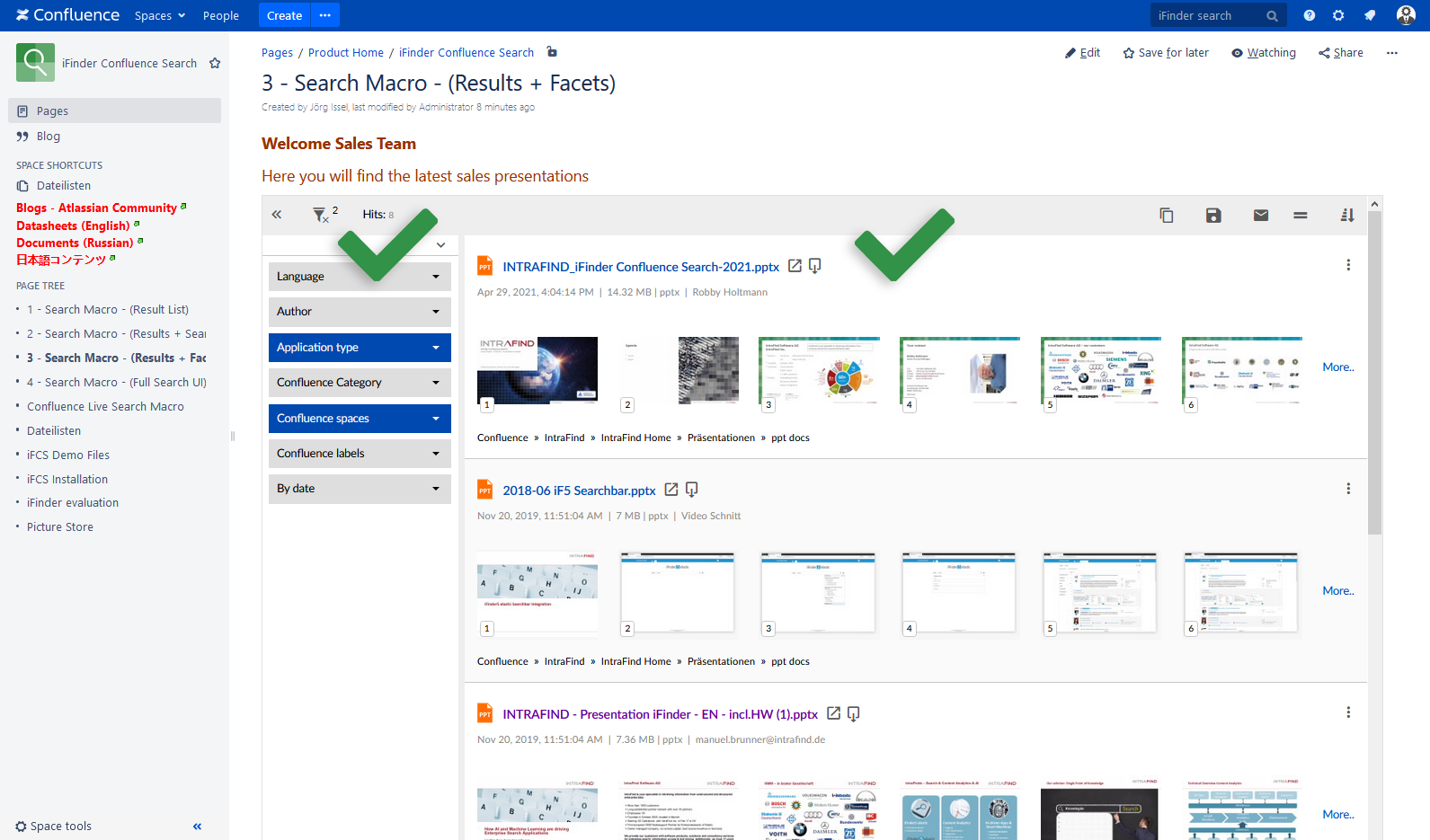
-
Embedded iFinder Confluence Search UI
The entire iFinder Confluence Search UI (search bar, result list, facets & filters) is displayed on a Confluence page with the set search settings applied.
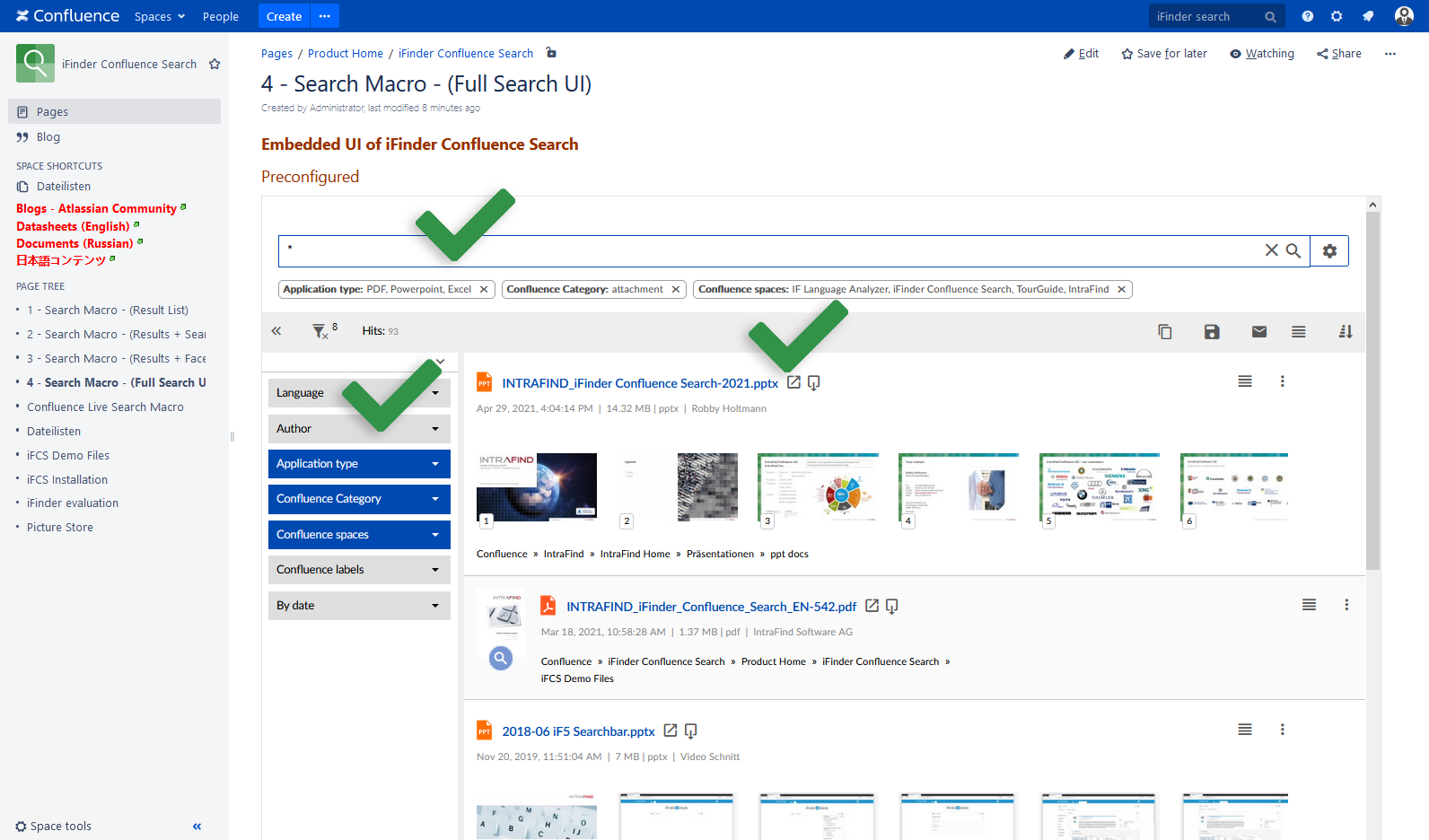
Macro Search Settings
All iFinder Confluence Search settings can be used. These include, for example:
- Show only content for a specific search query – including all (Boolean) search operators
- Search/show content from only this space or another space or multiple spaces
- Search/show only this selection of file types
- Search/show only content with these Confluence labels
- Search/show only content in these languages
- Search/show only content from these authors
- Search/show only content from these Confluence categories
- Search/show only documents from this time period
- Apply any combination of all of the filters and search settings listed above
Search Macro Configuration
- First configure the desired search in the iFinder Confluence Search. All search operators, extended search functions (
 ), and filters can be used. If you have no specific search query, simply enter “*” as the query.
- To receive the search URL link containing all previously configured search settings and the search query, click on the email button (
 ).
).
- This link can then be inserted in the iFinder Confluence Search macro. The iFinder Confluence Search macro comes with the iFinder Confluence Search app and can be found under “Navigation” in the Confluence macro section.
- Select the desired display options:

Requirements
iFinder Confluence Search must be installed first.
iFinder Confluence Search itself is a really powerful enterprise search engine for Confluence. You will find more information in the Atlassian Marketplace or in our Atlassian Community article.
Good to Know
The search URL generated in the process described above can naturally be stored elsewhere – even without the macro – for a graphic, for example, or in the Confluence navigation, or in an entirely different application/portal. This link then opens the preconfigured iFinder Search UI in Confluence.

Links to further information
iFinder Confluence Search in the Atlassian Marketplace
iFinder Confluence Search article in the Atlassian Community
About Intrafind Software AG
You are welcome to get in contact with us: atlassian@intrafind.com

