Critical Alerts for the Opsgenie iOS app are here! The latest iOS mobile app version (3.4.2) offers an option to override Do not Disturb (DnD) or silent mode for mobile notifications. You can now put your phone on silent or DnD, without having to worry that you’ll miss important notifications.
To receive Critical Alert notifications on your iOS mobile device, follow these simple steps:
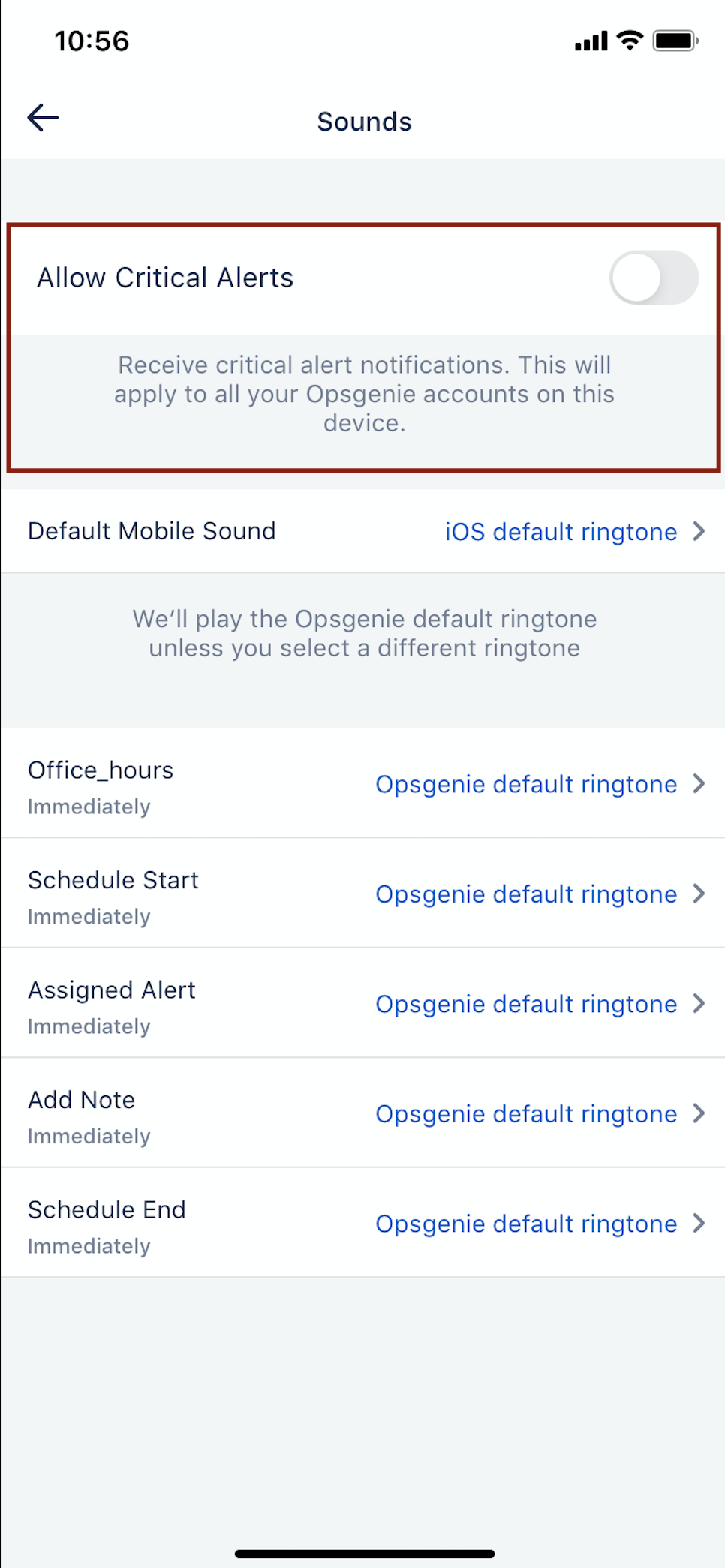
- Go to My profile -> Sounds from your Opsgenie app.
- Turn on Allow Critical Alerts.
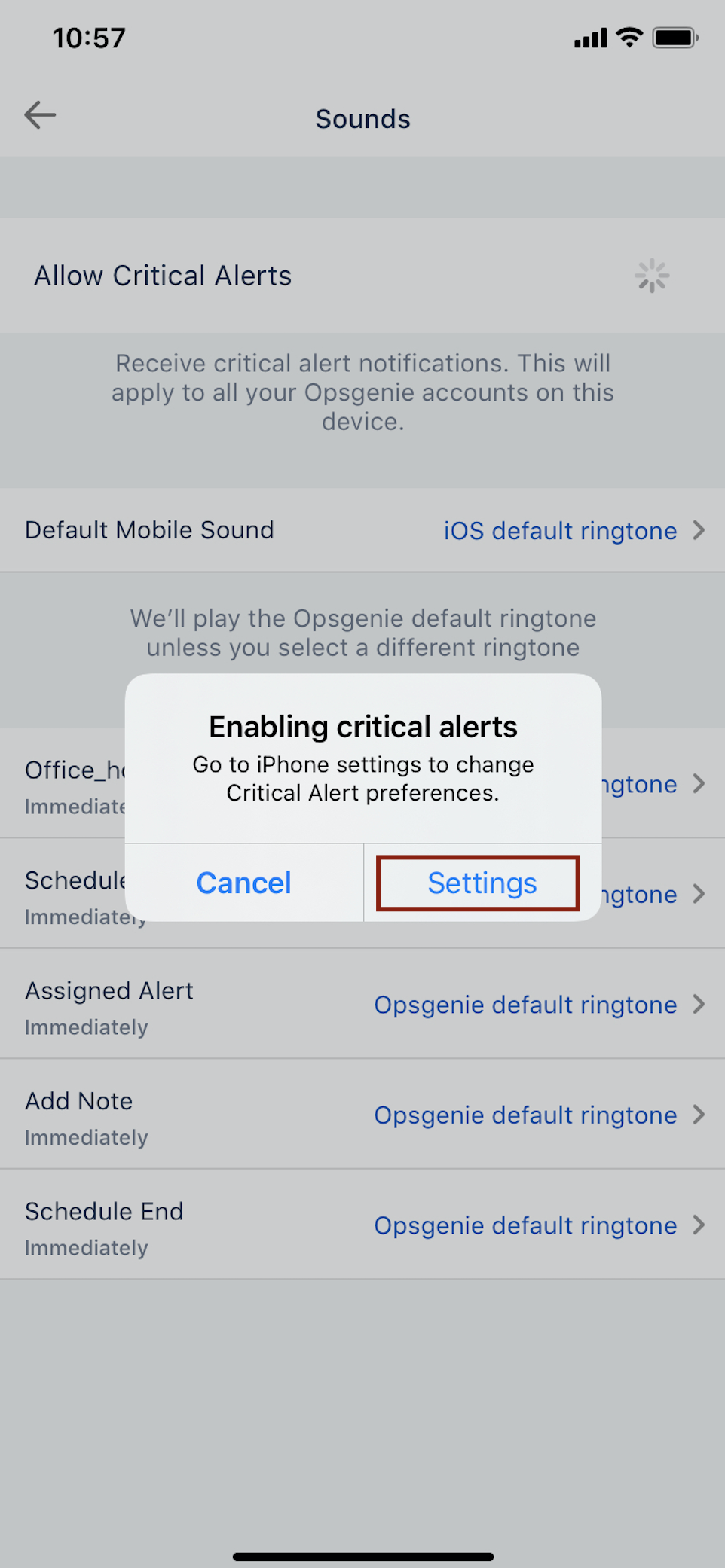
- A pop-up message will inform you to turn on Critical Alerts from your device settings.
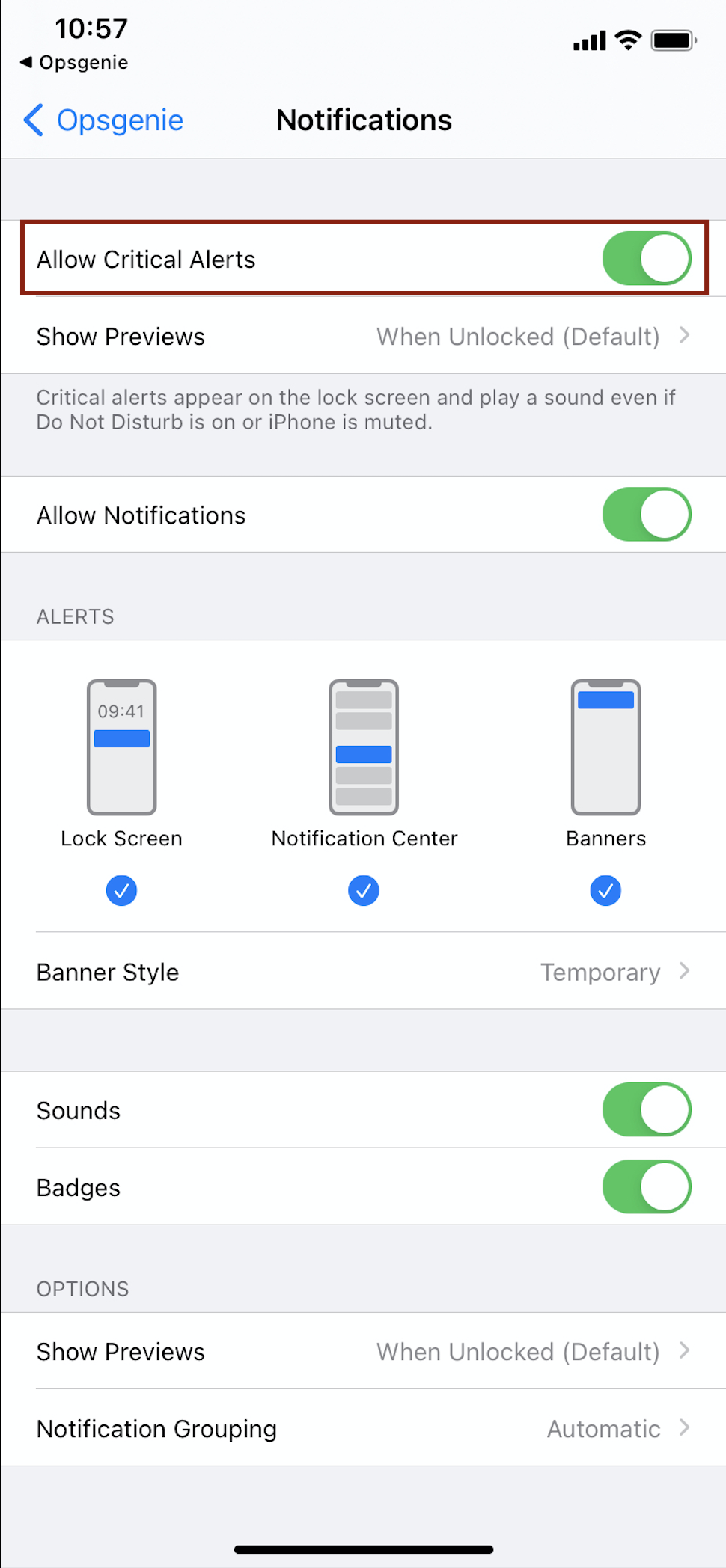
- Go back to Opsgenie app to activate this setting. You'll receive a success notification, and you'll see that the Allow Critical Alerts option in your Opsgenie settings is on.
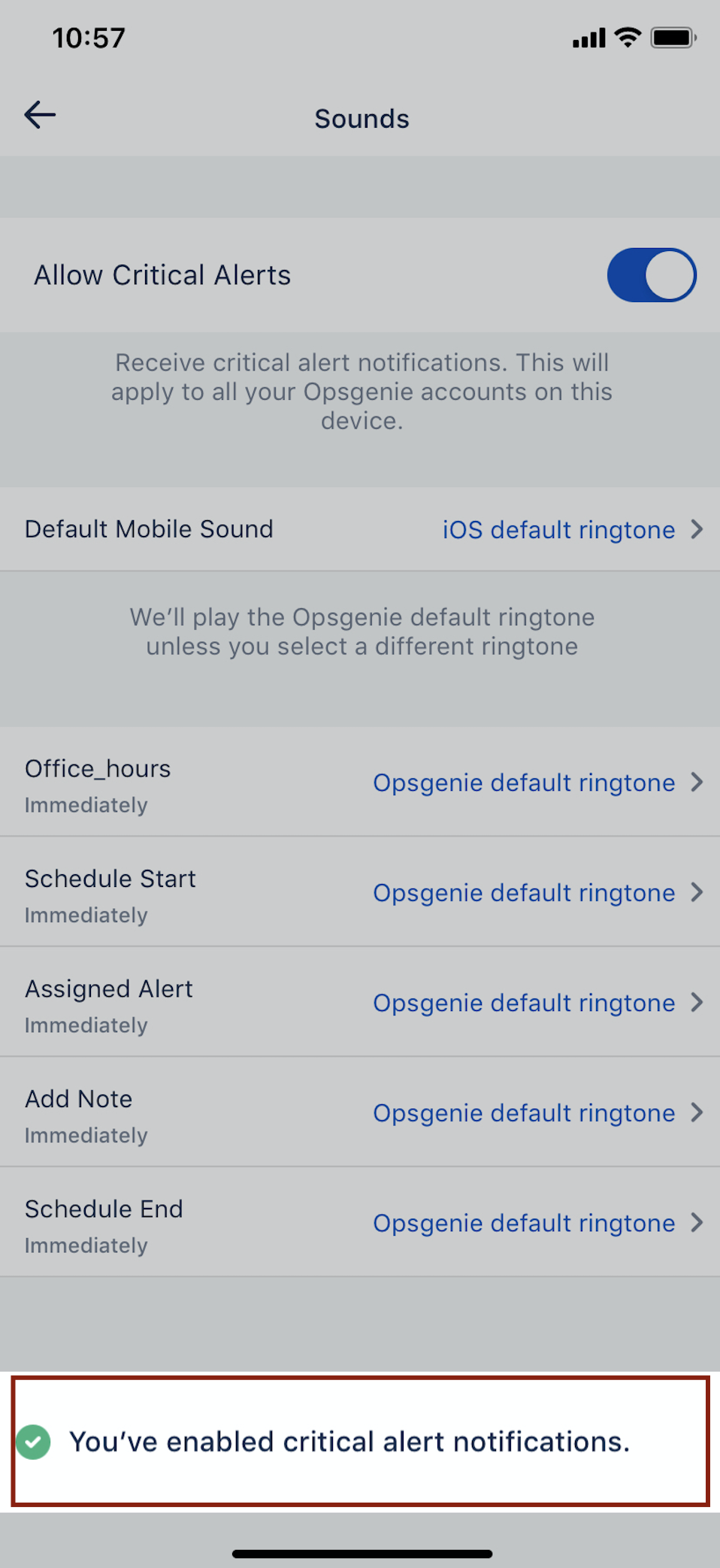
To turn off Critical Alerts, toggle the button to off and go to your device settings to confirm.
When Critical Alerts notifications are turned on, push notifications will appear with a warning icon next to them.
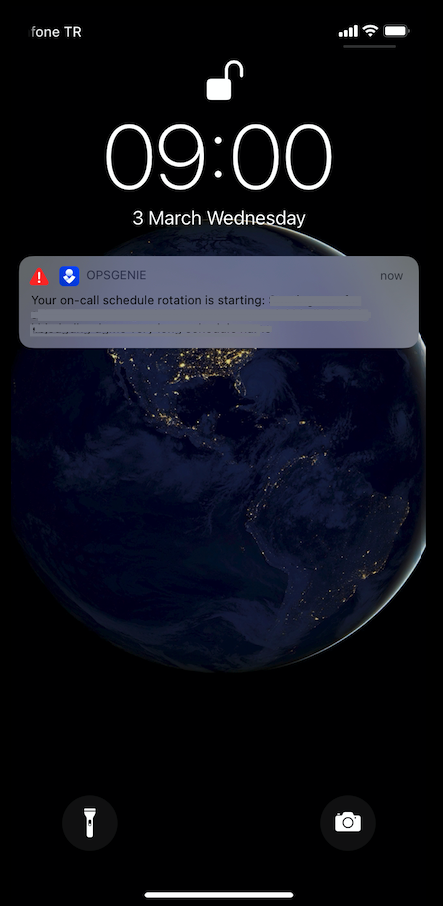
Please note that this setting is enabled by device, so if you have multiple Opsgenie accounts on your phone, you'll receive notifications from all your Opsgenie accounts.
Let us know if you have any questions or feedback!


