Hi everyone!
My name is Ivan, and I’m a Product Manager working on next-gen projects in Jira Software Cloud. Based on previous conversations with customers, I’ve noticed some UI settings that result in slow performance on next-gen boards and backlogs.
I understand that every team is used to their unique way of working, but we have some recommendations on how to set up your next-gen projects in order to improve performance.
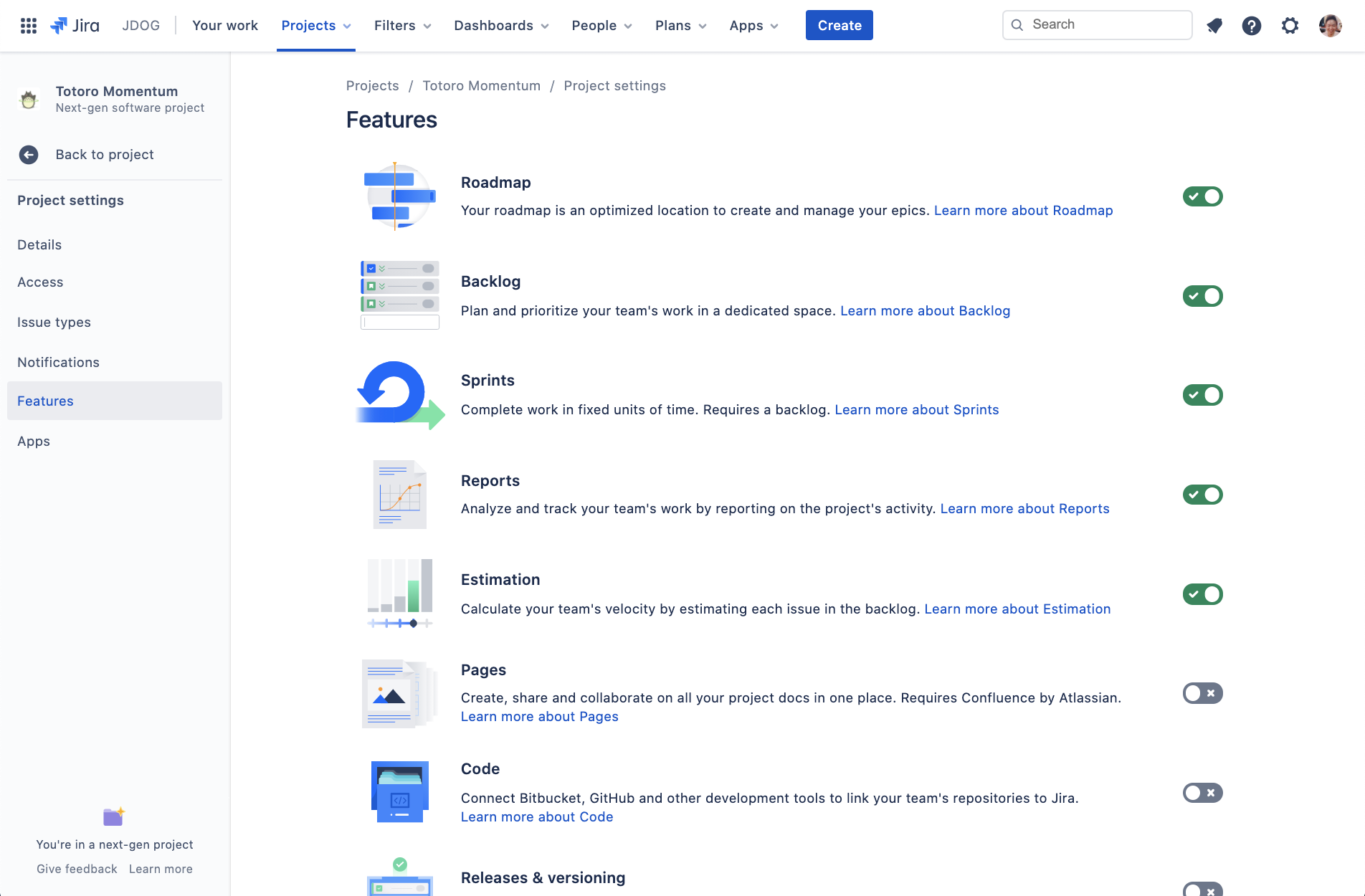
Note that next-gen is different from Classic, as it has a feature toggles setting page to enable you to change your agile methodology to adapt your working style to the dynamic environment.
Feature toggle page (Project Settings → Features):
Board and backlog / settings recommendations
-
Loading a board / backlog requires fetching the required data, and rendering all issues on it. Therefore, the time taken to load is directly related to the number of issues.
-
We currently recommend that the next-gen backlog contains < 300 issues and the board < 200 issues. We optimize for these use-cases, and offer the best experiences for this.
There are a few ways to reduce the number of issues.
If your project has enabled Sprints (Scrum teams):
-
Sprint length: If you have a sprint that takes a very long time (>= 4 weeks) to complete, then you tend to end up with too many issues in your sprint (see Agile Coach on Sprints and Retros).
-
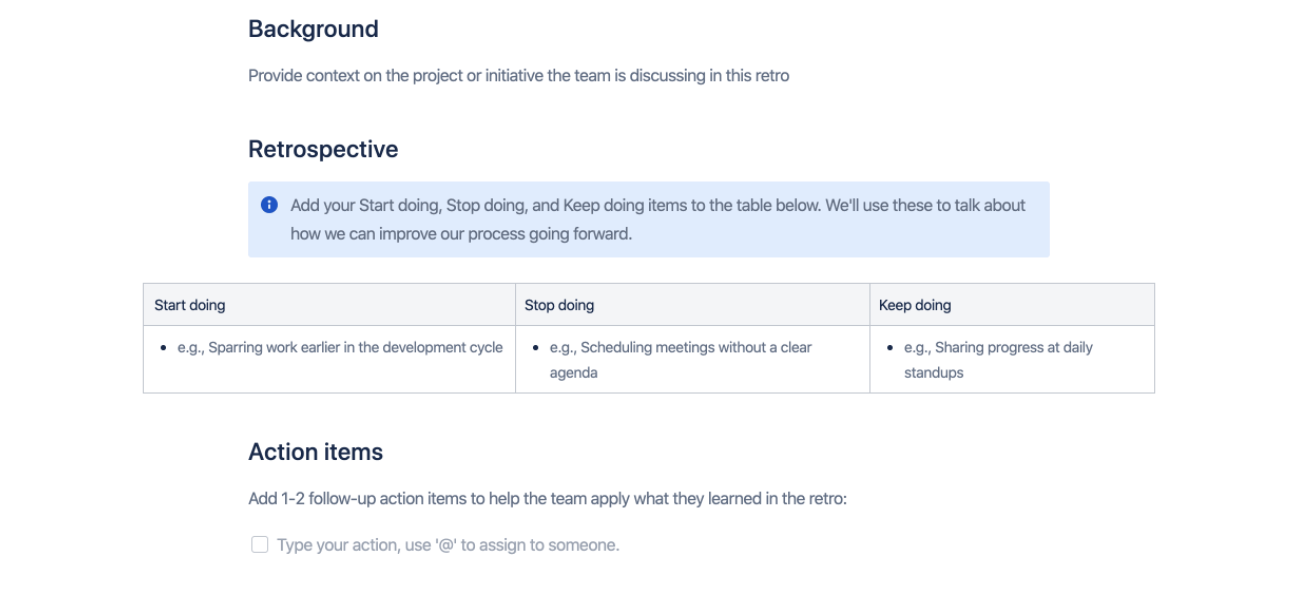
Sprint planning and regular retrospectives every 2 weeks help your team refine your team process and approach.
If your project has disabled Sprints (Kanban teams):
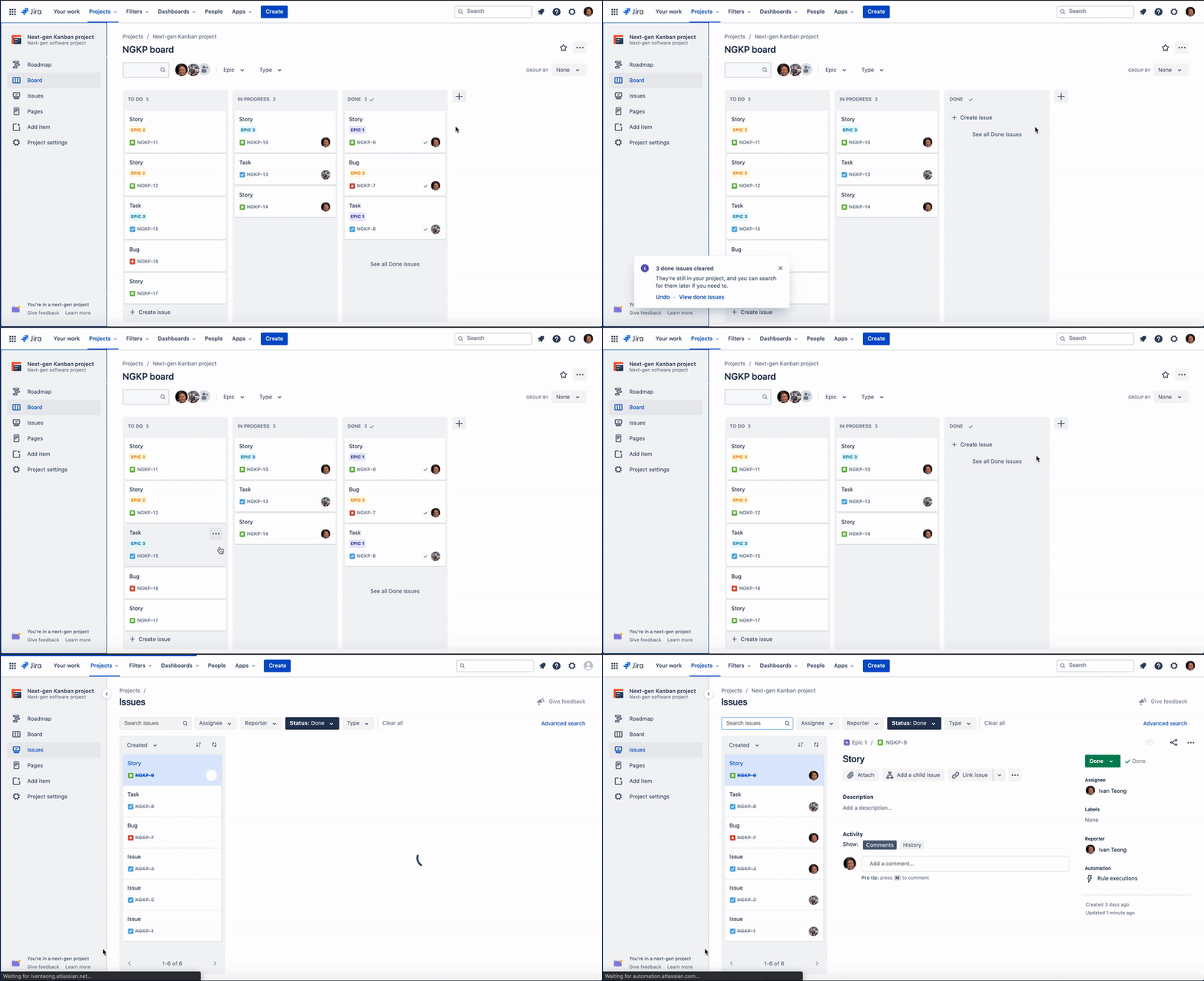
Clearing your “Done” (resolved) issues from the board (see Blog on Manual Board Clearing).
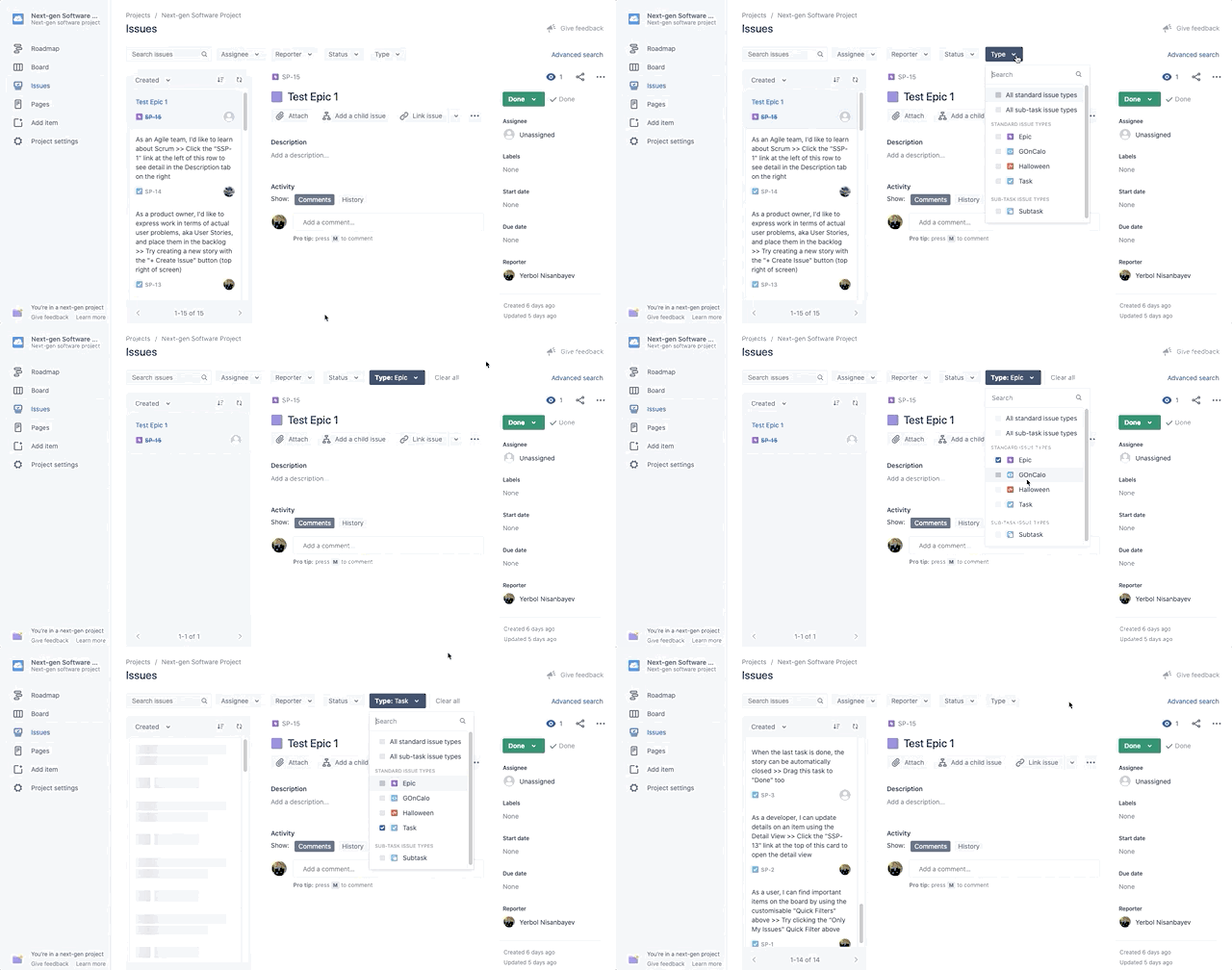
Still searchable in the Project Issue Navigator (see Blog on Project Issue Navigator)
If your TO DO column on the board has many issues, enable Backlog:
-
Reduce number of cards by using a backlog (see Agile Coach on Kanplan).
-
This is to provide ruthless prioritization for the team, so you can focus your team only on the most critical work for the coming 1-2 weeks on the board view.
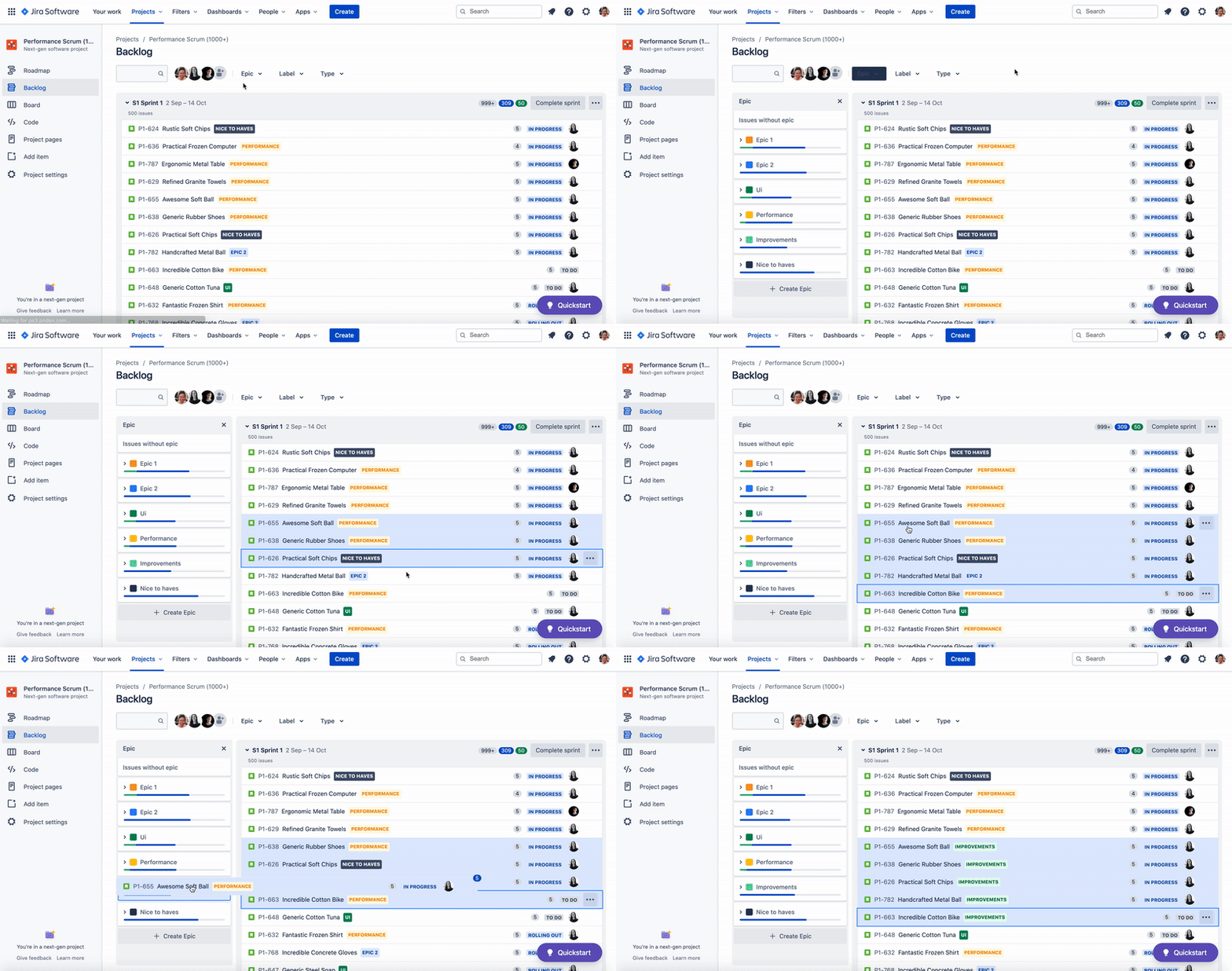
If your team does not practice continuous releases:
If your team does fixed releases (meaning that you don’t release to customers whenever it’s dev-complete, but wait for a scheduled time monthly or quarterly), then it would be better not to have a column on the board representing issues waiting for a customer release.
-
Impact of this behaviour: You will wait a long time to move the issues to Done, if your Definition of Done is that the issues need to be released first to customers.
-
The board should ideally be used for something that is important to everyone in the team, not just the Product Manager or Team Leader.
-
Over-optimizing to track or plan everything there will result in problems with focus for the team and slower performance as well.
-
Change Board’s Definition of Done from Released to Dev Complete/Merged.
-
If Releases is not enabled:
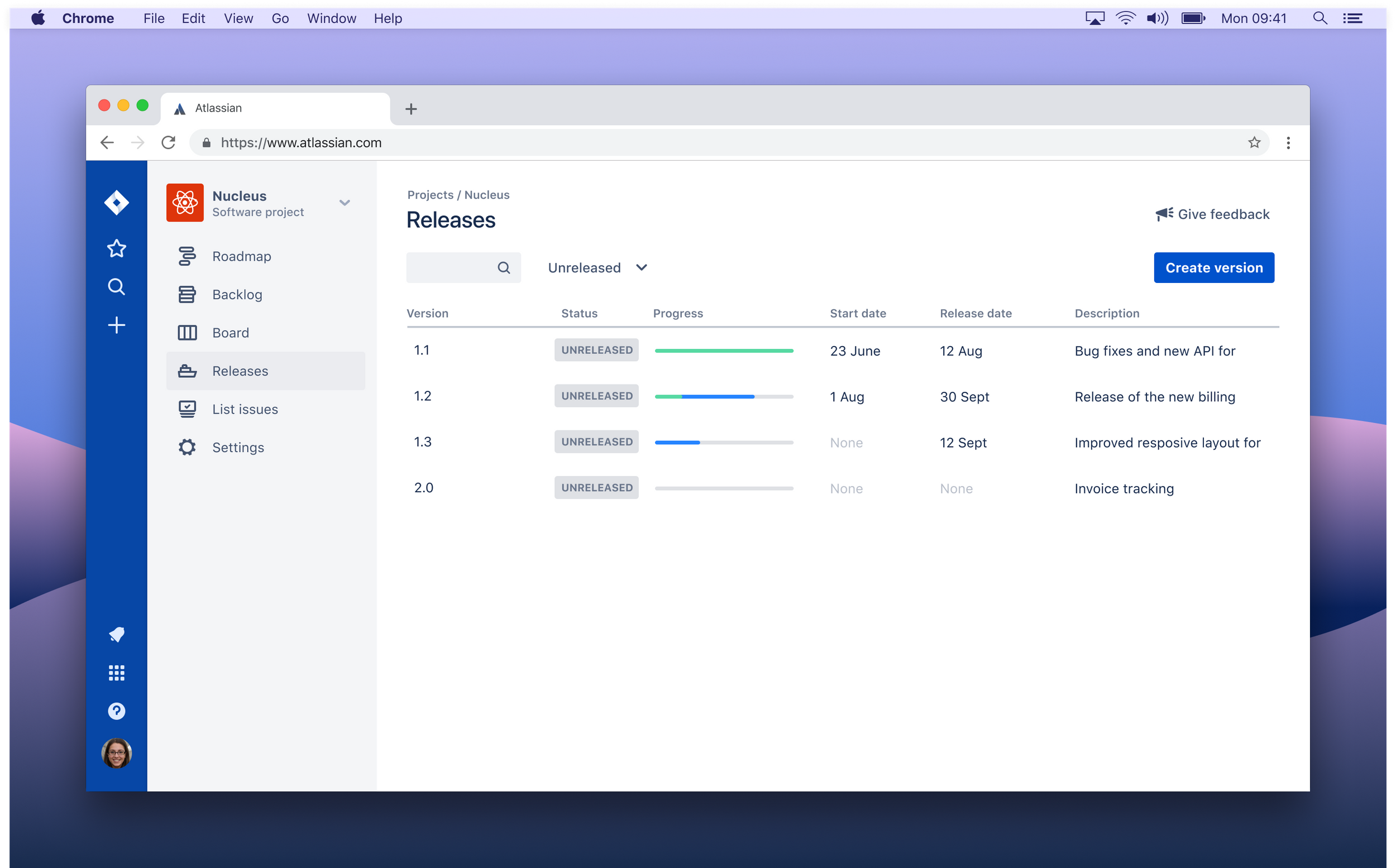
If your team uses GROUP BY EPICS on the board:
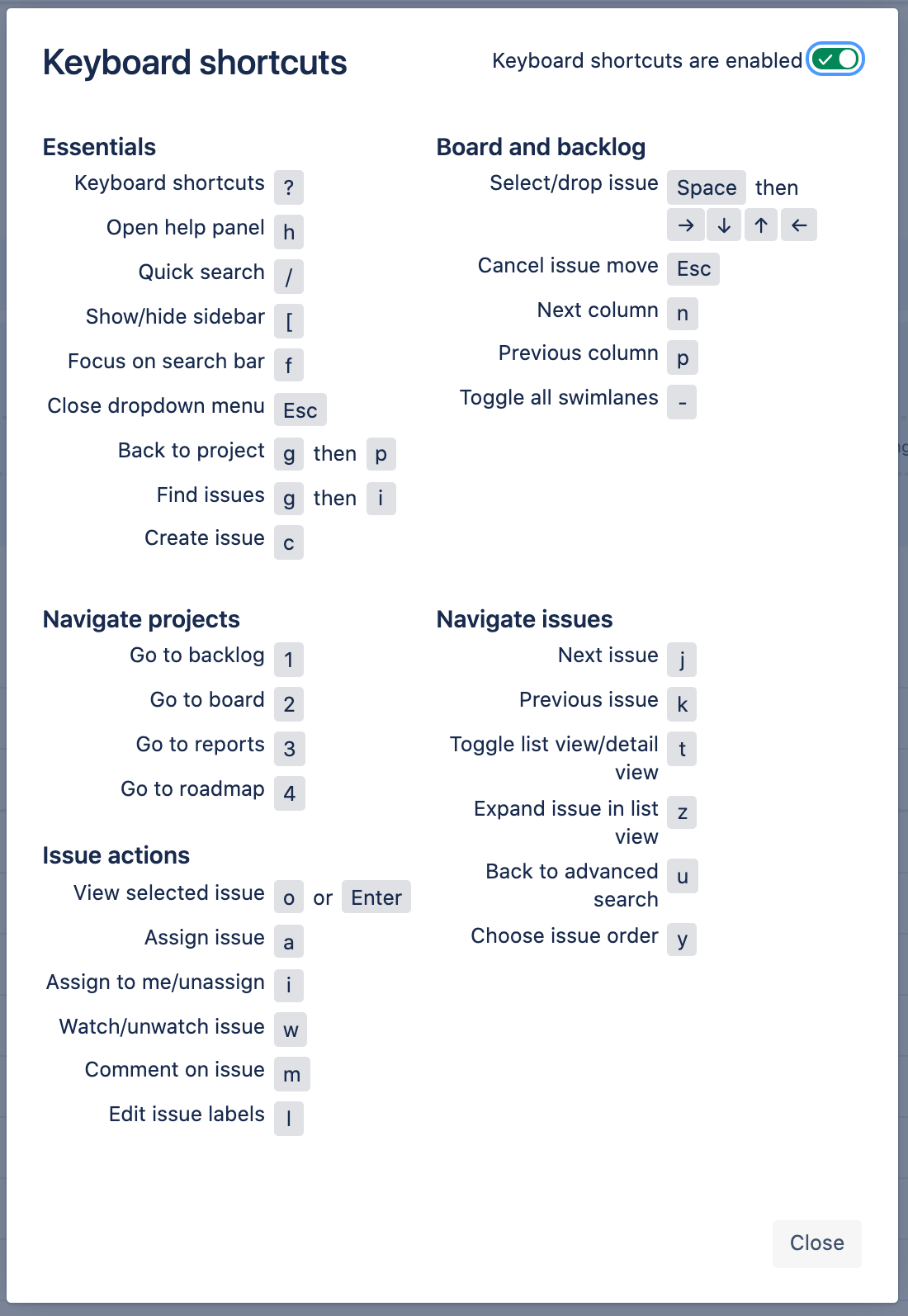
If you use a mix of mouse and keyboard:
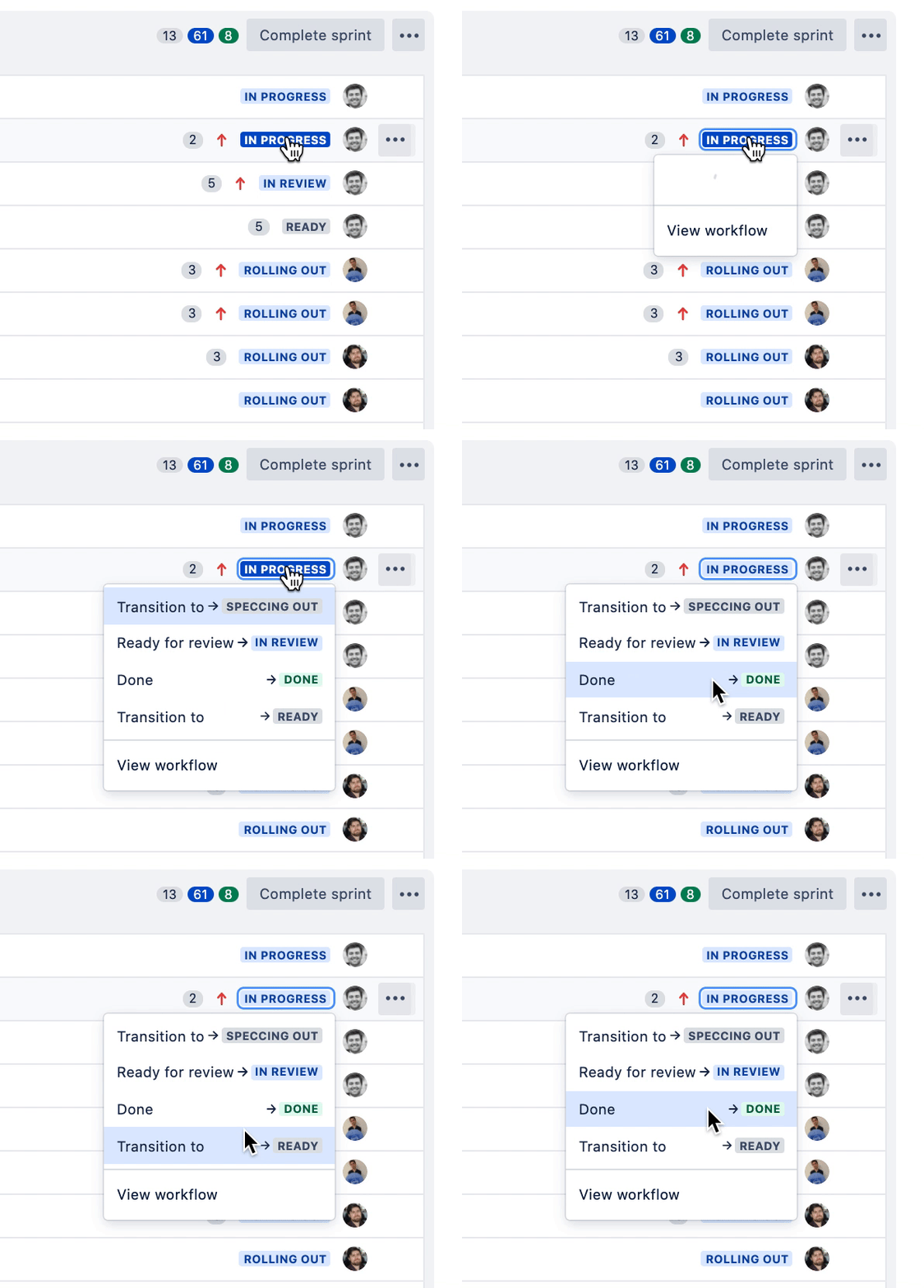
If you want to edit issue fields in backlog during backlog grooming and sprint planning without opening issue:
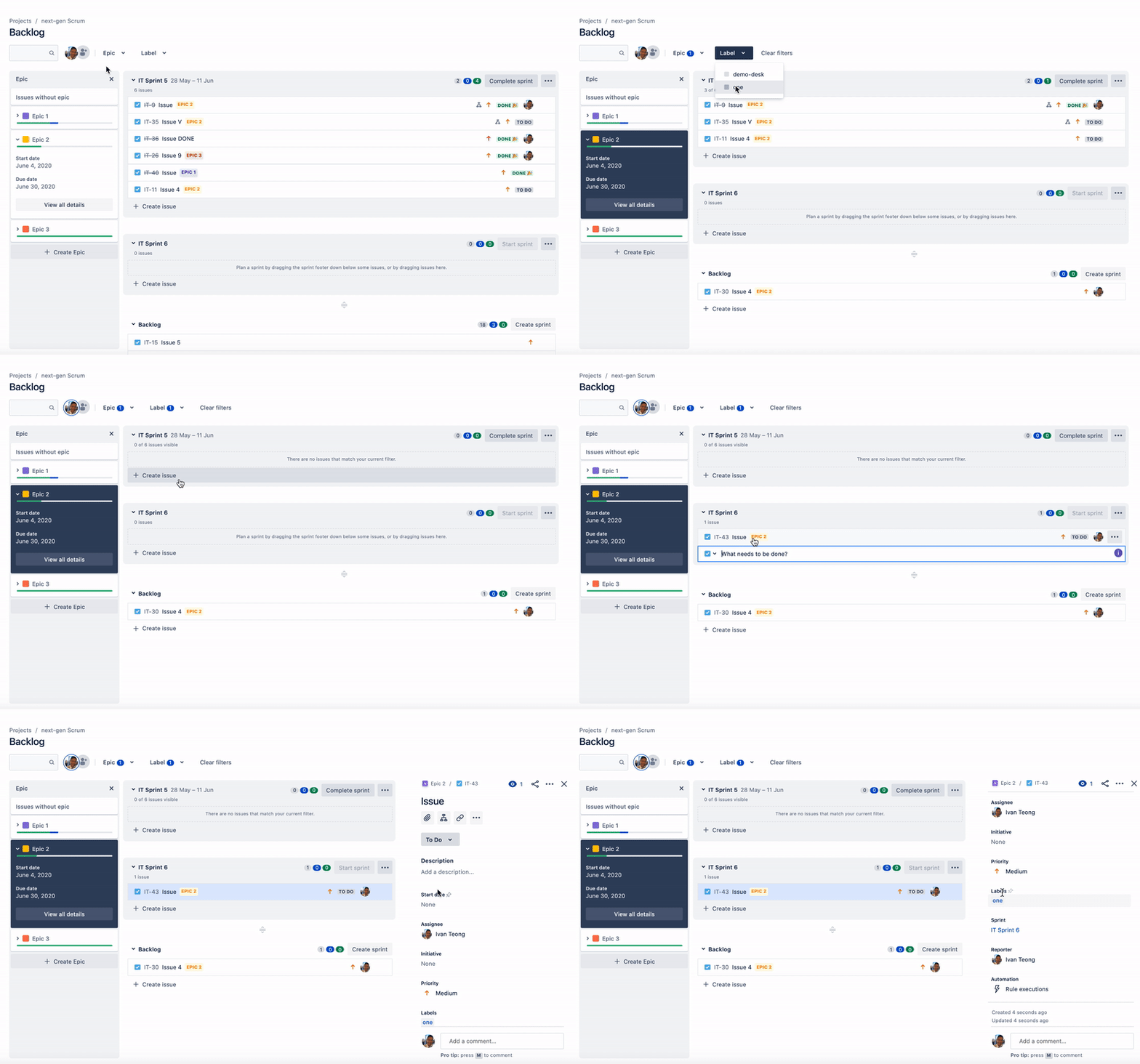
If you want to create issues with relevant fields without opening issue:
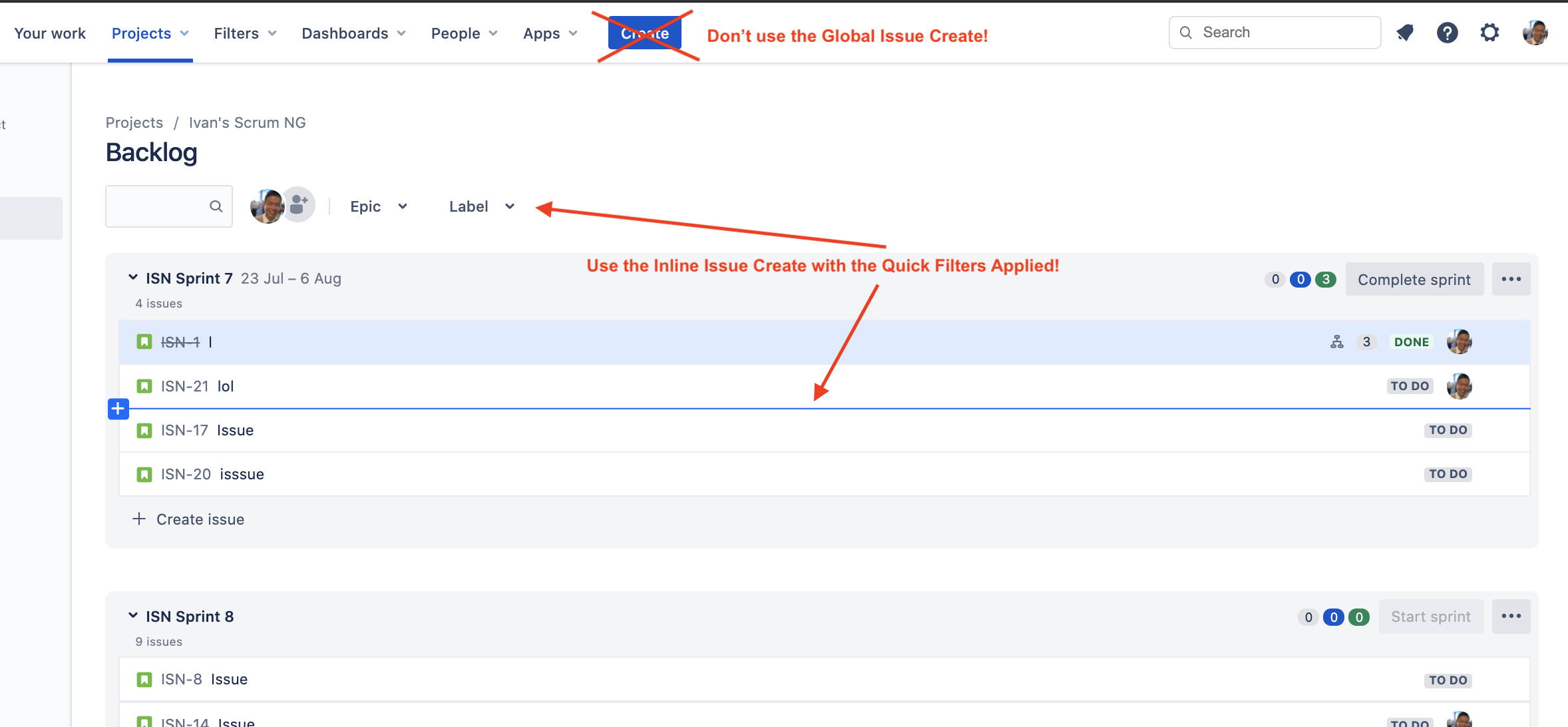
Avoid using the Global Issue Create, and use the Filtered Issue Create instead. This will allow you to create the fields you need without having to open the issue view and then editing the fields.
Recommended software for optimal Jira performance
Browsers:
We recommend Chrome or Safari for optimal Jira performance. Firefox don’t support pre-loads.
Multiple tabs can impact browser performance. Each tab eats up memory that slows down the CPU, which causes the computer to work harder to load up Jira as Jira also has to consume memory.
Using bookmarks causes pages to reload all assets. Bookmarks lead to a refreshed initial load which downloads all assets from scratch. Instead, use transitions if you’ve already loaded that view in the same session.
Multiple Applications:
Be aware of what other apps are running and use the Task Manager (Windows) or Activity Monitor (macOS) to keep an eye on CPU and memory utilisation.


