Summary
When including the Jira Issue Collector into a Confluence page, nothing will be displayed where it is supposed to have the widget located.
Environment
- Confluence Cloud
- Third-party apps that allow the injection of HTML
Although embedding a Jira Issue Collector is not supported on the Confluence Cloud environment, it can be included in a Confluence page with third-party apps that allow the injection of HTML into a Confluence page (found in the Marketplace site)
Diagnosis
- Check if the code is properly added into the installed HTML app. As an administrator of Confluence, this can be checked through Settings > Manage Apps.
- Run your browser in incognito mode. This can discard any configuration that can block the HTML to be rendered and discard extensions as well.
- Check if Jira and Confluence are properly connected through Application Links.
- Check if the space is integrated with the Jira project through Space settings > Integrations.
Cause
When the project is not integrated with the specific space in question, Confluence will not understand the injected information. It is also important to make sure that no browser extensions or configuration will block its rendering.
Solution
Integrate the space with the project
After installing the HTML macro, make sure to add the Jira project through the following steps:
- Go to the space where the page is located and tap Space Settings in the sidebar
- Select Integrations
- If no integration is added, tap the Add link button and select your Jira application
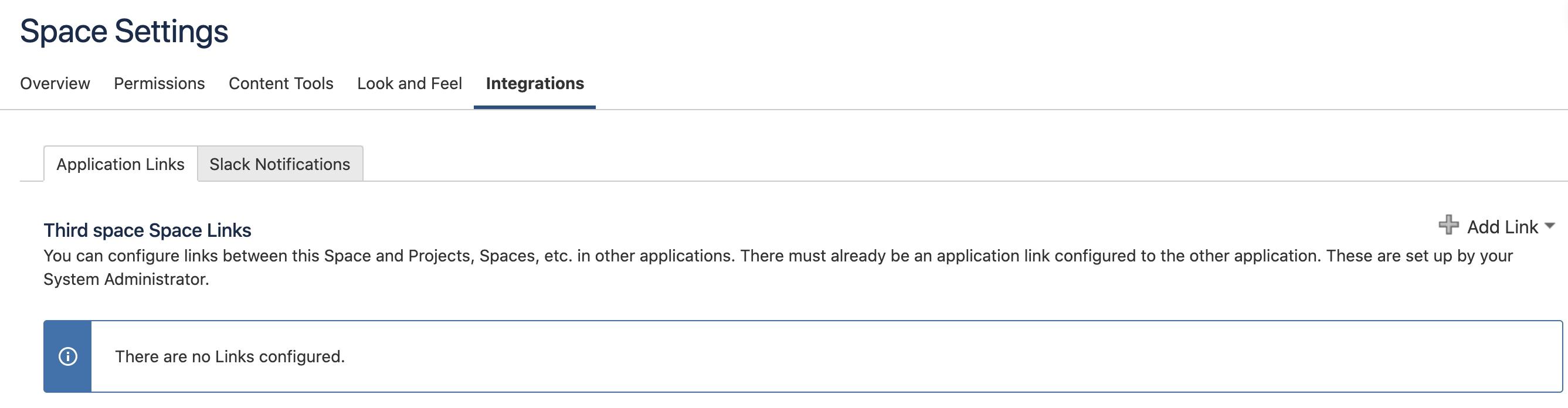
- Select the project and tap Create
Check for the browser configuration
If the space is already integrated with the project and it renders when navigating through incognito mode, make sure to check the installed extensions on the browser and any configuration that can be blocking content to be viewed. See Browser Troubleshooting Guide for additional tips on potential browser issues.

