Do you know how to perform PI planning in Jira Align? How about backlog refinement? Need a refresher course on portfolio tracking or planning? New to Jira Align and need to onboard with product roadmapping and setting product strategy? Well, you are in luck. These topics and many others are covered in product via training simulations.
Training simulations, available via the Checklist feature, are interactive videos that promote training, onboarding, and continued learning of Jira Align features, workflows, and modules. They are provided free of charge as part of Jira Align's Enablement Framework. This feature allows users to follow a comprehensive list of relevant actions or steps to be taken, in a specific order, needed to learn a task or workflow. User interaction is required, when prompted on screen, to advance the simulations; for example, clicking or selecting elements on screen that simulate actual Jira Align scenarios.
Toggle Training Simulations On/Off
The Training Simulations tab, which contains a list of available training checklists, is not displayed by default and requires administrator activation. Jira Align administrators can toggle on the Training Simulations tab, following these steps:
- From the Nav menu, select Administration.
- On the left side of the Administration page, under the Settings heading, select Platform; the Platform Settings page displays.
- Click the General tab, and then toggle on the Enable Training Simulations parameter.
Training simulations will now display for all users when the checklist icon on the top-right of any page is clicked.
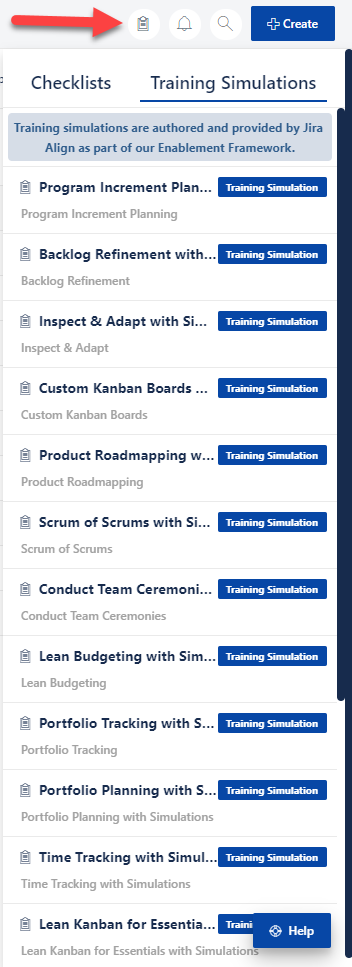
Follow a Training Simulation Checklist
To follow a checklist:
- On the Configuration bar of any Jira Align page, click the checklist icon on the top-right of the page.
- Click the Training Simulations tab.
- Select the checklist you want to follow; the selected checklist displays.
- Click each step, in sequence, to access the associated training simulation. Remember, user interaction with the screen, when prompted, is required to advance the simulation.
- When a simulation is complete, click the tick icon next to each step, showing completion.
- When all the steps are selected, the checklist is complete.
Let us know what you think of the in-product simulations in the comments below.


