You can configure your Jira integration to display information found in Jira Align's Why button directly in a Jira Software Epic (This sync will only apply to Jira Epics and not Stories). This is useful for seeing how an epic contributes to capabilities, themes, and the overall strategy.
Important:
- Data syncs one-way, from Jira Align to Jira Software. Some Jira Software configurations may make the Why field appear editable in Jira, but any changes made will be overwritten upon the next sync with Jira Align.
- The data from the Why button only syncs to Jira Software when a work item in Jira Align is updated and saved. Progress data is from related work items is not automatically synced.
- The new issue view in Jira Software is recommended for better visibility of Why data.
Create a custom field in Jira Software
To bring Why data from Jira Align into Jira Software, you must first create a custom field in Jira Software. The custom field type must be Text Field (multi-line). Give the new field a familiar name, such as Jira Align Why Definition.
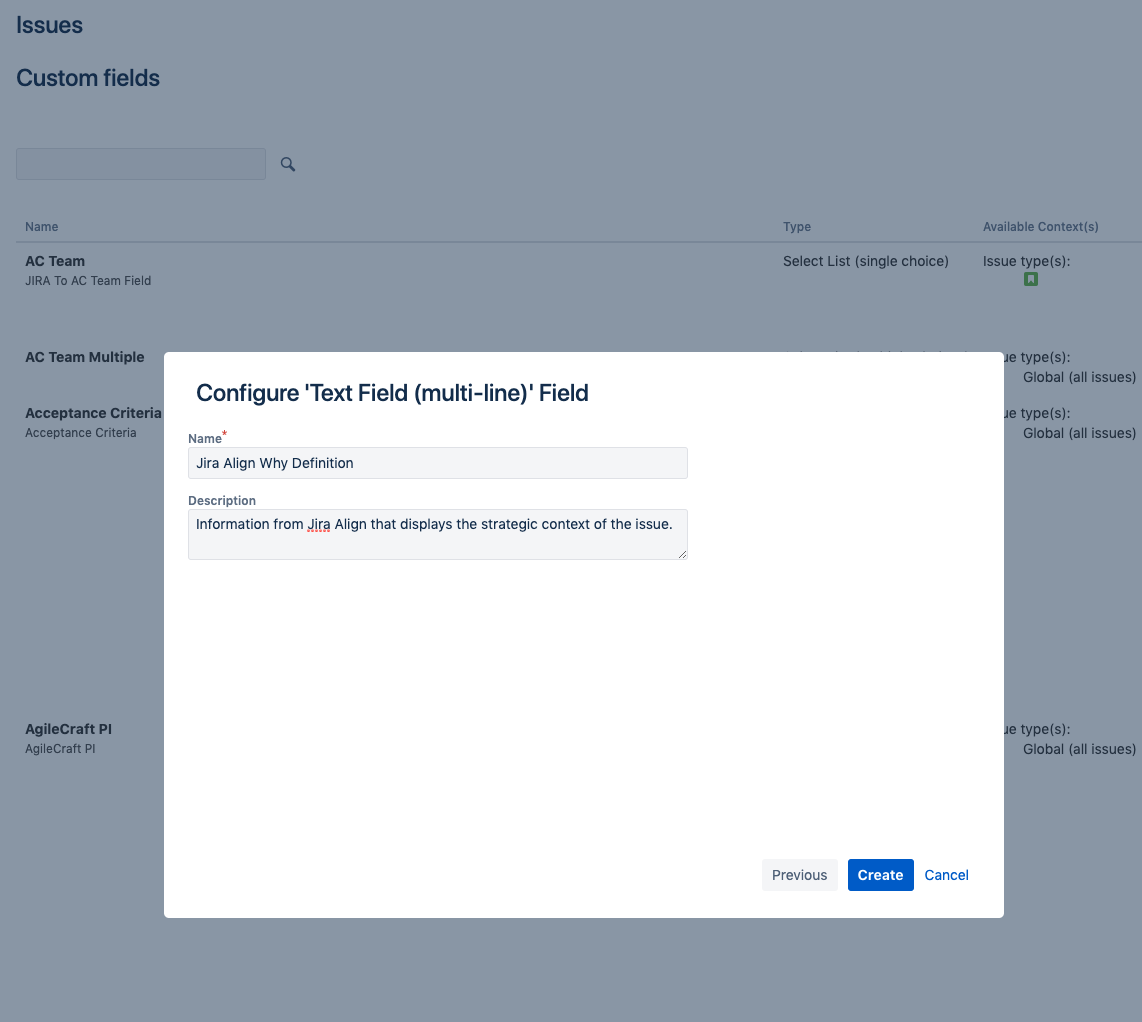
Once the custom field has been created, obtain its Custom Field ID. In Jira Software, search for the field under Settings > Issues > Custom Fields. Once located, click the ... menu icon in the upper-right and select Edit or Configure. In the resulting page, the Custom Field ID can be found at the end of the URL in your address bar. For example:
https://yourenvironment.atlassian.net/...../ConfigureCustomField!default.jspa?customFieldId=100xx
Connect the Why field in Jira Align
To connect Why data to your Jira Software custom field, log into Jira Align and navigate to Administration > Connectors > Jira Settings > Jira Setup > Custom Fields. Next, scroll down to the Why? Details field and enter your custom field ID in the following format: customfield_100xx, where "100xx" is the ID located in Jira Software.

Notes: The "Why Button" sync is currently behind a Feature Toggle within Jira Align and will need to be activated by a Jira Align Support Engineer or Solution Architect prior to rendering under Administration > Connectors > Jira Settings > Jira Setup > Custom Fields.
Data Displayed
Once the Why field is configured, the following data will be displayed in the custom field when viewing an epic in Jira Software:
- Associated work items: Epic, Capability, and Theme, when present


![Photo of Christoph Piotrowski [catworkx]](https://us.v-cdn.net/6038660/uploads/avatars/e1/08/ne108c69c09d1b574c91dfb192cc764bb.png)