This article explains how you can route alerts in Opsgenie to specific teams using values from custom fields in Jira Service Desk.
Please Note: This document covers only the cloud version of Jira Service Desk.
Sample Scenario
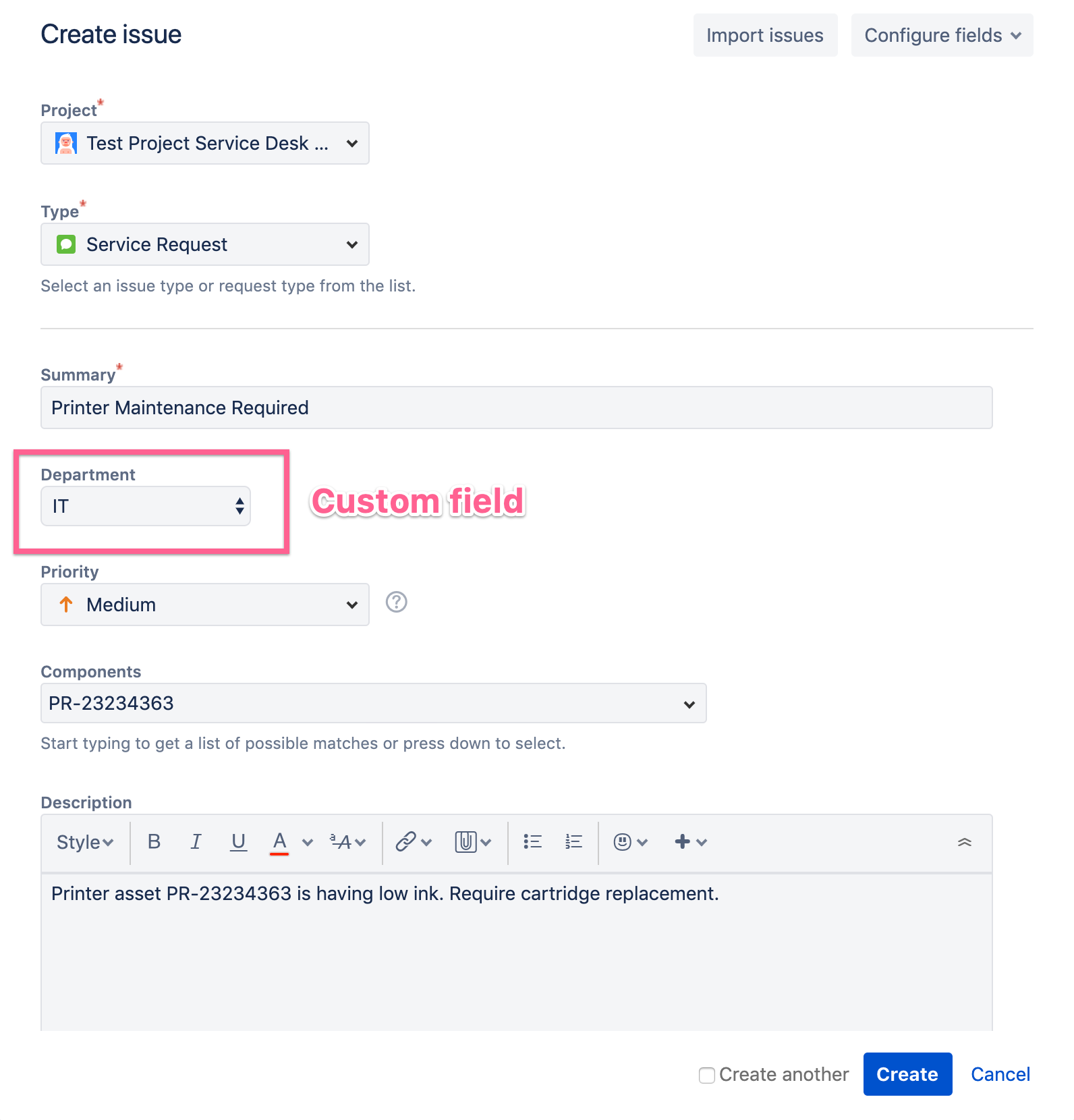
For demonstration purposes, let's consider a scenario where there is a custom field in Jira Service Desk (JSD) which has dropdown fields showing specific teams. When a user creates a ticket in JSD, they will be able to select which team is responsible for actioning the ticket. Let’s say, a ticket was created for printer maintenance. The user selects IT from the custom field “Department”. The goal is to create an alert in Opsgenie and route it to the IT team and alert the on-call engineer.
Instructions
First let's assume that there are teams created in Opsgenie with the corresponding on-call schedules. We will also assume that the JSD integration is set up in Opsgenie and that alerts are successfully created for tickets created in JSD. Here is one way to route alerts based on custom fields.
-
First, find the ID of the custom field in JSD. If you don't know how to find it, check out this article.
-
Under the "Advanced" tab in the integration options enter the label name and value as shown in the screenshot below. In this case, the value is entered as {{_payload.issue.fields.customfield_10117.value}} where customfield_10117 is the ID of the dropdown field. If your custom field is an array, then you need to retrieve data using format “customfield.get(0)”. For more information on working with string processing methods click here. You can also refer to the dynamic field string processing documentation here.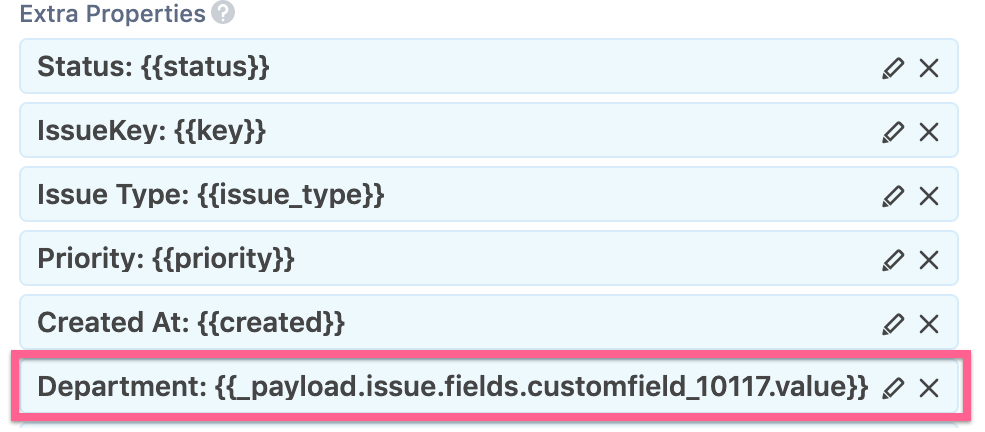
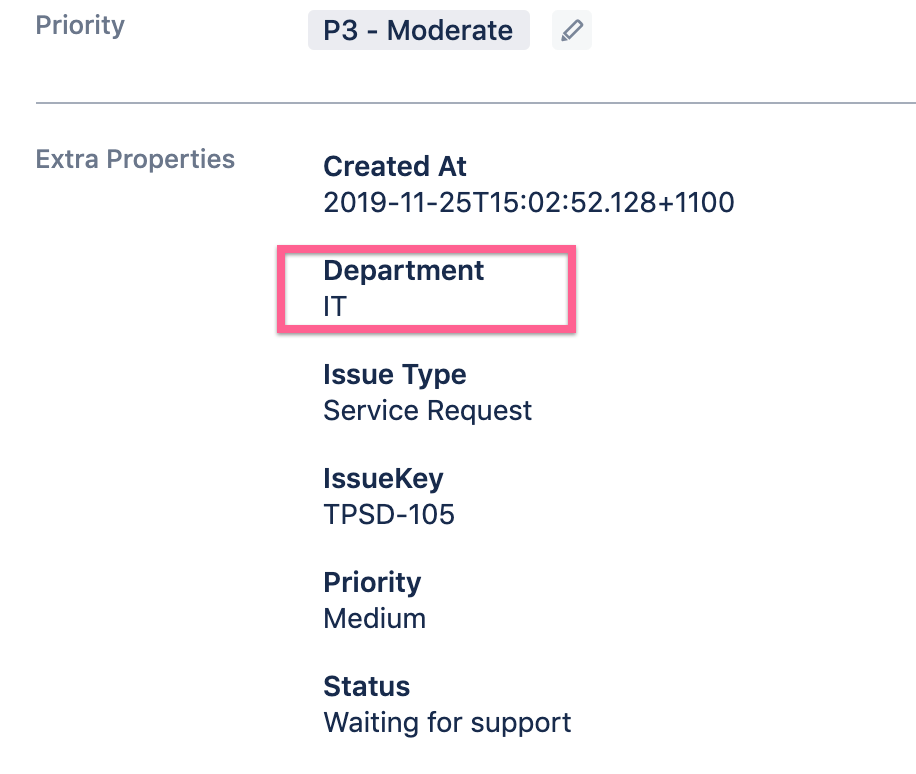
- When the above settings are applied, new alerts are created with the custom field values populated under the alert’s extra properties.
- A screenshot of a sample alert's extra field properties is shown below.
- Once this is achieved, we can now navigate to Opsgenie → Teams →. Select the desired team and define the routing rules. In this example, we want to route alerts created with the “Department” value as “IT” so that it's routed to the IT team.
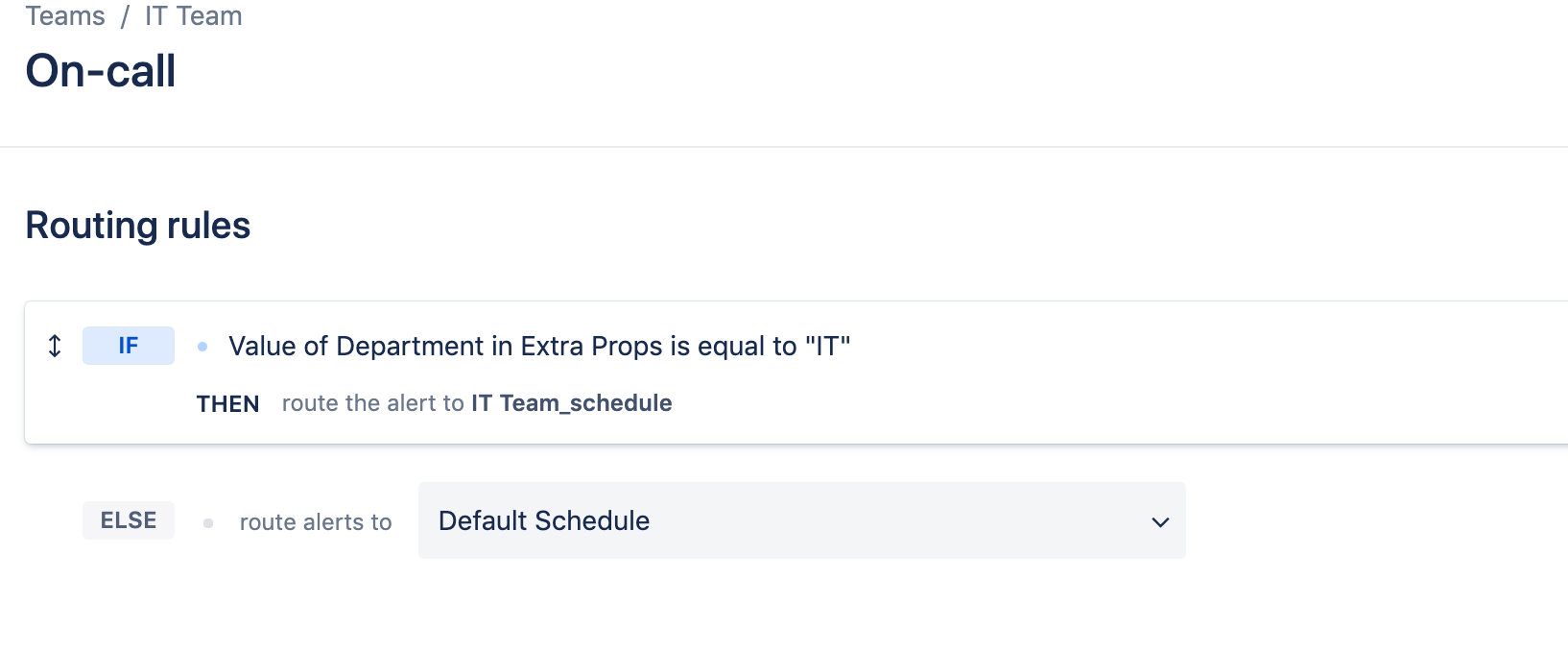
- Click on “Add routing rule” under Teams → On-call and then define routing rule as shown below:
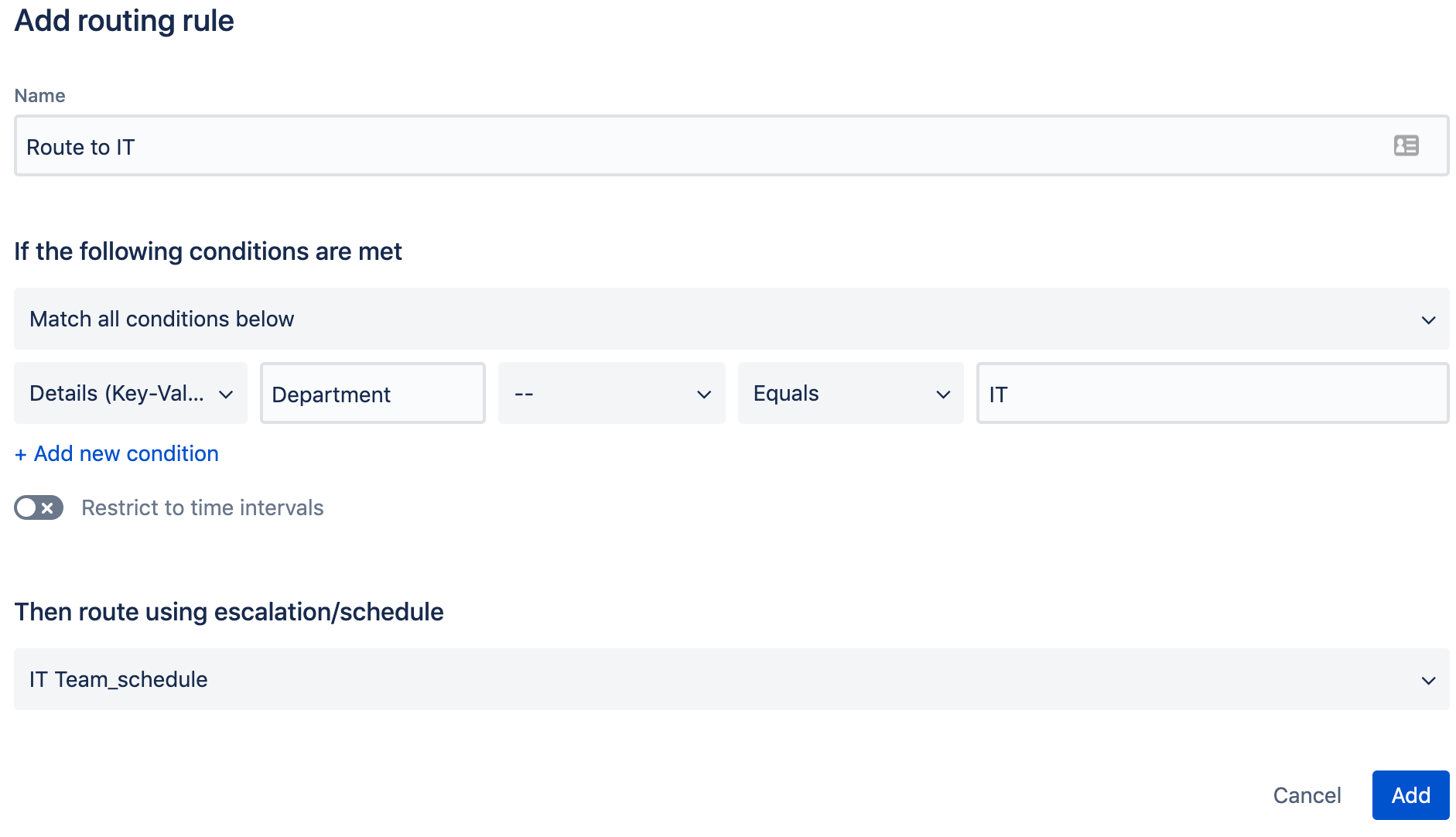
- Once this is saved, the routing rule will look like the screenshot below. Here, if the Department value is IT, Opsgenie will route the alert to the IT team schedule, otherwise the alert will be routed to the team’s default schedule.