Hi there, we have a lot of exciting announcements this month, specifically around Dark Mode. You don’t want to miss out!
Dark Mode for Mobile App is here!
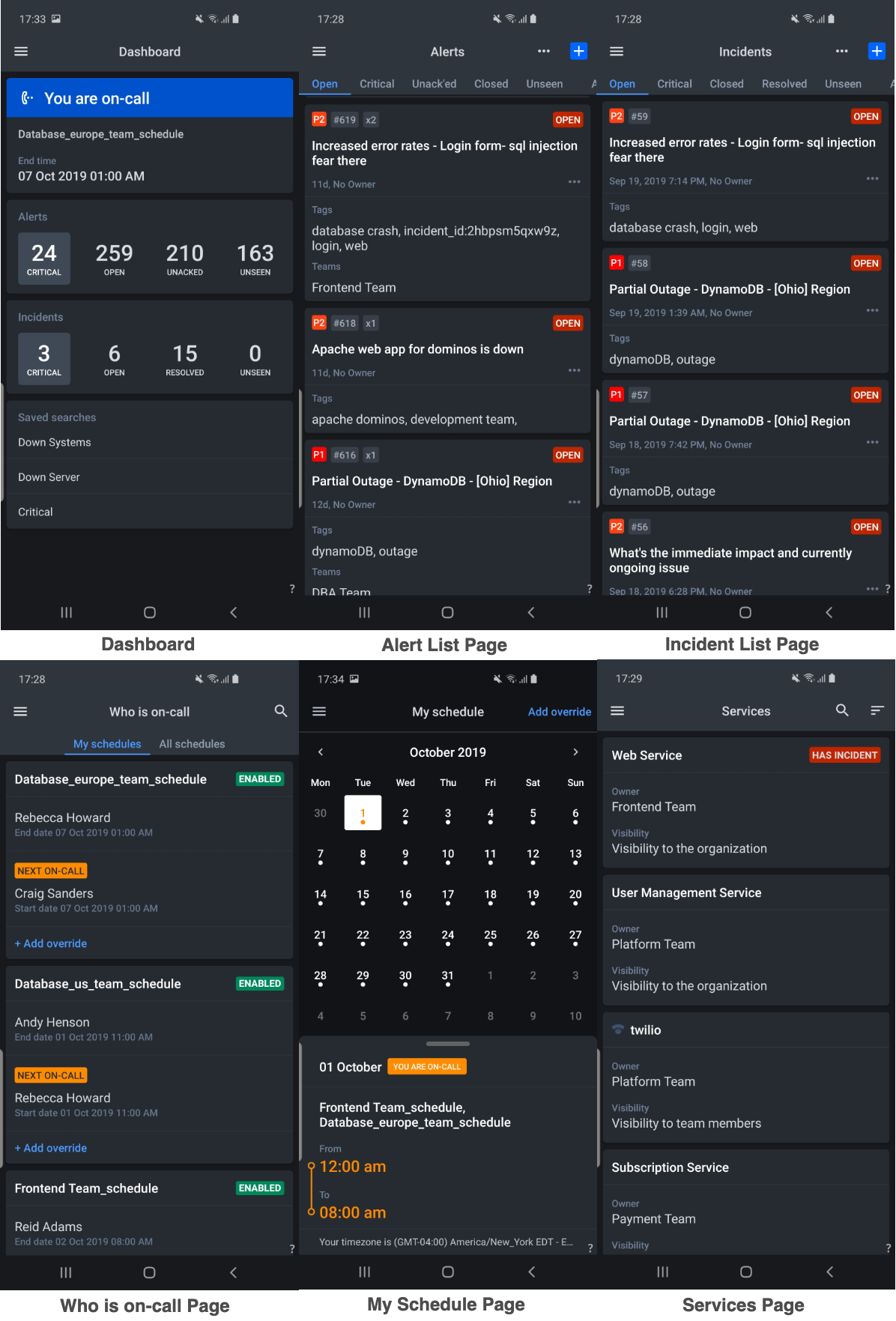
A few weeks ago, we announced Dark Mode Beta for the web app-now we are happy to let you know that a bright and eye-burning mobile device screen will not be a problem for your night on-call. Dark Mode is now available in Opsgenie on iOS (3.2.2 or later) and Android apps (3.2.1 or later) too!
Here are a few examples of our latest theme:
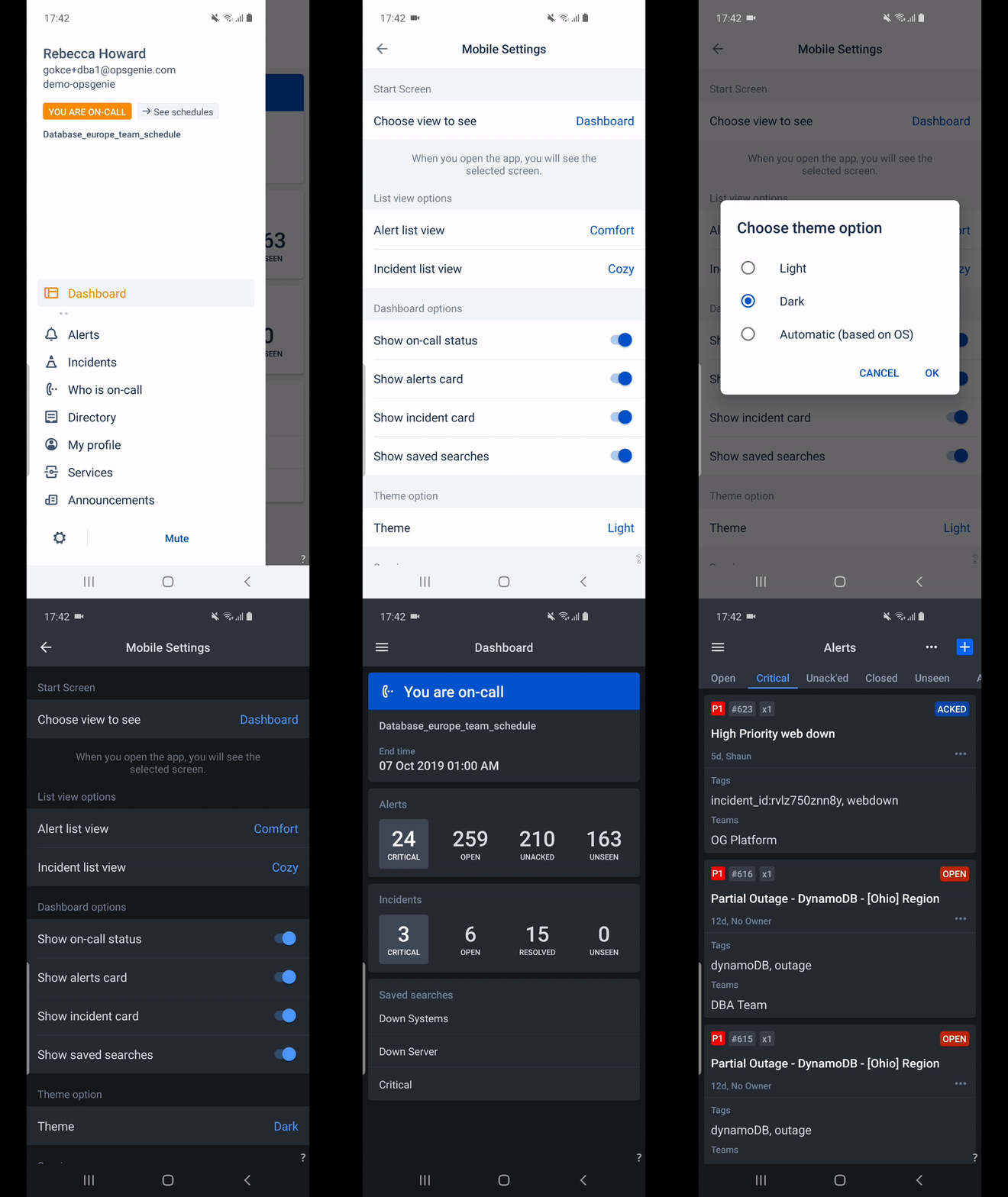
How do I switch to Dark Mode?
Navigate to Settings menu, select Dark as the Theme Option, there you go!
Under the Theme Options setting, three alternatives are listed:
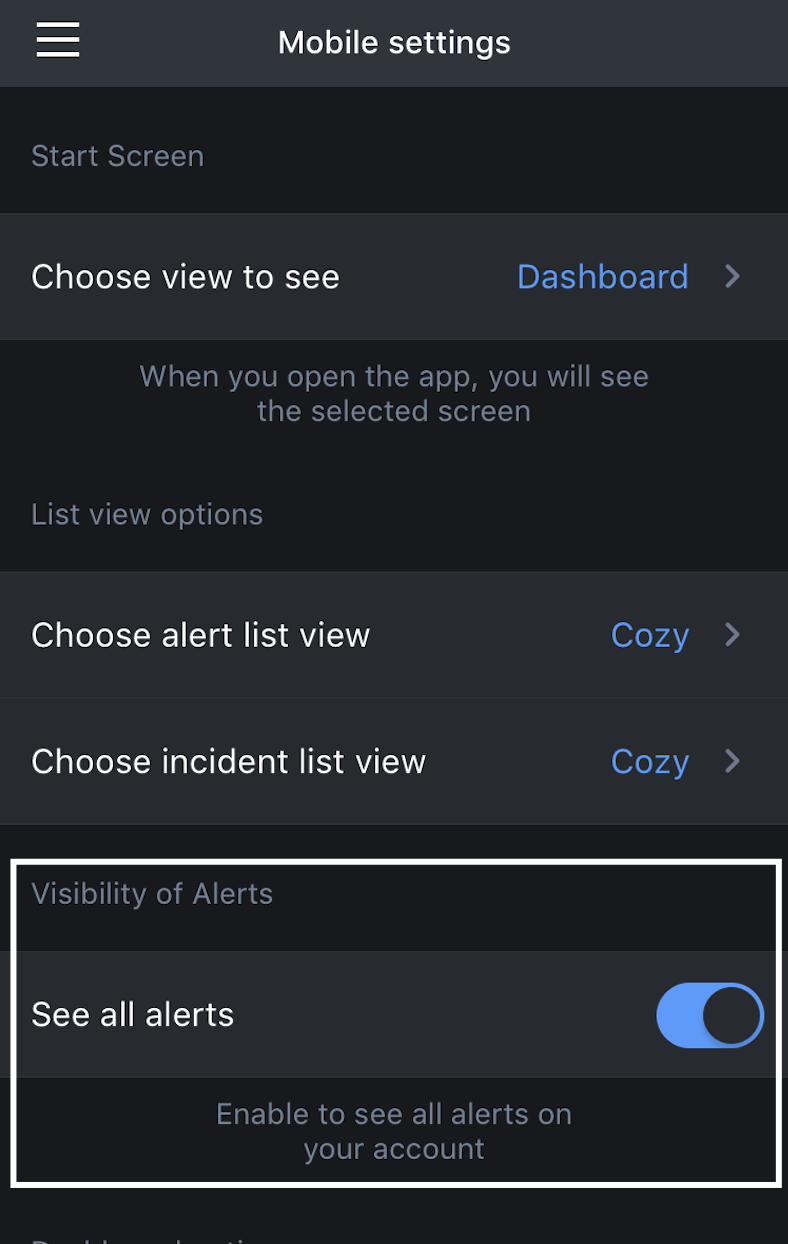
More Mobile app news! You can now "see all alerts"
Our latest update also includes a commonly asked feature: Ability to see all organization-level alerts option for account Admin and Owners. Our web app has already this option. Now, it’s available on the mobile app as well. On the Settings menu, you can enable See all alerts option which can be found on the Visibility of Alerts section. If this option is disabled, you will only be able to see alerts that are assigned to you or your team on the Alert List page. Please note that the ability to see all alerts of your organization is an Admin/Owner-level right (or you can create a custom role to grant this right to your users.
Resolve Incidents Faster with Additional Action Channels for OEC
Regardless of whether you integrate cloud monitoring, ITSM tools, or on-prem systems with Opsgenie, OEC enables you to pass data from Opsgenie back to your environment keeping the data in-sync across your organization and secured. Using these channels enables teams to resolve alerts and incidents faster with the click of a button. Once OEC is set up, additional buttons are added to the alert so that the actions you defined can be taken quickly. For more information, read the full community post.
As always let us know if you have any feedback or questions!


