AI Generated Image
If you’ve spent any time using Rovo, you’ve probably had a moment where you thought:
“Why isn’t this working?”
“Is this a bug?”
“Did I do something wrong?”
You’re not alone.
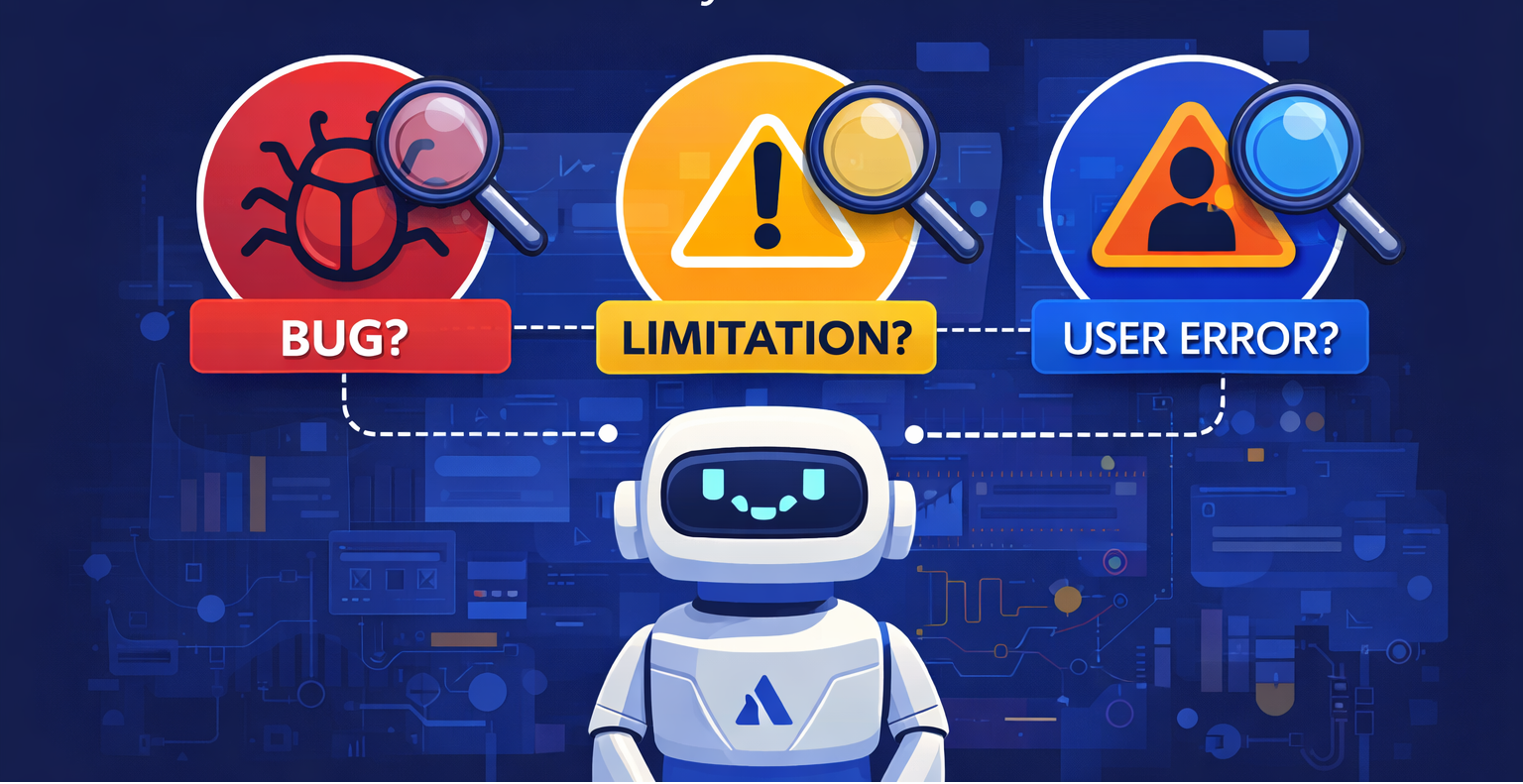
Rovo is evolving quickly. New features ship regularly, connectors expand, permissions models mature, and capabilities change. Because of this, what looks like a problem often falls into one of three categories:
-
A real bug
-
A product limitation
-
A configuration or usage issue
Learning to distinguish between them saves time, improves troubleshooting, and helps you provide clearer feedback to Atlassian.
Let’s walk through a practical way to diagnose what’s actually happening.
Why Rovo Feel “Unpredictable”
Traditional software behaves deterministically: you click a button, and the same action happens every time. AI tools behave differently because they depend on several layers working together:
-
Data access
-
Permissions
-
Indexing
-
AI interpretation
-
Product capabilities
-
Connector integrations
If any one of those layers fails or is incomplete, the result can look like a broken feature. But often, the AI interface is working exactly as designed—it just can’t see or do what you expected.
Troubleshooting Rovo
When something doesn’t behave as expected, start with three diagnostic questions:
1. Can Rovo see the data?
2. Can Rovo act on the data?
3. Is Rovo interpreting the request correctly?
These map closely to a root-cause model used in systems troubleshooting.
Let’s break them down.
Step 1: Check Usage & Access
Before assuming something is wrong with Rovo, start by checking two common causes: how the request is written and whether the system can access the data.
AI assistants rely on both clear instructions and authorized access to information. If either is missing, the result may appear incorrect.
Check the following:
-
Is the prompt clear and specific?
-
Does the user have permission to view the content?
-
Is the information located in a space, project, or tool Rovo can access?
-
Has the data finished syncing or indexing?
If the AI cannot access the data or understand the request, the output may look wrong even though the system is functioning correctly.
Step 2: Check Product Limitations
If permissions and prompting are correct, the next possibility is that the request falls outside the product’s current capabilities.
AI interfaces often appear more flexible than they actually are. Behind the scenes, they depend on defined capabilities and the data available to their underlying knowledge graph.
Common limitations include:
-
Certain fields or data types are not indexed
-
Some objects are not exposed to the graph
-
The feature has not been implemented yet
-
The action requires a connector or integration that is not available
In this case, the behavior reflects a product limitation, not a malfunction.
Step 3: Identify a Real Bug
If prompting is clear, permissions are correct, and the feature should work based on the documentation, you may be encountering a genuine bug.
Typical indicators include:
-
The same request produces different results each time
-
The feature previously worked and suddenly stopped
-
Multiple users report the same issue
-
An action fails even though configuration and permissions are correct
When that happens, the best next step is to document the behavior and report it, so the product team can investigate and resolve it. Patterns across reports help Atlassian identify real defects faster.
Quick Diagnostic Checklist
Next time Rovo behaves unexpectedly, walk through this quick checklist.
Data
-
Is the content indexed?
-
Do I have permission?
Capability
Interpretation
Consistency
Most problems reveal themselves within these steps.
Why This Matters
AI tools are still maturing. Expect rapid feature releases, shifting capabilities, evolving governance models, and changing limits or pricing structures. Because of this, what looks like a problem is often the result of how several layers of the system interact.
AI interfaces like Rovo operate across multiple layers:
data → permissions → capabilities → interpretation
If any one of these layers is incomplete or misaligned, the outcome can appear confusing or inconsistent. Understanding the difference between a bug, a limitation, and user error turns frustration into insight. It helps you diagnose issues faster, provide clearer feedback, and work more effectively with AI tools as they continue to evolve.
The teams that adapt best aren’t the ones waiting for perfection—they’re the ones who learn how these systems work and how to troubleshoot them.

