Hi Atlassian Community 👋
We’re excited to introduce a new way to organise your teams: Team Types! This feature makes it easier and safer to organise, govern, and scale teams across your company. See how team types work.
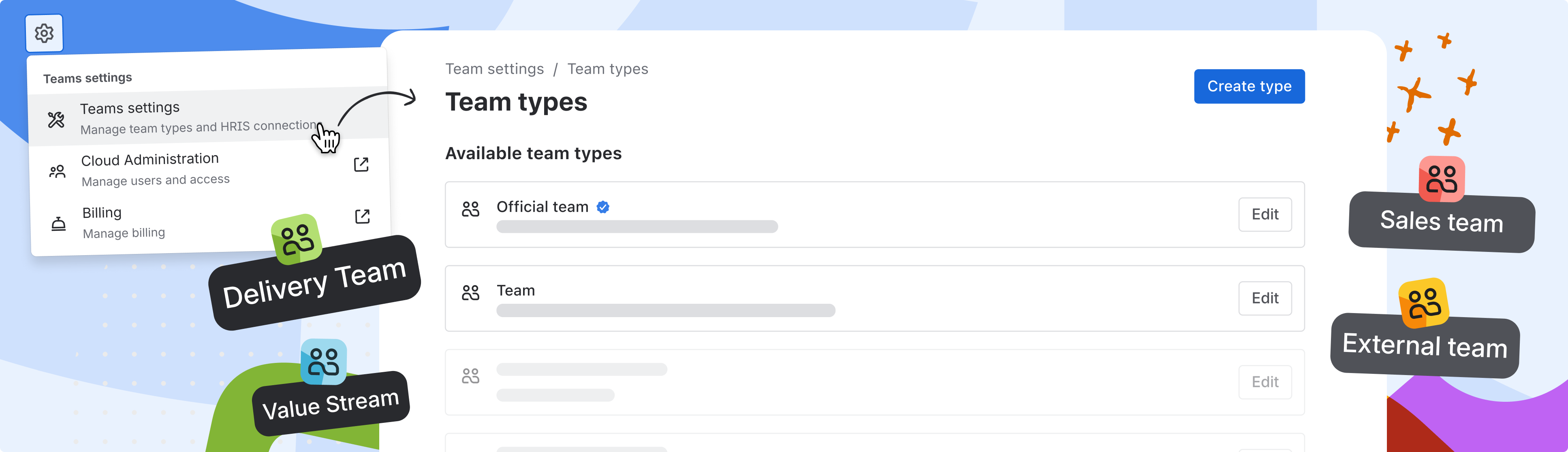
✨ What’s new?
We’ve listened to your feedback and made it easier to organise your teams in Atlassian by introducing two simple team types:
This update makes it easy to see which teams are official and which are flexible, so you can organise and scale your teams with confidence, ensuring the right teams are used for governance and reporting.
Customising team types
Every organisation works differently. With custom team types, you can organise your teams in a way that matches your unique structure and ways of working, whether that’s based on frameworks, departments, projects or any other model your company follows. These team types work just like Official teams: they’re managed only by admins and are marked with a blue checkmark to show they are admin approved.
Custom team types help you organise teams clearly, support your preferred ways of working, and prepare for more controls and settings coming soon.
🛠️ How to use team types?
Every team must have a team type. Team types are designed to ensure that, as we introduce more settings, permissions, and controls in the future, each team will have the right configuration. While these advanced controls aren’t available from day one, team types lay the foundation for easier, more consistent team management across your organisation, eliminating repetitive manual updates.
When a team is created, it will always be assigned to a team type - either one of the default types or a custom type set by your admins.
You can use Team Types in three ways:
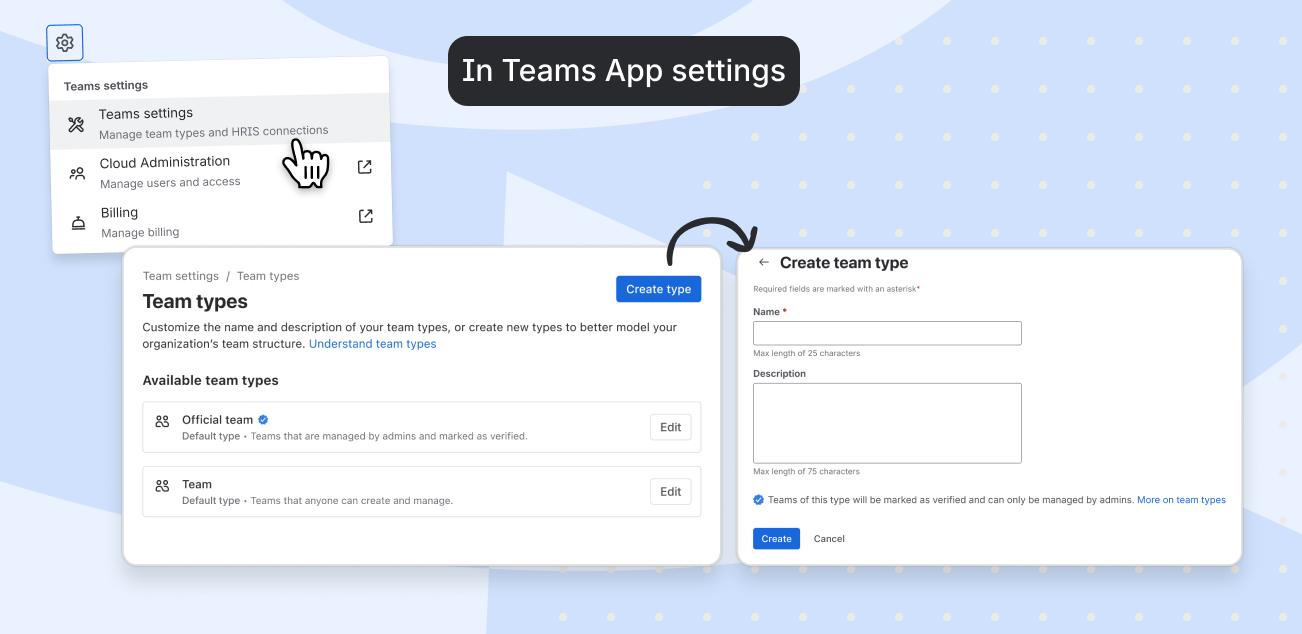
In Teams App settings:
-
Only admins can update existing team types.
-
Only admins can create new custom team types. All custom team types are admin-managed (not open/member-managed) and are marked with a blue checkmark.
-
Only the default “Team” type is open/member-managed; you cannot create new open/member-managed types.
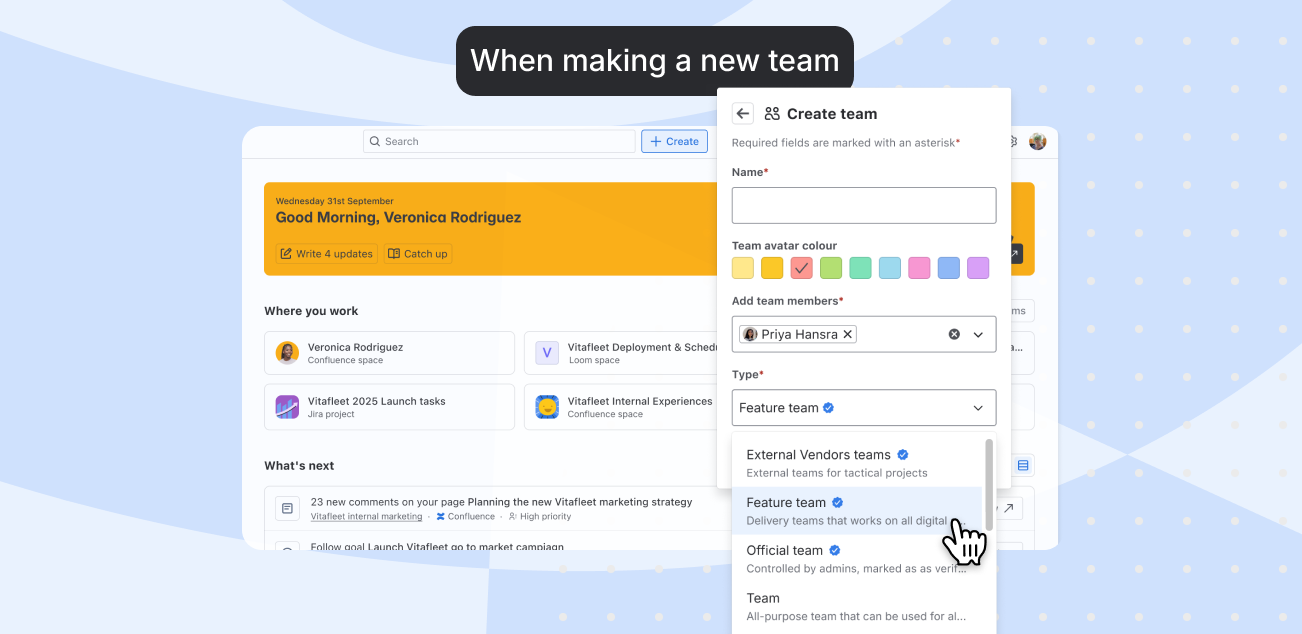
When making a new team:
-
Anyone can make a new team.
-
Only admins can choose which team type to assign to the new team.
-
Non-admins can only create teams that are automatically assigned to the default “Team” type (open/member-managed).
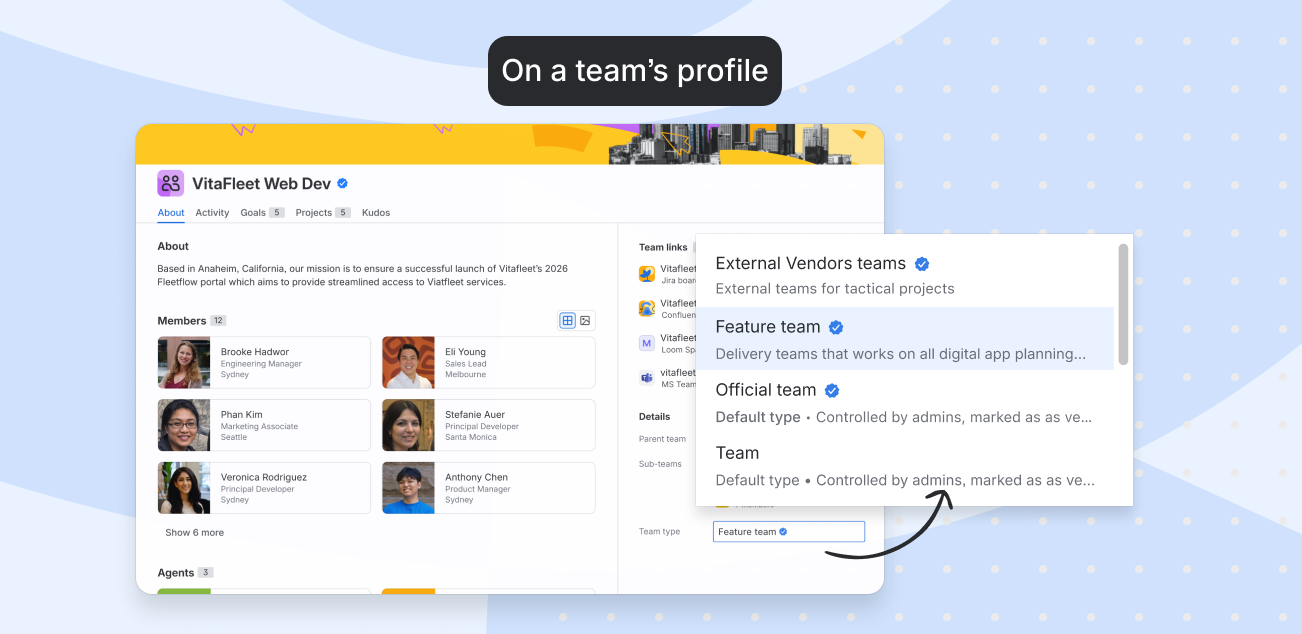
On a team’s profile:
🙋 FAQ
-
Why use team types?
-
What changes for regular users?
-
Can I change a team’s type later?
-
Will changing the type affect who can join or manage the team?
-
Yes, but only if you change a team from an admin-managed type (like “Official team” or a custom type) to the default “Team” type, which is open/member-managed. Only the default “Team” type is open/member-managed; all other types are admin-managed.
📚 Reference documents
Below are a few helpful resources if you’d like to dive deeper into how team types work, how to connect them to groups or HR systems, and how to get started using them in your organisation.
💬 Tell us what you think
Try out Team Types and comment below with your feedback or ideas. Thanks for helping us make Teams better for everyone!


