You’ve likely heard the news: Rovo is now for everyone! In April 2025 at Team ‘25, Atlassian announced that Rovo is included on all paid plans of Jira, Confluence and Jira Service Management – with those on Premium or Enterprise editions getting first access (and Standard not far behind, with GA later this year). While this is awesome news – there’s a large gap between AI excitement and actual user adoption.
Even though generative AI emerged dramatically about two years ago, there’s been widespread interest but slower-than-expected adoption due to practical challenges. AI functions as a tool, and its impact, particularly for knowledge management, hinges on strong underlying practices; applying AI to flawed systems risks amplifying errors. Conversely, AI integrated thoughtfully can transform knowledge sharing.
This guide explores Atlassian’s AI tools, Atlassian Intelligence and Rovo, and best practices for maximizing their potential within your organization. We’ll explore tangible, practical ways you can start using Rovo and AI – right after you’re done reading, if you want to!
Atlassian Intelligence vs. Rovo
Atlassian Intelligence (or simply “AI”) was developed to maximize productivity with AI-powered enhancements across Atlassian’s suite of products, streamlining workflows and making tools smarter. However, as organizations increasingly adopt multiple applications, accessing and integrating knowledge across platforms becomes challenging. Enter Atlassian Rovo—an intelligent solution designed to bridge the gap by centralizing data access and insights across tools, making collaboration seamless and effective. Let’s take a closer look at how these two tools compare.
Atlassian Intelligence in Jira and Confluence
Atlassian Intelligence embeds AI-driven knowledge management capabilities directly into the hands of organizational leaders and their teams, spanning departments from HR to IT. Integrated across Confluence, Jira, and the wider Atlassian product suite, it delivers tangible benefits. According to Atlassian’s own research, users of Atlassian Intelligence report saving an average of 45 minutes weekly, and 77% agree that its AI-enhanced search capabilities save them time.
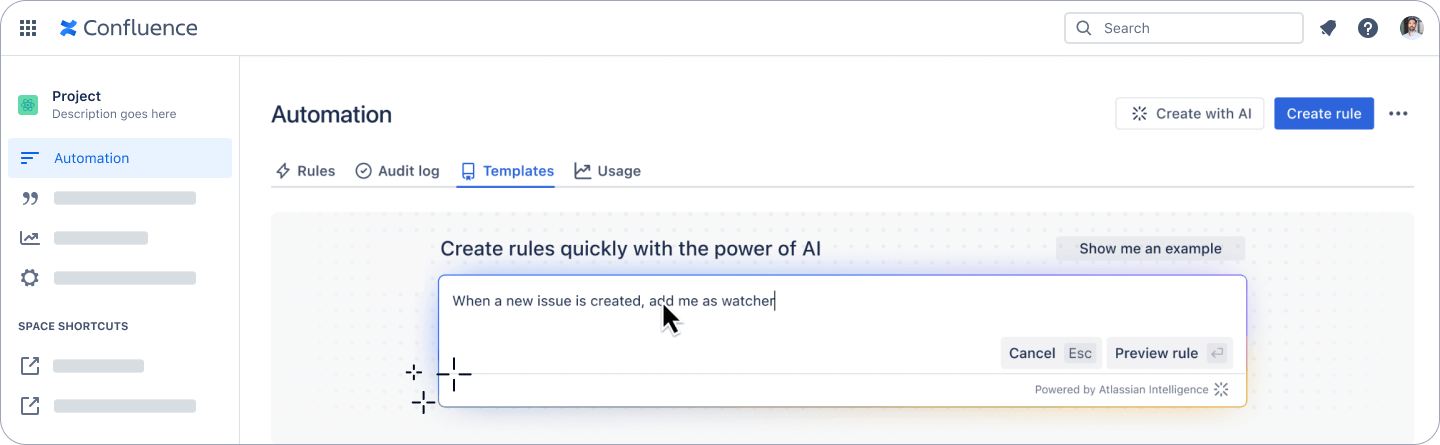
Key features distinguishing Atlassian Intelligence include:
- Content Transformation: AI can process various forms of unstructured content, such as notes from a whiteboard session, converting them into structured formats like Confluence pages or Jira tasks.
- Proactive Knowledge Discovery: The AI automatically surfaces the most relevant information, reducing the need for manual searching. For instance, it might suggest related pages based on the user’s current view or deliver results in Jira through natural language queries.
- Content Generation and Enhancement: Generative AI assists in creating outlines, initial drafts, and titles for new content. It can also refine existing material by adjusting writing style or improving clarity.
Introducing Rovo: Your Collaborative AI Partner
Rovo is a standalone product powered by Atlassian AI that extends AI capabilities beyond individual Atlassian tools. This tool offers cross-product integration, connecting Atlassian’s suite with third-party tools like Google Drive and GitHub. With over 40 integrations, Atlassian Rovo allows departments to manage workflows across systems efficiently. By centralizing data, Atlassian Rovo is a versatile knowledge management tool, streamlining organizational efficiency.
To effectively utilize Rovo, it is helpful to understand its main components, which are designed to work together to provide a comprehensive, AI-assisted experience:
- Enterprise Search: Rovo Search retrieves the most pertinent results from all your Atlassian platforms (Jira, Confluence, Loom, Bitbucket) and connects with vital 3rd-party applications like Google Drive, Microsoft SharePoint, Figma, Slack, and others. It scans data sources across diverse locations and formats – from Jira issues to charts in Google Drive – understanding your information needs to provide relevant search results drawn from your entire enterprise ecosystem.
- Rovo Chat: Engage with Rovo Chat to receive tailored answers to your queries. It comprehends the context surrounding your organization’s projects, objectives, activities, and personnel to furnish precise and comprehensive responses. Examples include asking about project delays, clarifying strategic concepts, or identifying suitable team members for assignments.
- AI Agents: Rovo’s AI Agents operate as extensions of your team, executing specific tasks tailored to your team’s unique requirements and objectives. Pre-configured Agents handle common tasks such as generating or revising content to match brand voice, translating materials, organizing Jira backlogs, drafting release notes, and more. Furthermore, custom agents can be developed for specialized needs using a no-code interface.
10 Easy Ways to Use Rovo
The table below presents ten accessible methods for Jira and Confluence end-users to begin experiencing the benefits of Rovo. Each entry is designed to be a “quick win,” offering immediate value with minimal time investment.
| Use Case |
Rovo Feature Used |
Relevant Atlassian Tool(s) |
Teams That Can Benefit |
Estimated Time to Complete with Rovo |
Key Steps & Example Prompt |
|---|
| Instantly Find Project Updates Across Tools |
Rovo Search |
Jira, Confluence |
All Teams |
< 1 minute |
Use Rovo Search bar. Prompt: Latest updates on Project Phoenix or Find ‘Q3 marketing plan’ Confluence page |
| Get a Quick Summary of a Long Page/Issue |
Rovo Chat (or /ai in editor) |
Jira, Confluence |
All Teams |
1-3 minutes |
Open Rovo Chat, paste link or refer to current page/issue. Prompt: Summarize this page or Summarize this Jira ticket thread |
| Understand Unfamiliar Company Jargon or Acronyms |
Rovo Definitions |
Jira, Confluence |
All Teams (especially new hires) |
< 1 minute |
Highlight term, select “Define” or Rovo may automatically highlight it. Check definition provided from Confluence |
| Draft a Basic Jira Issue from a Simple Prompt |
Rovo Chat |
Jira |
All Teams |
2-5 minutes |
Open Rovo Chat. Prompt: Create a Jira task to ‘Review new website design’ and assign it to Sarah |
| Generate Initial Ideas for a Confluence Page |
Rovo Chat (or /ai in editor) |
Confluence |
All Teams, Marketing, Product |
2-5 minutes |
In Confluence editor, type /ai. Prompt: Draft a meeting agenda for a project kick-off including objectives and key discussion points |
| Find Who is Responsible for a Project/Area |
Rovo Search (natural language) |
Jira, Confluence |
All Teams |
< 1 minute |
Use Rovo Search. Prompt: Who is the owner of the ‘Q4 Security Initiative’? or Who is working on the ‘Alpha feature’? |
| Quickly Locate Recently Viewed/Edited Work |
Rovo Search (Quick Find) |
Confluence (expanding to Jira) |
All Teams |
< 30 seconds |
Open Rovo Search in Confluence; recent items appear before typing. Or type initial characters of what you’re looking for |
| Translate a Short Piece of Text or Page Section |
Rovo Agent (e.g., Global Translator) or Rovo Chat |
Confluence |
Global Teams, Marketing, Documentation |
1-3 minutes |
Invoke Global Translator Agent (if available) or use Rovo Chat. Prompt: Translate this selected text to Spanish |
| Create a Checklist or Action Items from Meeting Notes |
Rovo Chat |
Confluence |
All Teams |
1-2 minutes |
Paste meeting notes into Rovo Chat. Prompt: Create a checklist of action items from these notes |
| Summarize a Slack Thread or Email Chain |
Rovo Chat |
Slack, Email (via integration) |
All Teams |
1-2 minutes |
Paste thread or email into Rovo Chat. Prompt: Summarize this conversation
|
Making Rovo Your Go-To Assistant: Access Points
Rovo is designed for accessibility, with multiple entry points within the Atlassian environment and beyond:
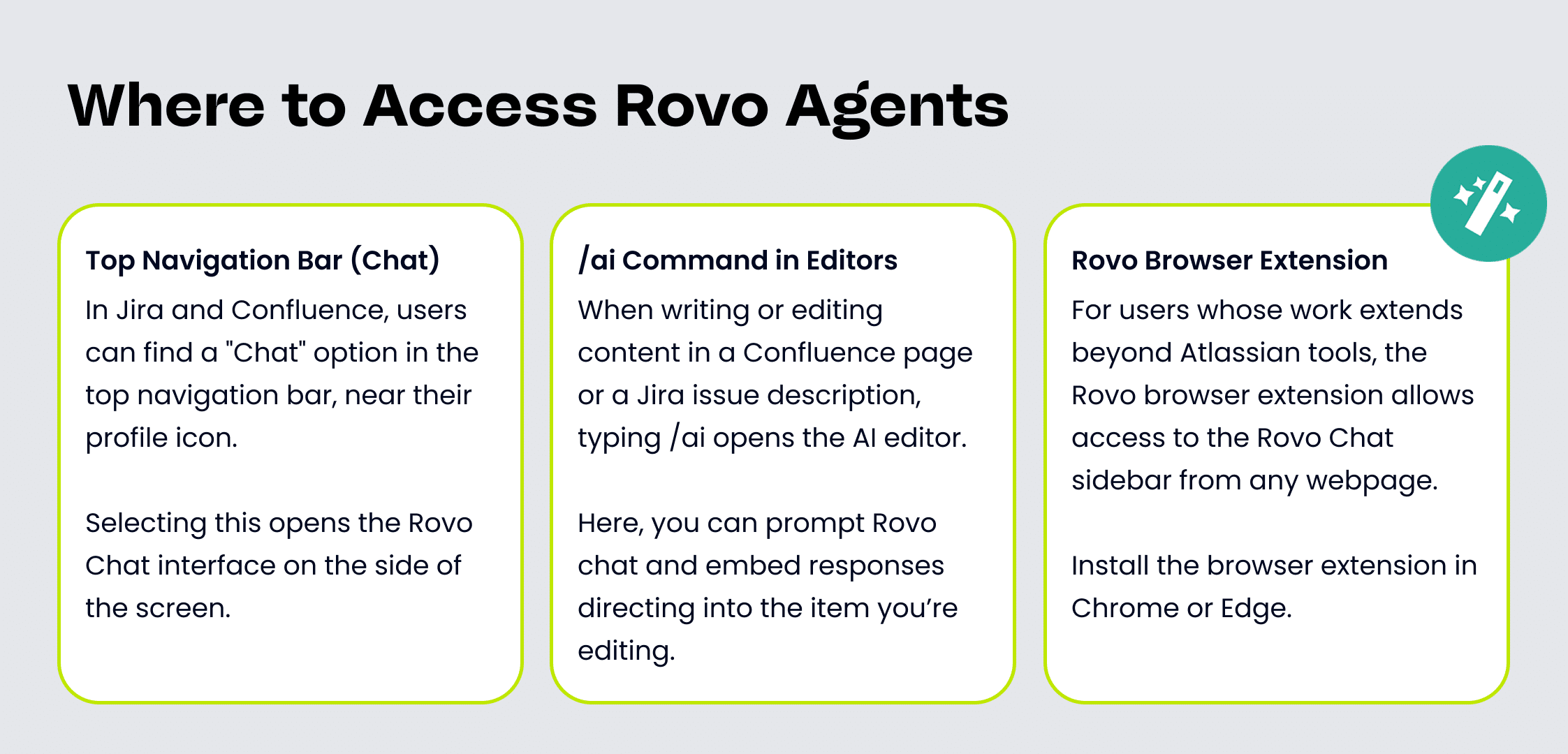
- In Jira and Confluence, users can typically find a “Chat” option in the top navigation bar, near their profile icon. Selecting this opens the Rovo Chat interface on the side of the screen, allowing for quick questions, content editing requests, or task identification without navigating away from the current page or issue. This seamless access encourages frequent, in-context use.
- When writing or editing content in a Confluence page or a Jira issue description, typing /ai opens the AI editor. Users can then provide a custom prompt, such as “Tell AI to summarize this draft” or “Tell AI to generate three alternative titles for this section.” This feature embeds AI assistance directly into the content creation and refinement process.
- For users whose work extends beyond Atlassian tools, the Rovo Chat sidebar can be accessed from any webpage, allowing Rovo to assist with information on third-party sites, news articles, or more.
How to Setup Your Own Rovo Agent
Atlassian offers distinct pathways for creating and customizing Rovo AI teammates, catering to a diverse range of user needs and technical expertise.
- The No-Code/Low-Code Path: Primarily facilitated through Rovo Studio, this approach is designed for broad accessibility, empowering users across various roles to build agents without extensive programming knowledge.
- The Developer-Focused Path: Leveraging the Atlassian Forge platform, this method provides developers with the tools to construct highly custom, complex, and deeply integrated agents.
To create your own Rovo Agent:
- Open Rovo Chat. This is found in the top navigation bar of your Atlassian product (e.g., Confluence, Jira), near your profile icon.
- Within the Rovo Chat window, look for an agent selector or menu (often at the top-left). Click this and select an option like “Browse Agents”.
- In the agent browsing view, locate and click a button or option labeled “Create”, “Create an Agent”, or similar. This will initiate the agent creation process, transitioning you into a Rovo Studio interface for a guided setup.
Check out this video for a step-by-step tutorial on how to start creating your own agent: https://youtu.be/pvW7WfW-vXo?si=ERv4IzXcIkFHvdPU
Good luck getting started! If you have questions or a specific Rovo Agent you'd like to build, comment below.


