Jira Issue Structure
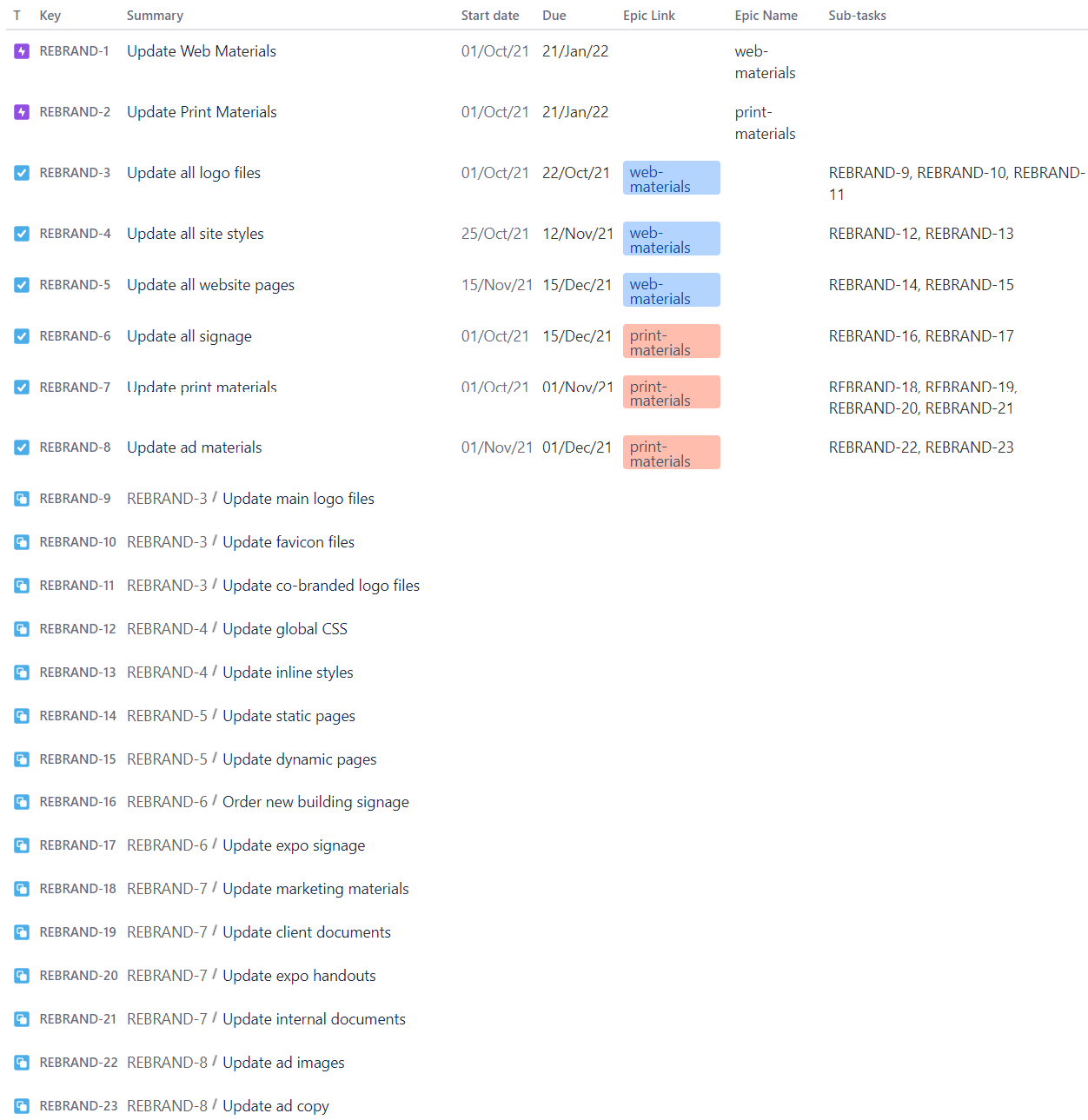
Here’s the same list of items identified in the diagram as individual issues in Jira.
Image and Issue Details
-
At the top of the image are the epics for updating web materials and print materials.
-
Next, are three tasks for each epic.
-
Each epic has a short, unique name in the “Epic Name” column.
-
You can see which task belongs to which epic in the “Epic Link” column.
-
Finally, there are sub-tasks at the bottom of the list.
-
Each issue has a start date and a due date.
Tip: You may need to add the standard field called “Start date” to your Jira project screens.
Importing Issues
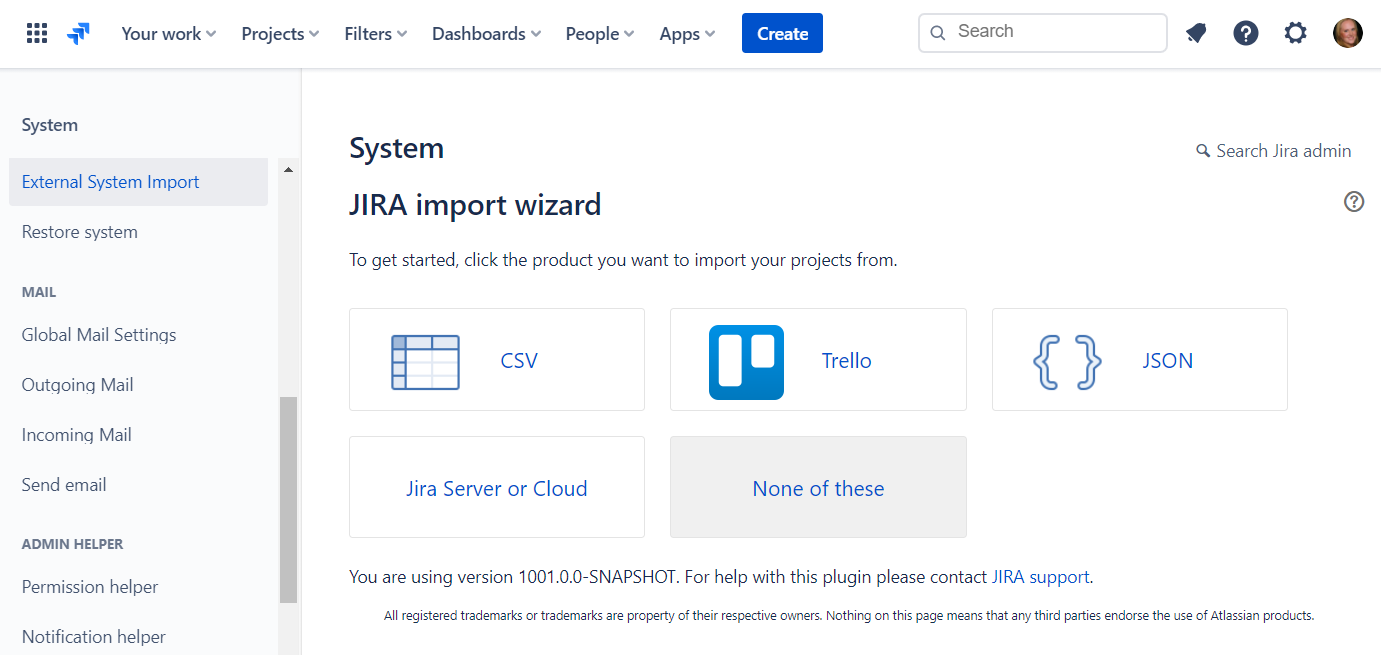
You can create similar issues manually, from a Confluence table, or you can import them - which is the fastest method.
If you’re a Jira administrator, use the CSV “External System Import” function in the system admin area.
Visit
Admin > System > External System Import
Tip: This version of the importer has the most features.
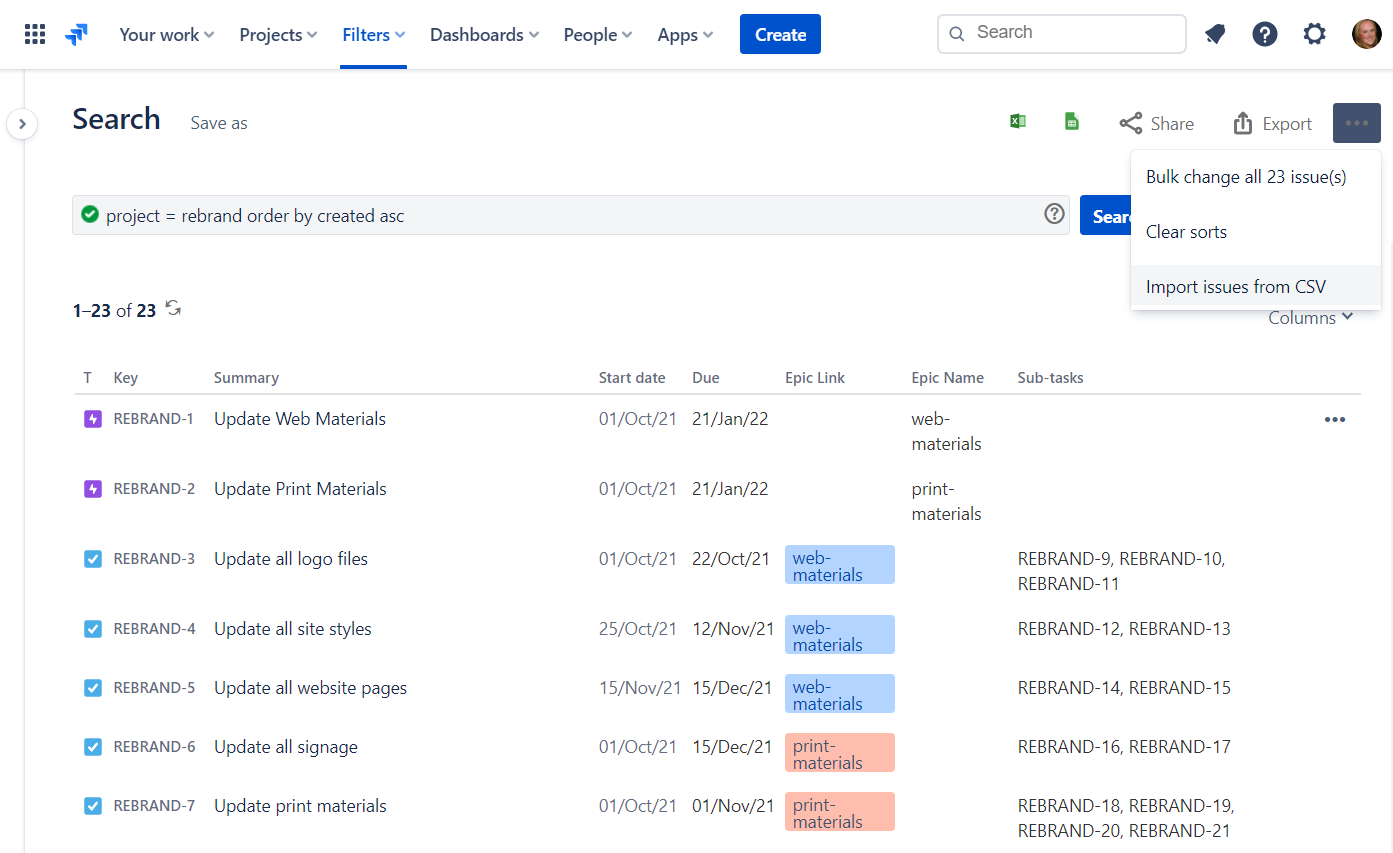
If you’re not a Jira administrator, use the “Import issues from CSV” feature on the issue search page.
Visit
Filters > Advanced Issue Search > … (ellipses) > Import issues from CSV
Sample Issues
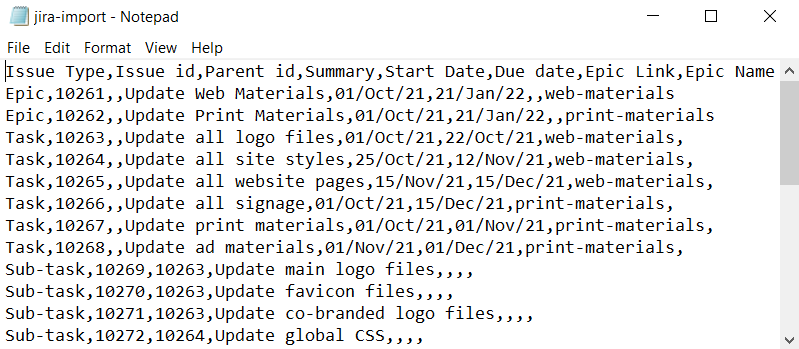
You can download and customize these sample issues to try out the scenario.
Download
