We're excited to share that saved views are coming to Jira's Timeline and List views, building on the capability we launched for boards last year.
You can now create multiple named views within a single space — each with its own saved configuration — so your team always lands in the right view without having to rebuild it from scratch.
We're rolling this out in phases starting July this year:
You may see it appear in your spaces progressively as each phase rolls out.
What's new
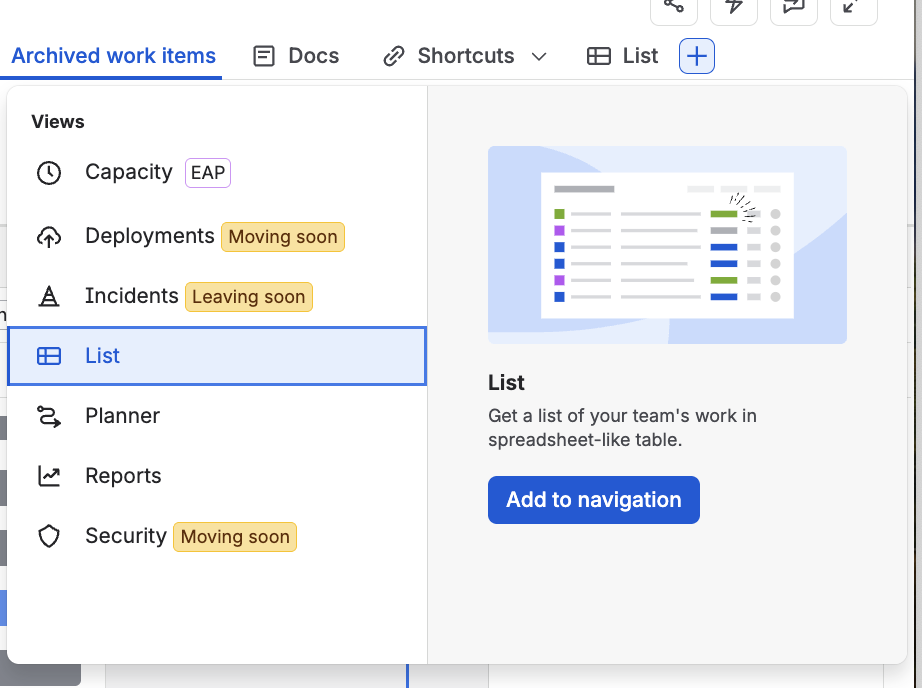
For space administrators:
-
Create up to 10 named views per space in List or Timeline.
-
Save view configurations for your whole team, including:
-
List: filters, grouping, column configuration, hierarchy preference, show/hide done items, and formatting rules
-
Timeline: filters, hide done items, hierarchy, show/hide warnings and dependencies, roll-up settings, and timeline display period
-
Rename, reorder, and delete views from your space navigation.
-
Set any view as the space default.
-
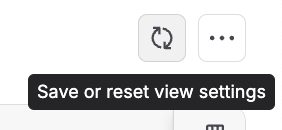
A Save / Reset button appears in the View Controls area whenever you make changes — save to push your configuration to everyone on the space, or reset to discard your changes.
For everyone on the space:
How to get started
-
Open your space and go to the List or Timeline view.
-
As a space admin, look for the + option in your space navigation to add a new view.
-
Customise your view(eg. add a filter), then click Save to share the configuration with your team.
-
Switch between views using the tabs in your space navigation.
Got feedback?
We'd love to hear how saved views are working for your team — drop your thoughts below!
Thanks for being part of our community ❤️


