
Looking for a way to restore deleted issues in Jira? There are more than 120 requests on this topic here in the Atlassian community. No one wants to lose valuable records. So, let’s find out what you can do to get your issue back to the project.
Is it possible to recover Jira deleted issues?
In Jira, you can delete an issue only if you have the appropriate project permissions. It's impossible to restore deleted work items; you can only find the info about who deleted them and when in the Audit log. Any data associated with the issue, such as comments or attachments, will also be deleted and cannot be recovered. However, in some cases, deleted issues may contain essential details critical to the project or team's success.
Possible workarounds
- Back up your projects. If you have backed up your project, create a new JIRA instance and restore the backup containing the issues. You need to export the issues to a CSV file and then import it into the production instance. Note that the issue history will not be retained. Find instructions here: Jira Cloud - Restore Issues & Site from Backup
- Get the app from the Atlassian Marketplace and avoid losing your deleted tickets. For instance, you can try Issue History for Jira, which has a special option to recover your issues promptly. Try it free for 30 days
*Note that add-ons can only find and restore the issues deleted after app installation.
So, in any case, you need to consider your rescue plan beforehand and decide what works best for you.
How to restore deleted issue with Issue History for Jira
Issue History for Jira (Work Item History) add-on has an option that works as recycle bin. Here you can find all issues that were deleted and get them back to the required project.
After you install the app, you need to activate the storing process:
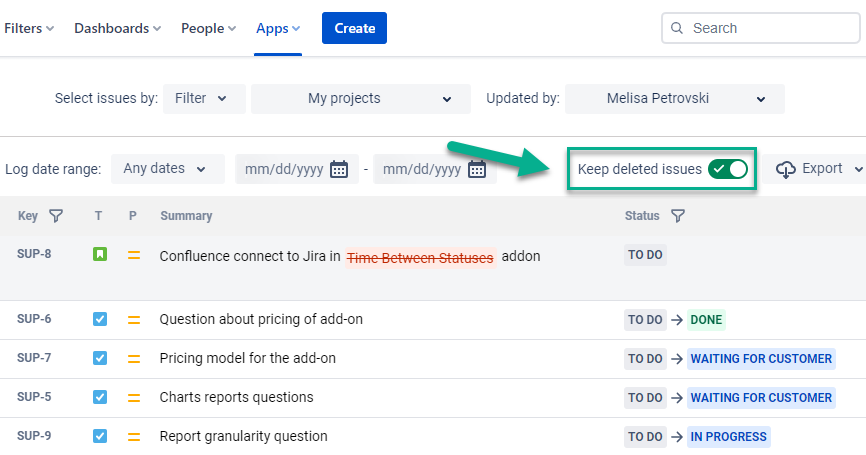
- Turn on the Keep deleted issues toggle. From that moment, every issue someone deletes will be stored.
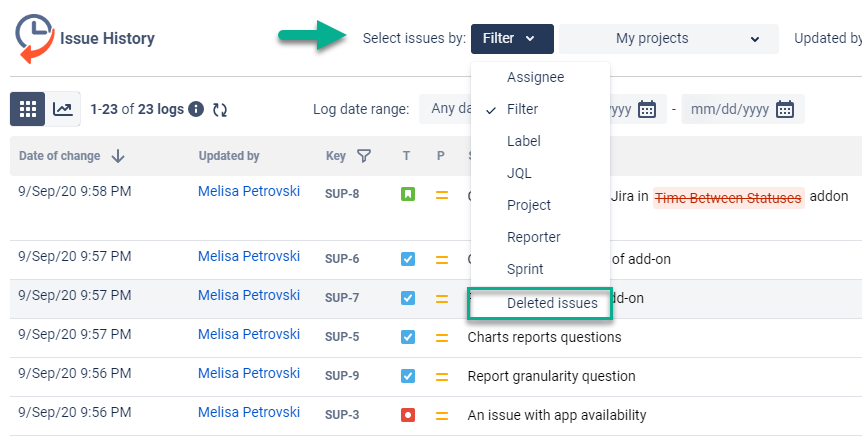
- Open the Filter issues by drop-down menu and select Deleted issues. Here you will find a list of all deleted issues.
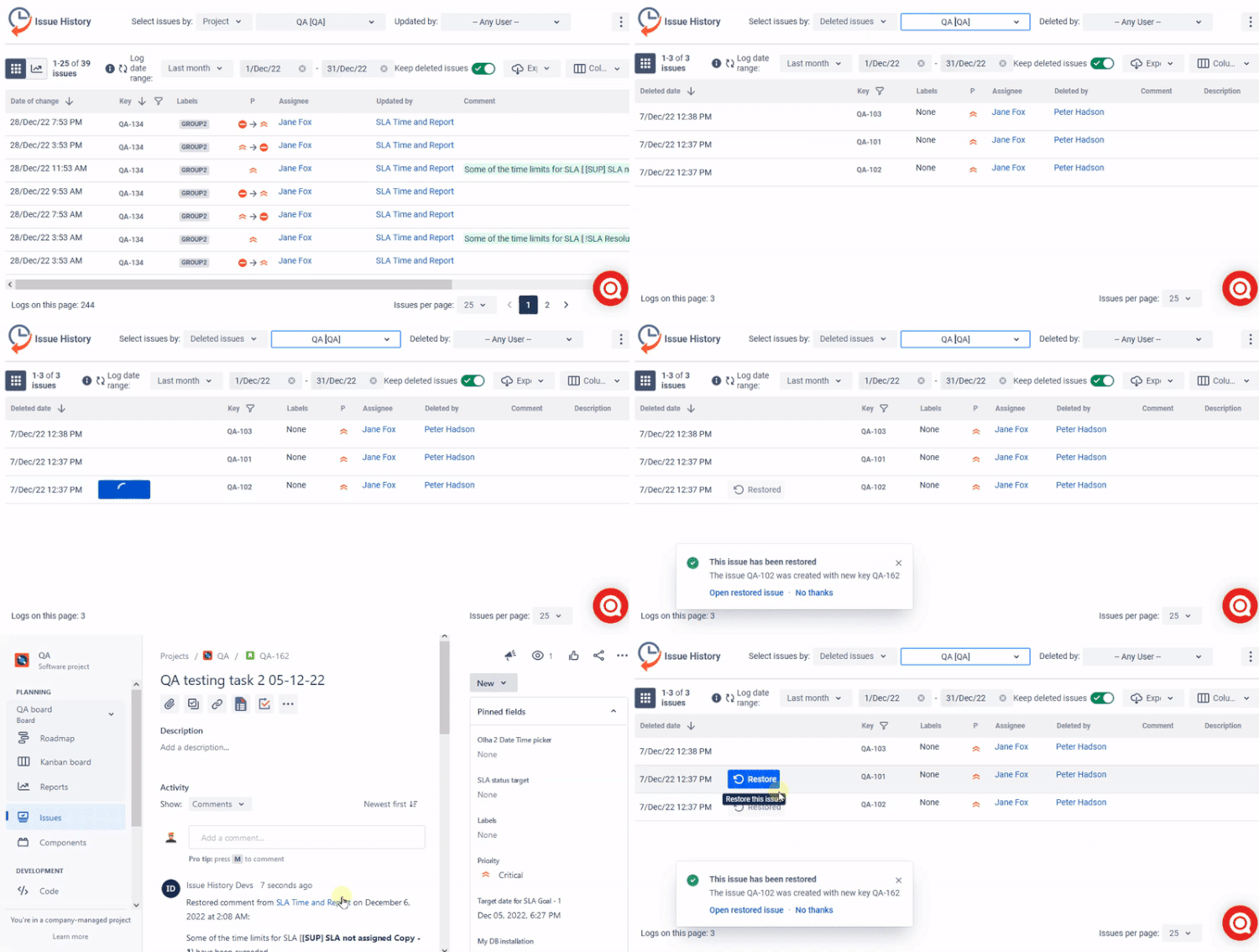
- Press the Restore button. It appears after you hover the cursor over the issue.
One click – and the deleted Jira ticket is restored.
Restoring deleted parent/subtasks
If someone deletes a parent task with several subtasks, you can also restore all issues. It works for child issues as well. Every time you restore a subtask, you can also restore the parent problem, and vice versa: when you restore the parent, you can recover all of the subtasks.

Frequently Asked Questions
Can I restore a deleted issue in Jira without a backup?
No, Jira doesn’t allow restoring deleted issues natively. However, plugins like Issue History for Jira can help if installed beforehand.
Does Jira keep deleted tasks anywhere?
Jira only logs who deleted the issue and when in the Audit Log. Those logs are available for paid Jira Cloud users. It's not possible to view all issue details, such as assignees and description, comments, etc.
Will I lose attachments and comments when I delete an issue in Jira?
Yes, all associated data, including attachments and comments, is permanently deleted unless backed up or tracked by a plugin.
Does Issue History for Jira restore all information and all fields?
Issue History for Jira app restores work items with the most complete information, including descriptions, assignees, and even comments. Currently, it's not possible to restore attachments; you can only see their names. Here is the list of all fields that can be restored.
Takeaway
Restoring deleted issues in Jira is crucial to maintaining an accurate and complete record of project work, preventing data loss, and ensuring that teams have access to the information they need to succeed.
There are two ways to recover deleted issue/ticket in Jira:
- From the backup
- With the help of a plugin
Try to restore deleted issues with Issue History for Jira (Work Item History)
Looking for the option to restore deleted issues in Data Center? - Restore Deleted Issues in Jira Data Center: Tips & Tools


